
Why doesn’t the appointment reminder display the time of the appointment?
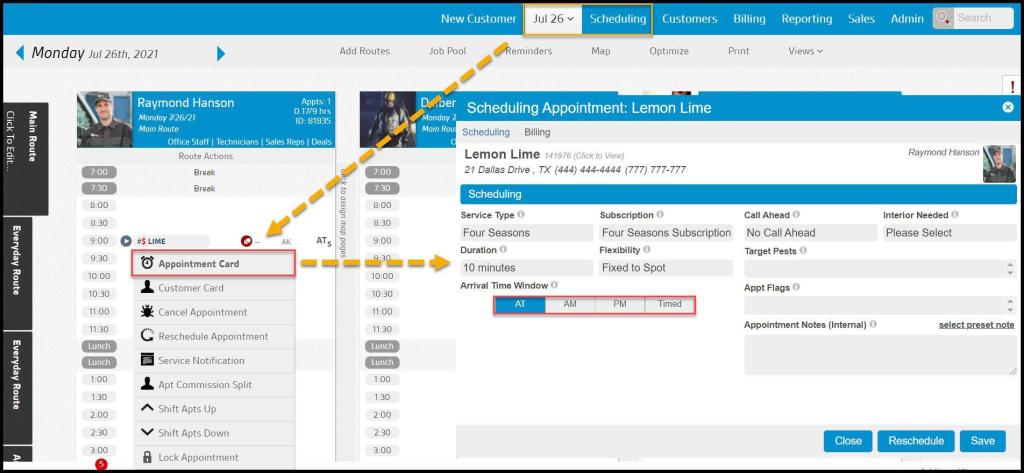
The time of the appointment is based on the scheduled time in the customer’s appointment card. To open the appointment card, locate the appointment on the route, and select the customer. On the drop-down menu that appears, select Appointment Card.
- AT (Anytime): If the customer is scheduled for an AT (Anytime) appointment, they will not receive an actual time on the appointment reminder. An AT appointment allows the technician to arrive at the location anytime during the day, so the customer will not receive a specific time window.
- AM (Morning): Customers scheduled with an AM (Morning) appointment will receive a “Morning” time window on the appointment reminder. This allows the technician to arrive at the location anytime in the morning during that day so that there will not be a specific time available.
- PM (Afternoon): An appointment scheduled in the PM (Afternoon) will have an “Afternoon” time window on the appointment reminder. This allows the technician to arrive at the location anytime in the afternoon during that day, so there will not be a specific time available.
- Timed: The only time a customer will receive a specific time window is if they have a Timed appointment.
Also, ensure the SMS appointment reminder template contains a placeholder for the date and time details on an appointment. The SMS appointment reminder template can be adjusted by going to
Admin > Preferences > Customer Preferences > Customer Communication
 Moxie Pest Control Office Guide