
Voids and Refunds for Card_ACH Payments
Summary
One of the advantages of using PestRoutes Integrated Payments processing is that payments may be VOIDED from the Customer Card > Invoices tab before the payment has cleared the payment process, restoring funds more quickly to the original payment card or bank account.
Like a REFUND, this will change payment records at the Customer Card level and in the payment processing records. This guide explains the various actions when payments need to be refunded and/or payment records reversed.
Important Points:
- REFUND is available to all customers, regardless of the payment processor. It cancels the payment in the Customer Card and initiates a return of funds to the source card/ACH account.
- The VOID option is only available for FieldRoutes Payments users. It functions the same as a REFUND but returns the funds more quickly before the payment has cleared.
- REVERSE (formerly CLEAR) cancels the payment transaction in the Customer Card record but does not initiate a return of funds.
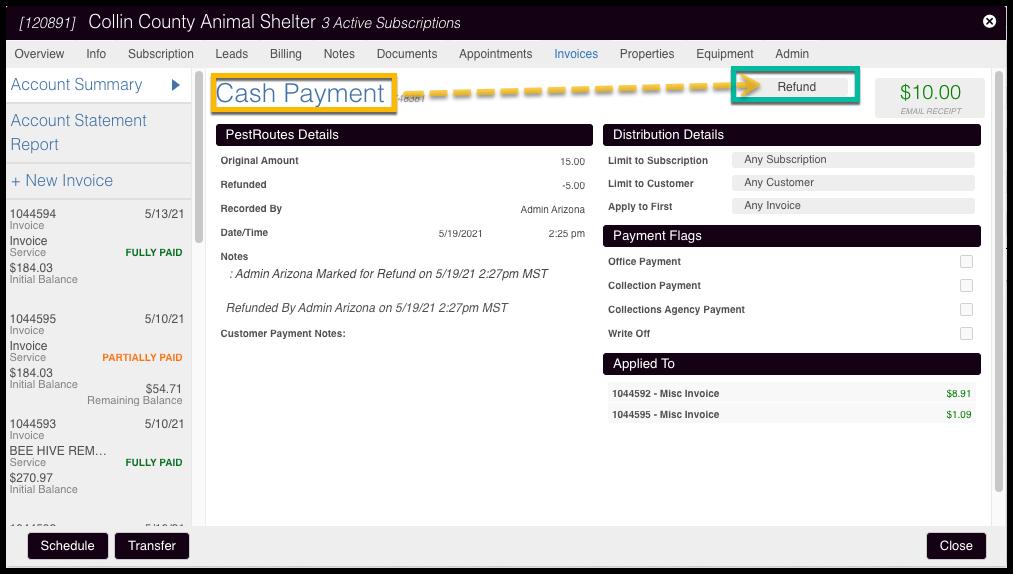
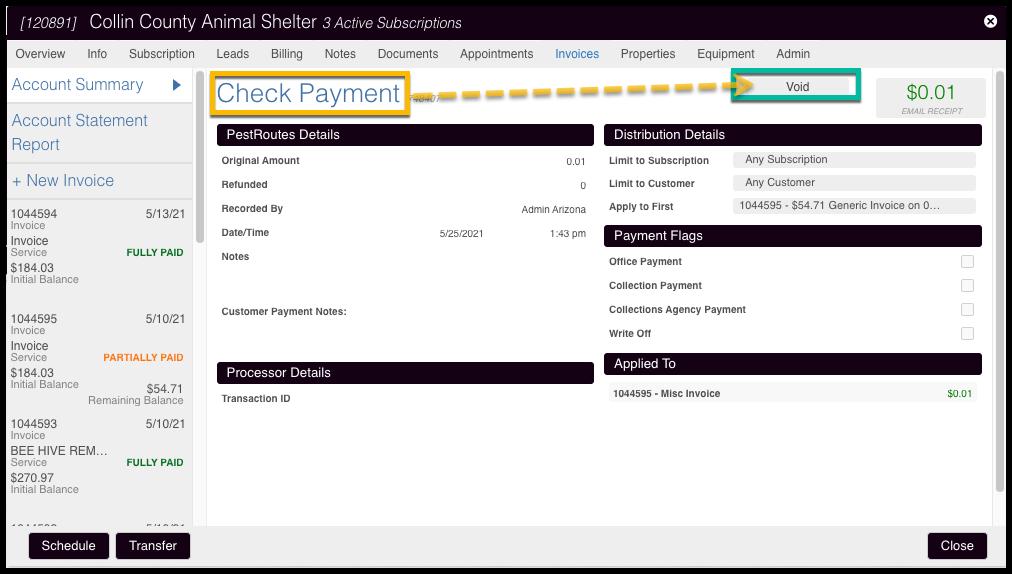
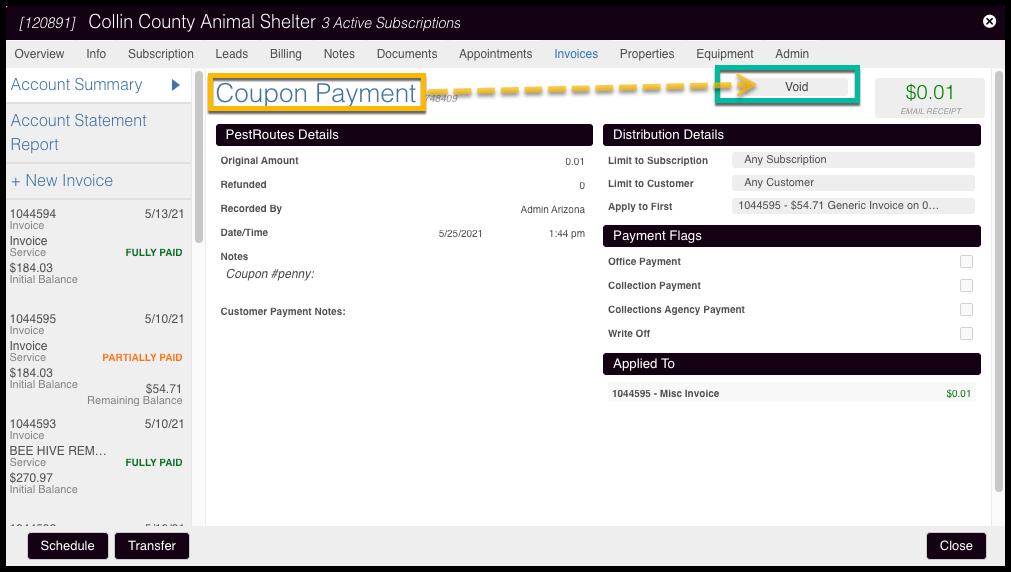
- Payment methods that don’t use any payment processor – Cash, Check, and Coupon – will use either Refund or Void buttons to cancel the Customer Card payment record and credit the account with the designated amount.
Accessing the Options for Void/Reverse/Refund of Payments
Several actions may be taken when a problematic payment needs to be voided, reversed, or refunded.
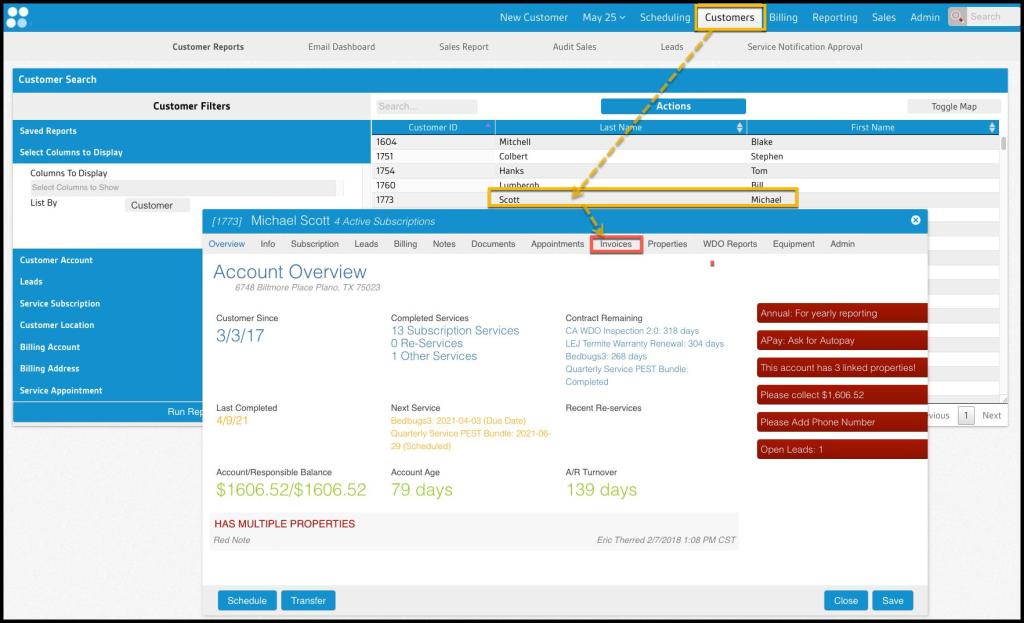
To begin, open the Invoices tab on the Customer Card of the affected customer:
Customer > Customer Card > Invoices
Initiating a Card/ACH Payment
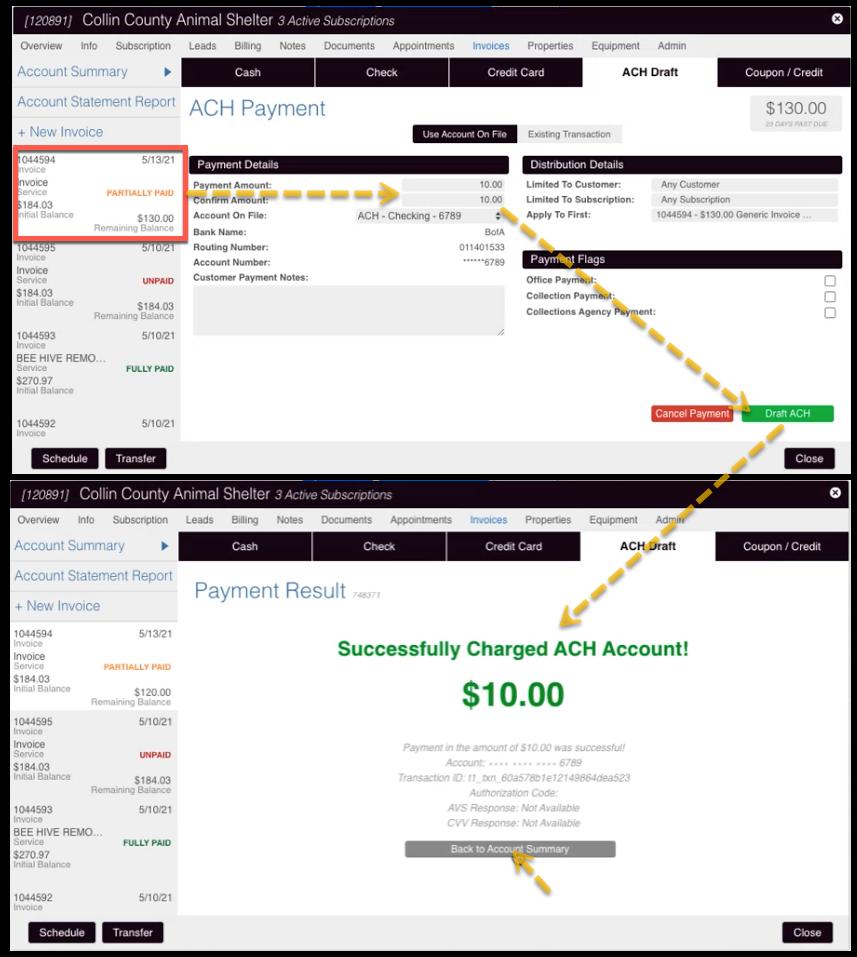
When a card or ACH bank transfer payment is first made using the integrated payment system, the payment is first Approved, and then later it is Captured/Settled once the funds have been transferred. There is a delay between these two steps of approximately 24 hours. A Void is only possible when the payment is caught in the Approved state.
Suppose a customer calls the office and makes a $10.00 ACH payment on this outstanding invoice. Once the Draft ACH option is selected, the payment will be sent for Approval, and once Approved, will return the transaction data, as seen below.
Selecting a Payment for Void or Refund
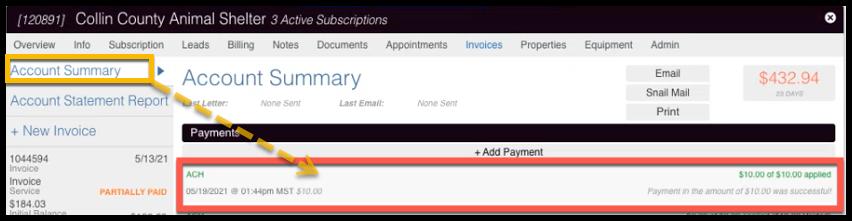
When a payment is made, it will be listed in the Invoices tab under the Account Summary with a list of previous payments.
To access the payment Void/Refund/Reverse options, return to the Account Summary, and select the payment from the list.
Selecting to Void a Payment
Reminder:
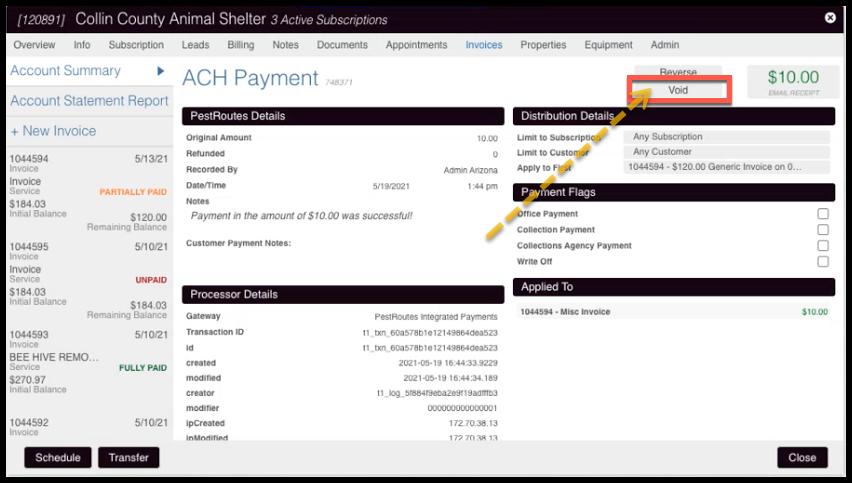
- As previously mentioned in Important Points above, the Void button will ONLY display for FieldRoutes Payments users
- It is only available immediately after a Card/ACH payment is made and throughout the approval period (12-24 hours)
- After the payment is settled, the Void button becomes a Refund button.
A payment like the one above, if caught during the Approval stateand before Settlement, remains open to a Void, and this will be one of the options on the Payment Detail screen.
Selecting Void will cancel the transaction in the payment system, and the funds should be immediately credited back to the payment card or bank account. The Customer Card payment record will also be canceled, and the previous balance will be restored.
The Void button switches to a Refund button once the payment has passed the approval state. Refunds are covered in the next section.
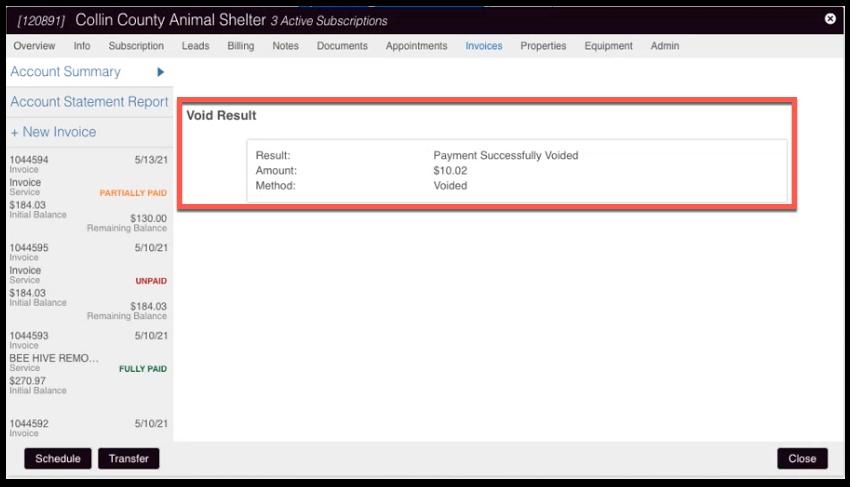
A confirmation that the Void was successful should appear:
Refunding a Card/ACH Payment
Once a payment has been fully processed through the integrated payment system, and the status has changed to Settled, the Void option is replaced by the standard Refund option available to all customers regardless of payment processor.
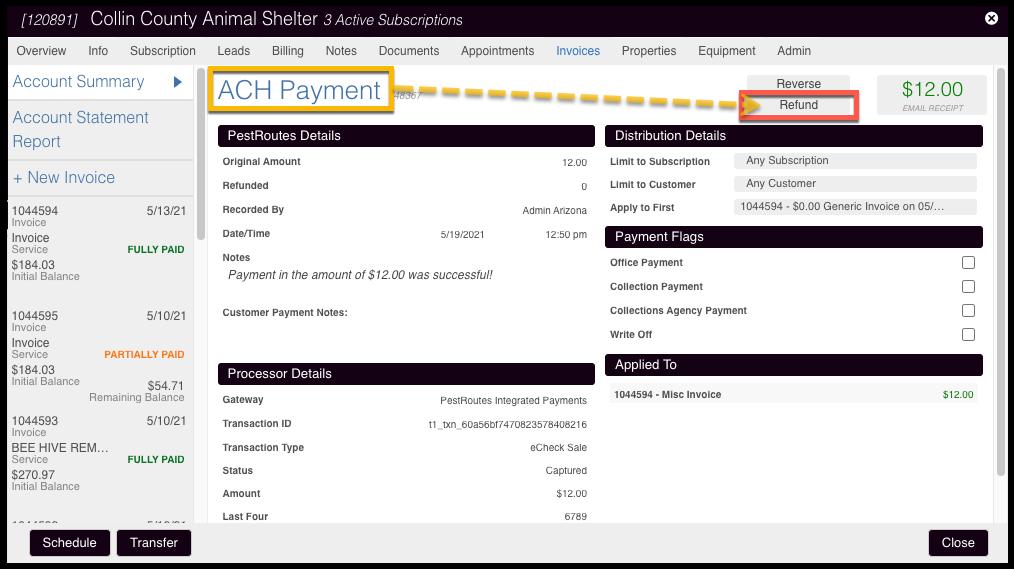
This option also returns the funds to the card or ACH account from which it was taken, similar to the Void option. However, since it is now fully processed, and money has moved digital locations, returning the funds can take additional time (up to a week). This is becauseit needs to be pulled from the merchant’s account and resent back to the payer’s account. It will, however, immediately show the payment refunded/credited in the platform for reporting purposes.
To initiate a Refund, select the Refund button.
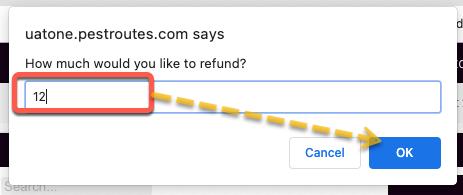
A dialogue will appear asking how much of the payment should be refunded, allowing for partial or full refunds. The default is for the full amount of the payment.
Once the desired amount is entered, select OK to execute the refund. A success message confirming the refunded amount should appear. In addition to initiating a return of funds to the card/ACH account, a matching credit will be processed on the account in the platform.
IMPORTANT:
Remember that refunds/credits on payments will follow any specified distribution details designated on the original payment. For example, if the payment was Limited to Subscription for a Mosquito Treatment plan, the credit will be applied specifically to that subscription, and will not be applied to any other outstanding balances.
Selecting to Reverse a Payment
In addition to the Void and Refund options, a Reverse button is also available on card and ACH payments. This option was formerly known as Clear.
This option can cancel a payment record exclusively in the Customer Card record but does not attempt to return any funds processed through the payments system. This option can be used when a payment is successfully recorded on the Customer Card. Still, for some reason, the payment was never processed fully or was declined due to NSF/insufficient funds, for example.
Reversing this payment allows a valid method of payment to then be used and records the payment with that source instead of the failed one.
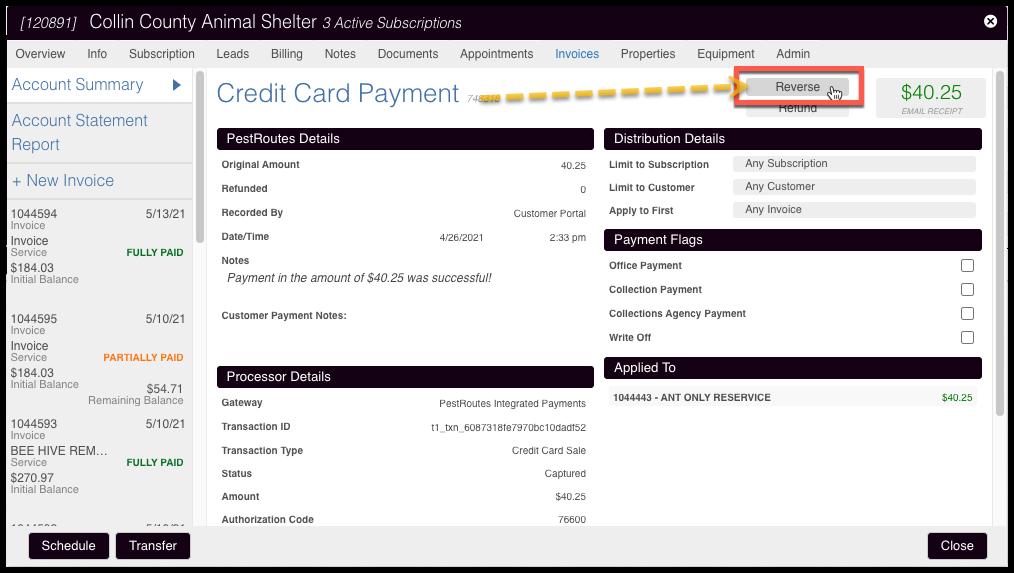
Initiating a Reverse will bring up a reminder confirmation that this process only changes the customer payment record and does not refund the money through the payment system. Click OK to confirm and proceed.
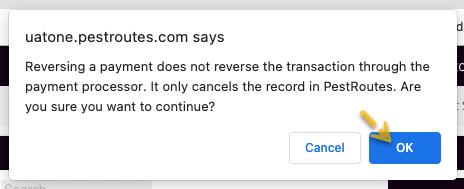
A Reverse Result confirmation message should appear, reporting the successful Reverse operation and displaying the Amount restored to the Customer account.

Refunds and Voids for Cash/Check/Coupon
With other methods of payment that do not involve PestRoutes Integrated Payments, the following options will be available. These each cancel the record in the Customer Card and credit the account with the designated amount.
REMEMBER:
If the original payment was Limited to Subscription/Limited to Customer, the credit will show up only on that Subscription or Customer record.
Cash Payment = REFUND
Check Payment = VOID
Coupon Payment = VOID
 Moxie Pest Control Office Guide