
Trigger Rules
Summary
Trigger Rules are a system preference that creates automated actions on customer accounts under certain conditions. For example, a Trigger Rule can send custom messages to each customer whose subscription is expiring and prompt for renewal. A rule can apply late fees when an unpaid invoice reaches a certain age, send messages to customers with past due balances, or communicate appointment reminders. The actions occur automatically under the conditions set for the Trigger Rule.
Accounts Receivable can send a customized email, SMS (text), voice, or postal mail message based on a customer’s balance, balance age, or the number of days overdue.
Renewals for Subscriptions can go out X number of days before/after the subscription renewal date or an appointment for the subscription is due. Customers receive a link to their Customer Portal that allows them to sign the renewal agreement or pay off their balance.
Appointment Reminders can be automated to go out once a technician checks in to an appointment or X number of days before an appointment. A phone reminder can go out a week before the appointment, an email reminder a couple of days before the appointment, and an SMS reminder to go out the day of the appointment.
Common Use Cases for Reminder Trigger Rules:
- 10 days before sending Voice
- 2 days before sending SMS
- Send SMS upon Check-in
Common Use Cases for AR Trigger Rules:
- 10 days after sending SMS
- 20 days after sending SMS & Email
- 30 days after sending SMS & Snail Mail
- 40 days after sending SMS
- 50 days after sending SMS & Email
- 60 days after sending SMS & Snail Mail
- 70 days after sending SMS
- 80 days after sending SMS & Email
- 90 days after sending SMS & Snail Mail
- 120 days after sending SMS & Email & Snail Mail
- 150 days after sending SMS & Email & Snail Mail
- 180 days after sending SMS & Email & Snail Mail
Important Points:
- Note that several rules related to payment processing are only available to customers using the FieldRoutes Payments service.
- Every evening, a script runs in our software that automatically applies the fees to past-due Invoices.
- Beware: If the Start Date is set to a date in the past for Accounts Receivable triggers, this will retroactively apply the fees to any invoices that were overdue on that Start Date. A fee will then be charged to any customer that had an overdue invoice on that Start Date but has since paid it off.
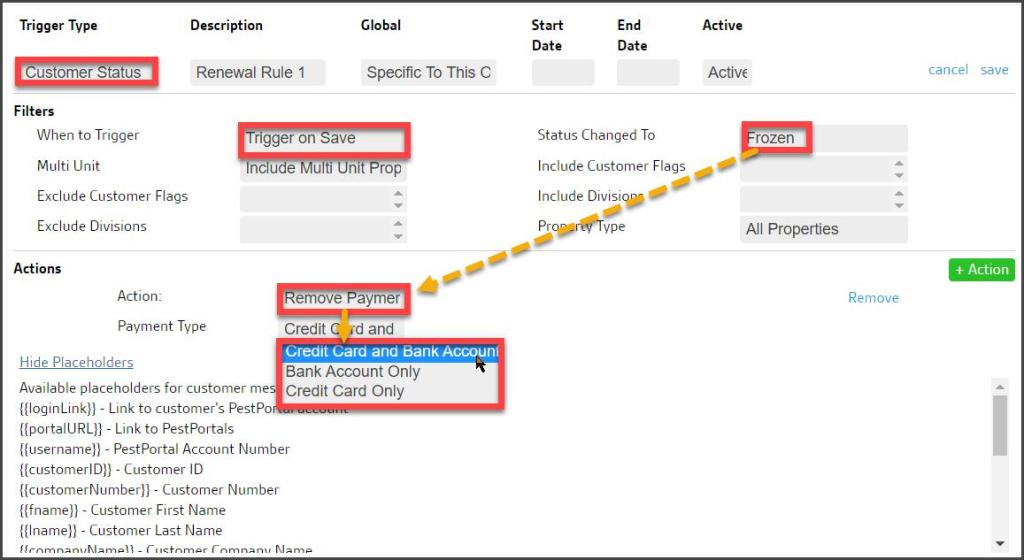
- Any customer whose account is changed to Frozen status by a Trigger Rule will have any stored credit card or ACH payment information deleted. This halts merchant CC/ACH fees typically charged to the company for each method of payment (MOP) stored in the system.
Accessing the Trigger Rules Preference
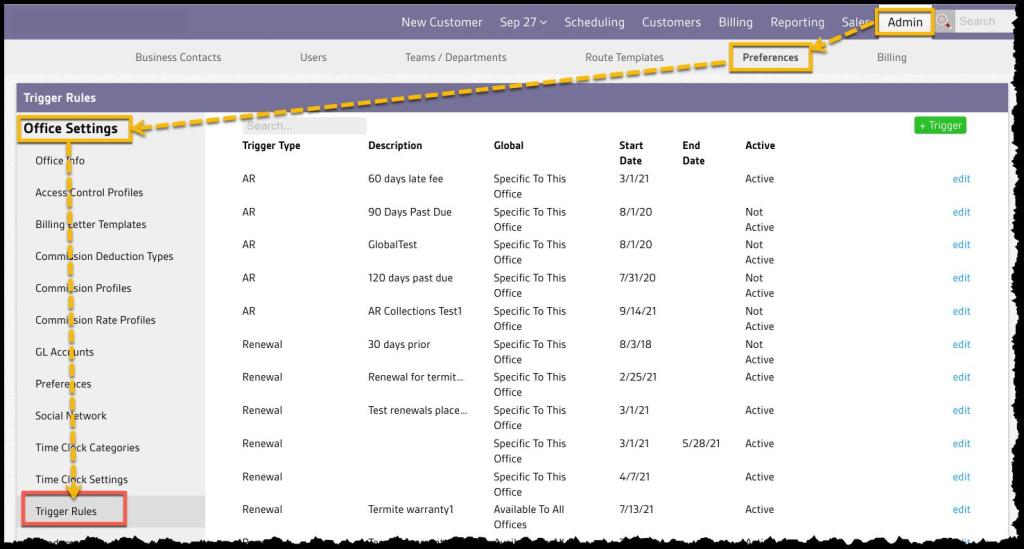
To access the Trigger Rules preference, navigate to:
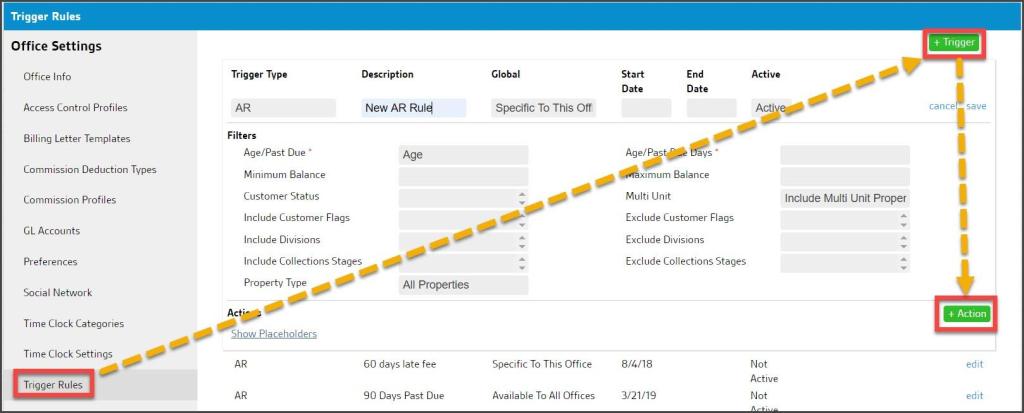
Admin > Preferences > Office Settings > Trigger Rules
Select the +Trigger button to create a new Trigger Rule.
Rule Type and Basic Settings
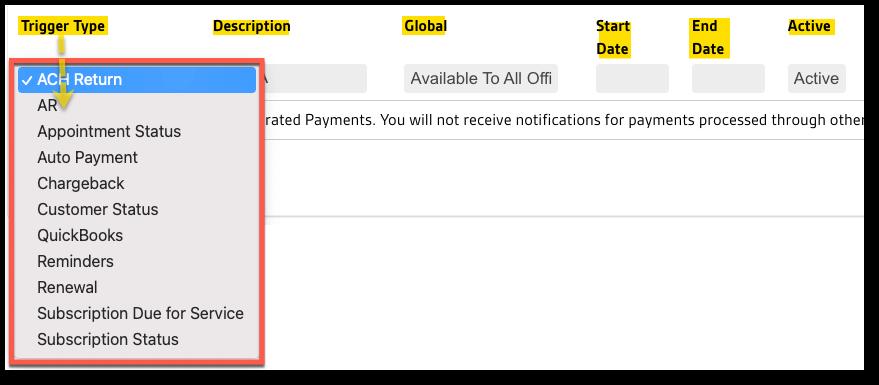
When creating a new rule, the following Trigger Types are available. Choose one and provide the following basic settings:
- Trigger Type: Select the desired rule type to create. Each type and its filters and actions are described below.
- ACH Return
- AR
- Appointment Status
- Auto Payment
- Chargeback
- Customer Status
- QuickBooks
- Reminders
- Renewal
- Subscription Due for Service
- Subscription Status
- Description: A simple name for the new rule, such as New AR Rule or 30-Day Past Due Reminder
- Global: Companies with multiple offices/locations may choose whether this rule is:
- Specific to This Office: only available to the office creating the rule, or
- Available to All Offices: every branch can use the new rule
- Start Date: (optional)The date this rule is scheduled to take effect. A date up to one month in the past may be selected. However, for
- AR rules will retroactively apply the fees to any invoices that were overdue in the past. Consequently, a fee will be applied to customers that may have had an overdue invoice a month ago but has since paid it off.
- Renewal rules will also be affected by a Start Date set in the past.
- Reminders rules will not be affected by a past Start Date because they run before appointments.
- End Date: (optional) If the Trigger Rule is temporary, an expiration date can be assigned.
- Active: Trigger Rules are set to Active by default but may be toggled to Inactive to take them out of service without deleting or changing any settings.
Rule Filters
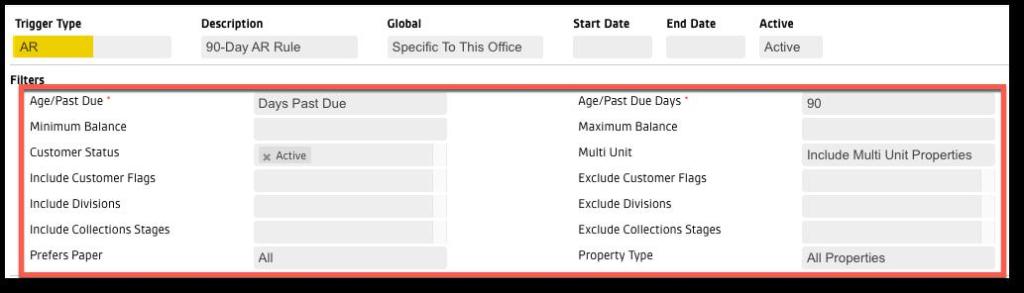
Each Trigger Type has Filters that allow the customer target group to be customized. The Trigger will only apply to customer accounts that match ALL the selected filters. Therefore, Filter fields left blank will include all customer accounts regardless of the value of the setting, while adding a filter setting restricts the accounts affected to only those with that value.
While there are many possible filters, allowing nearly infinite combinations, below are the most common filters used by each Trigger Type.
AR (Accounts Receivable) Rule Filters
- Age/Past Due: Select either Age of the invoice or the Days Past Due
- Age/Past Due (days): The number of days to trigger the rule Note: This configuration works in conjunction with the above filter.
- Minimum Balance: Allows smaller invoices to be excluded
- Maximum Balance: The maximum balance an overdue invoice has to have before the trigger rule will be applied to it.
Appointment Status Filters
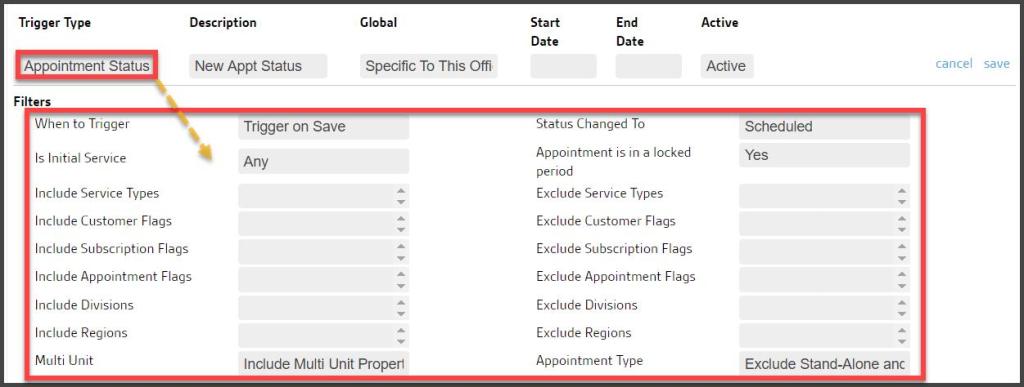
- When to Trigger: Sets whether the trigger’s actions occur immediately or are delayed.
- Days After Change: The number of days to wait before performing the trigger’s actions.
- Status Changed To: Choose the Appointment Status that will initiate the rule action:
- Any: (default) Triggers the rule action when an appointment changes to any new status
- Canceled: Triggers the rule action when an appointment change enters Canceled status via the web
- Completed: Triggers the rule action when an appointment is Completed via the web or Mobile app
- Not Serviced: Triggers the rule action when an appointment is marked as a No Show on the web or in the Mobile app
- Pending: Triggers the rule action when an appointment enters Pending status via the system scheduling rules
- Rescheduled: Triggers the rule action when an appointment is moved to a new time/day/technician’s route or the Reschedule option is used in the web or Mobile app.
- The appointment is in a locked period: Sometimes, technicians forget to complete an appointment, and no invoice is generated. Bookkeepers then lock that period, only to find out later there is an un-completed appointment and Invoice that needs generating. Options here allow an Alert or Task to notify someone if an uncompleted appointment is left in during a Locked Period.
- Any
- Yes
- No
NOTE:
A set of special filters becomes available only for Appointment Status rules when an Appointment Status changes to Canceled.
- Reminder Sent: The default is No unless a Reminder has been sent to the customer. If Yes, then the Reminder Type and Reminder Confirmed filters become visible.
- Reminder Type: Indicates the type of communication sent as a Reminder
- All
- SMS
- Voice
- Reminder Confirmed: This defaults to No, but changes to Yes if the customer has responded to the Reminder and confirmed the Appointment.
NOTE:
A set of special filters becomes available only for Appointment Status rules when the status is changed to Rescheduled.
- Notification Buffer: Choose the unit of time that the time buffer uses: minutes, hours days.
- Increment: Choose the quantity of the unit of time chosen in the notification buffer field.
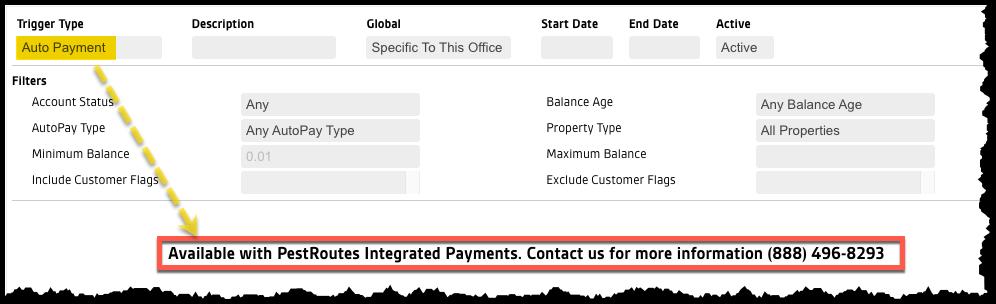
Auto Payment Rule Filters (FR Payments Only)
The Auto Payment rule offers true, hands-free automation of AutoPay invoices without using the extra step of building a list of invoices and running a batch charge in the Billing > AutoPayment Balances tool.
NOTE: This Trigger Rule type is exclusively available to customers using FieldRoutes Payments, due to additional functionality enabled by this integration. Customers subscribed to 3rd-party payment processors will see a reminder that switching will also allow them to use this rule. See the Payments > Auto Payment Trigger Rule guide for full coverage of this rule.
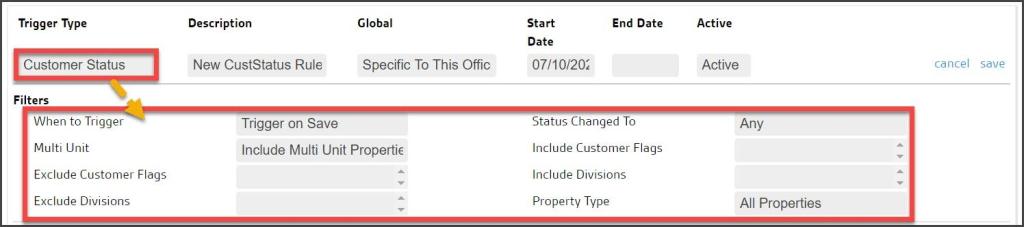
Customer Status Filters
- When to Trigger: Sets whether the trigger’s actions occur immediately or are delayed.
- Trigger on Save: this is the default setting.
- Days After Change: The number of days to wait before performing the trigger’s actions.
- Status Changed To: Once saved as this status, it will undergo the trigger’s actions.
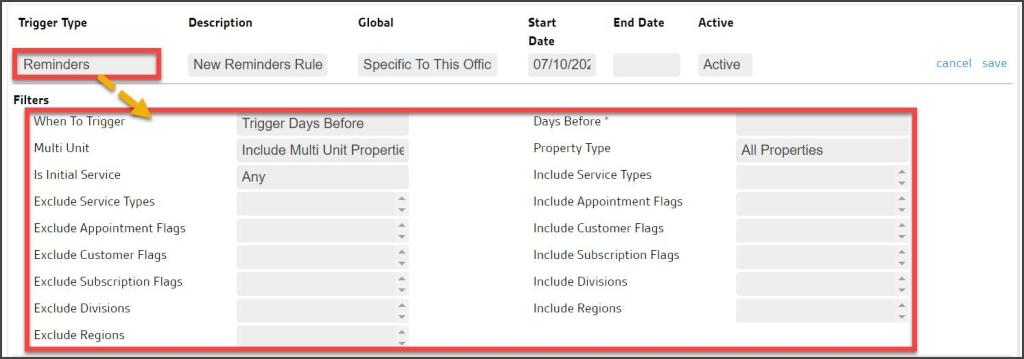
Reminders Rule Filters
- When to Trigger:
- Trigger on Check-In: Allows for the message to be triggered based on checking in to an appointment
- Trigger Days Before: Allows for the message to be triggered based on the timeframe in days before the scheduled appointment.
- Days Before: Number of days before an appointment to send a reminder. (Only displays when Trigger Days Before is selected for When to Trigger.
- Service Types: The service types for which this trigger will fire.
- Appointment Flags: The appointment flags for which this trigger will fire.
NOTE:
To select all Service Types or all Appointment Flags, leave the field blank. If you use the “+” to select all of them and create a new service type, then it will not be added to the trigger, and those customers will not receive reminders.
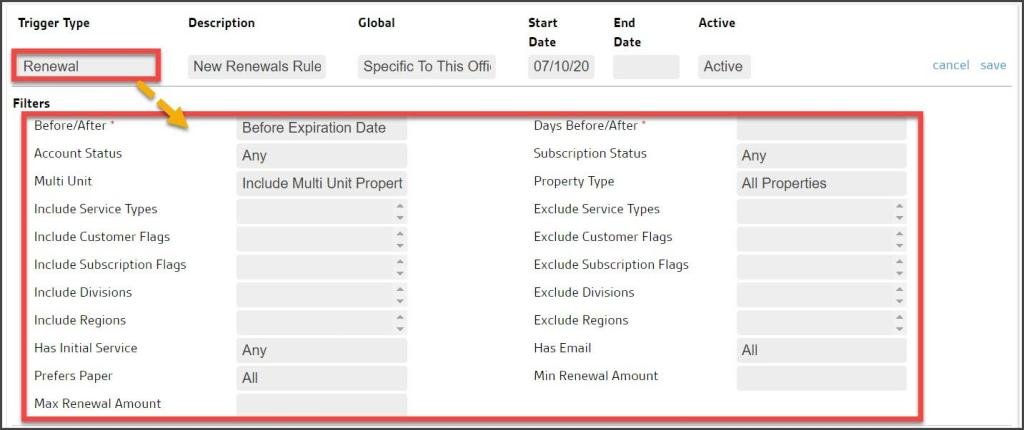
Renewal Rule Filters
- Before/After: You can select how many days before/after the expiration date, due date, the next billing date, or the renewal date that this trigger should fire. Designates whether the renewal triggers prior to the other settings, or afterward
- Service Types: The Service Type(s) for which this trigger will fire.
- Subscription Flags: The Subscription Flags for which this trigger will fire.
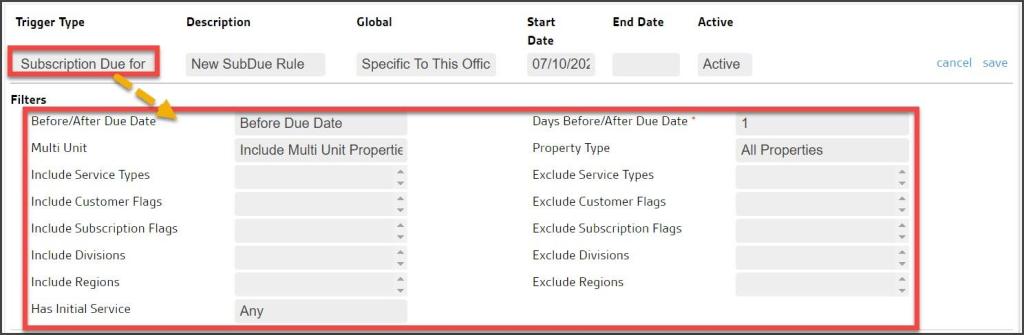
Subscription Due for Service Filters
- Before/After Due Date: Determines whether the trigger comes into action before or after the due date.
- Days Before/After Due Date: The number of days before or after the due date to perform the trigger’s actions.
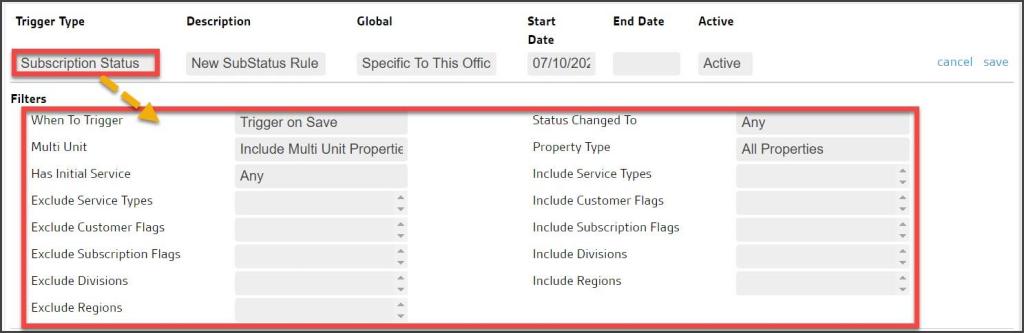
Subscription Status Filters
- When to Trigger:Sets whether the trigger’s actions occur immediately or are delayed.
- Days After Change: The number of days to wait before performing the trigger’s actions.
- Status Changed To: Once saved as this status, it will undergo the trigger’s actions. Choosing Any means that the rule will trigger on any change in status of the Appointment
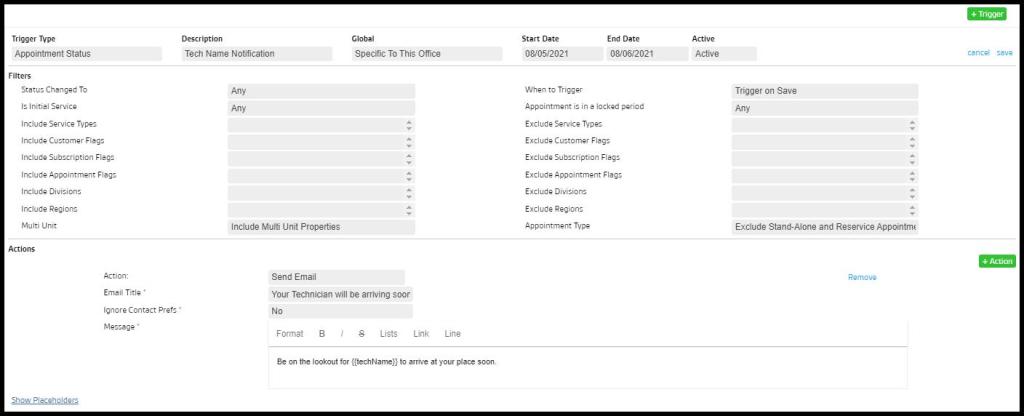
Appointment Status Placeholders
The available placeholders for dynamic content in rules. Toggle between Hide/View Placeholders to review options. See the Rule actions below for more details
- techName: Displays the Technician’s name for the appointment status notification when applied.
Adding Trigger Rule Actions
Below the Filters section, is the Actions Section. This is the action to be performed to the customer account when the Filters apply to an invoice. The Actions available vary for each Trigger Type.
To add an Action, select the + Action button.
See below for more details on each Action.
AR Rule Action: Create Invoice
When an AR Rule Action = Create Invoice, an Invoice will be automatically generated for customers based on the following configurations. This example generates a Late Fee for any customer whose balance is 30 Days Overdue. Filters are set to Days Past Due, with the value of 30. This then triggers a Create Invoice action according to these settings:
- Value Type:Two types of calculation are possible:
- Percentage: defaults to a certain percentage of the overdue balance
- Fixed: Sets a specific dollar amount for the new Invoice
- Value: Either the percentage rate (e.g., 3%) or a fixed dollar amount – e.g., $20.00
- Service Type: When the Trigger Rule is applied to a customer’s account it creates a new Invoice on the account. Rather than having it create a miscellaneous invoice, you can create a new service type in Admin > Preferences > Service Types specifically for the trigger rule. Make sure if you want the invoice created to be taxable, the service type selected is set to default to taxable.
This Trigger Rule, therefore, creates a new Invoice for a fixed $20.00 Late Fee whenever a customer balance is 30 Days Past Due. Since no filters limiting who will receive the Late Fee, this rule will apply to all customers.

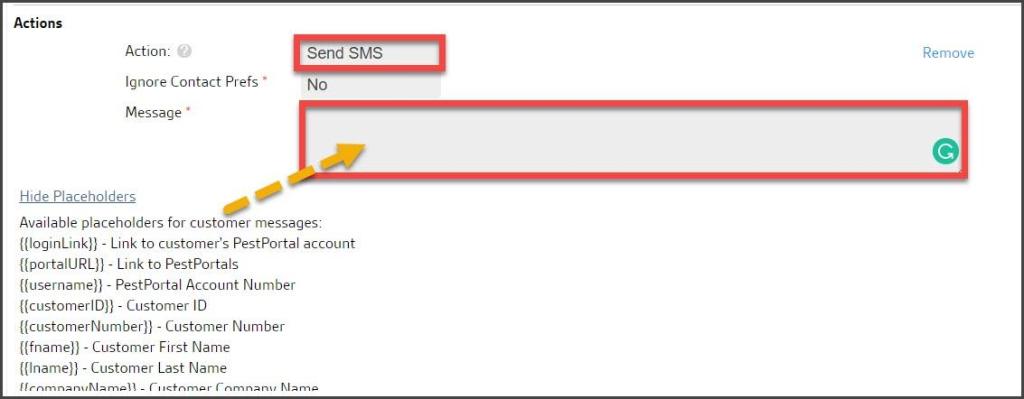
AR Rule Action: Send SMS
When Send SMS is selected, an automated voice message will be sent to the billing phone number for the customer based on the following configurations.
- Ignore Contact Prefs: Default = No, while Yes enables the Trigger Rule Action to override a Customer’s requested preference to receive no SMS messages.
- Message: The content of the SMS message is placed here.
- Placeholders: The available placeholders for dynamic content in the SMS message. Toggle between Hide/View Placeholders to review options.
AR Rule Action: Send Voice Message
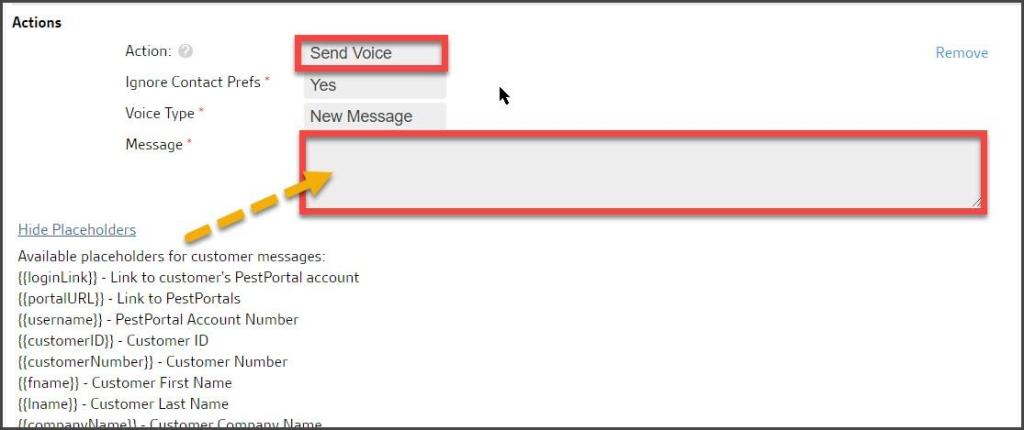
When Send Voice Message is selected, an automated voice message will be sent to the billing phone number for the customer based on the following configurations.
- Ignore Contact Prefs: Default = No, while Yes enables the Trigger Rule Action to override a Customer’s requested preference to receive no voice messages.
- Voice Type: Two options are available:
- New Message: The default requires a custom message.
- Pre-recorded Message: Select a pre-recorded message from those defined in Admin > Preferences > Voice Messages.
- Message: The message content to send is placed here.
- Placeholders: The available placeholders for dynamic content in the voice message. Toggle between Hide/View Placeholders to review options.
AR Rule Action: Send Snail Mail
When Send Snail Mail is selected, a USPS mail letter will be sent to the billing address for each customer based on the following configuration:
- Letter Type: You may select either:
- Send Letter to specify a custom letter message.
- Send Statement to send a Billing Statement.
- Message: The message content to send in the letter.
- Placeholders: The available placeholders for dynamic content in the letter body. Toggle between Hide/View Placeholders to review options.

AR Rule Action: Send Email
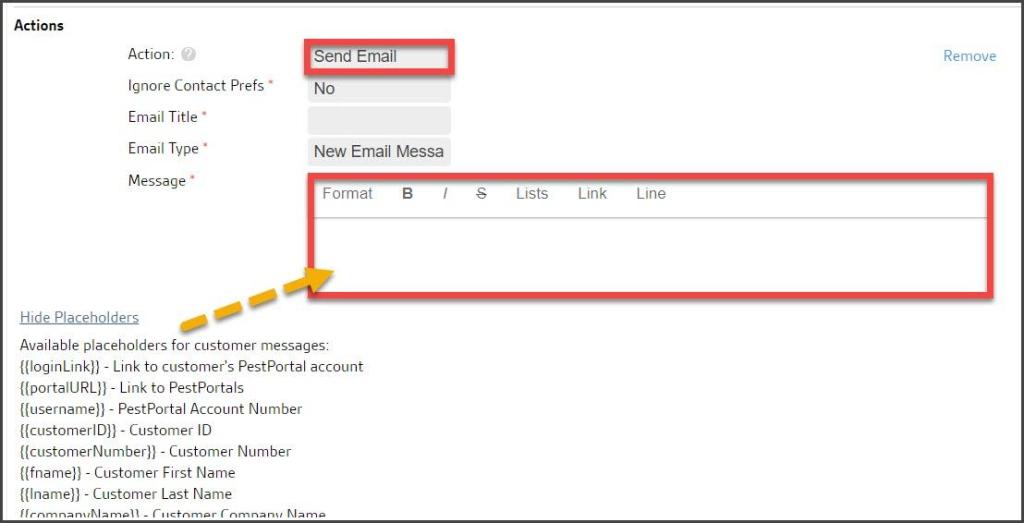
When you select Send Email, an email message will be sent to the Billing Email for each customer based on the following configurations.
- Ignore Contact Prefs: Default = No, while Yes enables the Trigger Rule Action to override a Customer’s requested preference to receive no email messages.
- Email Title: The email subject/title.
- Email Type: You may select either New Email Message to specify a custom email message or Email Statement to send a Billing Statement.
- Message: The message content to send in the email.
- Placeholders: The available placeholders for dynamic content in the letter body. Toggle between Hide/View Placeholders to review options.
AR Rule Action: Freeze Customers
When you select Freeze Customers, the Customer and any service Subscriptions assigned under the billing account will be frozen based on the following configurations:
- Message: A customized message that will be sent to the Customer when the account has been Frozen.

AR Rule Action: Add Flags
When you select Add Flags, generic flags will be added to customers based on the following configurations:
- Flags: Select from a list of Flags to apply to the Customer’s account based on the filters.

AR Rule Action: Set Collections Stage
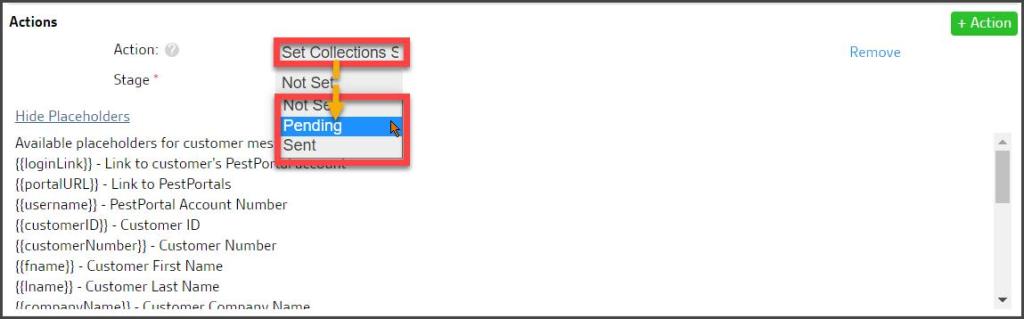
When you select Set Collections Stage, the Collection Stage will be updated on customers based on the following configurations.
- Set Collections Stage: Update the Customer’s Collections Settings using the following options:
- Pending: The Customer account is in danger of being sent to Collections
- Sent: The Customer account is sent into Collections
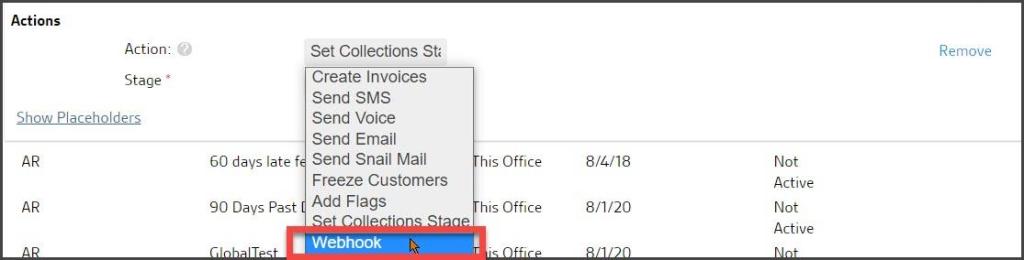
AR Rule Action: Webhooks
When enabled, Webhooks allows a web-based action to be initiated. Consult with Support for additional information if interested.
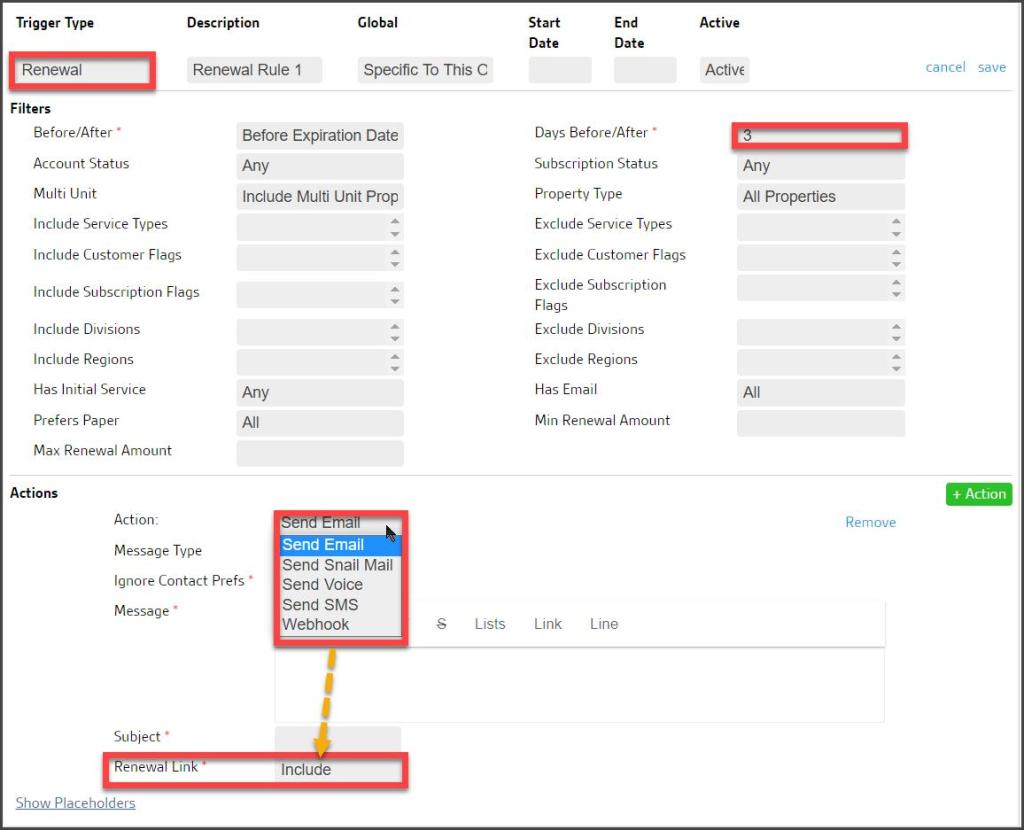
Renewal Rule Actions: Renewal Link
Renewal rules actions are all about which type of message to send to the Customer at Subscription to request Subscription Renewal. If an email is sent, then the option to include or exclude the Renewal Link for online contract renewal is available. Otherwise, choices for messaging are the standard choices:
- Send Email
- Renewal Link: Included (default) or Excluded, which includes a link to do an online Subscription renewal.
- Send Snail Mail
- Send Voice
- Send SMS
- Webhook
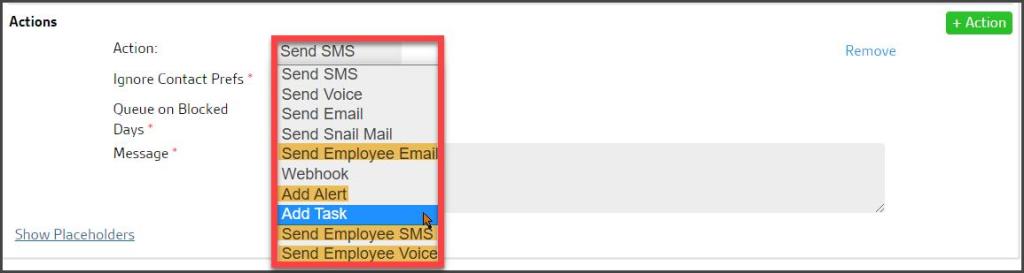
Subscription Status Rule Actions: Employee Messages, Alerts, and Tasks
Most of the same Customer communication Actions are available for this rule type as for the other types.
Unique Actions here include options to send messages internally to designated employees who can then follow up on the Subscription changes.
For example, an Office Admin might receive an Alert or Task whenever a Customer Account is Frozen to follow up with a personal contact.
- Send SMS
- Send Voice
- Send Email
- Send Snail Mail
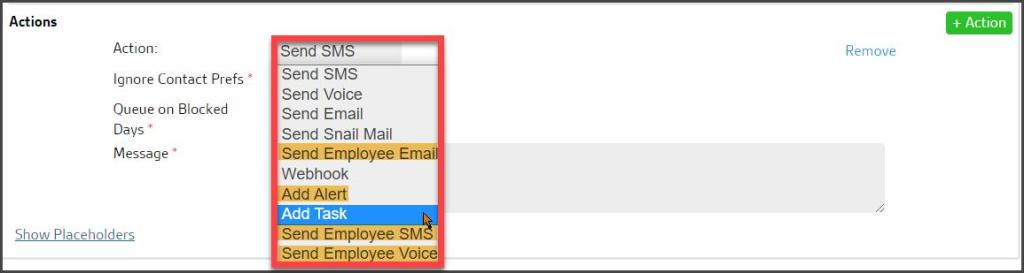
- Send Employee Email: Sends an email to a designated employee
- Webhook
- Add Alert: Creates an employee alert to let them know of the Subscription Status change.
- Add Task: Adds a Task for an employee to take action in regard to the Subscription Status change.
- Category: Add a Task Category to the task. Tasks created via trigger rules with no category selected will be Unassigned. Task Categories can be found at Admin > Office Settings > Task Categories. See the guide on Task Categories for more details.
- Send Employee SMS: Sends an SMS message to a designated employee
- Send Employee Voice: Sends a voice message to a designated employee
Note the option to Queue on Blocked Days for SMS and Voice messages. Selecting Yes will place the message in a queue on Sundays, holidays, or other times company policy and preferences has established to NOT send out this messaging. It will then be sent on the next non-blocked day.
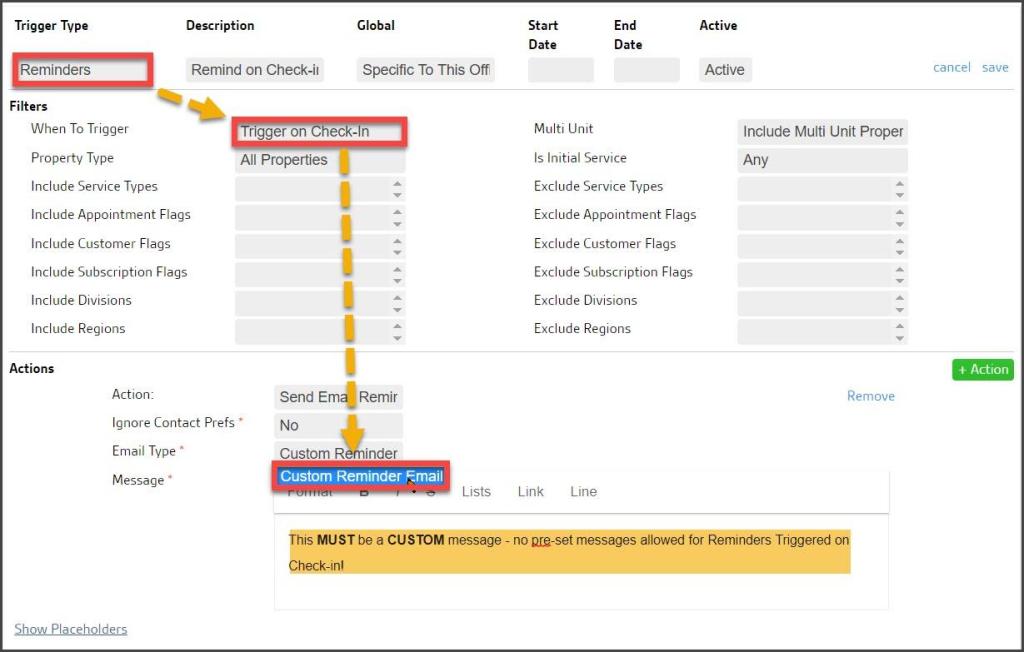
Reminder Rule Actions: Custom Email Reminders
Reminder rules govern the delivery of Service Reminders for upcoming Appointments.
- When to Trigger:
- Trigger Days Before: Message will be sent the designated number of days before the Appointment.
- Trigger on Check-in: Message is sent when the technician checks in on the Appointment.
There might be two different Reminder rules, one of which sends an email three days before the Appointment, and then an SMS reminder on Check-in as the technician is traveling to the property.
When Send Email Reminder is selected as the action, an email will be sent to the Customer. You can choose to compose a custom message or send the standard appointment reminder email, which is the same email that goes out when sending reminders from the day view or from the small circular reminders button next to an appointment on a route.
Customer Status Rule Actions: Remove Payment Profile
Many of the same Actions available for this rule type are covered above. Unique Actions here include:
- Send SMS
- Send Voice
- Send Email
- Send Snail Mail
- Send Employee Email
- Webhook
- Add Alert: Create an employee alert to inform them of the Customer Status change.
- Add Task: Adds a Task for an employee to take action regarding the Customer Status change.
- Category: Add a Task Category to the task. Tasks created via trigger rules with no category selected will be Unassigned. Task Categories can be found at Admin > Office Settings > Task Categories. See the guide on Task Categories for more details.
- Send Employee SMS
- Send Employee Voice
- Remove Payment Profile: This option allows the saved credit card and bank account/ACH information stored on the Customer Card to be removed if a customer’s status changes to Frozen. This is done because vendors charge fees based on the number of these profiles stored, and this will avoid unnecessary fees being charged on accounts that are no longer active. Three options:
- Credit Card and Bank Account
- Bank Account Only
- Credit Card Only
Note the option to Queue on Blocked Days for SMS and Voice messages
Appointment Status Rule Actions
The same Actions are available for this rule type as discussed above:
- Send SMS
- Send Voice
- Send Email
- Send Snail Mail
- Send Employee Email
- Webhook
- Add Alert: Create an employee alert to inform them of the Appointment Status change.
- Add Task: Adds a Task for an employee to take action regarding the Appointment Status change.
- Category: Add a Task Category to the task. Tasks created via trigger rules with no category selected will be Unassigned. Task Categories can be found at Admin > Office Settings > Task Categories. See the guide on Task Categories for more details.
- Send Employee SMS
- Send Employee Voice
Note the option to Queue on Blocked Days for SMS and Voice messages.
Note:
That the option to send emails, SMS, or voice messages to Sales Rep 3 is only available if selected in Admin > Preferences > Other Options > Enable Sales Rep 3. If Sales Rep 3 is not included, the placeholder text for Sales Rep 3 will not be valid. Sales Reps can now also be used as a placeholder.
Subscription Due for Renewal Rule Actions
The same Actions are available for this rule type as discussed above:
- Send SMS
- Send Voice
- Send Email
- Send Snail Mail
- Send Employee Email
- Webhook
- Add Alert: Creates an employee alert to let them know that the subscription is due for renewal.
- Add Task: Adds a Task foran employee to take action in regard to the subscription is due for renewal.
- Category: Add a Task Category to the task. Tasks created via trigger rules with no category selected will be Unassigned. Task Categories can be found at Admin > Office Settings > Task Categories. See the guide on Task Categories for more details.
- Send Employee SMS
- Send Employee Voice
Note the option to Queue on Blocked Days for SMS and Voice messages.

 Moxie Pest Control Office Guide