
Time Clock Settings
Summary
Time Clock Settings is used to define the times and days when a user is allowed to clock in each day.
Important Points:
- Entering 0 for the maximum paid or unpaid hours means there is no limit. Functionally, this is equivalent to entering 24.
- If the access control Override Time Clock Restrictions is turned on, then any restrictions do not apply.
Accessing Time Clock Settings
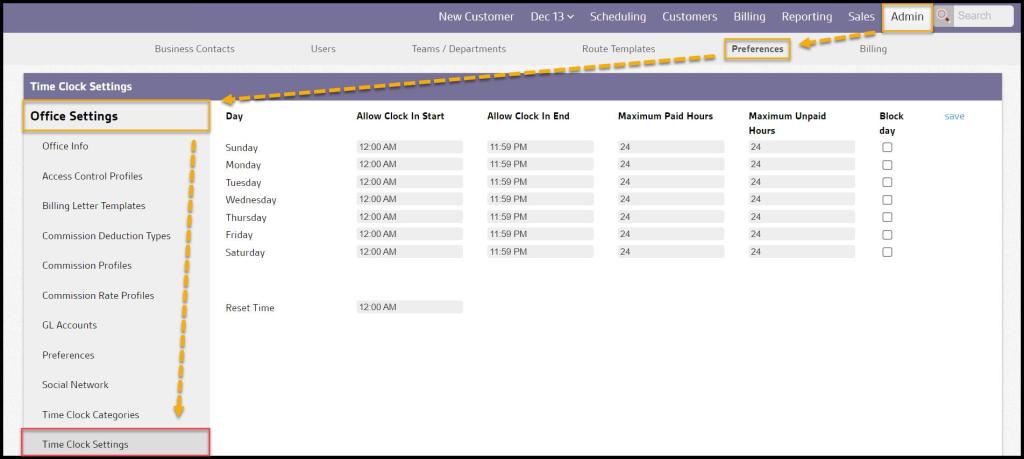
To access the Time Clock Settings, go to:
Admin > Preferences > Office Settings > Time Clock Settings.
Editing Time Clock Settings
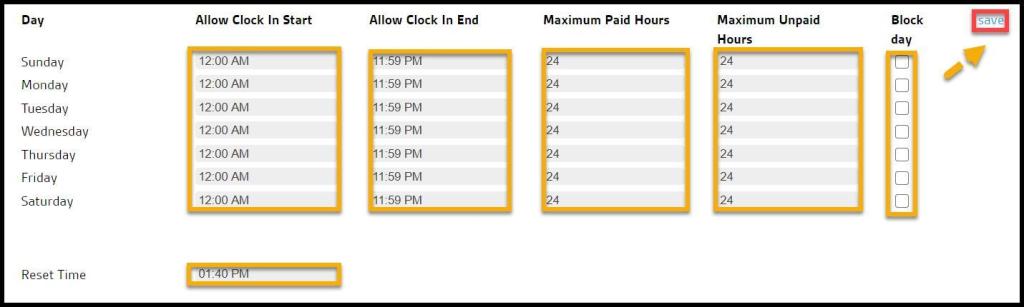
To edit the Time Clock Settings for each day:
- Allow Clock In Start: The earliest time that a user is allowed to clock in to any category.
- Allow Clock In End: The latest time that a user is allowed to clock in to any category.
- Maximum Paid Hours: The maximum number of hours that a user can remain in a paid Time Clock Category.
- Maximum Unpaid Hours: The maximum number of hours that a user can remain in an unpaid Time Clock Category.
- Block Day: Prevents users from being able to clock in for that day.
- Reset Time: Sets the time that the clock resets.
Select save, when finished editing the Time Clock Settings
Removing Time Clock restrictions
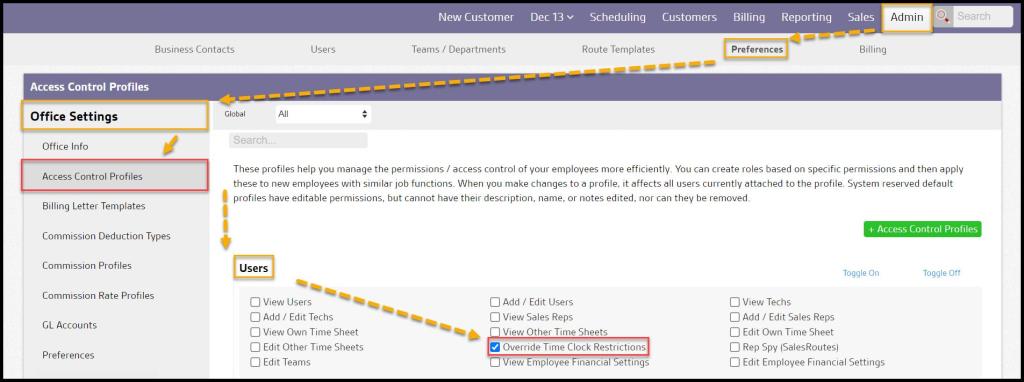
If the access control Override Time Clock Restrictions is turned on, go to:
Admin > Preferences > Office Settings > Access Control Profiles > select the desired user > Users > select Override Time Clock Restrictions.
Any restrictions do not apply. Select save when finished.
 Moxie Pest Control Office Guide