
Time Clock Report
Summary
The Time Clock Report is a tool for calculating the hours clocked in by users. It includes options for dealing with overtime and double time for when it is time to do payroll.
Important Points:
- To find ADP-related information, contact your ADP representative.
Accessing the Time Clock Report
To access the Time Clock Report, go to:
Clock > Time Clock Report.
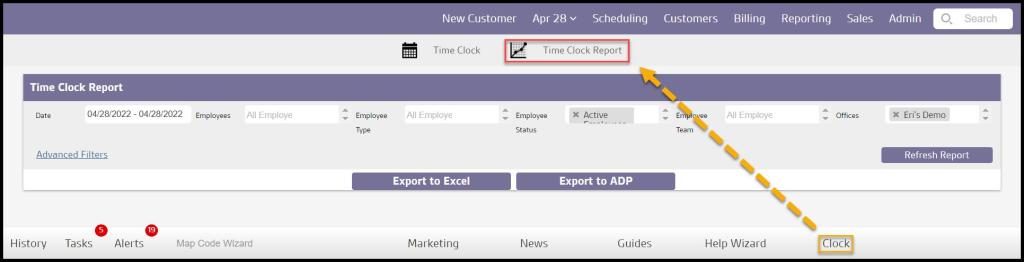
Filtering the Time Clock Report (Basic)
There are a number of ways to filter the Time Clock Report.
- Date: Sets the range of days shown in the report.
- Employees: Limits the results to a specific user or user.
- Employee Type: Limits the results to a particular user type, i.e. Office Staff, Salespersons, Technicians.
- Employee Status: Limits the results to either active or inactive users.
- Employee Team: Limits the results to a specific team. To set up teams, go to Admin > Teams/Departments.
- Offices: For companies with multiple offices, this gives the option to choose which of those offices to include.
Select Refresh to reset the filters.

Filtering the Time Clock Report (Advanced)
There are more options to filter the Time Clock Report.
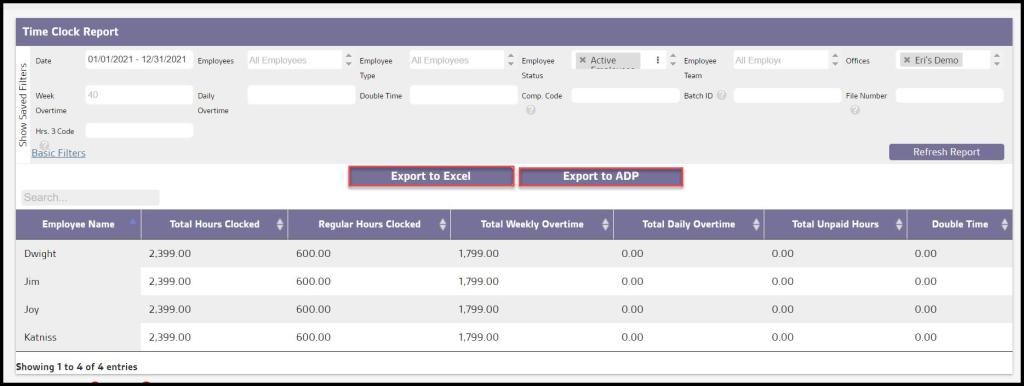
- Week Overtime: Dictates the threshold for how many regular hours in a week must be accrued before overtime begins.
- Daily Overtime: Dictates the threshold for how many regular hours in a single day must be accrued before overtime begins.
- Double Time: Dictates the threshold for how many regular hours in a week must be accrued before double time begins.
Select Refresh when finished with the filters to load any changes.

Filtering the Time Clock Report (ADP Related)
There are more options to filter the Time Clock Report for ADP-related information.
- Company Code / Batch ID / File Number: Required fields used for the export’s file name.
- Hours 3 Code: This field is considered as double time hours.
Select Refresh to reset the filters.

Viewing the Time Clock Report’s Data Columns
The Time Clock Report shows several data columns.
- Employee Name: Displays the name of the employee.
- Total Hours Clocked: Displays the total number of hours that the employee recorded as clocked in.
- Regular Hours Clocked: Displays the total number of regular hours that the employee recorded as clocked in without overtime.
- Total Weekly Overtime: Displays the total number of hours that the employee recorded as clocked in with overtime per week.
- Total Daily Overtime: Displays the total number of hours that the employee recorded as clocked in as overtime per day.
- Total Unpaid Hours: Displays the total number of hours that the employee recorded as clocked in that were unpaid.
- Double Time: Displays the total number of hours that the employee recorded as clocked in as double-time pay.

Exporting the Time Clock Report
The Time Clock report can be exported in a number of formats.
- Export to Excel: Downloads an XLS file of the current report.
- Export to ADP: Downloads a CSV file for importing into ADP.
 Moxie Pest Control Office Guide