
Time Clock Categories
Summary
Time Clock Categories help ensure technicians take their breaks and lunches at the right time. This feature is especially useful in following state labor laws on breaks like in California.
Important Points:
- If the tech is checked into an appointment on the mobile applications, they will not be forced to clock into the next category until either checking out or completing the appointment.
- Suppose the tech has a customer or appointment card checked out in the desktop application. In that case, they will not be forced to clock into the next category until the user either saves or closes the customer/appointment card.
Accessing the Time Clock Categories
To access the Time Clock Categories, go to:
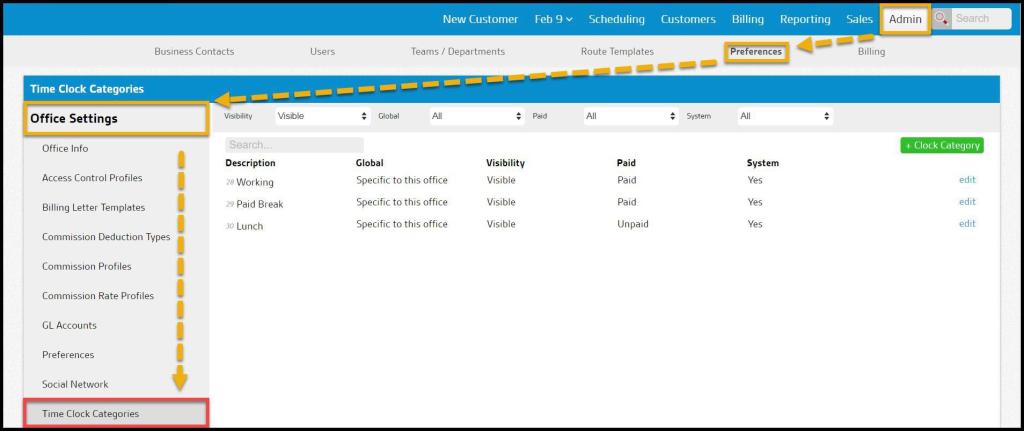
Admin > Preferences > Office Settings > Time Clock Categories.
Filtering the Time Clock Categories
To filter the Time Clock Categories, toggle the filters.
- Visibility
- All: Show all Time Clock Categories.
- Visible: Show only visible Time Clock Categories.
- Hidden: Show only hidden Time Clock Categories.
- Global
- All: Display All Time Clock Categories
- Specific to Office: Display only Time Clock Categories flagged to be specific to the user’s office.
- Available to all offices: Display only Time Clock Categories flagged as available to all offices.
- Paid
- All: Display All Time Clock Categories
- Paid: Display only Time Clock Categories that are paid.
- Unpaid: Display only Time Clock Categories that are unpaid.
- System
- All: Display All Time Clock Categories
- Yes: Display only Time Clock Categories that are system terms.
- No: Display only Time Clock Categories that are not system terms.
The Time Clock Category filters will refresh the results once selected.

Adding and Editing new Time Clock Categories
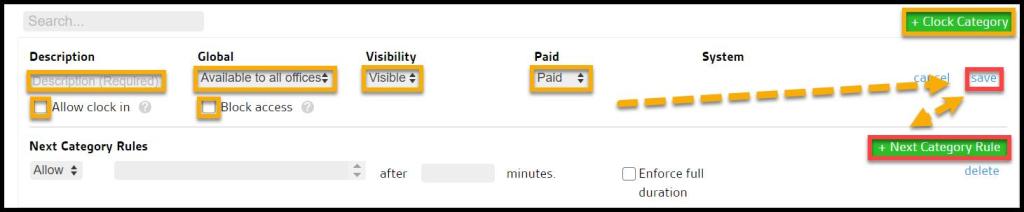
To add a new Time Clock Category, select + Clock Category or select Edit to make changes to an existing Time Clock Category.
- Description: This names the category and determines how it is displayed in the mobile applications.
- Global: For companies with multiple offices, if a time clock category is “specific to this office” it will only be available to the office in which it was created. If the category is “available to all offices”, every branch can see it.
- Visibility: Determines if technicians can see the category in the mobile applications. As opposed to deleting categories, unused ones can be made hidden instead.
- Paid: Controls whether the category counts as Paid or Unpaid.
- System: Seeing yes means the category was automatically created for your use. No indicates the category was manually made.
- Allow clock in: Checking the box allows employees to clock directly into the category when they are clocked out.
- Block access: Selecting this option will prevent an employee from accessing appointments while they are clocked into the category.
Select save or add more Time Clock Category rules by selecting +Next Category Rule.
Using Next Category Rules
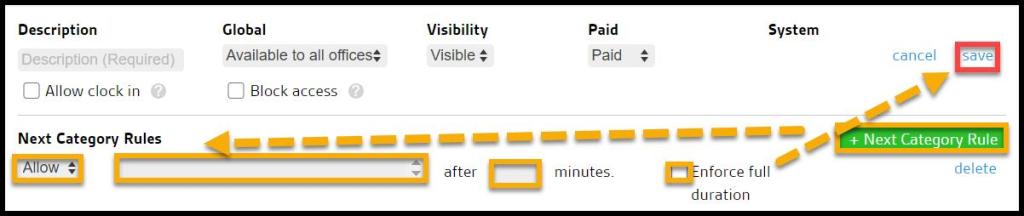
Select +Next Category Rule to add more Time Clock Category rules. Consider these potential combinations:
Allow
- Clock in to [multi-select categories] after: [input number of minutes]
- When the amount of time clocked into the category for the current day reaches the number of minutes specified, allow the user to clock into one of the selected categories.
- Enforce Full Duration: Prevents users from clocking out until they are able to clock into a category specified in the rule.
Require
- Clock in to [multi-select categories] after: [input number of minutes]
- When the amount of time clocked into the category for the current day reaches the number of minutes specified, the user must clocks into one of the selected categories.
- Enforce Full Duration: Prevents users from clocking out until they clock into a category specified in the rule.
- User Can Waive: Gives the option to the user to bypass the requirement.
- If waived, a time entry will be recorded that indicates the user waived the required clock in and the user will be clocked back into the current category.
- Display Message: [input message] [input number of minutes] minutes before the required clock in.
- When a message and minutes are set, a specified message displays the number of minutes specified before the user is required to clock in.
Select save when finished or select delete to remove the Time Clock Category rule.
 Moxie Pest Control Office Guide