
The Customer Card: Notes Tab
Summary
The Notes tab acts as a repository for every customer communication, technician note, and office staff note created for a customer.
This feature is beneficial because the user can document important information regarding the customer and their account, make notes visible to the technician and customer, and see any notes other users have created regarding this customer.
Important Points:
- Only one employee can be in a Customer Card at once. Finish in New Window frees the Customer Card while the user finishes writing notes.
- Notes are displayed with the newest on top.
- Red and yellow notes are always on top.
- Red notes also appear on the “Overview” tab.
- When a note is generated about an invoice, the entry in the Notes tab will include the invoice number.
Accessing the Notes Tab
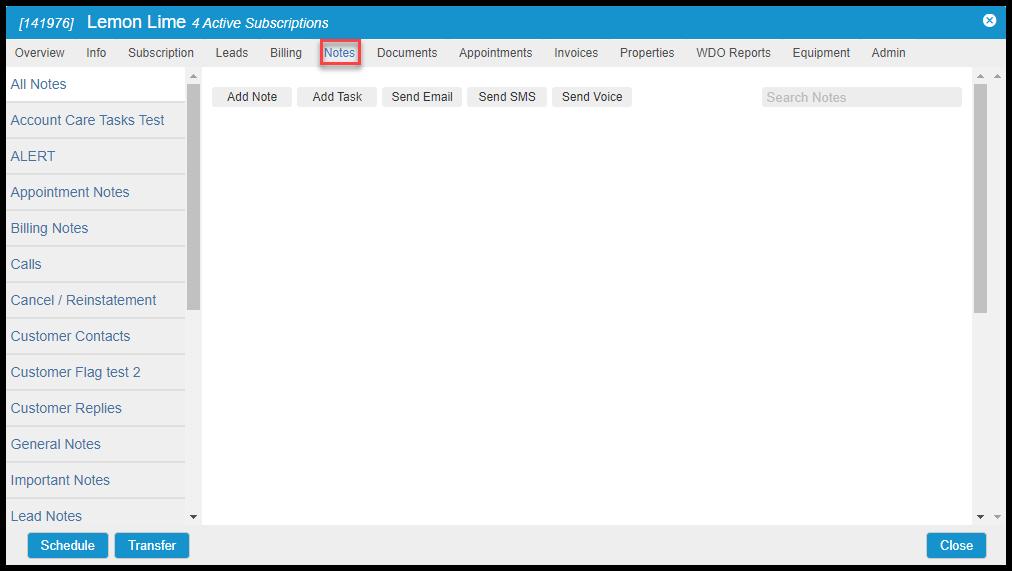
To access the Notes tab, go to:
Customer Card > Notes.
Adding Notes and Note Categories
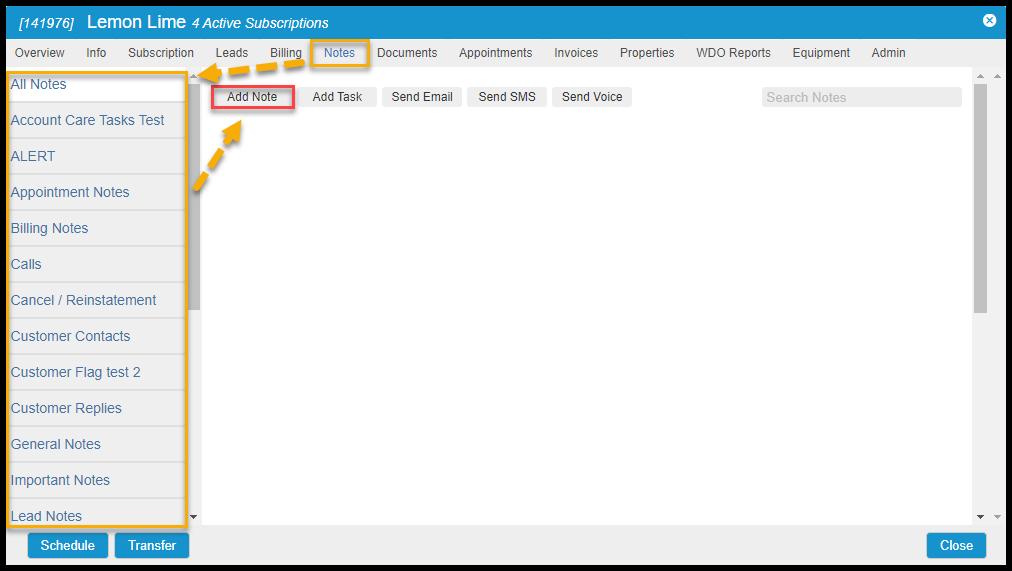
To add a new Note, select the note type from the panel. Note Categories can be edited at Admin > Preferences > Customer Preferences > Note Categories. Please see the guide on Note Categories for more details. Next, select Add Note.
Adding or Editing Notes
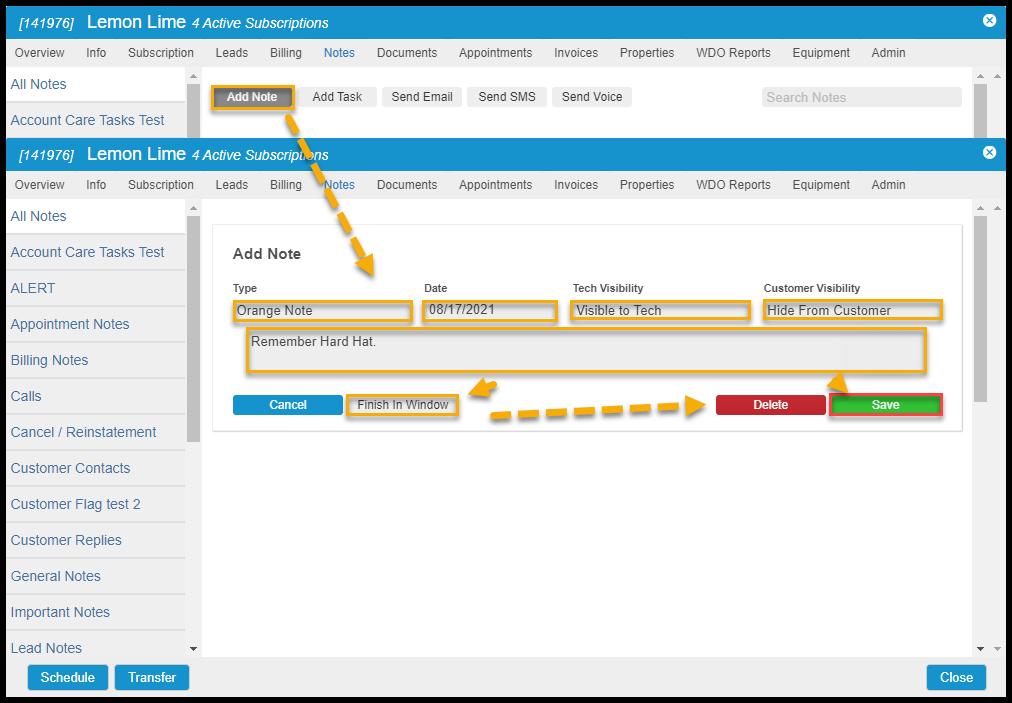
To add a new Note, select Add Note. or select an existing note to change an existing Note.
The user can also choose to hide notes from technicians and customers. If the user needs to add a note for the customer’s gate code or notify the technician that the customer has dogs in the backyard, the user will want to ensure that note is visible to the technician. If the user wants a note to appear in the completed service notification for a customer, it can be made visible to the customer.
- Type: Add a category that the note will appear in. Note Types are used to distinguish notes in a category. To edit Note Types, go to Admin > Preferences > Customer Preferences > Note Types. Please see the guide on Note Types for more details.
- Date: Add a date for the note.
- Tech Visibility: Show or hide the note from the technician.
- Customer Visibility: Show or hide the note from the customer.
- Note: Add information that the customer or technician should be aware of.
Select Finish in Window if another user needs to access the customer, or select Save Note when finished editing the note.
Using Red Notes
For extremely important notes, the user can create a Red Note. Simply select Red Note from the list of note categories to create one.
Red Notes will stay at the top of the list of notes and will be indicated high priority. Red Notes will also appear on the Overview tab of the Customer Card.

Using Finish in Window
The software only allows one user in a Customer Card at a time. If the current user needs to take notes on a customer but wants to let another user have access, select Finish In Window.

Adding or Editing Tasks
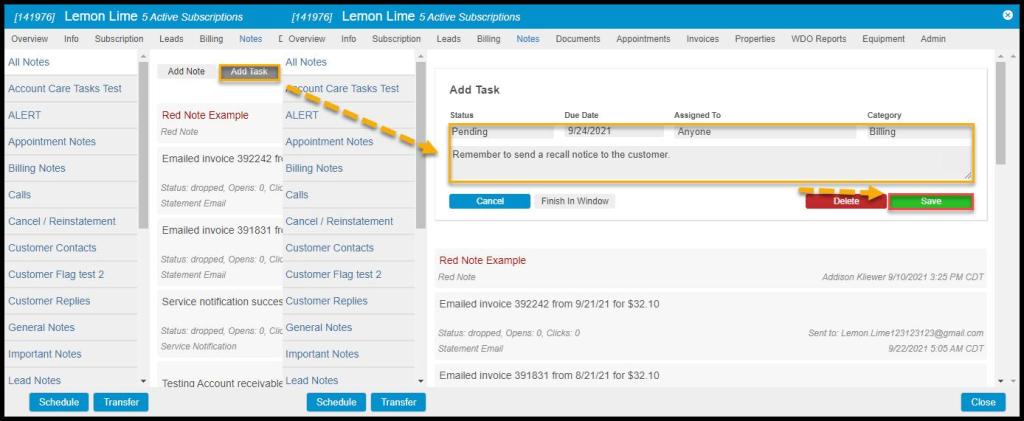
To add a new Task, select Add Task. or select an existing note to change an existing Task.
- Status: Add or change the progress of the task.
- Due Date: Add a date that the assigned user should complete the task by.
- Assigned To: Assign the task to a user.
- Category: Puts the task under a specific category.
- Task: Add information that the user should be aware of to complete the task.
Select Finish in Window if another user needs to access the customer, or select Save when finished writing or editing the note.
Send Email
To send an email to the customer, select Send Email.
- Email: This will autofill with the customer’s recorded email address.
- Subject: Add a subject line for the email.
- Email Category: Puts the email under a specific category.
Select Finish in Window if another user needs to access the customer, or select Send when finished writing the email.

Send SMS to Customer
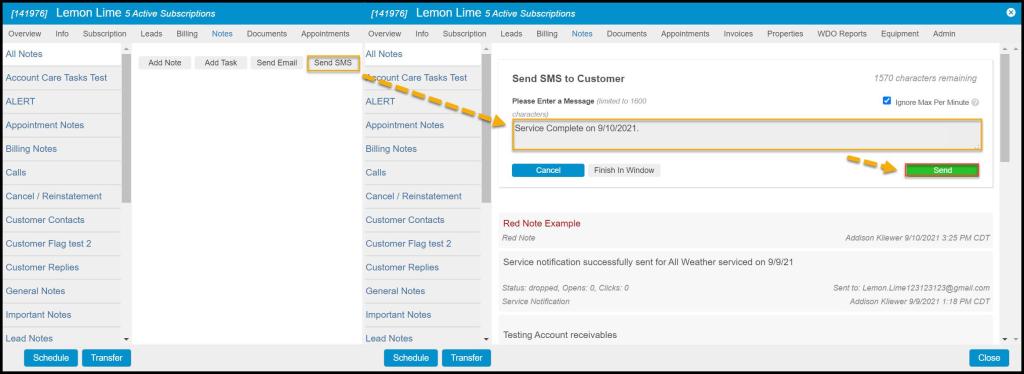
To send a text message to the customer, select send SMS.
- Text Message: Add content for a text message for the customer.
Select Finish in Window if another user needs to access the customer, or select Send when finished writing the SMS.
Send Voice to Customer
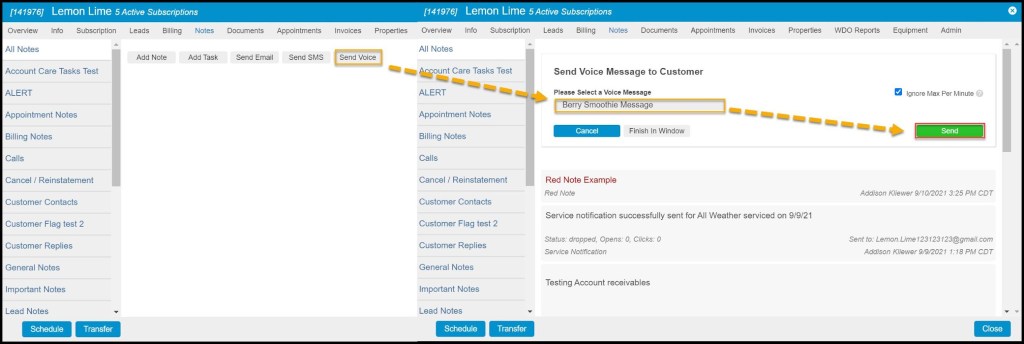
To send a pre-defined voice message to the customer, select Send Voice.
- Please Select a Voice Message: Select content for a voice message for the customer. The user can customize voice messages in Admin > Preferences > Customer Preferences > Voice Messages. See the voice messages guide for more information.
Select Finish in Window if another user needs to access the customer, or select Send when finished choosing the recipient for the SMS message.
 Moxie Pest Control Office Guide