
The Customer Card: Communication Options
Summary
Staying in touch with customers is vitally important to retention and customer satisfaction. Each Customer Card record has a set of tools to launch personal communication with that customer via Email, SMS, or pre-recorded Voice messages, in addition to adding general Notes or Tasks related to them and their account.
Using this functionality has the additional benefit of leaving a new NOTE in the log to record the message and timestamp of the communication for future reference, and SMS messaging will even record any REPLIES the customer sends back.
To send email, SMS, and voice messages to customers in bulk, please refer to the article on the Customers Report for more information.
Important Points:
- Emails will be sent to the primary Email address in the Customer Card > Info tab, and replies will be sent to the address listed in the Office Info > Email preference.
- SMS and voice messages will be sent to the phone number in the Phone 1 field of the Customer Card > Info tab, with the Office Info > SMS/Voice number listed as the caller. SMS replies will be sent back to this number.
- To configure your voice messages, go to Admin > Preferences > Customer Preferences > Voice Messages.
Accessing the Customer Card Communication Options
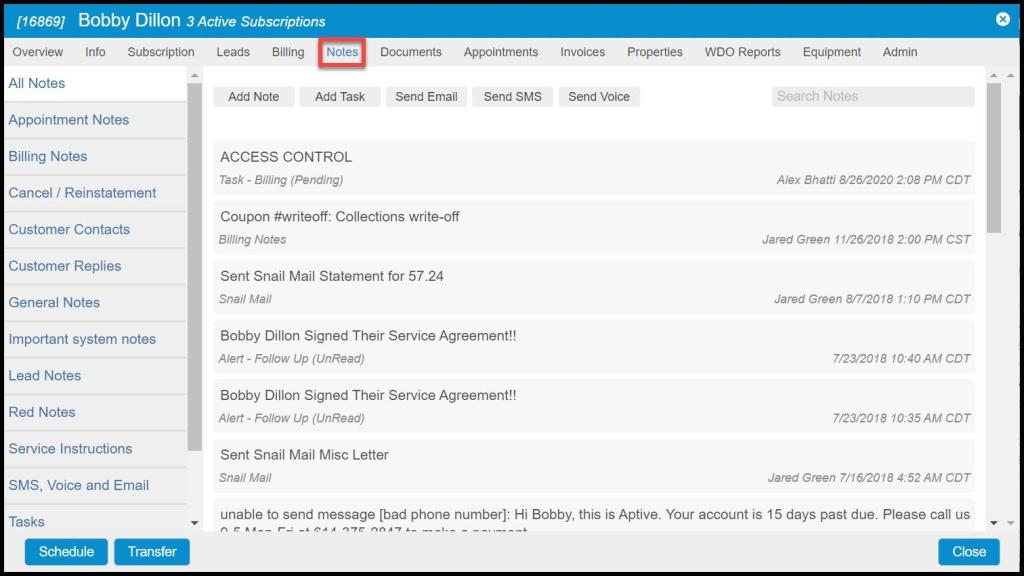
To access Customer Card Communication options, go to:
Customer Card > Notes.
Sending Messages to Customers through the Customer Card
To send a message to a customer, open the Customer Card and select the Notes tab.
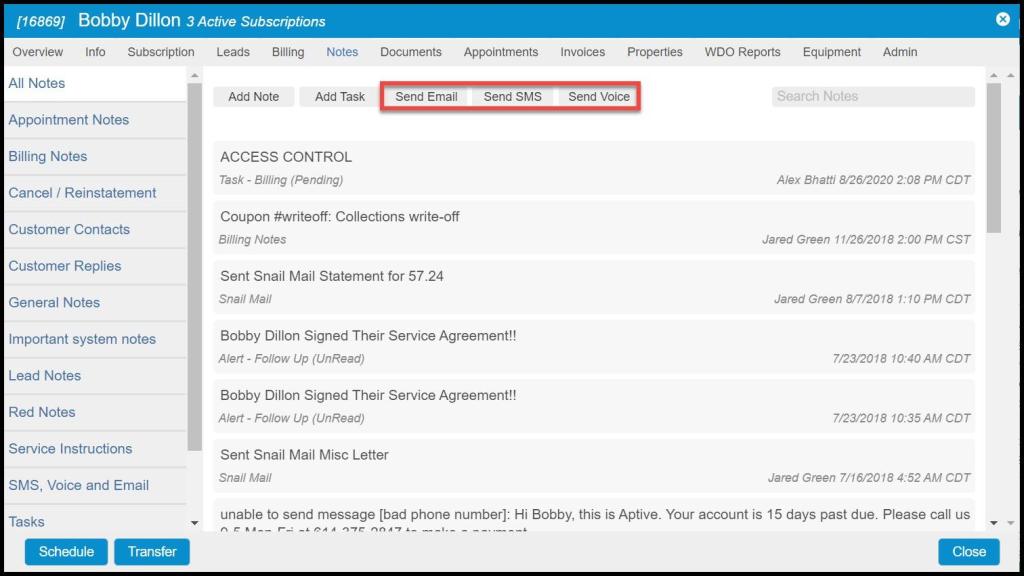
Once the Notes tab has been selected, users will notice the communication options:
- Send Email: Send an email to the customer.
- Send SMS: Send a text SMS message to the customer.
- Send Voice: Send a voice message to the customer.
Emailing Customers through the Customer Card
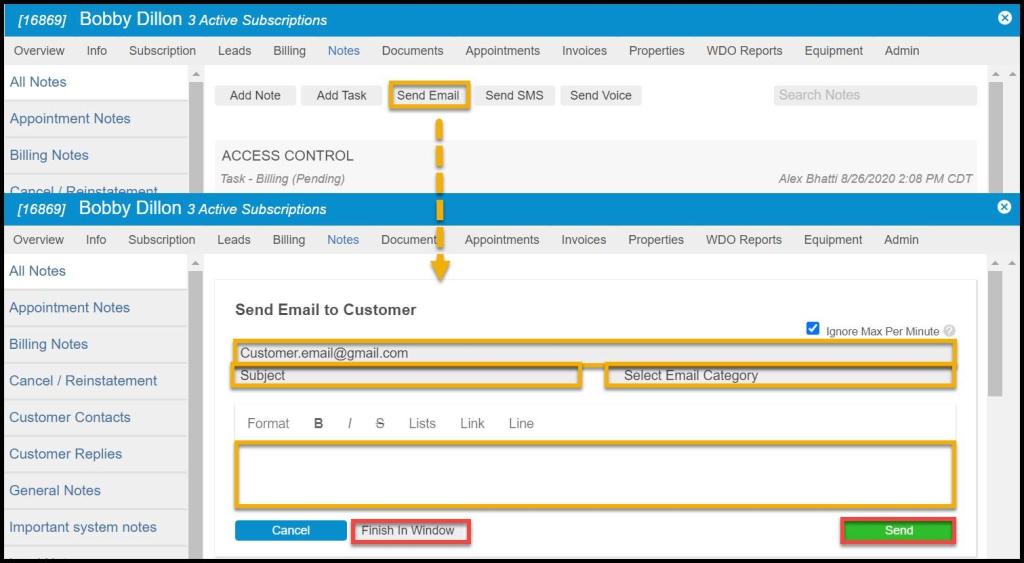
To send an email to a customer, select Send Email and a new field will appear in order to type in an email to send to this individual customer. This email will be sent to the main Email address for the customer in the Customer Card > Info tab.
Enter the subject of the email in the “Subject” field and the body of the email in the white box. Select the “Format” button to change the format of the font and text. Use the “B“, “I“, and “S” buttons above the white space to make the text bold, italic, or strikethrough. To format a list in the email, select the “Lists” button. Other options include creating an unordered list, an ordered list, or outdenting and indenting. The “Link” button inserts a link to the email behind text. Select the “Line” button to generate a line to separate the email. Once the email has been completed, select Send. A new note will be created in the Customer Card documenting the email that has been sent.
NOTE:
IF a customer replies to this email, their reply email will be sent to the address listed in:
Admin > Preferences > Office Settings > Office Info > Email
Sending SMS Messages to Customers through the Customer Card
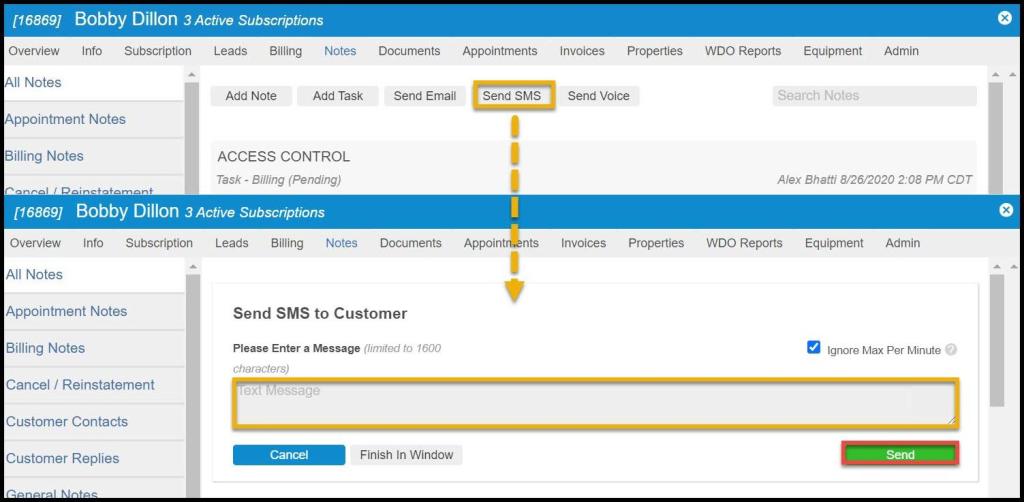
To send an SMS message to a customer, select Send SMS and a new field will appear for typing in a free text SMS to send to this individual customer. The SMS will be delivered to the phone number in the Phone 1 field in the Customer Card > Info tab.
SMS messages are limited to 1600 characters. See FAQ for pricing information.
NOTE:
If the customer replies to this SMS message, the reply message will be:
- Sent to the phone number listed in Admin > Preferences > Office Settings > Office Info > SMS/Voice Number, and
- The response will also be recorded as a Note in the Customer Card > Notes tab.
Sending Voice Messages to Customers through the Customer Card
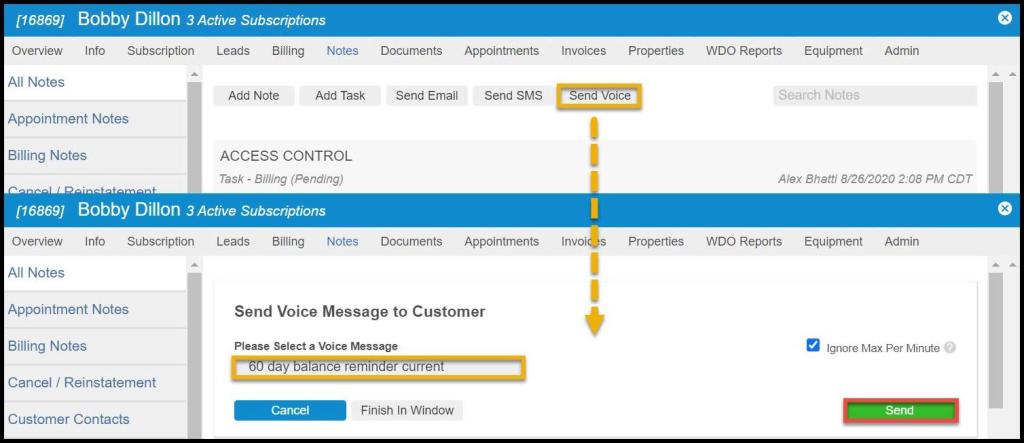
To send a voice message to a customer, select Send Voice and a new field will appear for selecting the voice message to send to this individual customer. The voice message will be delivered to the phone number in the Phone 1 field in the Customer Card > Info tab.
All of the voice message options are configured under Admin > Preferences > Customer Preferences > Voice Messages. Please check out the guide on Voice Messages for more information on creating voice messages to send to the customers. NOTE:
Outgoing Messages Saved as Notes
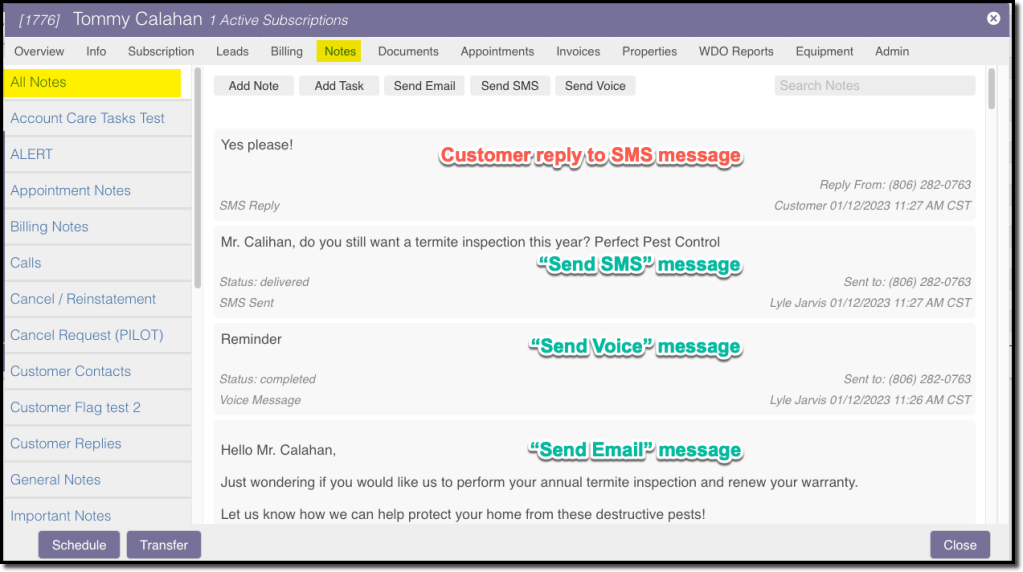
Use of the communication action buttons at the top of the Notes tab will result in a new Note begin added to the log under this tab.
Any SMS replies will also be recorded here as Notes, as well as being delivered to the SMS/Voice phone number listed in the Office Settings > Office Info.
 Moxie Pest Control Office Guide