
The Customer Card: Admin Tab
Summary
The Admin tab of the Customer Card serves two functions. First, it allows various actions to be taken by an office administrator on the Customer’s account, such as Freezing and Activating. Second, it records a log history of activity on the Customer’s account with accompanying timestamps and the identity of the party who made the changes.
Important Points:
- Freezing a Customer’s account leaves all data in place but removes them from routing and scheduling functions. Re-activating a Frozen customer restores all functions and data.
- Automated changes to the Customer’s account, for example, by a Trigger Rule, will be logged and timestamped in the Access History area and identified as a system-initiated change.
Accessing the Admin Tab in the Customer Card
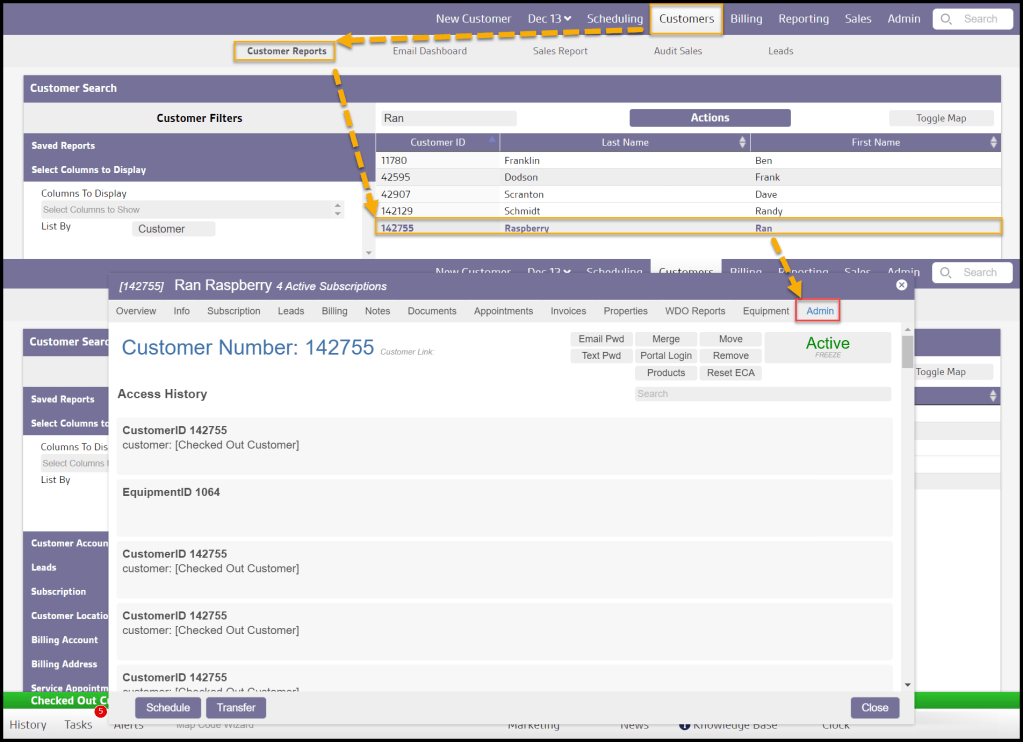
To access the Admin tab on the Customer Card, navigate to:
Customers > Customer Card > Admin tab
Customer Account Number and Status
Two important points of information are presented at the top of the Admin tab:
- Customer Number: The Customer’s Account ID number. It is their unique identifier in the system
- Customer Status: The current status of the account. This field contains a toggle at the bottom that Freezes and Activates the Customer’s account.
- Active: The normal status of a current Customer
- Frozen: Freezing an account prevents new or pending appointments from being scheduled in the system but does not remove any data.

Customer Account Actions
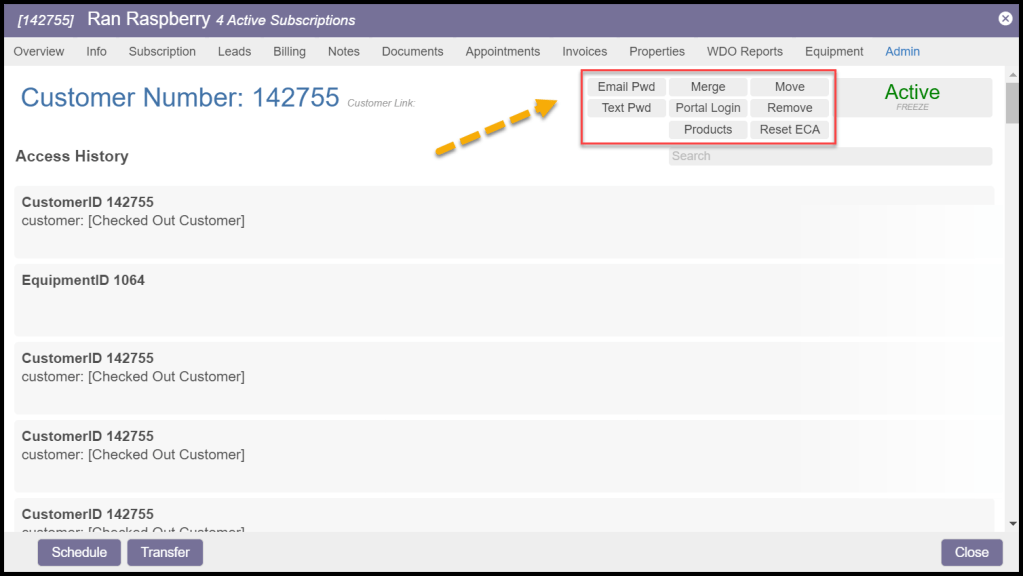
Several actions can be taken on the Customer’s account from this location:
- Email Pwd: Emails the Customer’s Portal login password to the primary email address on file.
- Text Pwd: Texts the Customer’s Portal login password to the primary SMS phone number on the account
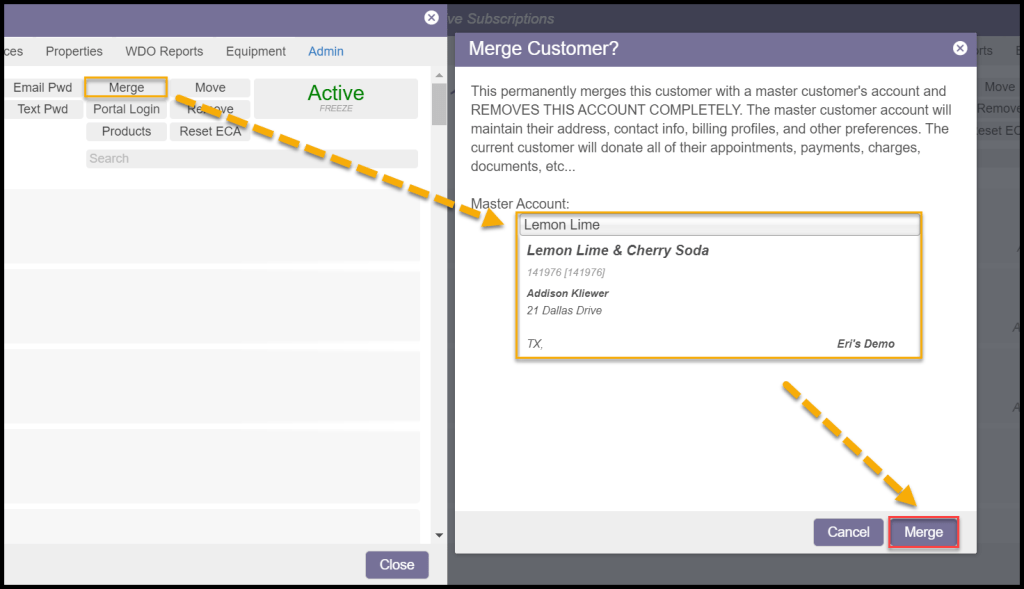
- Merge: Merges this account with a selected Master Account. Select another Customer account in the Master Account field and select Merge to permanently remove this account and send all contact info, billing, appointments, payments, and charges to the new selected account.
WARNING:
This cannot be undone.
- Portal Login: Allows the Admin user to enter the Customer’s Portal account.
- Products: Special chemical Products that might not ordinarily be used, but have been authorized for the customer can be designated here.
- Move: This will bring up a dialogue box allowing the Customer’s account to be removed from the current office and assigned to a new one. This might happen if a new branch were to open closer to the Customer’s location, for example.
- Remove: Deletes the account and all associated data it contains. This is NOT reversible.
- Reset ECA: A signed Electronic Consent Agreement (ECA) is required in some states and by some companies before accepting any electronically signed legal documents, such as service contracts. Ordinarily, the Customer is required to review and sign the ECA in the Customer Portal the first time they have a document to sign electronically. This action button allows this process to be reset and re-launched in cases where a new ECA is needed.
The Customer Access History
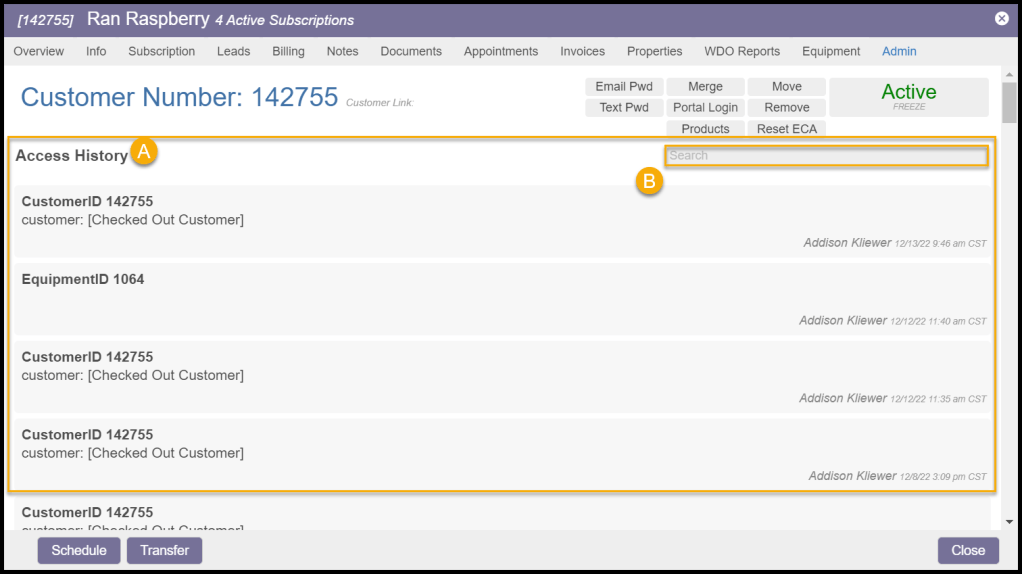
Each action taken in the system for the Customer’s account is logged and recorded in this location. A time and date stamp is included, as well as the identity of the user who made the change, for most activity in the system such as:
- New subscriptions
- Changes to contact info
- invoice payments
- changes in account status
- notes logged
- Flags turned on or off
If the system automatically makes a change, such as when a Trigger Rule generates a new invoice for a Late Fee after an invoice is 30 days past due, the change will be indicated as system initiated.
The Search bar at the top allows specific activity to be found in the list.
 Moxie Pest Control Office Guide