
The Appointment Card
Summary
The Appointment Card allows the user to edit and manage details about a customer’s specific appointment.
Important Points:
- The Appointment Type, Subscription, and Duration fields must be determined before an Appointment can be scheduled.
- If you create a new Subscription from the Appointment Card, check the details in the Customer Card under the Subscription tab to ensure all of the information is correct.
Accessing the Appointment Card
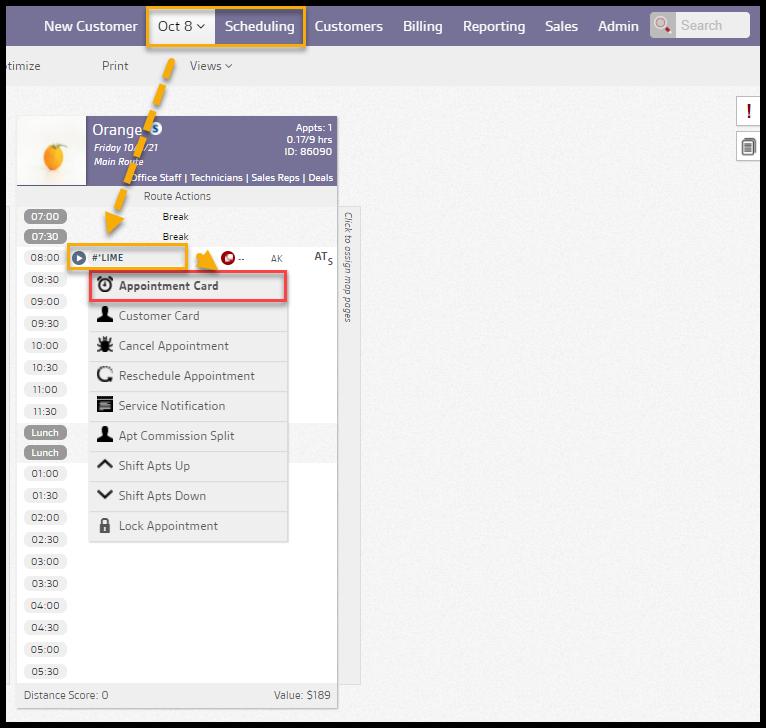
To access a customer’s Appointment Card, go to the specific appointment and select the customer’s name on the route. In the drop-down menu that appears, select Appointment Card.
The Scheduling Appointment Window
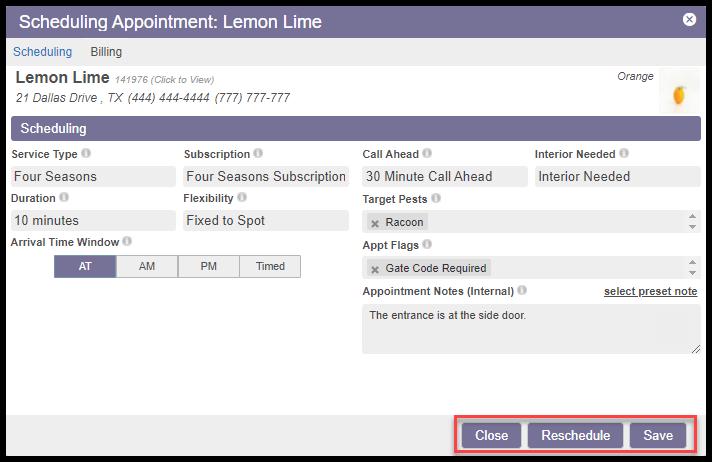
A new window will appear entitled Scheduling Appointment. All details regarding the scheduled appointment are available for viewing and editing.

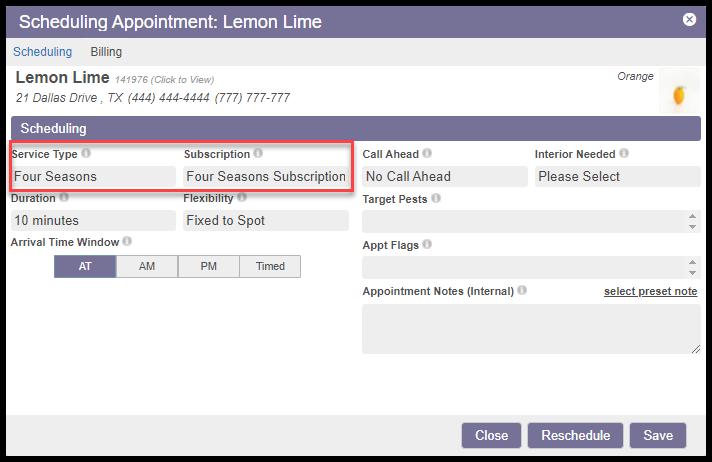
Service Type and Subscription
The Service Type indicates which service the technician will perform for the scheduled appointment. All available Service Types are accessed through the drop-down menu. For building these Service Types, see the Service Types preference:
Admin > Preferences > Service Related > Service Types
Two options are available under the Subscription setting:
- Subscription: Shows the specific Service Types associated with the customer’s active subscriptions. When a subscription is selected, the Subscription field to the right will auto-fill with the corresponding subscription and the Duration field auto-fills with the default appointment length for that Service Type.
- Stand Alone Service or Reservice: Shows all available Service Types. When a one-time, non-initial service type is selected, the Subscription field to the right auto-fills to say “Stand-Alone Service or Reservice” (as long as the customer does not have an active subscription of that service type). The Duration field always auto-fills with the default appointment length for the selected service type.
The Subscription field allows you to select which subscription the scheduled appointment will be attached. You can choose from the customer’s active or frozen subscriptions or set the appointment as a Stand-Alone Service or Reservice. If the customer has no subscriptions, an option to Create New Subscription will be available. Selecting a frozen subscription in this field does not reactivate the subscription. To activate a frozen subscription, open the Customer Card, go to the Subscription tab, select the subscription you want to activate, and select the Activate option.
Call Ahead and Interior Needed
The Call Ahead field is a flag for customers that wish to be called in advance for their appointment. There are options for:
- No Call Ahead
- 30 Minute Call Ahead
- 1 Hour Call Ahead
This flag will leave a note on the appointment in the mobile application for the technician.
The Interior Needed setting specifies whether this appointment is:
- Exterior Only: Only service the exterior of the facility, no interior access is required
- Interior Needed: Customer desires interior service as well as exterior
This will leave a note on the appointment in the mobile application for the technician.

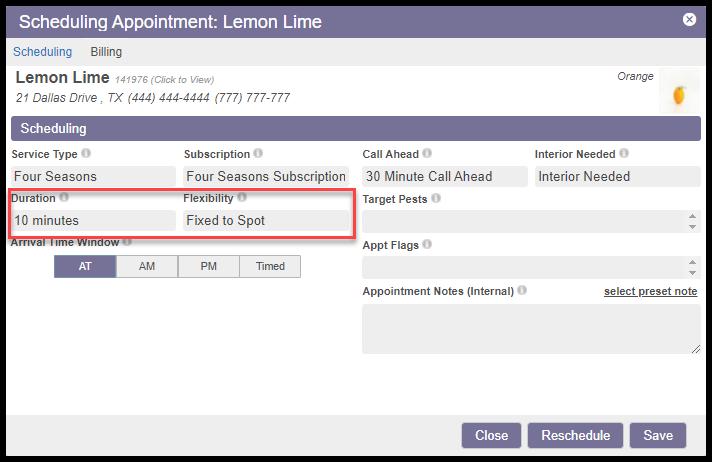
Duration and Flexibility
The Duration determines how much time is reserved for the Service Type on the route schedule. Duration defaults for each Service Type are set in the Service Types preferences and are auto-filled based on the Service Type selected. The default Duration length may be overridden here in the Appointment Card.
The Flexibility of the appointment is determined by choosing one of two options:
- Fixed to Spot: This option ensures the appointment is not relocated on the route because of another appointment. An “S” is displayed next to an appointment that is Fixed to Spot.
- Flexible on Route: This option allows the assigned time of appointment to be adjustable on the route. If a different appointment is scheduled in the assigned time slot, the flexible on-route appointment will move to a different spot. An “R” appears on the route to indicate an appointment that is Flexible on Route.
Arrival Time Window
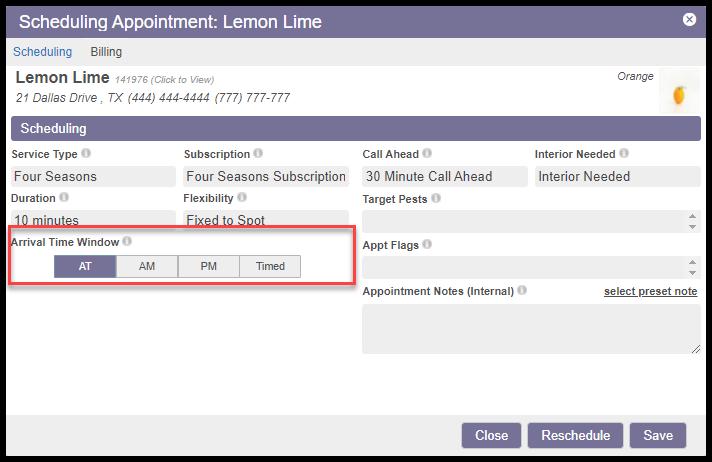
The Arrival Time Window indicates the service time frame communicated to the customer. This window doesn’t mean that the service will take the whole time, just that the technician will arrive during this time.
- AT: The appointment can be completed anytime between 8:00 am to 8:00 pm on the scheduled day.
- AM: The appointment needs to be completed between 8:00 am and 1:00 pm.
- PM : The appointment needs to be completed between 1:00 pm and 8:00 pm.
- Timed: The appointment is slotted for a specific time, and if selected, will provide fields for start and end times.
All of these time windows will be included in the appointment reminders sent to customers.
Target Pests and Appointment Flags
Specify Target Pests for the appointment here. A list is available under this setting, and the user may select multiple items. These pests are visible to the technician in the mobile application under the Info tab.
Specific Appointment Flags for the current appointment are added here, such as Gate Code Required. These flags are visible to the technician in the mobile application under the Info tab.

Appointment Notes
Appointment-specific notes are added in the Appointment Notes (Internal) field. They will be visible to the technician in the mobile application under the Info tab but not to the customer.

Scheduling or Updating the Appointment
A brand new appointment will be created and assigned to a time slot by selecting Schedule.
Selecting Save saves the existing appointment along with any setting changes.
Reschedule will cancel the current appointment and reschedule the appointment on a different day or a different route.
The Close option closes the Appointment without updating any settings.
Override Map Restrictions
While rare, some companies use a system of Map Codes and Map pages to plot customer locations and route areas. Implementing this requires custom uploads to the company’s database by developers. Using Intelligent Routing tools, the user can then use these codes to match customer locations to route areas.
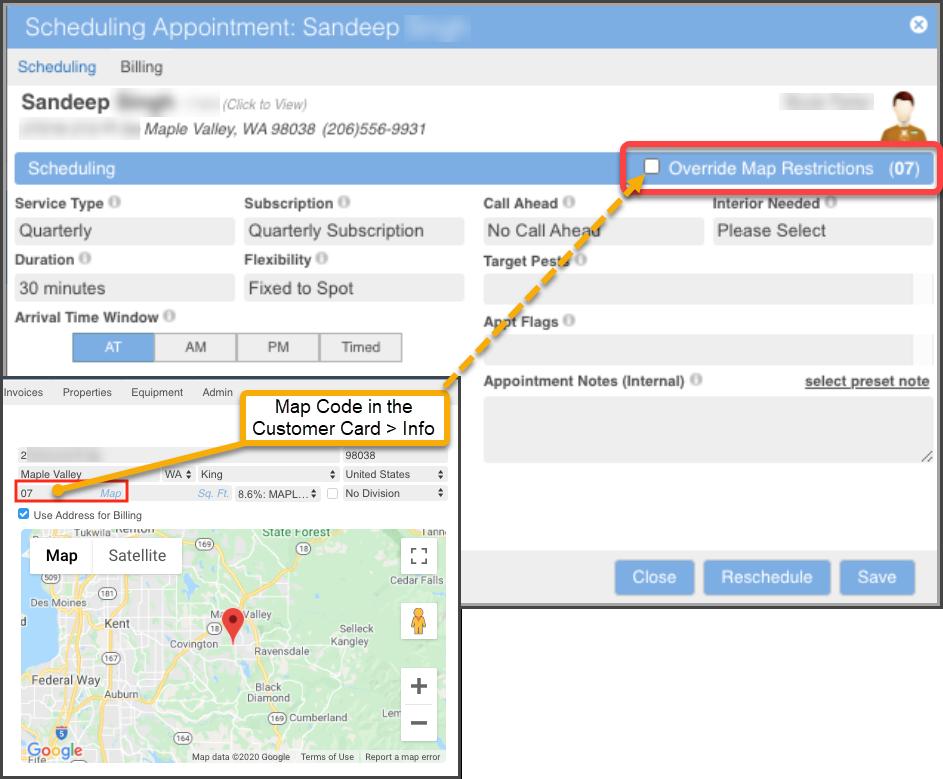
The Override Map Restrictions checkbox appears on the Appointment Card when both the customer and the route have Map Codes assigned, but the Map Codes do not match, preventing the assignment of that location to that particular route.
For example, if the customer has Map Code 07 assigned on their Customer Card, but the route has Map Code 09, then the appointment cannot be Scheduled unless the checkbox is selected to Override the customer/route matching feature.
 Moxie Pest Control Office Guide