
Technician Stats Report
Summary
The Technician Stats Report is a tool that allows supervisors and managers to evaluate the performance of their field technicians based on various metrics reported by their daily routes and appointments processed in the system.
The user can compare different teams within or between offices to identify star performers and teams, employees needing success coaching, and provide objective information for performance evaluations.
NOTE:
Please see the Technician Stats Report: Technician Stats and Key Indicators guide for more information. on Technician Stats and Key Indicators.
Important Points:
- Choose a Key Indicator statistic as the primary metric for ranking the teams and techs.
- The user can toggle the report view between a table view with data columns or a baseball card view that highlights each member on a team’s roster.
A Productive Appointment is a regular appointment for which the invoice or production value is >$0.00.
Accessing the Technician Stats Report
To access the Technician Stats Report, go to:
Reporting > Technicians

Filtering the Technician Stats Report (Basic Filters)
To quickly filter the Technician Stats Report, toggle these basic filters. If the desired result is not showing up, check the filters.
- Date: The dates will limit the report to all appointments scheduled within the specified date range.
- Key Indicator: This is the primary statistic that will be displayed for each office on the Office Lead Board and for each technician on the Technician Roster. In addition, the software will order the offices and technicians by the specified statistic in descending order. Please see the Technician Stats Report: Technician Stats and Key Indicators guide for more information.
- Stats to Include: These are the statistics to include on each technician and office baseball card. Please see the Technician Stats Report: Technician Stats and Key Indicators guide for more information.
Once the desired filters have been selected, select Advanced Filters to see more filters or Refresh to run the report.

Filtering the Technician Stats Report (Advanced Filters)
To filter the Technician Stats Report further, select Advanced Filters.
- M. of Data: Short for Months of Data, this filter is used when calculating Re-services %, Customer Cancellation %, and Subscription Cancellation % statistics. This filter is used to specify the number of months of data used when calculating the average number of services performed per technician during a period of time.
- Star Reviews: This filter is only applicable to the Star Reviews statistic. It allows the user to control which Star Reviews will be represented by the reported number.
- Offices: This is to select the offices to include in the report. Users will only be able to choose offices that they have access to.
Once the user selects desired filters, select Refresh to run the report.

Office Leader Board
Highlighted is the Office Leader Board. This feature is designed to display each office with its selected key indicator value.
To see more information about a specific office, select it on the Office Leader Board.

Using the Baseball Card view
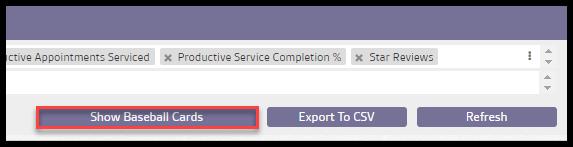
To view the report via Technician Baseball Cards, select Show Baseball Cards.
Viewing the Technician Roster (Baseball Card View)
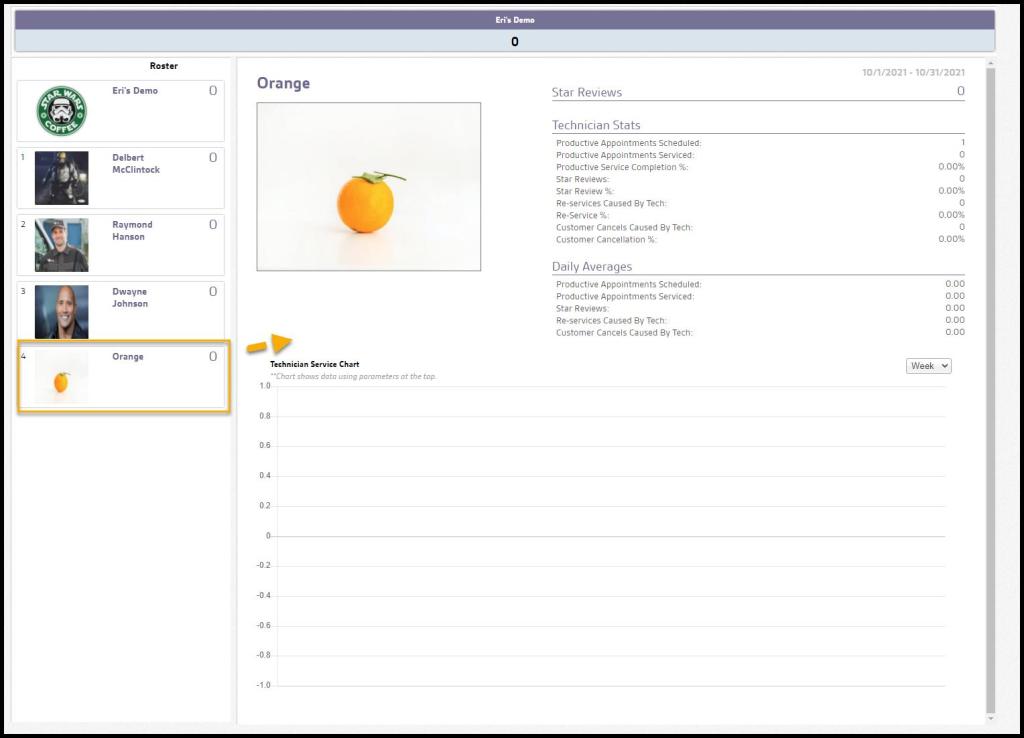
Once the desired office is selected in the Office Leader Board, there is a Technician Roster to the left of the report. This roster displays a box for the chosen office and each technician with their respective key indicator value.
Technicians are displayed in descending order based on the selected Key Indicator value, and clicking on the office or one of the technician boxes will show its Baseball Card.

Viewing a Technician’s Baseball Card
Select a technician in the roster to view the Baseball Cards. The Baseball Card displays the selected Key Indicator and its value. The statistics schosenin the Stats To Include filter will display, along with the daily average for statistics selected in the Stats To Include filter, excluding any percentage statistic.
The Technician Service Chart is a graphical representation of the selected Key Indicator.
NOTE:
When calculating the daily averages, only days the technician serviced appointments are considered.
Viewing the Technician Stats Report’s Report Table
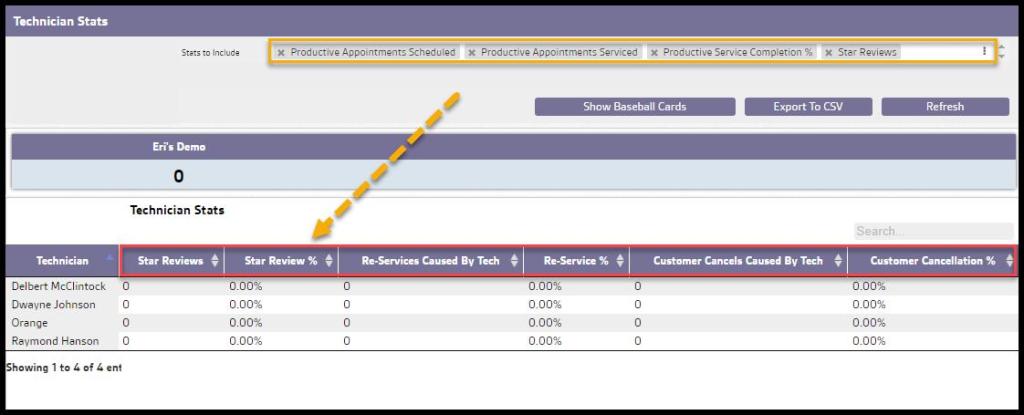
To view the Technician Stats Report as a Table, Select Show Report Table.

Viewing the Technician Stats Report’s Data Columns
The Technician Stats Report can display several data columns. These are drawn from the Stats to Include field. Please see the Technician Stats Report: Technician Stats and Key Indicators guide for more information on the stats.
Exporting a Technician Stats Report
To export a Technician Stats Report as a CSV File, select Export to CSV.

 Moxie Pest Control Office Guide