
Tech Re-services
Summary
The Tech Re-Services Report is designed to help determine the number of re-services performed by technicians.
For an appointment to show in this report as a re-service, a regular service must be completed before the re-service, and the regular service must be completed on a route with an assigned technician.
Important Points:
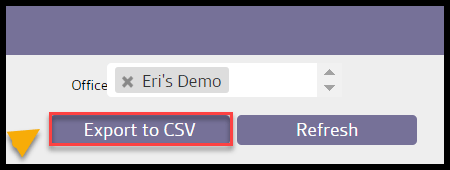
- Export this report by selecting Export to CSV.
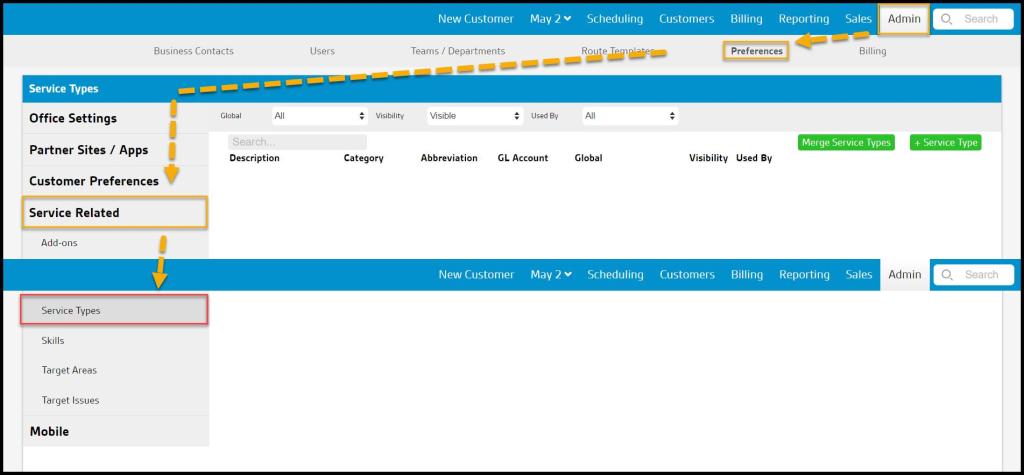
- For a service type to be considered a re-service, it has to have “Is A re-service” selected under Admin > Preferences > Service Related > Service Types.
Accessing the Tech Re-Services Report
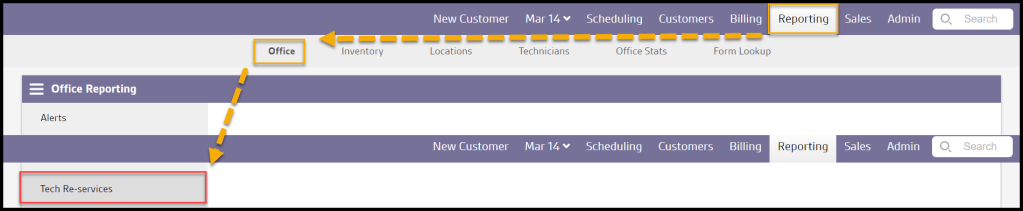
To access the Tech Re-Services Report:
Reporting > Office Reporting > Tech Re-Services.
Filtering the Tech Re-Services Report
To filter the Tech Re-Services Report, select these filters.
- Start and End Date: Filter by the first and last date for the reporting period.
- Months of Historic Data: The number of months of past data to consider to determine the average number of appointments a technician normally services in a period of time.
- Offices: Filter by a specific office, if there are multiple offices.
Once the desired filters are selected, click on Refresh.

Viewing the Tech Re-service Rates Table’s Data Columns
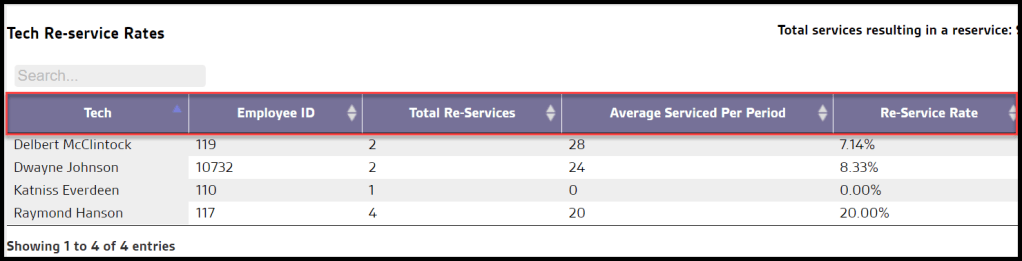
The Tech re-services Rates table is a breakdown of the number of re-services performed by a technician during that specified date range.
- Tech: Displays the name of the technician that performed the re-service.
- Employee ID: Displays the technician’s employee ID for each respective office. It can be found under Admin > Users to the left of their name as well as in their User Card.
- Total re-services: The total number of re-services that the technician performed during the specified date range.
- Average Serviced Per Period: Displays the average number of services (excluding re-services) a technician performs during a period of time. This “period” is determined by the Months of Historic Data filter at the top of the page.
- re-service Rate: This number is calculated by taking the total amount of re-services and dividing it by the average serviced per period. This data can be used to track the overall performance of technicians over time.
Viewing the re-services Table’s Data Columns
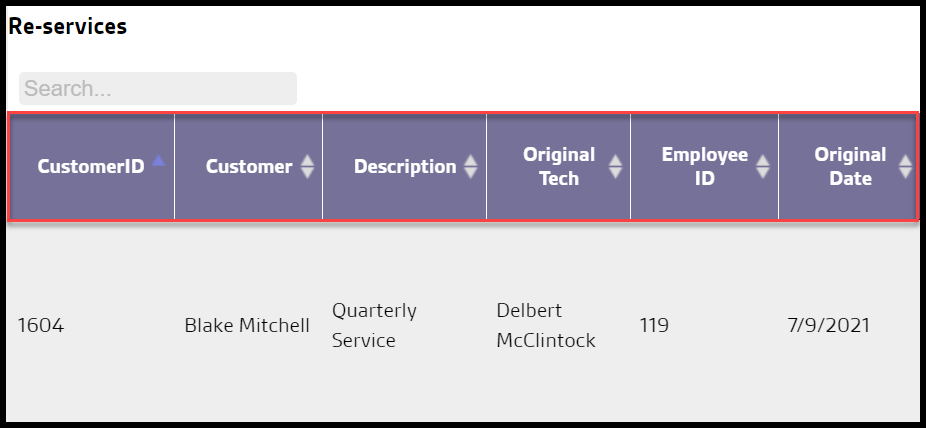
The re-services table shows all the re-services during the specified start and end date.
- CustomerID: Displays the customer’s unique identification number. Clicking on this will open up the customer’s card.
- Customer: Displays the name of the customer.
- Description: Displays a description of the service type that was performed.
- Original Tech: Displays the name of the original technician that performed the service.
- Original Date: Displays the date of the original service.
The re-services table shows all the re-services during the specified start and end date.
- Subscription: Displays the customer’s service type.
- Frequency: Displays how often the subscription should be serviced.
- Original Targets: Displays the targeted issues (pests, etc) on the original service.
- Star Rating: Displays the feedback rating given by the customer for the original service.
- Re-service Date: Displays the date the reservice was completed.
- Reason: Displays the reason why the reservice occurred.
- Re-service Type: Displays the service type chosen as the re-service appointment type.

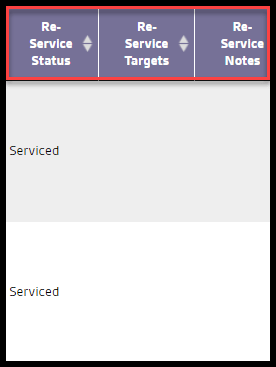
The re-services table shows all the re-services during the specified start and end date.
- re-service Status: Displays the status of the re-service, i.e. pending, canceled, or completed.
- re-service Targets: Displays the targeted issues on the re-service.
- re-service Notes: Displays any notes made on the re-service by the technician.
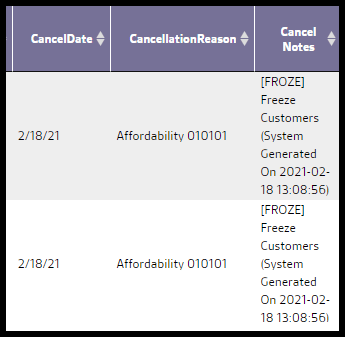
- Cancel Date: Displays the date the customer canceled, if applicable.
- Cancellation Reason: Displays the reason the customer canceled, if applicable.
- Cancel Notes: Displays any Cancel notes for the customer, if applicable
Exporting the Tech re-service Report
To export the Tech re-service Report to a CSV file, select Export to CSV.
What is a re-service?
For a service type to be considered a re-service, it has to have “Is A re-service” selected under the re-service option in the service type preferences in
Admin > Preferences > Service Related > Service Types.
This service type must also meet one of the following criteria by going to the Scheduling section of the service type.
- The Recurring/One-time Service option is set to Recurring Service.
- Is this an Initial Service option is set to No.
- Is this a re-service option is set to Yes.
- The appointment is attached to a subscription in the appointment card.

 Moxie Pest Control Office Guide