
Tech Completion Notes
Summary
The Tech Completion Notes Report displays all of the notes technicians created when completing an appointment in the mobile application.
Important Points:
- Clicking on the customer name or ID will open the customer card.
- If a customer has more than one subscription, each will appear individually.
Accessing the Tech Completion Notes Report
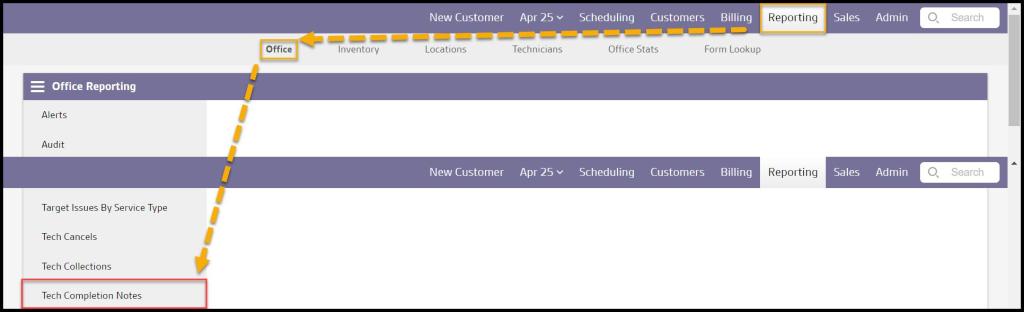
To access the Tech Completion Notes report, go to:
Reporting > Office Reporting > Tech Completion Notes.
Filtering the Tech Completion Notes Report
Use these filters to limit results in the report.
- Start and End Date: Filters the report by notes created within a certain date range.
Select Refresh when finished with the filters to load any changes.

Viewing the Tech Completion Notes Report Data Columns
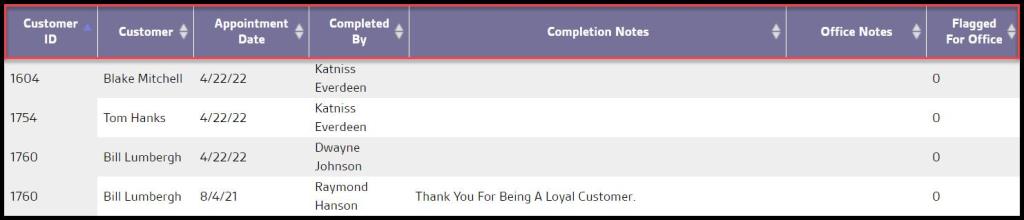
This report has several columns detailing information about the technician note created.
- Customer ID: Displays customer’s account unique identification number.
- Customer: Displays the customer’s first and last name on the account.
- Appointment Date: Displays the date the appointment was scheduled.
- Completed By: Displays the first and last name of the technician that completed the appointment, if applicable.
- Completion Notes: Displays the notes the technician creates under the Service Notes when completing an appointment in the mobile application. These notes are visible to customers on the completed service notification.
- Office Notes: Displays the notes the technician creates under the Office Notes when completing an appointment in the mobile applications. These notes are not visible to customers and can be seen to office users under the Alerts in PestRoutes.
- Flagged For Office: In the mobile applications, the technician has the option to flag notes for the office or not. When an office note is not flagged, the report displays a “0” in this column. When a note is flagged, the report displays “1” in this column, and the flagged note can be seen under the Alerts in the desktop application.
Exporting the Tech Completion Notes Report
To access the Tech Completion Notes report, go to:
Reporting > Office Reporting > Tech Completion Notes.
 Moxie Pest Control Office Guide