
Tech Collections
Summary
The Tech Collections Report is a great tool for managing all the check and cash payments collected from customers by technicians. This report serves two vital purposes:
- Displaying all of the cash and check payments collected from customers by technicians,
- Allowing these payments to be batch applied to customer accounts.
This report is beneficial because FieldRoutes does not currently apply cash and check payments to customer accounts. Once a technician reports collecting cash or check payments from a customer in the mobile application, an office user can ensure that payment was delivered to the office and apply the payment to the customer’s account with this report.
Important Points:
- FieldRoutes does not currently apply cash and check payments to customer accounts.
- Use the Batch Apply Payments feature in this report to apply these payments to customer accounts.
- Export this report by selecting “Export to CSV”.
Access the Tech Collections Report
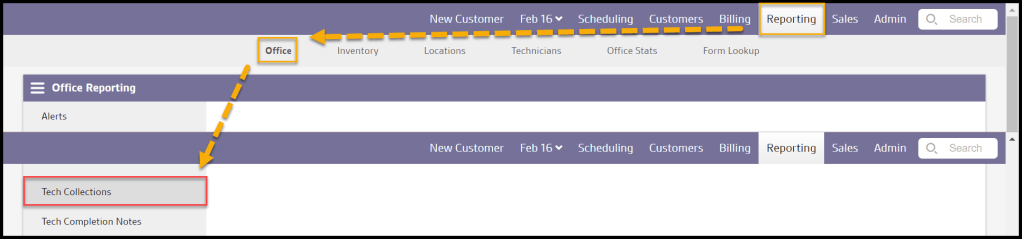
To access the Tech Collections report, go to:
Reporting > Office > Tech Collections
Filtering the Tech Collections report
Multiple filters can be used for the Tech Collections report.
- Start and End Date: Choose the start and end dates for the customer’s appointment dates.
- Exclude Initial: Exclude initial appointments. An initial appointment is the first appointment for a subscription.
- Include $0 Collected: Choose to include customers where $0 was collected for their appointment in the “Appointment Breakdown” section.
Once the desired filters are selected, select “Refresh” to generate the report. If needed, the search bar can be used to search for a specific line item.

Viewing the Tech Collections Report’s Data Columns Part 1
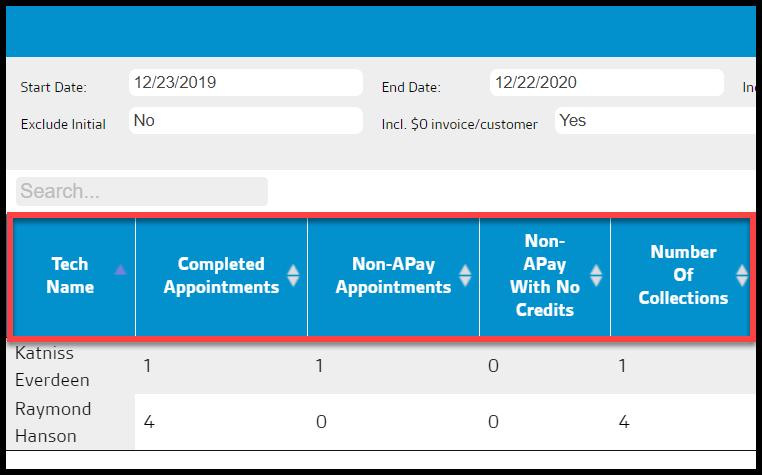
The first section in the Tech Collections report will detail information about the technicians.
- Tech Name: Shows the name of the technician.
- Completed Appointments: Displays the number of appointments the technician has completed within the selected date range.
- Non-APay Appointments: Shows the number of customers not on AutoPay that the technician serviced within the selected date range.
- Non-APay With No Credits: Shows the number of customers not on AutoPay with no credits.
- Number Of Collections: Displays total number of payments collected within the selected date range.
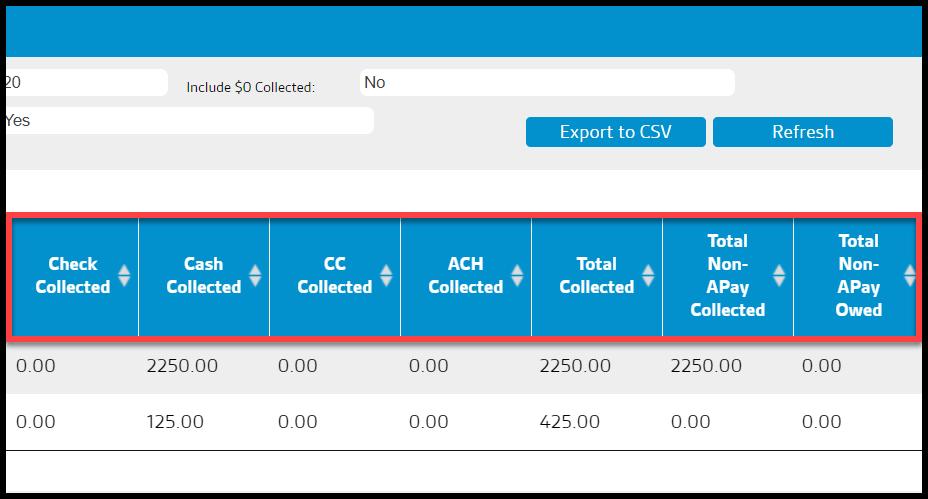
Viewing the Tech Collections Report’s Data Columns Part 2
- Check Collected: Shows the total dollar amount of check payments collected within the selected date range.
- Cash Collected: Displays the total dollar amount of cash payments collected within the selected date range.
- CC Collected: Shows total dollar amount of credit card payments collected within the selected date range.
- ACH Collected: Shows total dollar amount of ACH payments collected within the selected date range.
- Total Collected: Displays the total dollar amount of payments collected for the technician.
- Total Non-APay Collected: View the total amount of money collected for customers not on AutoPay.
- Total Non-APay Owed: Show the total amount of money still owed by customers not on AutoPay
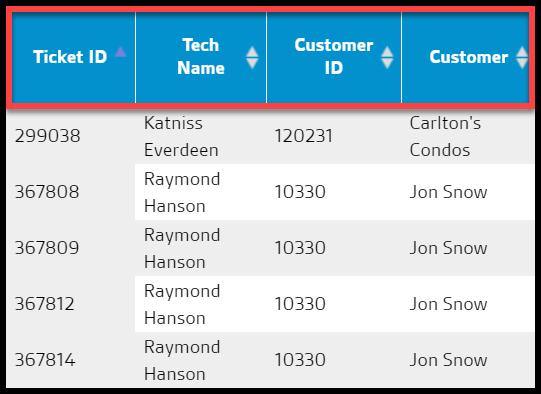
Viewing the Appointment Breakdown’s Columns (Part 1)
The second section in this report will highlight more information about the customer’s appointments. Please see below for information on batch applying payments.
- Ticket ID: Displays the invoice number the payment is pertaining to.
- Tech Name: Shows the name of the technician that serviced the appointment.
- Customer ID: View the customer’s unique identification number that was serviced by the technician.
- Customer: View the first and last name on the customer’s account.
Viewing the Appointment Breakdown’s Columns (Part 2)
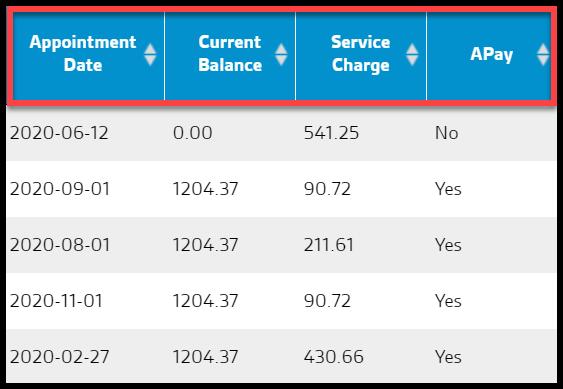
- Appointment Date: Displays date the appointment was scheduled for the customer.
- Current Balance: View the current balance on the customer’s account.
- Service Charge: Displays total cost of the service that was performed.
- APay: Shows if the customer is on AutoPay or not.
Viewing the Appointment Breakdown’s Columns (Part 3)
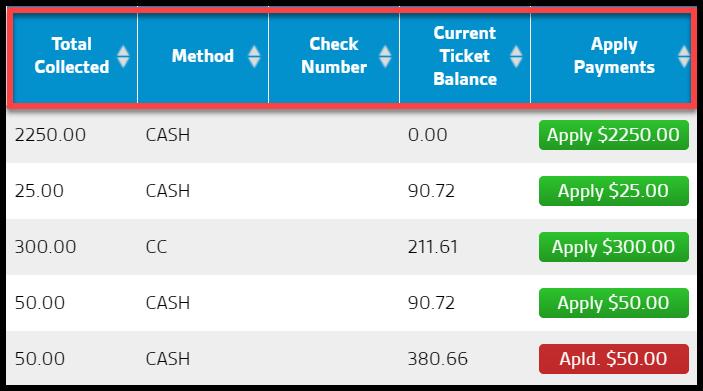
- Total Collected: View the total amount of the payment that the technician collected.
- Method: Displays the type of payment method that the technician collected.
- Check Number: Shows the check number (if applicable) the technician reported collecting.
- Current Ticket Balance: View the current amount the customer owes on the invoice. This will help determine if the invoice has been paid or not.
- Apply Payments: Displays the amount the payment applied will be when selecting “Batch Apply Payments”.
Batch Applying Payments
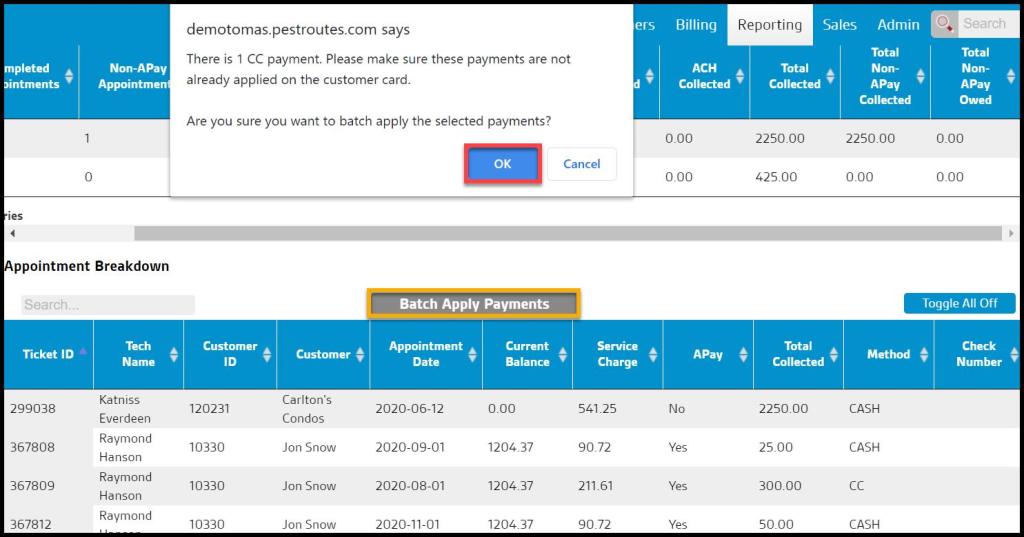
One function of this report grants the ability to batch apply tech collected payments to customer accounts. This is useful since FieldRoutes currently does not provide the ability to automatically apply cash and check payments to customer accounts.
To apply batch payments, select Batch Apply Payments.
Exporting the Tech Collections Report
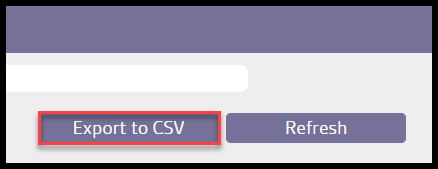
To export the Tech Collections Report as a CSV file, select Export to CSV.
 Moxie Pest Control Office Guide