
Tech Cancels
Summary
The Tech Cancels Report will keep track of customers that cancel service with the company and the technician that completed the last service prior to the customer’s cancellation.
This report can help determine if a technician is a reason for customers canceling.
Important Points:
- According to this report, the technician to last service any regular appointment (any appointment that is not a re-service) for a customer is responsible for the customer’s cancellation.
- Export this report by selecting Export to CSV.
Accessing the Tech Cancels Report
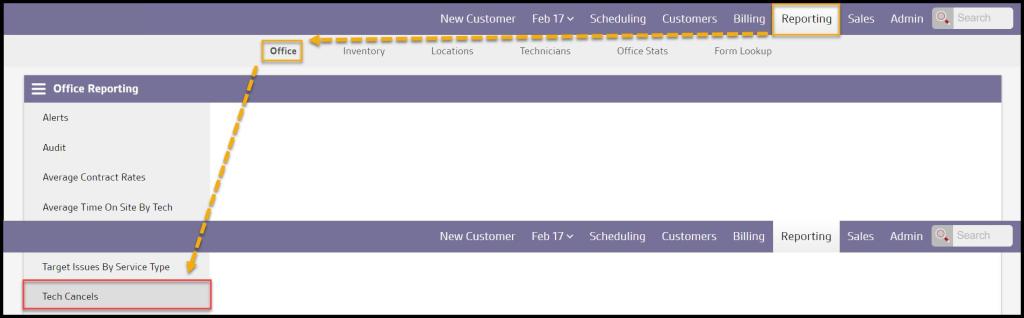
To access the Tech Cancel report, go to:
Reporting > Office Reporting > Tech Cancels.
Filtering Tech Cancels Report
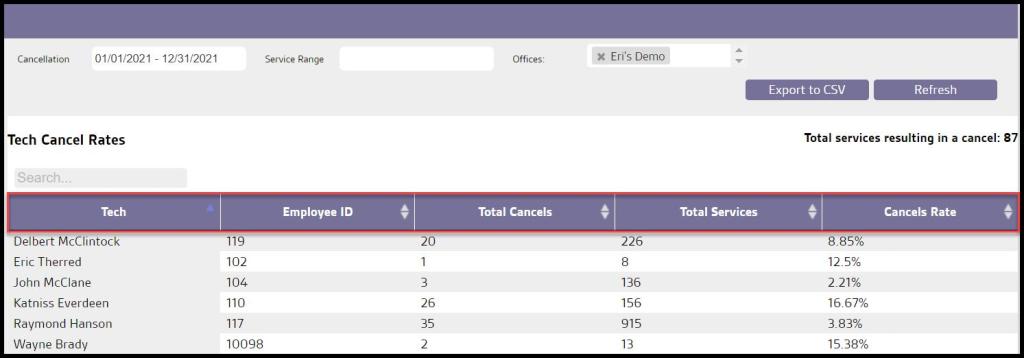
The Tech Cancels report has filters to pull the required information.
- Cancellation: The first and last date for the cancellations.
- Service Range: The first and last date for services prior to cancellations.
- Offices: Filter results by the desired office, for companies with multiple offices.
Select Refresh when finished with the filters to load any changes.

Viewing the Tech Cancel Rates Table
This section shows technicians with existing cancels and their cancel rate within the selected date range.
- Tech: Displays the name of the technician responsible for the cancels.
- Employee ID: Displays the technician’s employee ID for each respective office. Note: It can be found under Admin > Users to the left of their name as well as in their User Card.
- Total Cancels: Displays the Total Services column reflects the number of services performed by the technician between the oldest and most recent last canceled appointment dates found.
- Total Services: This number is calculated by the date of the last regular service received before cancellation is found for each canceled customer caused by the technician Counts the number of services performed by the technician between the oldest and most recent dates found.
- Cancels Rate: Displays the Total Cancels divided by Total Services multiplied by 100. This number is rounded to the nearest percentage
Viewing the Cancels Table
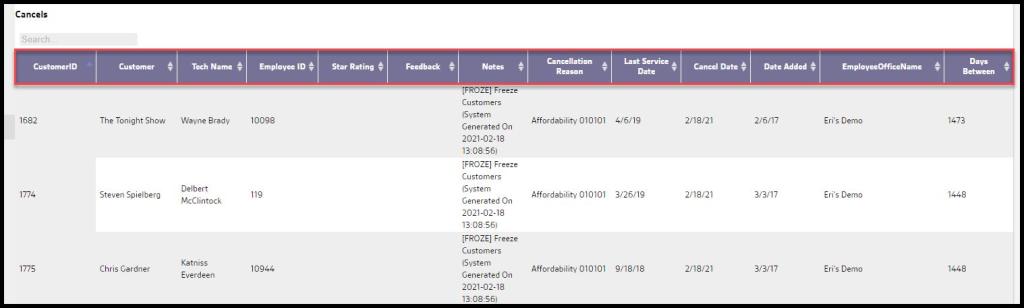
This section will display the customers that have canceled within the selected date range and their cancellation reason.
- Customer ID: Displays the customer’s unique identification number.
- Customer: Displays the name of the customer that canceled.
- Tech Name: Displays the technician who caused the customer to cancel
- Star Rating: Displays the number of stars left for the last completed regular service before the customer canceled.
- Feedback: Displays the feedback left for the technician for the last completed regular service before the customer canceled.
- Notes: Displays any notes specified when canceling the customer.
- Cancellation Reason: Displays the reason specified when canceling the customer.
- Last Service Date: Displays the date for the customer’s last completed appointment.
- Cancel Date: Displays the date the customer was canceled.
- Date Added: Displays the date the last appointment was serviced.
- Employee Office Name: Displays the office name for the respective technician as specified in Admin > Preferences > Office Settings > Office Info.
- Days Between: Displays the number of days between the Date Added and the Cancel Date.
Exporting the Tech Cancels Report
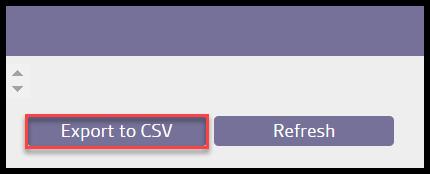
To export the Tech Cancels Report to a CSV file, select Export to CSV.
 Moxie Pest Control Office Guide