
Teams and Departments
Summary
FieldRoutes will allow you to manage sales representatives in different teams and all your office staff into departments.
Important Points:
- Employees can be combined into teams and departments
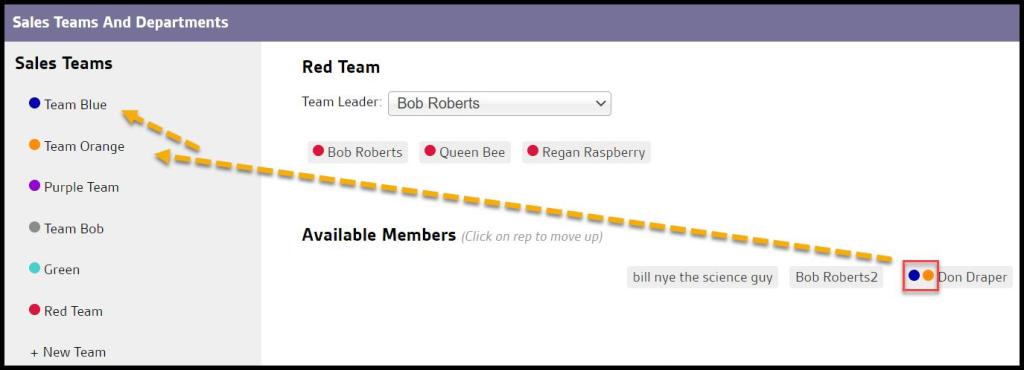
- You can see what teams employees currently belong to by looking at the icons by their name
- Red names are inactive employees (frozen accounts)
Accessing the Teams and Departments
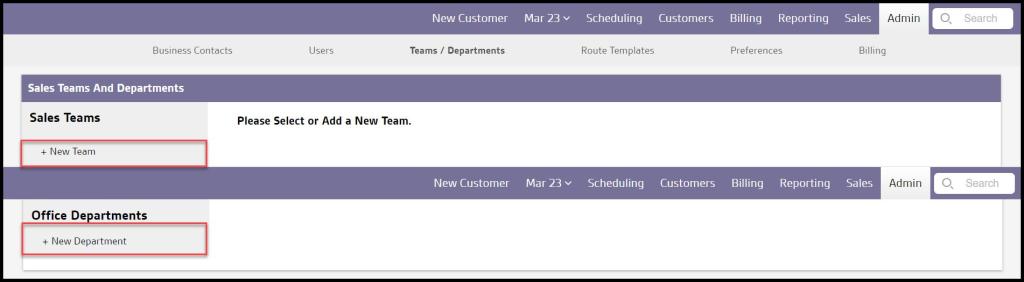
To access the Teams and Departments, go to
Admin > Teams / Departments.

Adding a new Team or Department
Select + New Team to the left under Sales Teams to add a new sales team. Likewise, to add a new office department select + New Department to the left under Office Departments.
Adding a New Team or Department Name
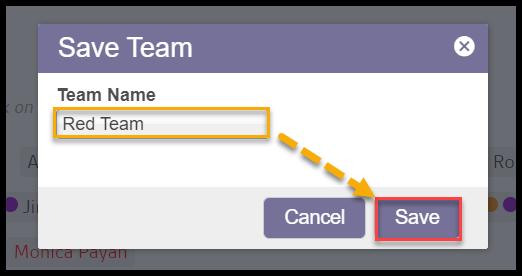
Once + New Team is selected, a new window will appear. Use it to give the team a name. The process is the same for departments.
Adding Team or Department Members to the new Team or Department
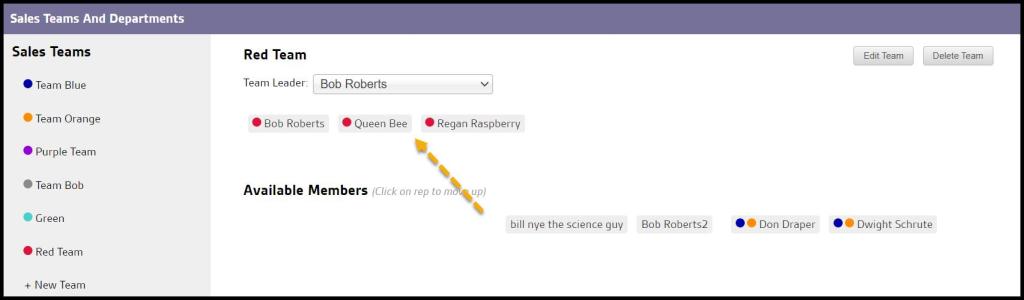
Once the team name is saved, it will show up in the column to the left. Select the team, and the user will see a list of all the office’s sales users under Available Members.
Click on a sales user’s name to add or remove the member from the team. You can assign a team leader to the team as well.
Which Team or Department does a member belong to?
The user may notice a colored circle to the left of the sales user’s name. The colored circle will indicate the assigned team or department for that member. If a team or department member does not have a circle, they do not currently belong to a team or department.
Saving a Team or Department
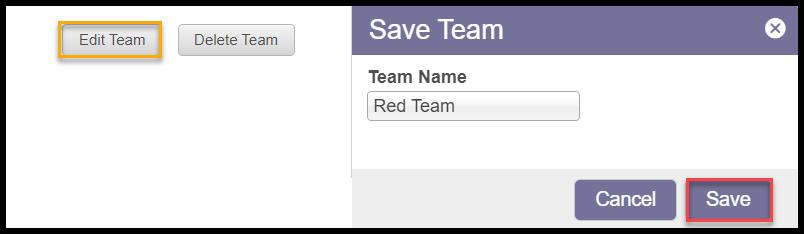
To save a team or department, select Edit Team or Edit Department and select Save.
Removing Team or Department Members
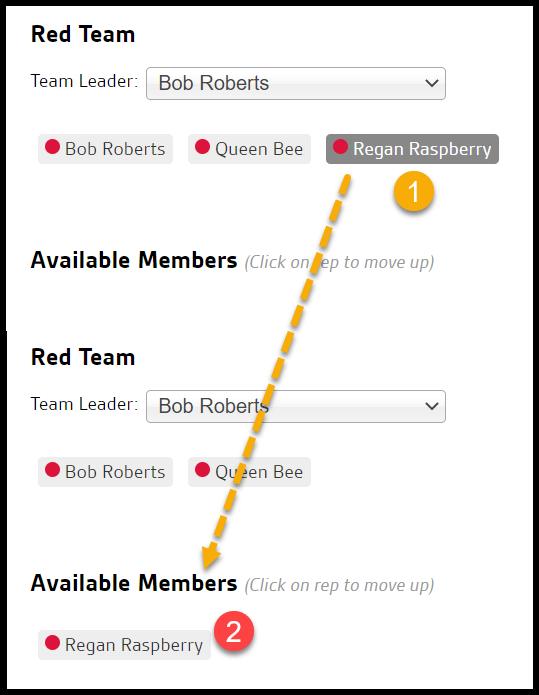
To remove Team or Department Members, tap the team member on the current team to remove them.
Deleting a Team or Department
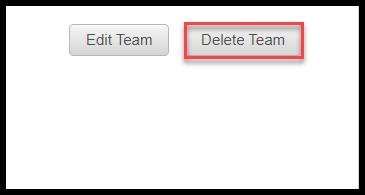
To save a team or department, select Delete Team or Delete Department.
 Moxie Pest Control Office Guide