
Tasks
Summary
Tasks help users create various tasks to be auto-generated and assigned to a user for follow-up. These Tasks highlight important pre-selected actions in order to prevent them from being forgotten or left incomplete.
Important Points:
- Tasks will keep track of any duties that need to be completed within the office.
- Please see the Task Category guide for making changes to Task Categories
- Tasks can also be created in Trigger Rules as an action for the trigger rule.
Accessing Tasks
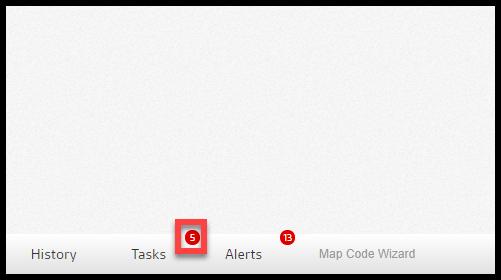
To access the Tasks, go to the bottom navigation bar. and select Tasks.

Viewing Tasks
The red bubble next to the Tasks button shows the number of pending action items assigned to the user currently or past due.
NOTE:
A Task can be assigned to a single user. However, tasks may be duplicated and then assigned to any number of users involved in their completion.
Adding New Tasks (Tasks)
Select Create New to add a new task.
- Status: This will display the status of the task once completed.
- Customer: Add a customer to the new task.
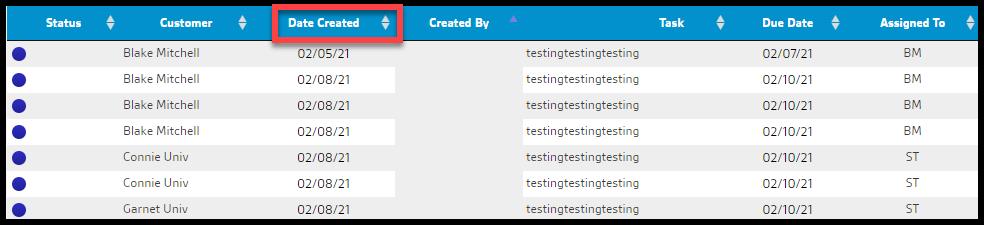
- Date Created: This will display the date that the task is added by default.
- Created by: This will display the employee’s name by default.
- Task: Add the task description to the new task. Note that the field can be dragged to show longer descriptions.
- Due Date: Select the due date for the new task.
- Assigned To: Assign an employee to the new task.
- Category: Add a task category to the new task. Task categories can be edited in Preferences. Please see the guide on task categories for more details. Tasks created via trigger rules with no category selected will be Unassigned.
Save the new task by selecting Add. Select Refresh to cancel the new task creation process.

Automating Tasks Creation with Trigger Rules
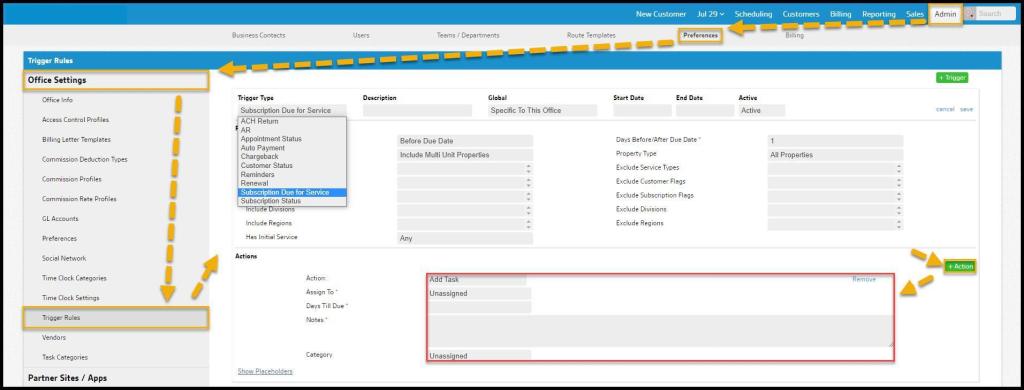
To automate Task creation via Trigger Rules go to Admin > Office Settings > Trigger Rules.
Select the corresponding Trigger Rules options and filters as seen in the Trigger Rules user guide. Then select + Action to add a new action.
- Action: Select Add Task to create a new task as a result of the trigger rule.
- Assign To: Assign the task to a user.
- Days Till Due: Choose the number of days until the task is due.
- Notes: Add any additional notes for the user.
- Category: Add a Task Category to the task. Tasks created via Trigger Rules with no category selected will be Unassigned.
NOTE:
Task Categories can be found at Admin > Office Settings > Task Categories. See the guide on Task Categories for more details.
Editing and Deleting Tasks
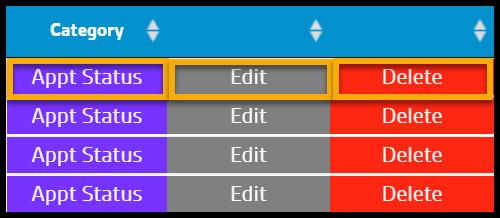
To edit Tasks, select the Appt Status to change the appointment status or choose Edit to make additional changes to each individual task. To remove the task completely, select Delete.
Filtering Tasks
Tasks have filters available to aid in shaping the viewable results.
- Categories: Filter tasks based on their assigned categories. Tasks created via trigger rules with no category selected will be Unassigned.
- Assigned to: Filter tasks assigned to specific employees.
- Status: Filter tasks based on their status.
- All Non-Completed: Display only tasks that are not marked as completed.
- Pending: Display only tasks marked as Pending.
- Completed: Display only tasks marked as Completed.
- In Use: Display only tasks marked as In Use.
- Urgent: Display only tasks marked as urgent.
- Filter by: Order tasks by the earliest date.
- Due Date: Order tasks by the earliest due date.
- Date Created: Order tasks by the earliest creation date.
- Date Range: Filter between a starting date and an end date. The default range looks one month ahead and two behind. The range is adjustable but 3 months is the largest range that can be pulled.
NOTE:
To review old tasks, to see if any were missed in the past, filter by Date Created and change the date range in 3-month increments. This will show any uncompleted tasks in the past by using this method. Select Refresh to reset the tasks.

Changing the status of Tasks
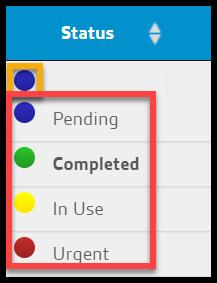
Once a task is completed, change the status by selecting the blue dot to the far left of the task. A new menu will give the option to complete the task, or assign another status to it.
Completed Tasks
Once a task is marked as complete, the red number above the tasks will change to reflect the completed task and once the page is refreshed, the completed task will disappear from the list.
When a task is updated, it moves places in the task list.
The Tasks list will scroll to show where the task has been updated to.
If the Date Created column is selected, tasks will be sorted by that column rather than the Due Date column, and tasks will not jump around if the due date is being edited.
If that is not possible, the filters above can be used to limit the category and the days that are being viewed (for example limiting the Date Created range and just view Billing).
 Moxie Pest Control Office Guide