
Social Network
Summary
The Social Network preference adds certain social media pages to the Customer Portal so customers can add reviews on social media after a service.
Important Points:
- When adding a Social Network page, please include http:// or https:// at the beginning of the links.
Accessing the Social Network Preferences
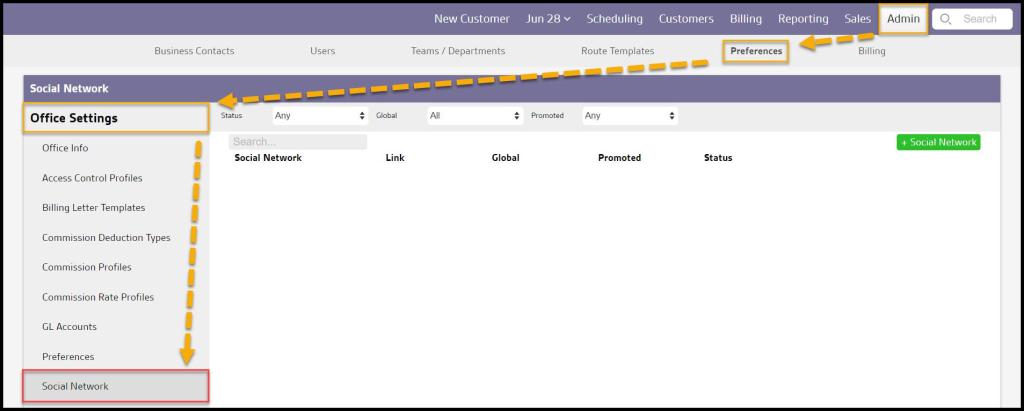
To access Social Network preferences, go to:
Admin > Preferences > Office Settings > Social Network.
Filtering the Social Network Preferences
To filter the Social Network preferences, toggle these filters.
- Status
- All: Display All Social Networks.
- Active: Display only active Social Networks.
- Frozen: Display only frozen Social Networks.
- Global
- All: Display all Social Network
- Specific to Office: Display only Social Networks that flagged to be specific to the user’s office.
- Available to all offices: Display only Social Networks that are flagged as available to all offices.
- Promoted
- Any: Display All Social Networks.
- Promoted: Display only promoted Social Networks.
- Not Promoted: Display only Social Networks that were not promoted.

Adding or Editing a Social Network Preference
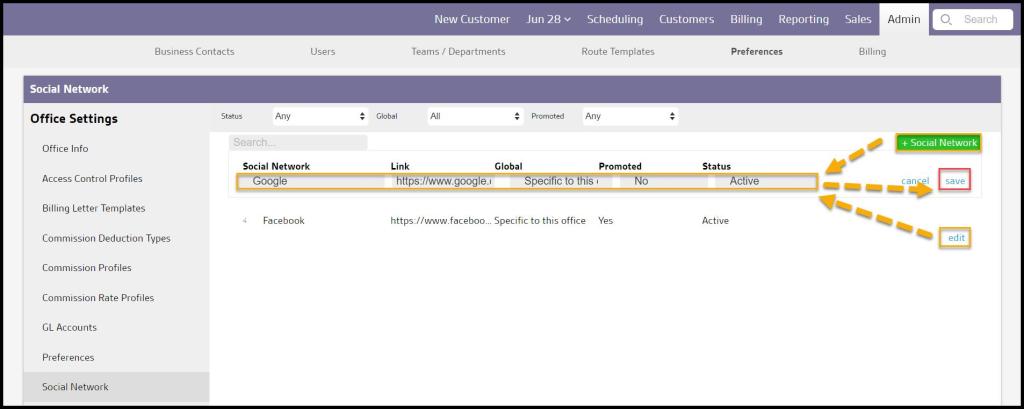
To add a new Social Network, select + Social Network or select edit to make changes to an existing Social Network.
- Social Network: Select which platform the Social Network page is on.
- Link: Give the URL to the Social Network page. Please include http:// or https:// at the beginning of the links.
- Global: Determine if the social media will be specific to this office or available to all offices.
- Promoted: Select promoted to have this page to appear as a link at the bottom of the page in the customer portal, and select “Yes” for promoted. To hide this page from being accessible via the customer portal, select “No“.
- Status: Show or hide the preference.
NOTE:
Social media pages cannot be deleted, but they can be marked as “Deactivated” to hide them.
Select Save to retain changes when finished.
Where Can Customers Access the Social Network Pages in the Customer Portal?
If customers leave a 4-star review or higher in the Customer Portal (Customer Card > Admin Tab > Portal Login),

A window will appear, prompting them to share their review on the available Social Network pages.
There will be a logo for each promoted Social Network page. Customers can copy the review they wrote, select one of the Social Network pages (by clicking on the logo), and paste their review there.
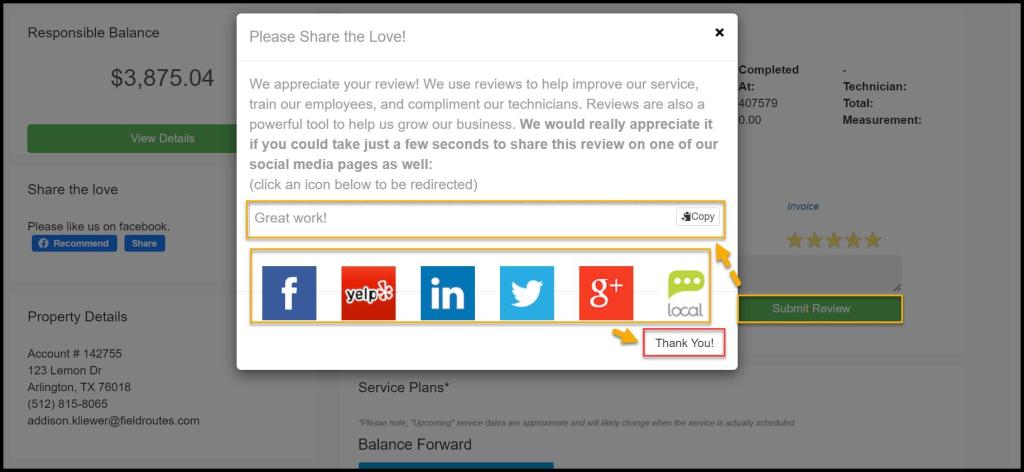
Currently, Customer Portal does not provide the integration to automatically post a review from Customer Portal to the Social Network pages.
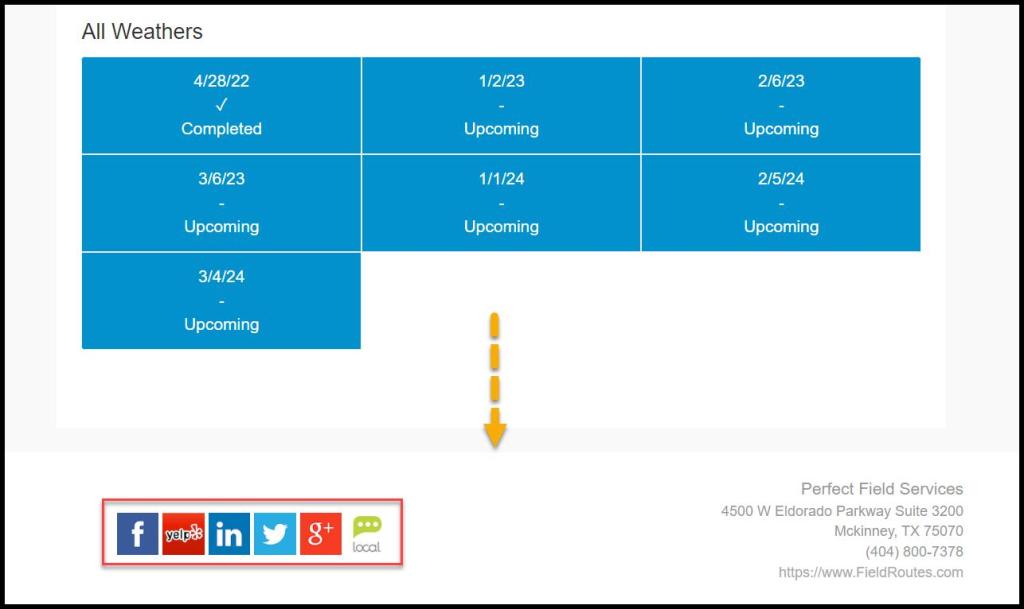
Links to the Promoted Social Network pages are also available at the bottom of the Customer Portal page.
 Moxie Pest Control Office Guide