
Site Navigation
Summary
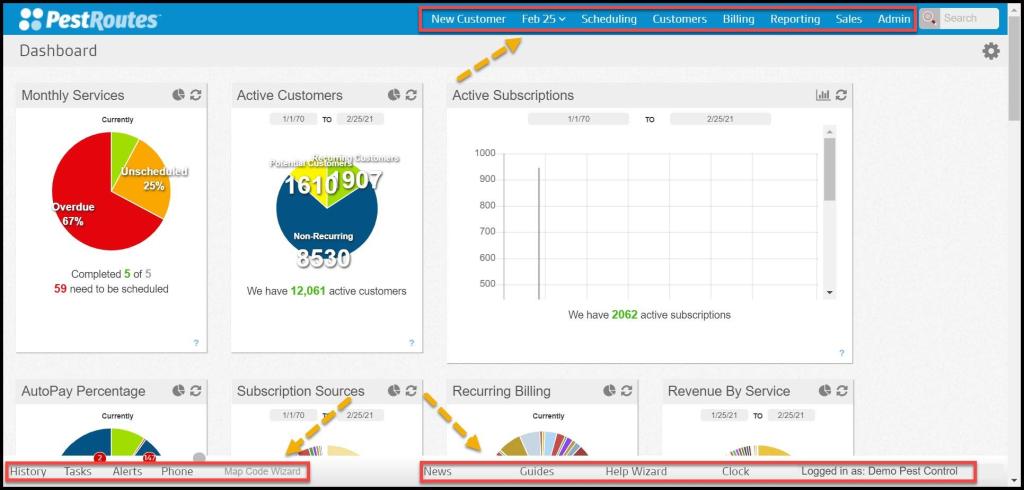
The toolbars at the top and bottom of the screen will help the user to navigate to the different areas in the software.
Important Points:
- A minimum of three characters is required to search for customers in the search field.
Accessing the Site Navigation
To use the site navigation, select the top or bottom navigation bars on the browser.
Viewing the Top Navigation Toolbar
To use the top site navigation, select the options on the top of the browser:
- New Customer: Open a new customer card.
- Current Date/Calendar: Access the route view for a specific date.
- Scheduling: Manage everything regarding scheduling customers and creating routes for technicians.
- Customers: Access the Customers, Sales, Audit Sales, Leads report, and Email Dashboard.
- Billing: View the AutoPay customers, Accounts Receivable, Accounts with Credits, Collections, Payment History, and Payment Batches report.
- Reporting: Access all of the Office, Inventory, Locations, Technicians, Office Stats, and Form Lookup reports.
- Sales: View Sales Reps, Service Reports, Area Management, Knocking Reports, and the Top 10 Report.
- Admin: Manage office information, preferences, add users, etc.
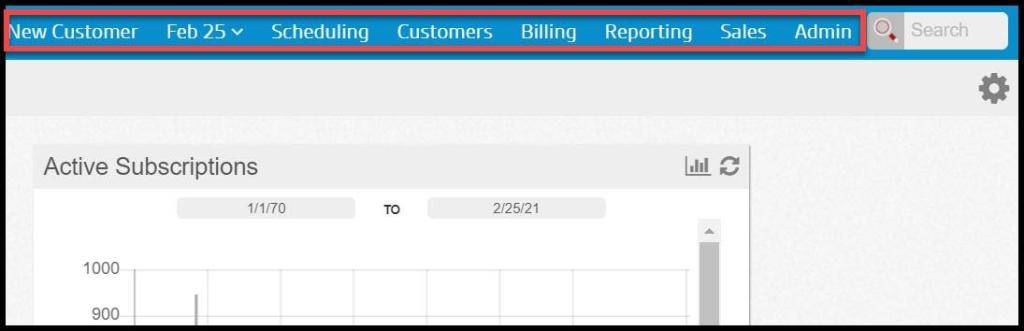
- Search: Search by customer or invoice numbers (see below).
Search Field Options
The Search field offers two different functions, selected from a menu that appears when the cursor is placed in the field:
- By Customer (default): Enter a customer name, phone number, or address, and then select the target from the resulting list
- By Invoice: To search for a customer invoice, select the By Invoice option from the drop-down menu and begin typing the Invoice Number. This search returns different results based on the number of characters entered:
- < 3 Characters = Exact Match: This allows low-numbered invoices (e.g., 1-99) to be found easily.
- 3+ Characters = Partial Match: Once a third character is added the search will return a list of all possible matches, filtering further with each character added. Selecting the desired invoice will open the Customer Card > Invoice tab to that Invoice.

Viewing the Bottom Navigation Toolbar
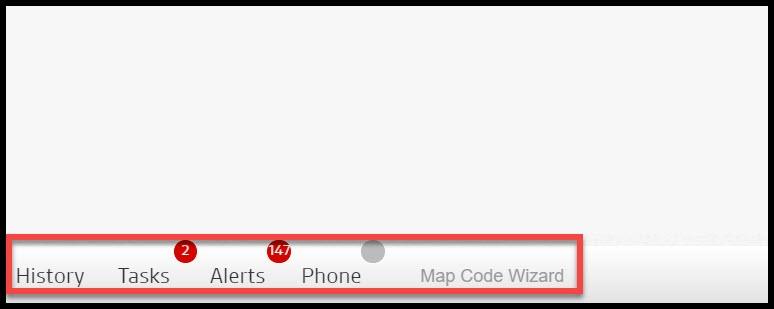
To use the bottom site navigation, select the options on the bottom of the browser:
- History: Displays a log of the past 50 customers the user has viewed for quick access.
- Tasks: View and create tasks for customers and the office staff.
- Alerts: View alerts regarding customers and technicians.
- Phone: Use information about a connected phone.
- Map Code Wizard: Insert a map code.
Some additional options on the bottom navigation bar:
- News: Displays news regarding the software.
- Guides: View user guides for using the software features.
- Help Wizard: Search through guides and FAQs by using specific keywords.
- Clock: Displays the employee time clock.
- Logged in as: Shows what user is currently logged into the portal

 Moxie Pest Control Office Guide