
Set Up Recurring Billing
Summary
Recurring Billing is used for customers that want to pay for their services on a different frequency than when they are serviced.
This feature is especially beneficial if the user has customers that want to pay for their services each month while receiving services on a different frequency. Still, the user can choose any type of billing frequency to meet the customer’s needs and the company.
Recurring billing is beneficial for two main reasons:
- The company’s cash flow will be more predictable when customers are on a recurring billing plan.
- It is generally easier for customers to budget with a recurring billing plan.
Important Points:
- Change the recurring ticket price to the amount the customer will be charged on a recurring basis.
- If the company’s technicians earn commission on completed services, change the custom production to the full cost of the service and not the recurring billing price.
- A $0 invoice is generated after each completed service, while a separate invoice for the recurring ticket price is generated after each recurring billing cycle.
- Recurring billing invoices cannot be deleted because they are system-generated invoices.
- A script is run in our software at 1:18 am PST to generate any recurring billing invoices.
Setting up Recurring Billing
To put a customer on a recurring billing frequency, go to:
Customer Card > Subscription Tab > Billing Options.
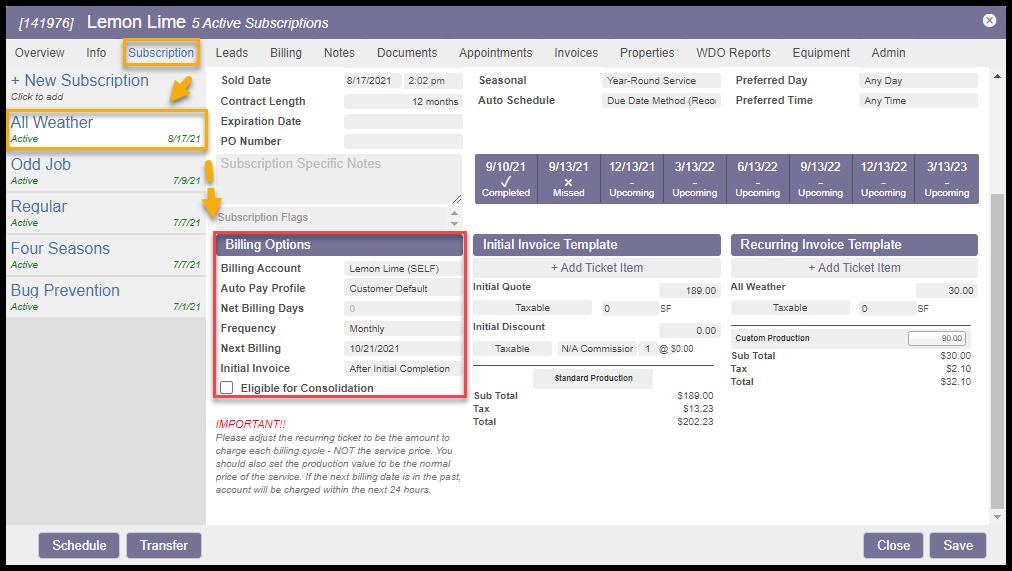
Viewing Billing Options
Under the Billing Options section, the user will see six fields:
- Billing Account: Select the billing account for the service if it differs from the customer’s main account.
- Auto Pay Profile: Shows the autopay payment options available under the billing tab.
- Net Billing Days: Determine the number of days an invoice can go unpaid before the invoice is considered past due.
- Frequency: Determine the customer will be billed. By default, the Frequency is set to After Each Completed Service, which means an invoice will be generated once a service is completed. However, the user can change the billing frequency depending on when the customer wants to pay for their service, regardless of when the service is completed.
- Next Billing: Choose the date to generate the next billing invoice.
- Initial Invoice: Determine when the customer will receive their initial invoice.
The Frequency will allow the user to select a billing frequency set in the Admin > Preferences > Service-Related > Frequency Options as a Recurring Billing Frequency.
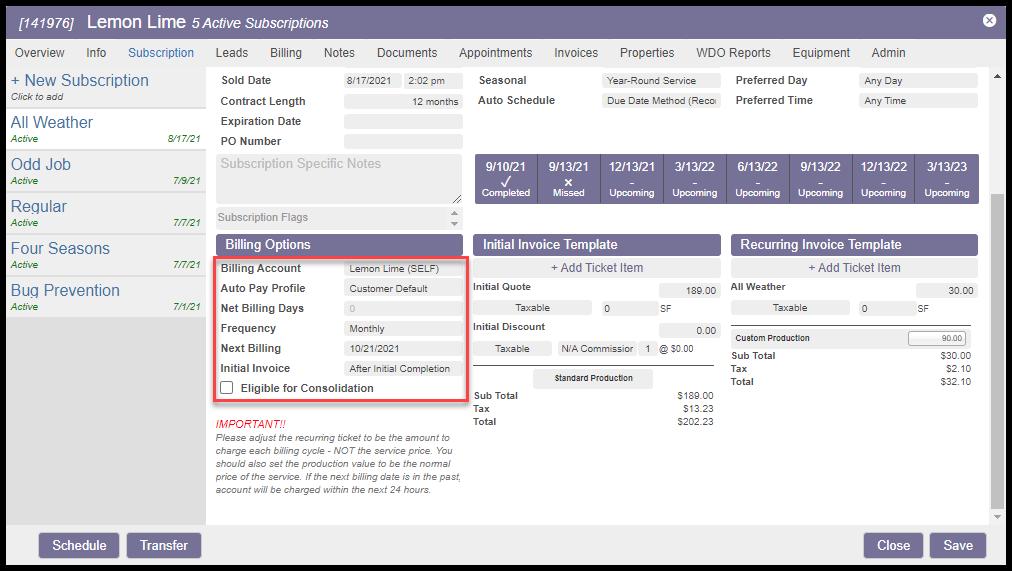
Using the Billing Options
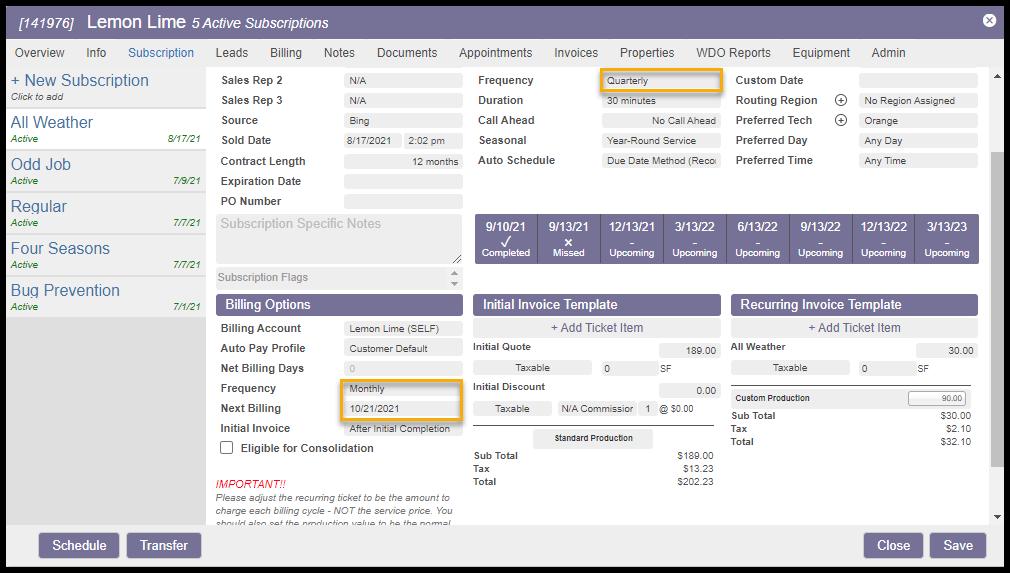
For this example, we will put the customer on a monthly billing frequency for their Quarterly subscription.
A new field will appear when the billing frequency is selected, allowing the user to choose the next billing date. This date will be the date when the software will generate the first recurring invoice.
If this date is set to be a day in the past, an invoice will be created that night. Our software runs a script at 1:18 am PST to generate any recurring billing invoices so that new invoices will be created the following day.
When the invoice is generated, the next billing date will automatically adjust according to the user’s set billing frequency. If the user chooses a monthly frequency, it goes by calendar month. Going by calendar month means if an invoice is generated on September 29th, the following recurring invoice will generate on October 29th.
Using the Recurring Ticket
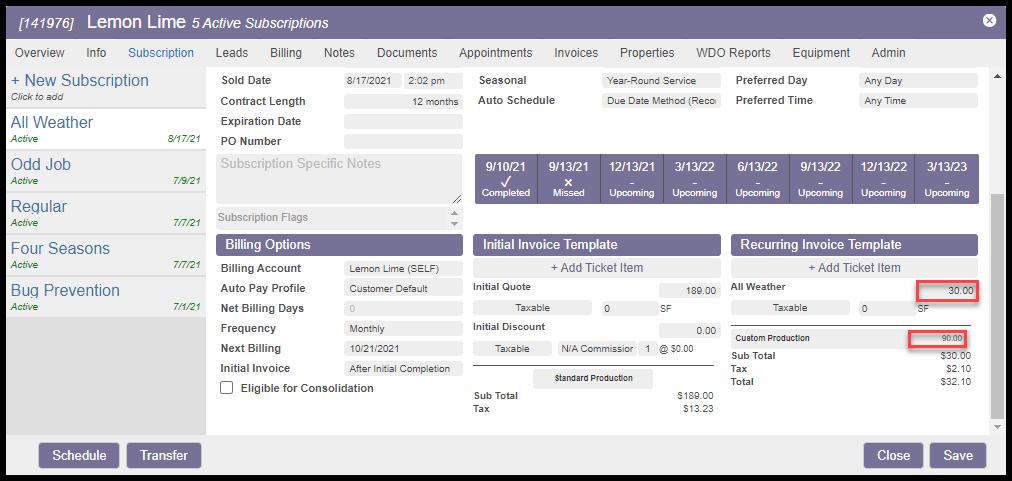
Once the billing options are set up, the user will need to adjust the recurring ticket price.
The customer will be billed the price listed under the recurring ticket on the next billing date that the user selects.
In this example, we want to charge a quarterly customer on a monthly billing frequency. So, we will take the normal price of the service and adjust it to a custom monthly price under the recurring ticket section in the customer card. For example, if they are normally charged $90 every quarter, change the price to $30.
Custom Production allows the user to link the full price to the service. Custom Production is helpful if the user’s technicians are paid a commission for the services they perform. Setting a Custom Production will allow the technician to get paid based on the full value of the service versus the partial amount charged for the recurring billing.
Change the Custom Production to the full price of the service so that the technician gets credit for the full price and not the recurring price.
Once these preferences are set up, click Save on the customer card.
What to Expect
After configuring these settings, the customer will receive two sets of invoices:
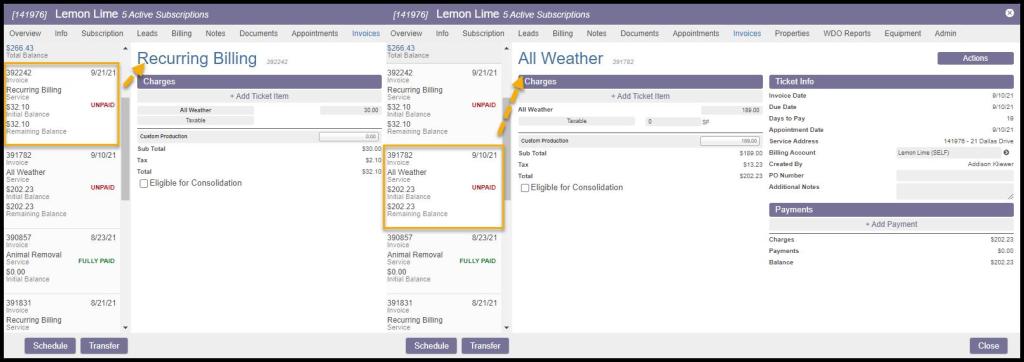
- After each completed service, the software will generate a $0 invoice for that service. This allows the user to add additional items that may have occurred on that service, like a bait box or moth fog. This invoice will show a $0 balance and a note that the customer is on a recurring billing plan. This invoice will have the custom production value set from the recurring ticket. The All Weather invoice pictured below is an example of the invoice generated after a service is completed.
- On each recurring billing cycle, an invoice will be automatically generated for the recurring billing price listed on the recurring ticket. This will have a $0 production value. The invoices generated will be named Recurring Billing, please see below for an example.
 Moxie Pest Control Office Guide