
Service Types
Summary
The Service Types preference defines and configures all services a company offers its customers.
Three types of services can be created here:
- Recurring Service: This offers a subscription for repeating the same service on a regular cycle (e.g. monthly or quarterly) over a contract period (typically 12 months). A good example of this is a Quarterly Home Pest Treatment.
- One-time Standalone Service: Subscriptions for these services cover one-time services, such as Tree Removal.
- Child Service: These services are member services in a season-long sequence under a parent Service Plan. The lawn care industry often refers to these as Rounds (child services) within a Program (parent Service Plan). Creating and configuring these Child Services are covered at the end of this guide.
The information entered in this Preference for each Service Type will correlate to the information in the customer’s Subscription. This ensures all quarterly, bimonthly, and annual Service Types are correctly configured.
Service Types allow the efficient addition of Customers and Services, whether for One-time or Recurring Subscriptions. It also ensures that technicians know what kind of service to perform for the customer while facilitating many reports based on the Service Types provided.
Important Points:
- Service Types cannot be deleted, only Hidden. This is because a deleted Service Type would also remove all historical data associated with that Service Type (Customer Subscriptions, Appointments, etc.).
- Child Services, used as Rounds for Service Plans, are also created in this preference and explained at this guide’s end.
- You can add a chemical Product Template to a Service Type to save your technicians time on appointments.
- There are two ways to merge multiple Service Types: Merge All Service Types for inter-office duplicates, or Merge a Single Service Type with another similar one in the same office.
- Two Service Types with the Global setting of Available To All Offices cannot be merged.
- Reservice Service Types cannot be reverted once they have a recorded completed appointment.
Accessing the Service Types Preference
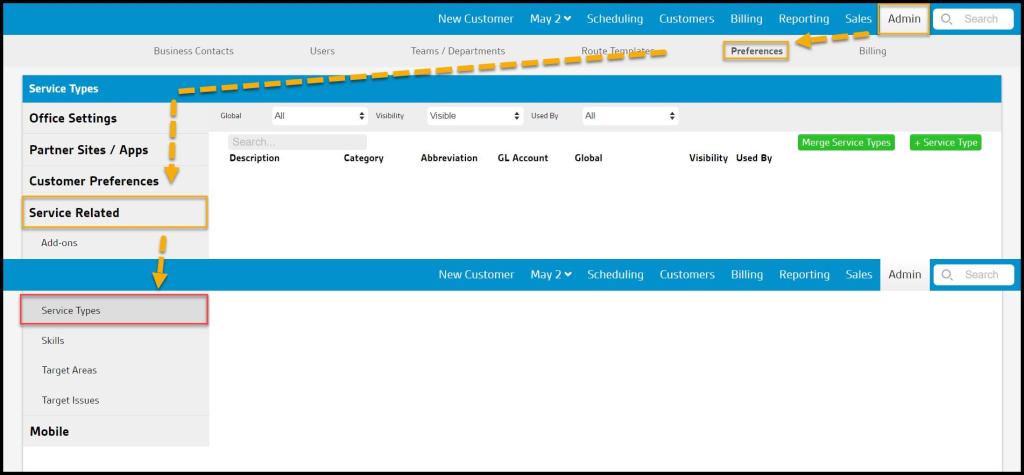
To access the Service Types preferences, navigate to:
Admin > Preferences > Service Related > Service Types
Adding and Editing Service Types
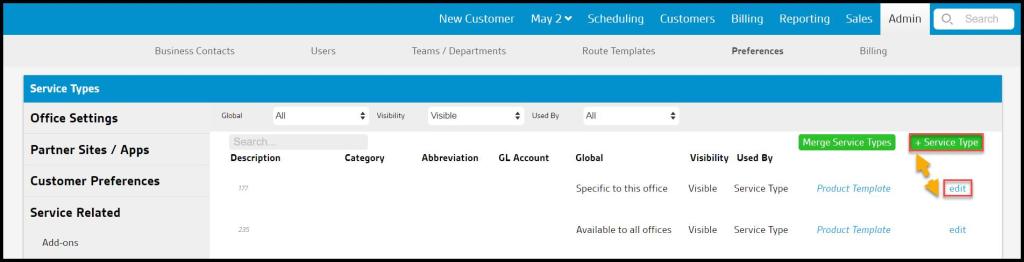
To add a new Service Type, select the + Service Type button.
Select the blue edit button to the right of the desired Service Type to edit an existing Service Type.
Service Type Settings and Configuration
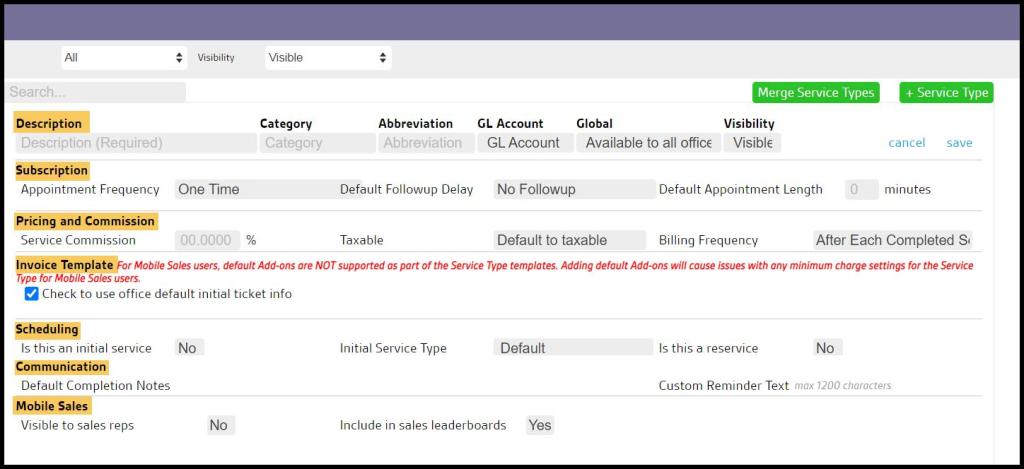
Numerous fields and settings are available in the Service Types preferences. These are broken into the following seven sections for easier navigation:
- Basic Description
- Subscription
- Pricing and Commission
- Invoice Template
- Scheduling
- Communication
- Mobile Sales
Basic Settings
- Description (Required): Name of the new Service Type.
- Category: Use this field to put the Service Type in a category. Service Types can be organized by category in the Commissions Report (Reporting > Commissions Report).
- Abbreviation: Use this optional field to create an abbreviation for the Service Type. For example, a quarterly Service Type abbreviation can be “QTRLY.” This abbreviation will appear in the mobile apps, so technicians can see what Service Type they are performing for the customer at a glance. If an abbreviation is not provided, a “?” will appear in its place in the mobile app. This abbreviation will also appear on the routes in the web app.
- GL Account: Associates the Service Type with a specific general ledger account number from an accounting system – allows reports to be filtered and grouped for additional financial analysis
- Global: For companies with multiple offices, if a Service Type is “Specific to this office,” it will only be available to the office in which the Service Type was created. If the Service Type is “Available to all offices“, every branch can see the new Service Type.
- Visibility: Service Types cannot be deleted, but only changed to Hidden via the Visibility setting to prevent their use.

Subscription Section
- Appointment Frequency: default = One Time – Designates the default number of days between service appointments for the Subscription.
- If you need to add a custom Frequency, go to Admin > Preferences > Frequency Options (in the Service Related section).
- Default Followup Delay: default = No Followup – This will be the expected interval between the Initial Service and the Initial Followup.
- Default Appointment Length: The default time in minutes that the appointment will take to service. This can be manually updated in the Appointment Card if needed.
- Season Start & Season End: Designates the opening and closing dates for Seasonal Services.
- Example: The mosquito season is between March and October, so for Mosquito Services the Season Start = 3/1 and the Season End = 10/31. Customers with this Service Type will only show as due for an appointment in the Job Pool when the current date falls within this date range. If the current date falls outside this range, these services will be excluded from the Job Pool.
- Employee Signature: default = No; Yes requires an employee signature on agreements for Subscriptions of this Service Type.
- Default Contract Length: default = 12 months. This is the default Contract Length for the Service Type. Typically, this is some multiple of a 12. However, a Custom Length is also available for special situations of less than 12 months or odd numbers of months.
- Minimum Contract Length: default = 12 months. This will be the fewest number of months a user can select for this Service Type in the mobile apps; a Custom Length option allows for any specific number of months, including less than 12, for special circumstances.
- Suppress Products Used from Customer: default = No. This prevents the display of products used by the customer in the Service Notification and the Customer Portal. If Yes is selected, then it will display a notification warning that it may be legally necessary to report Product Usage to customers.
- Display Renewal Date: default = No. This must be enabled to set the default Renewal Frequency and when the Renewal Date will start. These defaults can be edited in the Customer Card laterif needed.
- Note: When Display Renewal Date is enabled, customers currently using this Service Type will not have a Renewal Date added. Their Subscriptions will need to be manually changed.
- Alternate Service Days: Allows services in certain states like NY that require a backup date range to be provided to the customer when the original appointment is missed. Any number of days up to 3 digits (1-999) can be entered. Then placeholders on the Contract Template allow this Alternate Date Range to be automatically listed on the contract based using the number in this field. Note that these alternative dates are not displayed on the Customer Card nor considered during appointment scheduling. Those placeholders are:
- {#altServiceSchedule}…{/altServiceSchedule}
- {#altServiceScheduleFull}…{/atServiceScheduleFull}
- {serviceDate}
- {start}
- {end}
- Allowed Products: This limits which products can be used for the Service Type. If let blank, then all products will be allowed.

Pricing and Commission Section
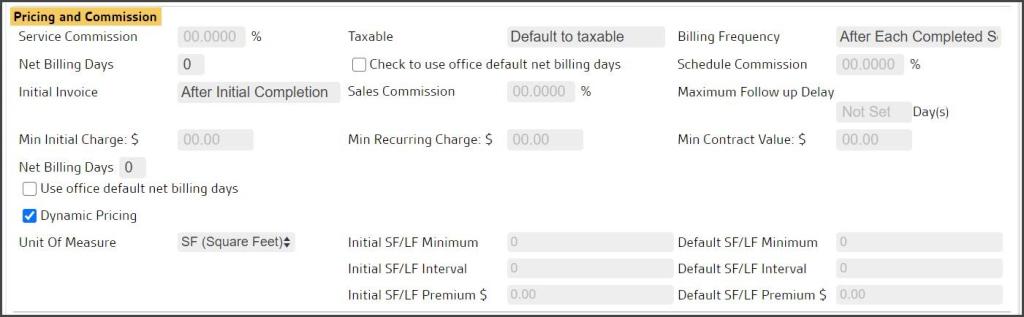
- Service Commission: If you pay users commission based on service type completed, then you can enter in the commission rate for each service type here. For commission based on service type, go to Admin > Preferences > Commission Profiles and ensure the rule Use Service Type Rates is set to Yes.
- Taxable: default = Default to Taxable – This field is to choose whether to make the service type taxable or not.
- Billing Frequency: default = After Each Completed Service (Normal) – This field changes the default to a frequency other than after each completed service.
- Net Billing Days: default = 0 – A checkbox is available for Check to use office Default Net Billing Days which is configured in Admin > Preferences > Office Preferences > Preferences.
- Schedule Commission: If you pay users commission based on service type scheduled, then you can enter in the commission rate for each service type here. For commission based on service type, go to Admin > Preferences > Commission Profiles and ensure the rule Use Service Type Rates is set to Yes.
- Initial Invoice: default = After Initial Completion –
- Sales Commission: If you pay users commission based on service type sold, then, you can enter in the commission rate for each service type here. For commission based on service type, go to Admin > Preferences > Commission Profiles and ensure the rule Use Service Type Rates is set to yes.
- Maximum Follow up Delay: Longest time in a number of days allowed to schedule the Followup Service.
- Maximum Follow up Delay: This setting caps off how far out it can go to prevent users from extending the follow-up too far. Only options lower than the number of days set here will be available for selection in the Default Followup Delay.
- Initial Billing: This setting controls when the initial invoice will be generated.
- Display Renewal Date: When set to “Yes“, the renewal date will show up in the Subscription tab. Selecting “No” will hide that information.
- Renewal Frequency: This sets the amount of time before the subscription needs to be renewed.
- Net Billing Days: This will allow you to determine how many days an invoice can go unpaid for with this subscription before it’s considered past due. If you have an office default, check the box to the left of this option to use office default.
- Dynamic Pricing: When enabled, allows for pricing of the Service Type to be calculated based on a measurement and includes options for square foot (SF) and linear foot (LF). See the Dynamic Pricing: Pricing by Measurement user guide.
- Unit of Measure: Default = SF (Square Feet), toggles to LF (Linear Feet)
- Initial SF/LF Minimum: Threshold on property size charged on the Initial Service, i.e. any property this size or smaller receives the Initial Quote price from the Initial Invoice Template.
- Default SF/LF Minimum: Threshold on property size charged on the Initial Service, i.e. any property this size or smaller receive the Default Charge price from the Recurring Invoice Template.
- Initial SF/LF Interval: The measured increment that adds the Premium cost for each step up in property size for Initial Services
- Default SF/LF Interval: The measured increment that adds the Premium cost for each step up in property size for Recurring Services
Invoice Template Section
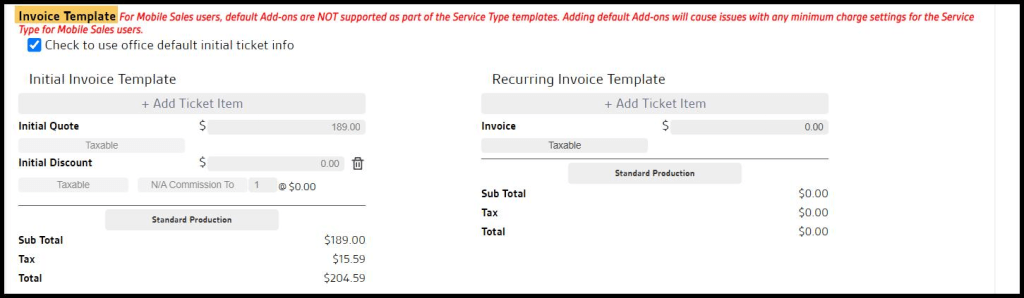
- Check to use office default initial ticket info: This option auto-populates the Invoice Template with the defaults configured in Admin > Preferences > Office Preferences > Preferences > Contract Defaults.
- Initial Quote: Sets the default amount that appears on the Customer Invoice for this service.
- Initial Discount: Sets the default Discount amount that appears on the Customer Invoice for this service.
- If left blank, this reverts to the office Default Discount defined in Admin > Preferences > Office Preferences > Preferences > Contract Defaults.
- Taxable: Determines whether sales tax calculations appear on the Invoice.
- + Add Ticket Item: This adds additional line items typically included alongside this Service Type, which are then automatically generated on the Invoice when scheduling an Appoinment for this Service Type. This feature is available to both Initial and Recurring services.
- Standard Production: This toggles between Standard Production pricing and Custom Production, which allows a Custom amount to be specified.
Scheduling Section
- Is this an initial service: Designates whether the Service Type is an Initial Service Type.
- Initial Service Type: Assigns the type of Initial Service associated with this Service Type if it is a Recurring Service. When scheduling an appointment, it brings up the Appointment Card and gives an option of the Subscription and what you’d like the appointment to be attached to. The mobile apps do not provide this option, so setting a default here that will be automatically used by mobile users.
- Is this a reservice: Default = No, change to Yes if a reservice.
- Recurring/One-time Service: Default = Recurring, but toggles to One-time for services that do not recur.
- Use Fill Routes Buffer: default = No, change to Yes to designate flexible days when auto-scheduling using the Fill Routes feature. See the Fill Routesuser guide for details.
- Scheduling Buffer: Days before and after the due date, the Fill Routes featureis allowed to schedule a Service.
- # Days Prior
- # Days Following
- Followup Buffer: Fill Routes can schedule the Initial Followup service days before and after the due date.
- # Days Prior
- Scheduling Buffer: Days before and after the due date, the Fill Routes featureis allowed to schedule a Service.
- Skills: Determine which skills would be linked to the Service Type, if any. If the skill is being linked to a service type, the service type should be specific. The user can also update this relationship in Skills Preferences. Note that the more skills added to an Add On, the more skills a technician must have to complete that Add On.
- For Example: a California-based skill should be related to a California-based service type rather than a general service type. A Red-Paint skill should be related to a Red-Painting service type, rather than a general Painting type, etc. If a Red-Paint, a Blue-Paint, and a Green- Paint skill are added to a Painting service type, a technician must have all three skills to be scheduled for an appointment with that service type.

Communication Section
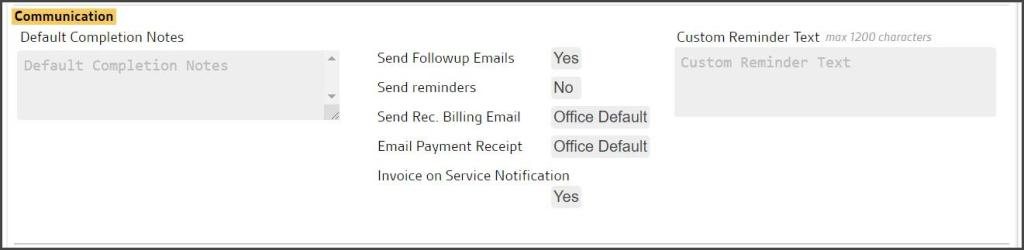
- Default Completion Notes: When an Appointment is completed for this Service Type, you can set default Completion Notes to be included in the Completed Service Notification.
- Send Followup Emails: The service Followup Email is the email customers will receive an hour after the service is completed. No = A Followup email will not be sent for this Service Type.
- Send Reminders: Determines whether Appointment Reminders are sent for this Service Type. No = customers do not receive Appointment Reminders.
- Send Recurring Billing Email: Determines whether customers with the Service Type on a recurring billing schedule will receive an email when a new Invoice is generated.
- Email Payment Receipt: Determines whether customers receive an email for payments submitted toward an Invoice generated for the Service Type.
- Include Invoice on Service Notification: Designates whether a PDF copy of the Service Invoice will be included with the Service Notification.
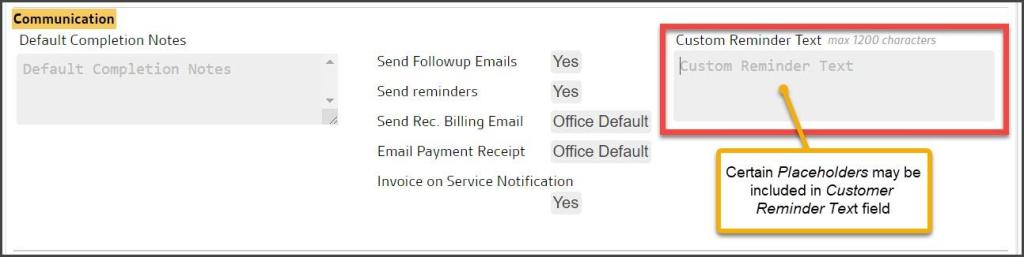
- Custom Reminder Text: Creates a custom SMS Appointment Reminder for this Service Type. This field is limited to 160 characters.
Dynamic Placeholders in the Customer Reminder Text
Any of the following placeholders function with the Custom Reminder Text; however, it is still limited to 160 characters.
- [fname] – The Customer’s first name
- [lname] – The Customer’s last name
- [date] – The Appointment date
- [time] – The time of the Appointment
- [officeName] – The name of your office
- [officeNumber] – Your office phone number
- [service] – The Service Type
- [street] – The Customer’s street address
- [city] – The Customer’s city
- [state] – The Customer’s state
- [zip] – The Customer’s zip code
Mobile Sales Section
- Visible to Sales Reps: Determines whether the Service Type is available to the Sales Rep to offer to Customers in the mobile apps.
- Included in Sales Leaderboards: Determines whether the Service Type qualifies for credit on the Sales Leaderboard.

Product Templates
If certain Products should automatically be included for technicians in the mobile apps when servicing a customer, add a Product Template.
When a Product Template is added to a Service Type, the selected products will be associated with it and will automatically appear among the list of products used on a customer’s Service Notification.
In the list of Service Types, select the Product Template link next to the desired Service Type.

Editing a Product Template
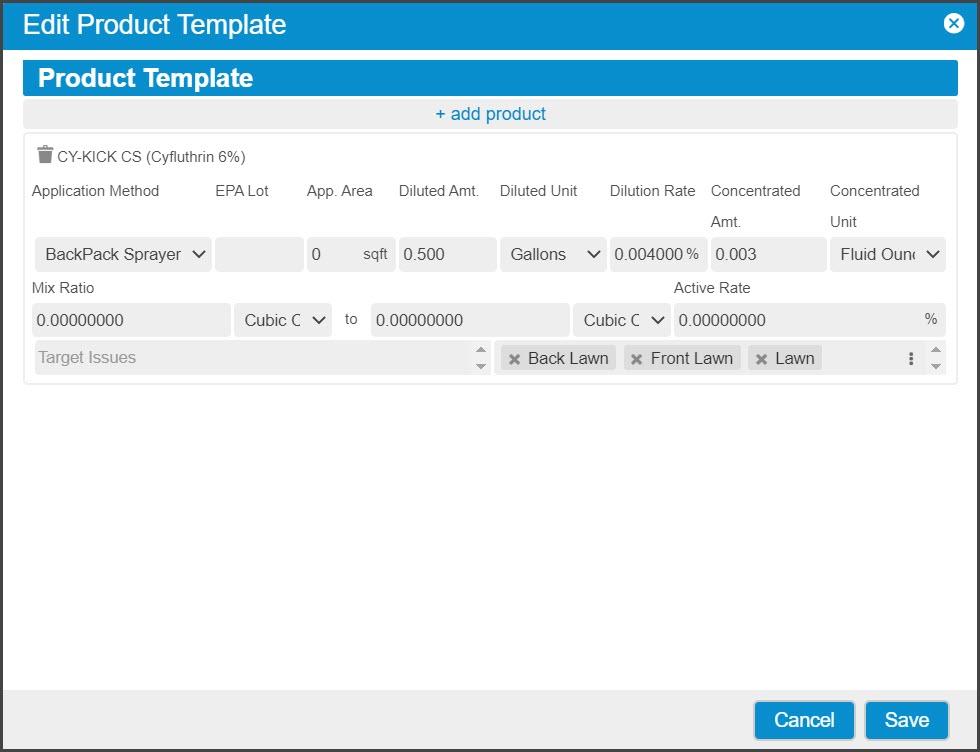
Select Edit Product Template and the Product Template window will appear:
- Select + Add Product to add a Product to the Template
- Select default Target Issues and Areas for this Product
- Set defaults for the Application Method and Dilution Rate
Select Save to update and exit the window or Cancel to exit without saving any changes.
Merging Service Types
If there are duplicate entries of the same Service Type, there is a tool to merge them together. Select Merge Service Types at the top right.
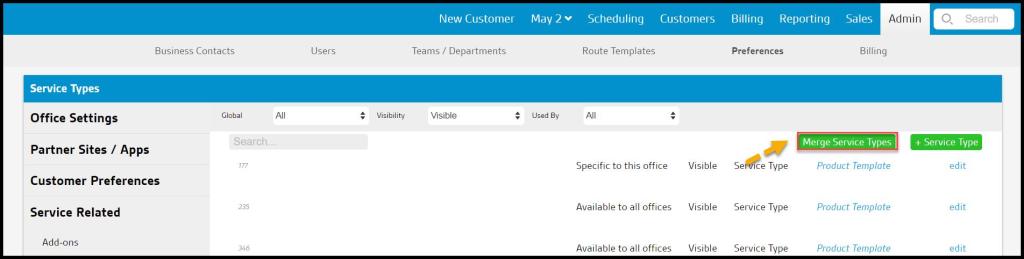
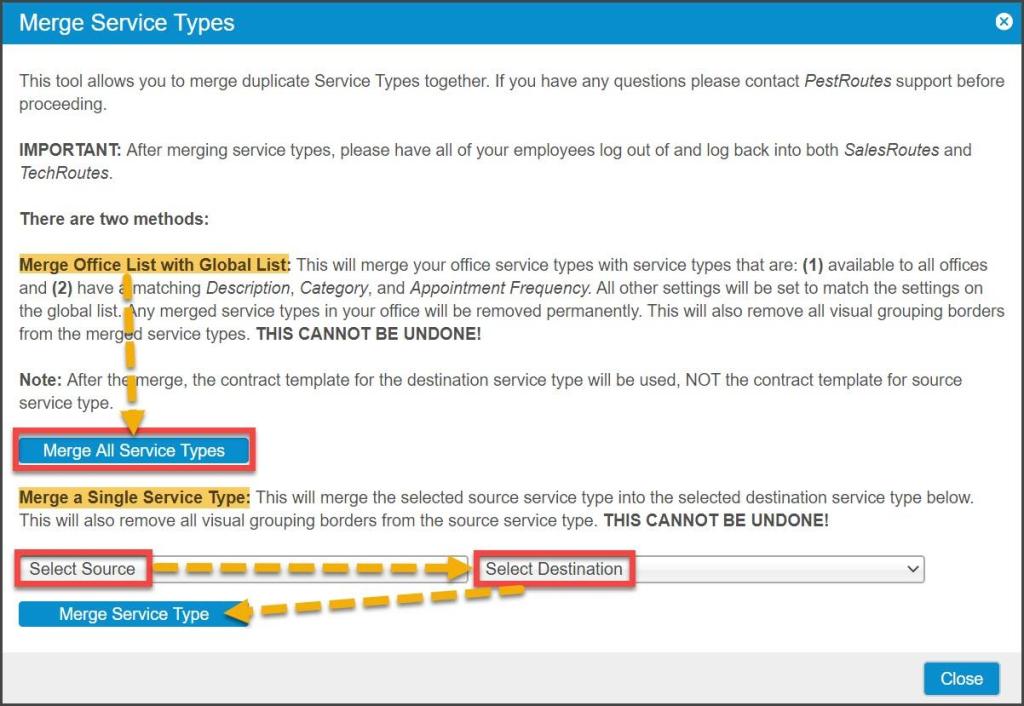
There are two ways to merge duplicate service types together:
- Merge All Service Types: This will merge any duplicate Service Types already specific to the office with any other office with a matching Description, Category, and Appointment Frequency. All other settings will be set to match the Global list.
- Merge a Single Service Type: This will merge the selected source Service Type into the selected destination Service Type.
To Merge All Service Types, they must meet all the following criteria:
- Be available in all offices. Make sure the Global field says Available to all Offices.
- Have a matching Description, Category, and Appointment Frequency.
Warning:
Any merged Service Types specific to your office will be removed permanently. This cannot be undone.
Creating Child Services (Rounds) for Service Plans
Service Plans involve an ordered set of different Service Types performed over a season or year but packaged, marketed, priced, and tracked as a single program.
Setting up a Service Plan requires a set of special Child Service Types (often referred to as Rounds in the lawn industry) that can be added to a Plan.
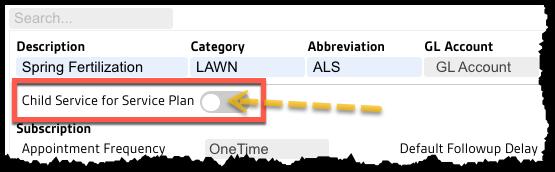
To create these, select +Service Type and select the toggle below the Service Type Description marked Child Service for Service Plan.
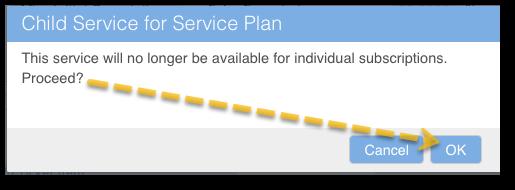
A confirmation dialogue will appear warning that this process cannot be reversed and the Service Type will be unavailable for individual Subscriptions.
Select OK to continue.
Child Service Type Settings
Child Service Types are simplified versions of standalone services. Many settings are applied at the parent Service Plan level, so fewer are required here on the child level.
The settings for these Service Types are ordered into three sub-sections:
- Basic Settings
- Pricing
- Communication
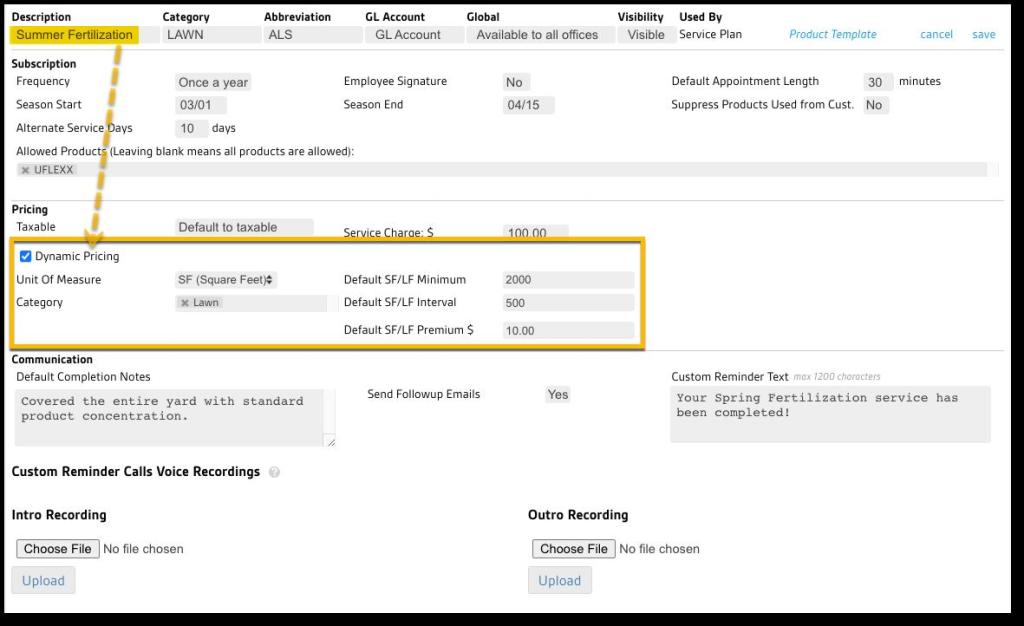
Child Services: Basic Settings
The Basic settings are the same as those for a standalone type:
- Description: A natural language name for the service
- Category: An optional setting that may be used to group Service Types by department, season, team, skill, etc.
- Abbreviation: An optional shortened code that can be associated with the service
- GL Account: A code that corresponds to a general ledger account code in an outside accounting system that allows this service to be identified and analyzed in reporting. Characters are limited to numerals, hyphens, and decimals.
- Global: Determines office access for this Service Type. Options:
- Specific to this office
- Available to all offices
- Visibility: Determines whether this Service Type will be:
- Hidden: Not available in Service Plan round selection menus
- Visible: Available in Service Plan round selection menus
- Used By: System-assigned value = Service Plan

Child Services: Subscription Settings
The next section covers Subscription settings:
- Frequency: Default = Once a Year; NOTE: this is not editable. If a service round is to be repeated more than once in a program year, create an additional Child Service with different Season Start and End dates.
- Employee Signature: Default = NO; a change to Yes requires an employee signature to finish creating a new Subscription.
- Default Appointment Length: This optional field allows this Service to carry a default duration into parent Service Plans.
- Season Start: This date defines the earliest date this round will be auto-scheduled by Intelligent Routing tools.
- Season End: This date defines the latest date this round will be auto-scheduled by the Routing tools before being skipped in favor of the subsequent round.
- Suppress Products Used from Cust: Default = NO; A change to YES removes the Product information from automated customer communications like Service Notifications.
- Allowed Products: Default = NULL, allowing the technician to select the Product at the appointment time. Selecting a value here requires the use of that specific Product(s).

Child Services: Pricing Settings
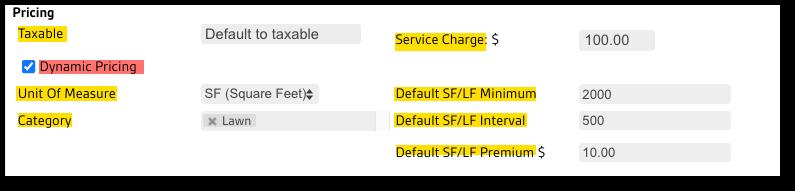
The third group addresses Pricing settings:
- Taxable: Designate if this service should have sales tax calculated and be added to the invoice:
- Default to Taxable
- Default to NON-Taxable
- Service Charge: Assigns the Child Service a standard cost which will be carried into any parent Service Plans.
- Dynamic Pricing: Selecting this checkbox turns on the Dynamic Pricing feature and will price the service based on measurements.
- Unit of Measure: Default = SF (square feet); option to select LF (linear feet)
- Category: Select from the Property Estimation Categories values to determine which property measurement is used for this round (e.g. Lawn or Flowerbed)
- Default SF/LF Minimum: Threshold on property size charged on this round; i.e. any property this size or smaller receives the default Service Charge.
- Default SF/LF Interval: The measured increment that adds the Premium cost for each step up in property size for this round.
- Default SF/LF Premium: The measured increment that adds the Premium cost for each step up in property size for this round.
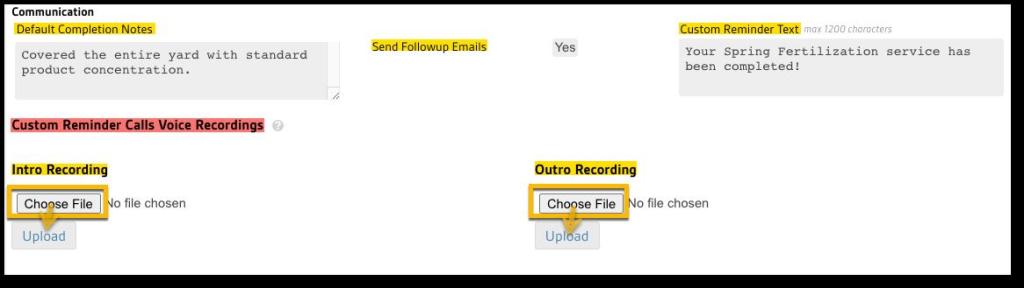
Child Services: Communication Settings
The final group covers Communication settings:
- Default Completion Notes: Optional note copy added to the Appointment Card when an appointment for this child Service is completed.
- Send Followup Emails: Default = YES and automatically sends an email for followup services; changing to NO sends no followup emails for this Service.
- Customer Reminder Text: Optional text here defines the default message sent on SMS reminders for this child Service.
- Customer Reminder Call Voice Recordings: Optional voice files here may set a specific Voice message when Voice reminders are sent
- Intro Recording: Choose an MP3 file and upload it to the system for the Intro portion of the Voice Message (the specific child Service Type name will be placed after this).
- Outro Recording: Choose a second MP3 file and upload for the ending portion of the message.
Once all settings are complete select the Save button. The Child Service Type is now available in the Service Plans preference to be added as a Service round.
NOTE:
Product Templates may be assigned to Child Service Types in the same manner as they are with standalone Service Types.
 Moxie Pest Control Office Guide