
Service Notification Approval
Summary
The Service Notification Approval Report provides a manual review step to the customer notification process when a service has been performed. It allows pricing, technician notes, communication tone, and other factors on the service notification to be reviewed by office staff before distribution to ensure the best possible customer relationships are maintained and correct information communicated.
Important Points:
- Service Notifications can be reviewed and edited before they are distributed to the customer, and then individually or bulk approved, emailed, or snail-mailed.
- This manual review process is activated in the Customer Communication preference by setting the Service Followup Email field to Upon Approval.
- Users must have the Reports > Service Notification Approval access control permission to Approve and send Notifications in the report.
Activate in Preferences
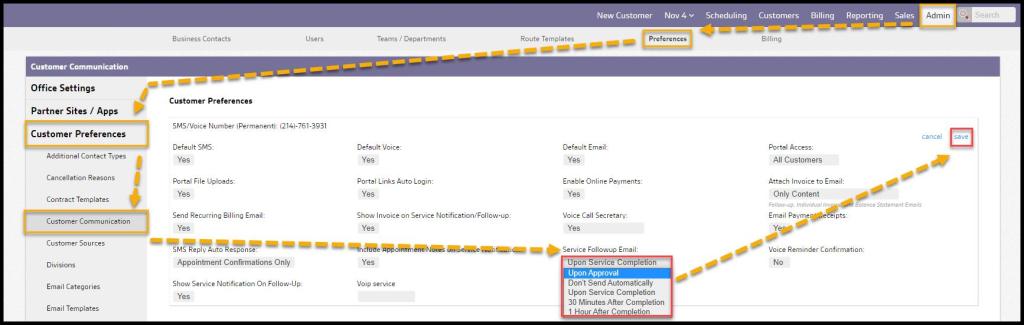
When a manual review and approval process is desired for Service Notifications following service completion, activate this process in the Customer Preferences at:
Admin > Preferences > Customer Preferences > Customer Communication
In the Service Followup Email field, select the Upon Approval option from the drop-down, and Save the preference.
Giving Approver Permissions
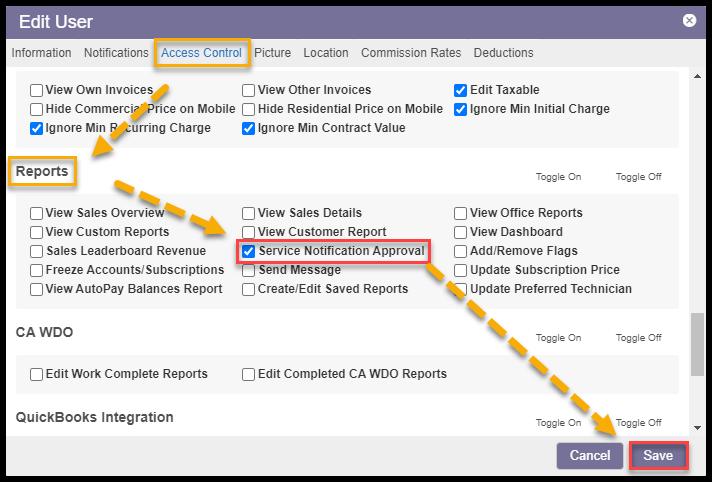
Permission to perform approvals on the Service Notification Approval report is given to a user by an Access Control on the User Card. It is located under:
User Card > Access Control > Reports > Service Notification Approval
Accessing the Service Notification Approval Report
Once the preference is enabled and permission given to the Approver, the report is found at:
Customers > Service Notification Approval.

Filtering the Report Results
The report results can be filtered by using the following filters:
- Date: Choose a date or date range covering the desired Notifications
- Tech Name: Defaults to all, but narrow the list to the Notifications of a specific Technician
- Prop. Type: Choose Residential, Commercial, or both property types:
- Any Property Type (default)
- Residential Property
- Commercial Property
- Service Type: Narrow the report to specific Service Types, such as Termite Inspection
- Tech Notes: Choose services by a specific Tech Note, such as “Review Notification” or “Angry Customer”
- Products Used: Choose Notifications by the type of chemical Products used
- Status: Filter the list by
- Needs Approval (default)
- Approved
- Approved By: See all Notifications already approved by a specific Approver
Select the Refresh button below to update the report results.

Notification Bulk Approve & Send
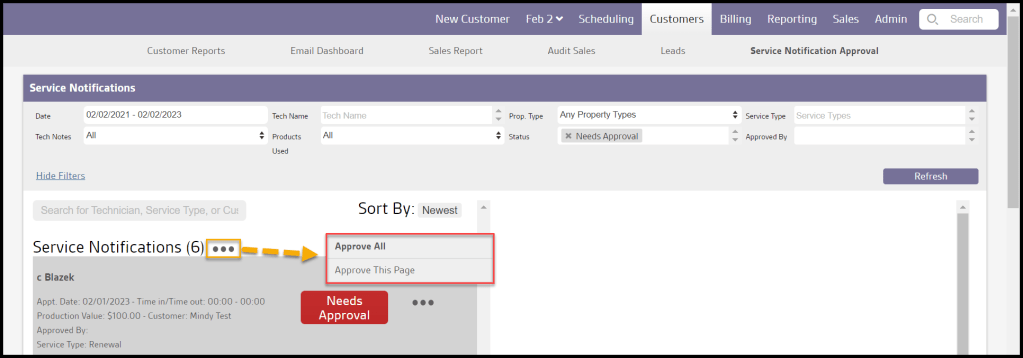
Once the filters are set, and data is refreshed, a list of Notifications will appear on the left side of the report. Selecting any individual record will show the actual Notification document as it will be generated in the right-side pane. At the top, the list’s total number of pending Notifications will appear in parentheses by the Service Notifications title. Use the breadcrumb menu next to this number to either:
- Approve All: Change all to Approved, automatically emailing those with valid addresses.
- Approve This Page: Approves only those Notifications currently visible on the page (max: 10 per page).
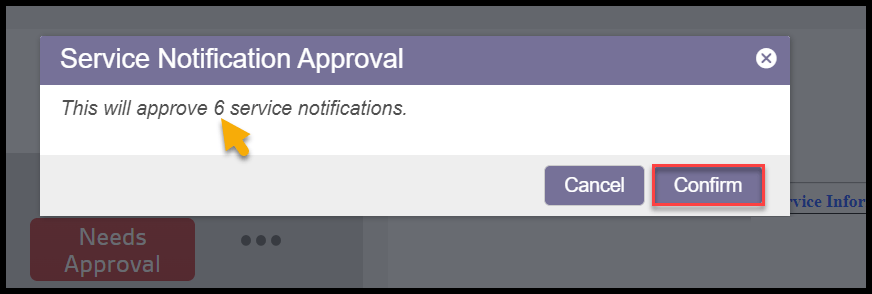
When this is done, a confirmation will appear, listing the total number of Notifications staged to send.
Select Confirm to proceed.
Editing and Approving Individual Notifications
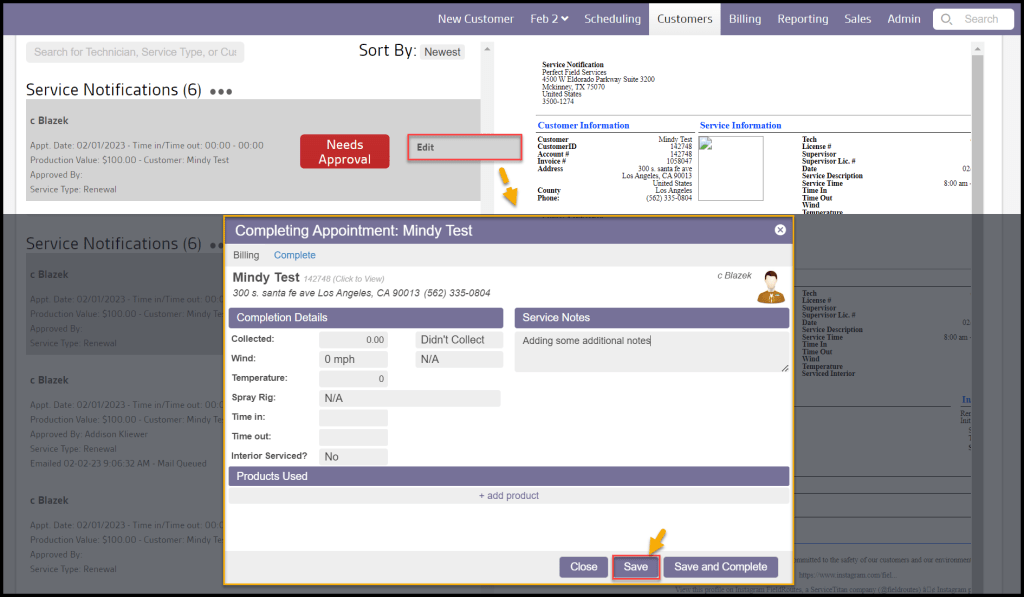
If any edits are required, an Edit menu beside each Notification links to the Completing Appointment modal, where all messaging, details, and pricing may be revised.
Complete the desired changes and select Save (Note: the appointment has already been completed, so Save and Complete is unnecessary).
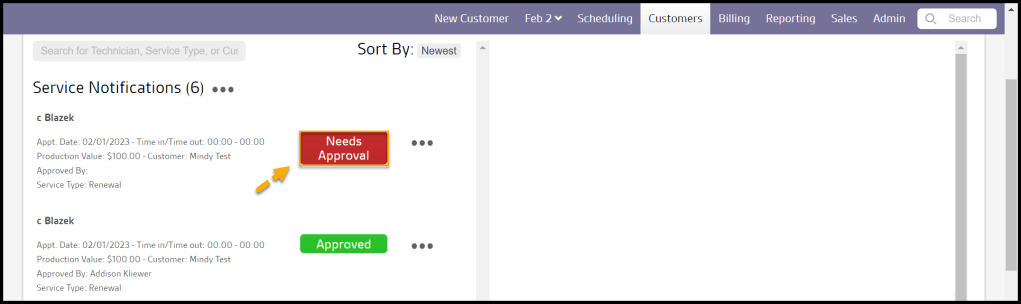
Once the edits are saved, the document can be individually approved by clicking on the red Needs Approval button, which will immediately approve and email it if possible.
Snail Mail and Print Options
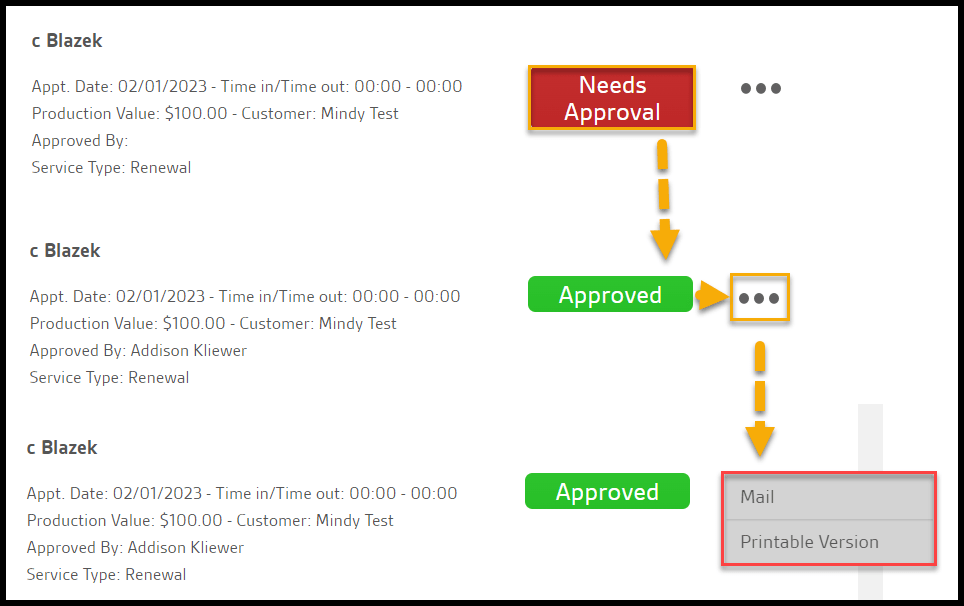
If no valid email is available or customer preferences request a paper copy, the button will turn to a green Approved status, and the breadcrumb menu now offers options for:
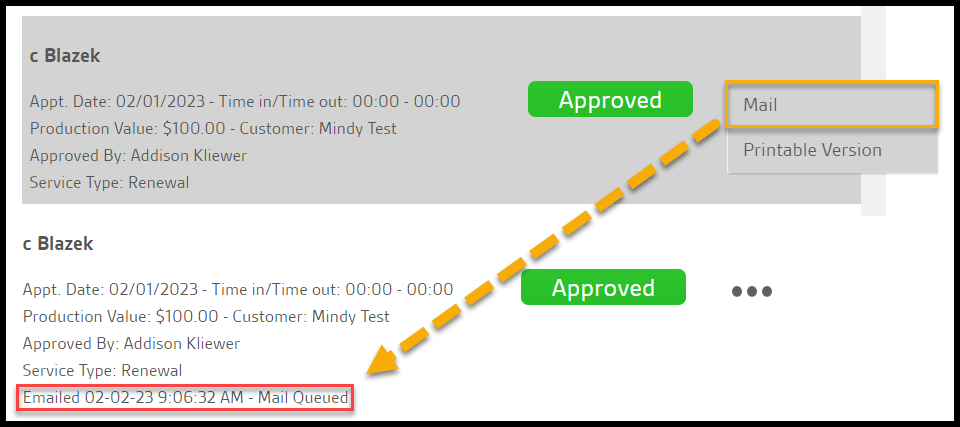
- Mail: Queue the Notification with the snail mail service.
- Printable Version: A PDF will be generated for printing and mailing directly.
Generate a Printable PDF
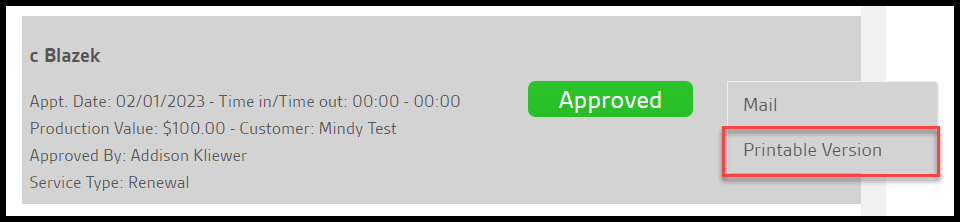
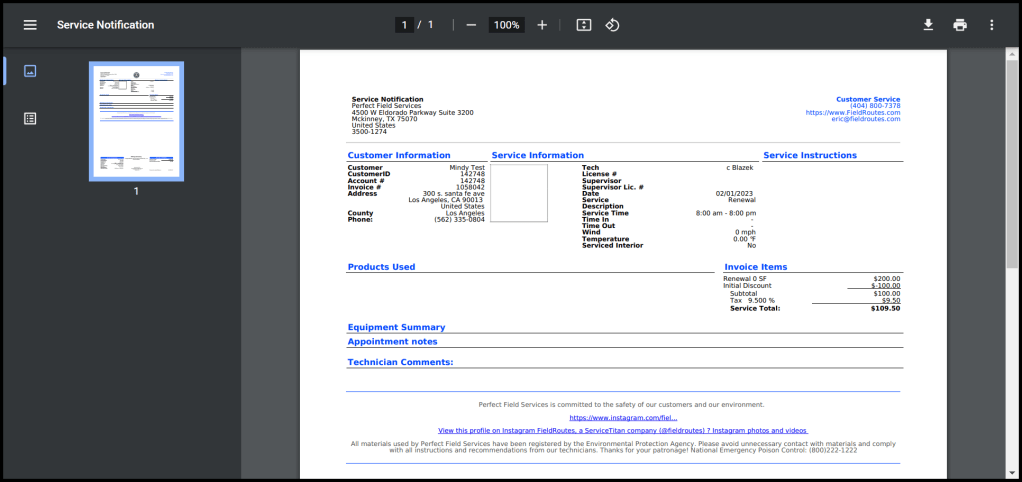
Selecting the Printable Version option brings up a PDF version of the Notification for review, storage, and printing a hard copy.
Sent Notification Records
Whether emailed or snail-mailed, once the Notification has been sent, the report can generate a list of Approved Notifications if desired. These will show the Approver, the date and time it was last sent, and by which method.
 Moxie Pest Control Office Guide