
Sending Digital Agreements
Summary
The user can send digital copies of customers’ service agreements to customers through the desktop and mobile applications.
Sales representatives that sign new customers up via the sales mobile apps will have the ability to have new customers sign the agreement in the field.
When a customer receives a digital agreement via email, they can sign the agreement electronically. After the agreement is signed, a copy of the signed agreement is emailed to the customer, and a copy is stored in their customer card.
Important Points:
- Electronic contracts can be emailed to a customer for a signature.
- Make sure the customer has an active subscription.
- The information is automatically customized for the customer.
- Contracts can be printed or emailed to the customer for a signature.
- The user and the customer will both keep a copy of the signed contract.
View Signed Agreement in the Customer Portal
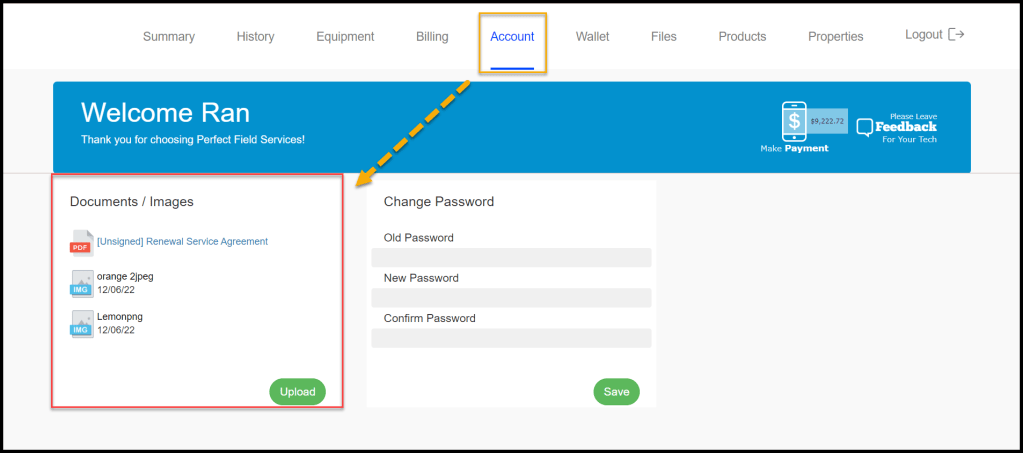
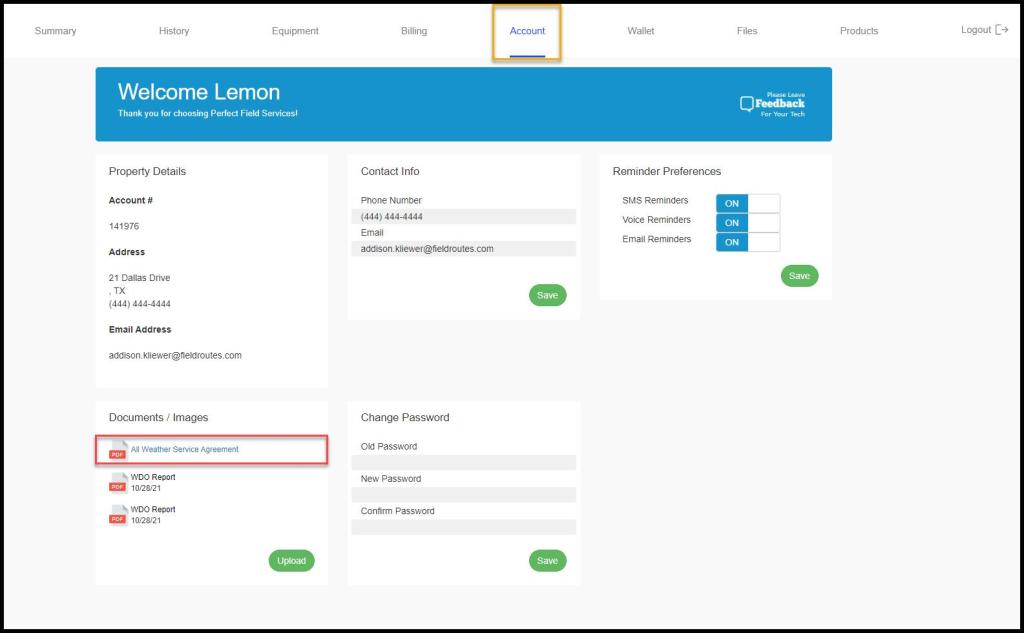
The customer will have access to their signed agreement on the portal under the Account section.
Generating a New Agreement via Customer Card
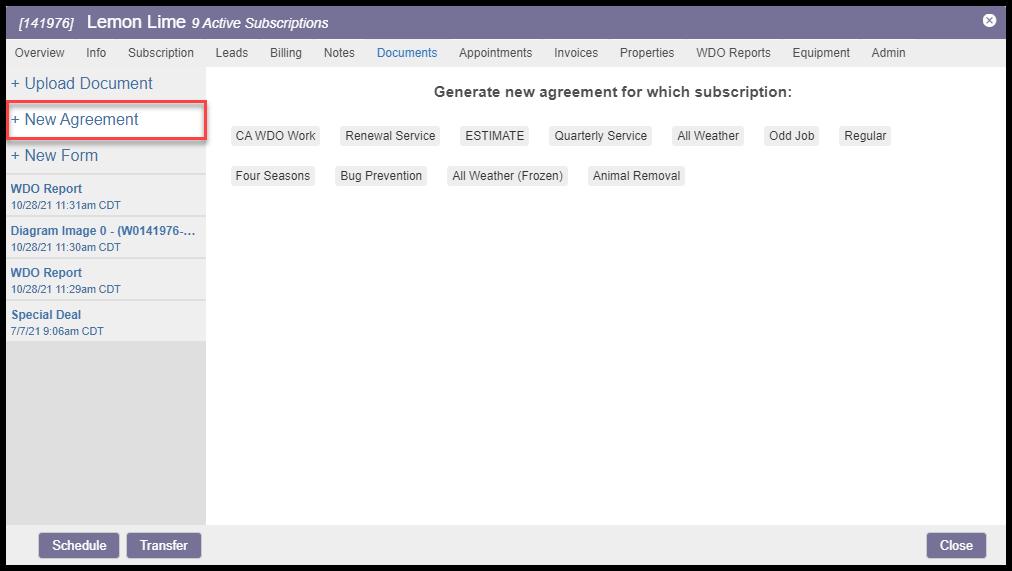
The user can generate an agreement for a customer via the Customer Card. Each time a user creates a new user, they should ensure the new customer has an active account with a subscription.
After creating a subscription for the customer, go to the Documents tab in the Customer Card and select + New Agreement. The user should see the customer’s subscriptions listed, select the desired subscription, and generate the agreement.
New Agreement Options
After selecting the desired subscription, a preview of the customer’s agreement will appear on the Customer Card. From here, there are a few options:
- Printable Version: This will open the agreement in a new tab so the user can print a physical copy of the agreement.
- Edit Contract Notes: This will edit the notes that replace the notes placeholder in the contract template. Click the Generate Contract button to re-generate a new contract with the edited notes.
- Create Signed Agreement: This will allow the user to sign the agreement via the Customer Card.
- Request Customer Signature: There are two options on this drop-down menu:
- Send Email – Sends the contract for signature to the customer’s email
- Send SMS – If enabled in Preferences > Customer Communication > Allow Contracts via SMS, this option will appear for customers who agree to receive SMS communication for their account.

Customer’s Agreement Email
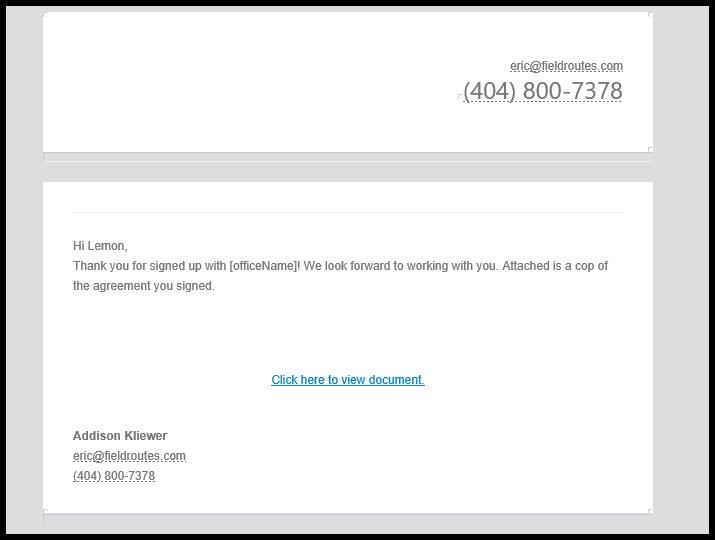
Below is a preview of the email a customer will see when sent an unsigned agreement in the desktop application.
To view and sign the agreement, the customer will need to select Click here to view document.
Signing the Agreement via Customer Portal
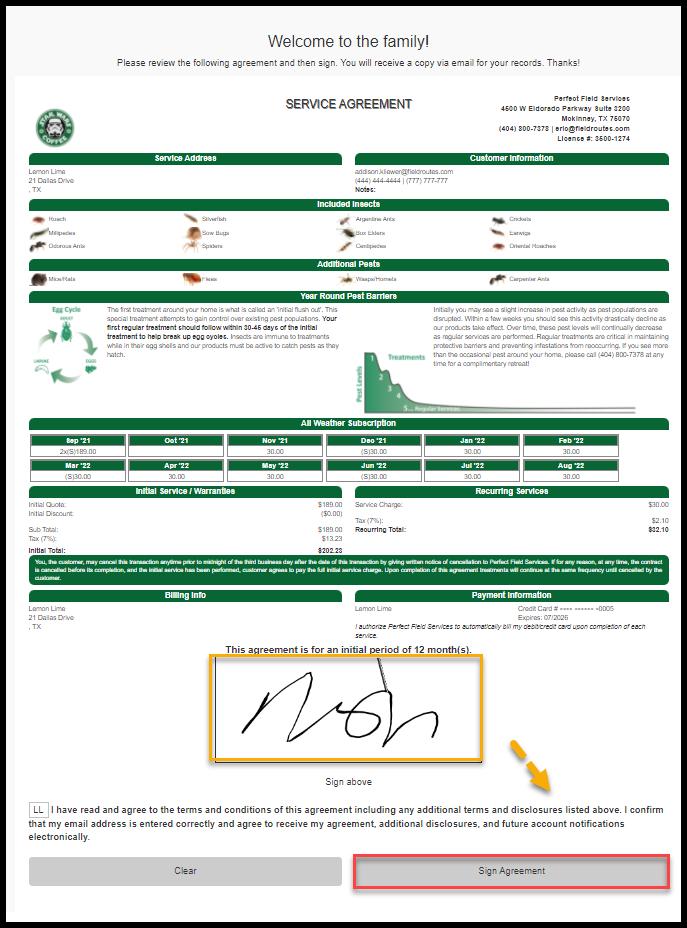
Whether the customer selects Click here to view document in the email or the agreement link in the SMS text message, they will automatically be logged into their Customer Portal to view and sign the agreement.
Once the customer selects Sign Agreement, they can enter payment information into the desktop application if it is not already on file. A copy of the signed document will be sent via email and uploaded to their Customer Card.
View the Signed Agreement in the Customer Card
Once the customer signs the agreement, the user can view this signed document on the Customer Card under the Documents tab.

View the Signed Agreement in the Customer Portal
The customer will have access to their signed agreement on the portal under the Account section.
 Moxie Pest Control Office Guide