
Sending Appointment Reminders to Customers
Summary
SMS, voice, and email appointment reminders can be sent to customers. Appointment reminders can be sent to individual customers or to every customer scheduled on a specific date.
Important Points:
- The SMS, voice, and email appointment reminders can be configured under Admin > Preferences > Customer Preferences > Customer Communication.
- Currently, our software only supports one general voice reminder for all appointments and routes.
Sending Appointment Reminders to Customers in Bulk
To send an appointment reminder to every customer scheduled for a specific day, go to:
The Desired Route Day > Reminders.
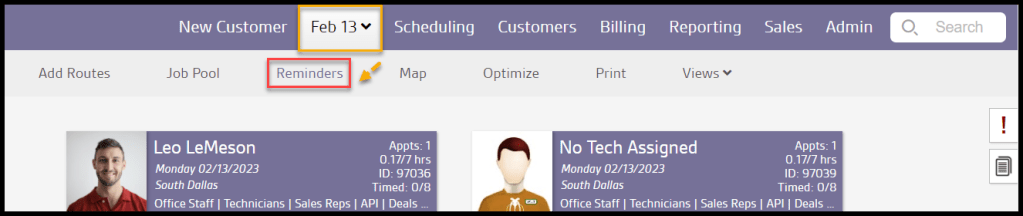
Sending Appointment Reminders to Customers in Bulk
A new window titled Appointment Reminders will appear with a list of customers scheduled on that day. It also includes the service type the customer is scheduled for, any red note or special scheduling notes, the customer’s reminder preferences, and the reminder status.
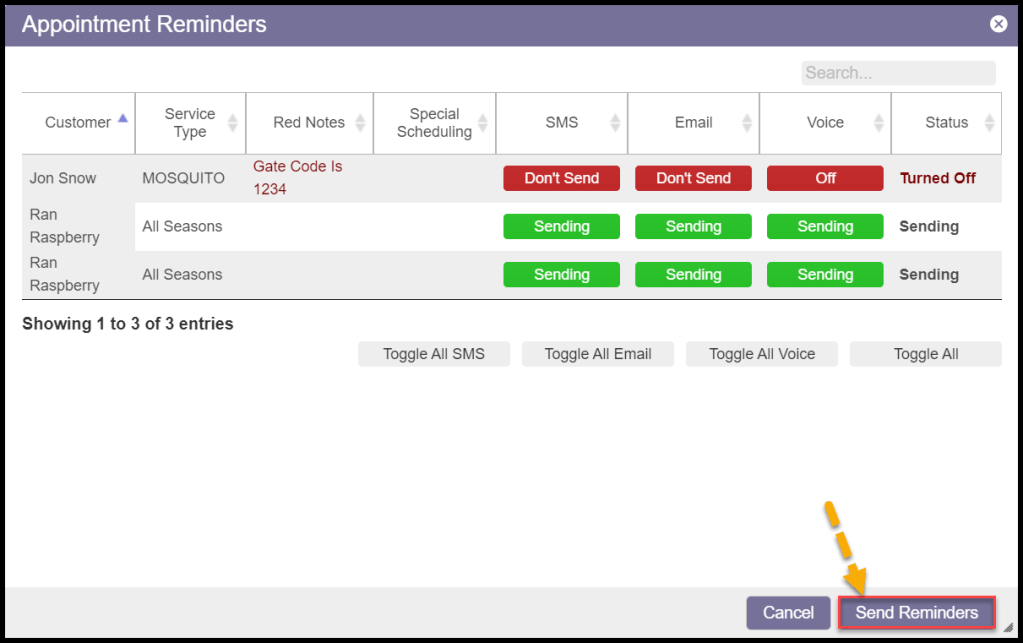
To send an appointment reminder to every customer, select Send Reminders at the bottom of the window. Selecting Send Reminders will automatically send an appointment reminder based on the customer’s reminder preferences in their customer card.

Using the Customer Appointment Reminder Window Toggles
The Appointment Reminders window is used to toggle reminders on or off for all customers scheduled that day or individual customers. Selecting Toggle all SMS, Toggle all Email, Toggle all Voice, or Toggle All at the bottom of the window to quickly toggle reminders for all customers in this window. Click one of these buttons once to toggle all the reminders off. Click again to toggle them all on.
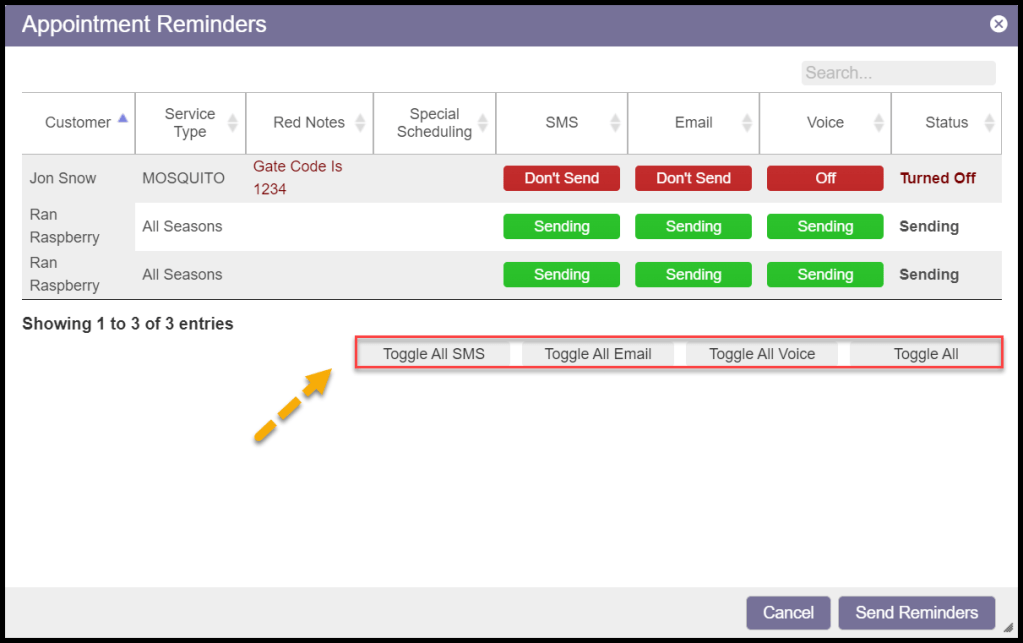
Using the Customer Appointment Reminder Window Toggles (Continued)
To change the reminder preferences for an individual customer, click on the reminder status next to the customer’s name.
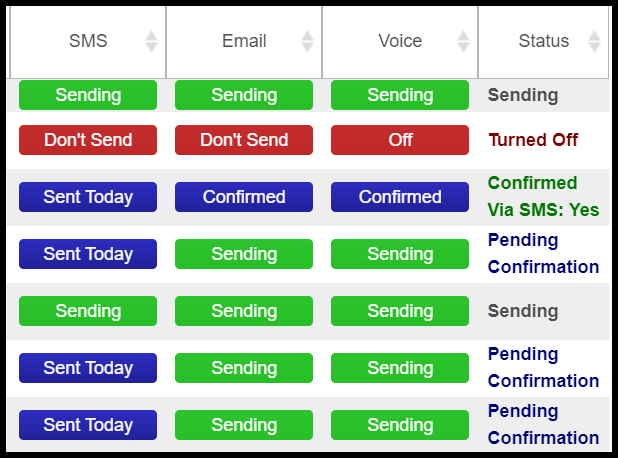
- Sending: This indicates the reminder is configured for the customer and ready to be sent. When Send Reminders is selected, that reminder will be sent to the customer.
- Sent: Means the reminder has already been sent to the customer.
- Off: Means the reminder has been turned off for the customer. Turn it back on in the customer card under the Info tab.
- *Don’t Send: Means the reminder off has been toggled off in this window. When Send Reminders is selected, the reminder will not be sent to the customer.
- *Resending: Means the reminder has already been sent to the customer, but the reminder has been toggled again in this window. The reminder will be sent out again upon clicking Send Reminders.
- Confirmed via Office: Means a reminder has been sent, and the customer confirmed the appointment.
- Pending Confirmation: Means the reminder has been sent, but the appointment has not been confirmed yet.
When finished with making changes, select Send Reminders.
Sending Appointment Reminders to Customers
When finished with making changes, select Send Reminders.
Sending Appointment Reminders to Individual Customers
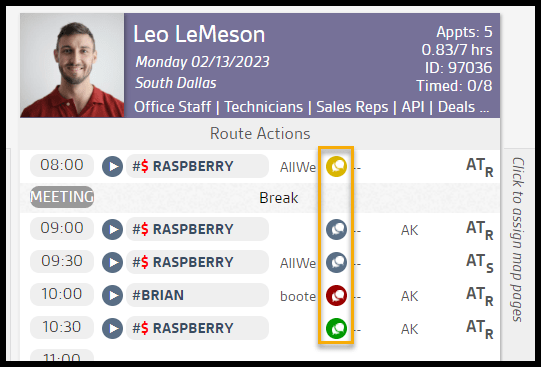
The appointment reminders can also be sent to individual customers. On the route, there is a reminder icon to the right of the customer’s name. The color of the reminder icon displays the status of the reminder.
- Green Reminder Icon: Means an appointment reminder was sent to the customer and the appointment was confirmed.
- Blue/Grey Reminder Icon: Means an appointment reminder has been sent to the customer, but the appointment has not been confirmed.
- Yellow Reminder Icon: Means the customer is configured for appointment reminders, but they have not been sent one yet.
- Red Reminder Icon: Means the reminder preferences are turned off for the customer, or the customer is missing an email address or phone number on the customer card.
Sending Appointment Reminders to Individual Customers
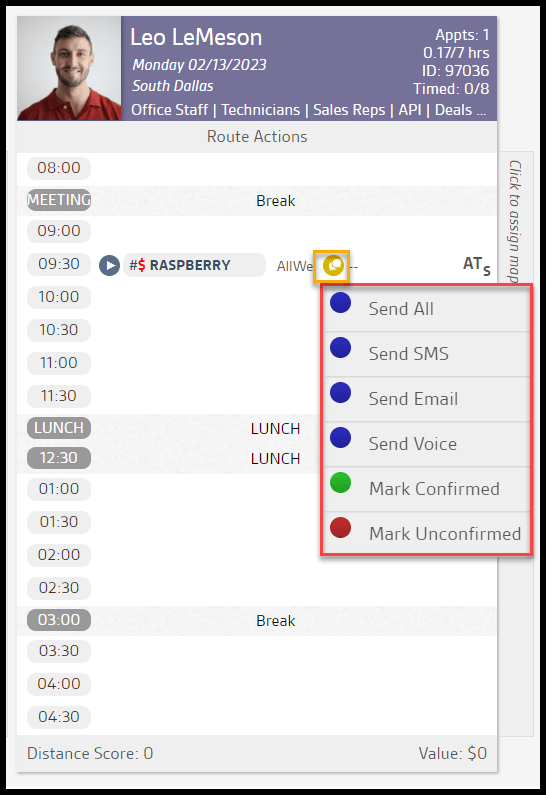
Once the reminder icon is selected, a new menu will appear. This allows the user to send an appointment reminder to that specific customer.
- Send All: Send the customer an SMS, voice, and email appointment reminder.
- Send SMS: Send an SMS appointment reminder to the customer.
- Send Email: Send an email appointment reminder to the customer.
- Send Voice: The customer will receive a voice phone call for an appointment reminder.
- Mark Confirmed: Mark an appointment as confirmed if the user is an office user.
- Mark Unconfirmed: Mark an appointment as unconfirmed if the user is an office user.
 Moxie Pest Control Office Guide