
Search by Invoice
Summary
The Search function on the top Navigation Bar has long provided the ability to search for a specific customer by their name. The Search by Invoice feature described here allows the user to search by Invoice number. Users can quickly open that Invoice in the Customer Card to review related customers, subscriptions, appointments, and billing information.
Important Points:
- The default selection for the Search field is By Customer, even if it was last used to search By Invoice.
- An Invoice search criteria shorter than 3 numerals will look for an exact match, while 3 characters or more will return all possible matches. This allows the user to quickly find invoice numbers 1-99.
Accessing the Search Field
The Search field is located on the right side of the top Navigation Bar in the FieldRoutes web app.

Select the By Invoice Option
Placing the cursor inside the Search field expands it and offers a menu at the left end. This has two options:
- By Customer (default)
- By Invoice
NOTE:
This selection returns to the default By Customer option after each use, even if the By Invoice function was the last used.

Enter the Invoice Number
Once the By Invoice option is selected, begin typing the desired Invoice Number. The search functions in two possible ways depending on how many digits are added:
- < 3 Characters = Exact Match: This allows low-numbered invoices (e.g., 1-99) to be found easily.
- 3+ Characters = Partial Match: Once a third character is added, the search will return a list of all possible matches, further filtering the list as characters are added until the invoice number is complete.

Select the Invoice from the List to Open
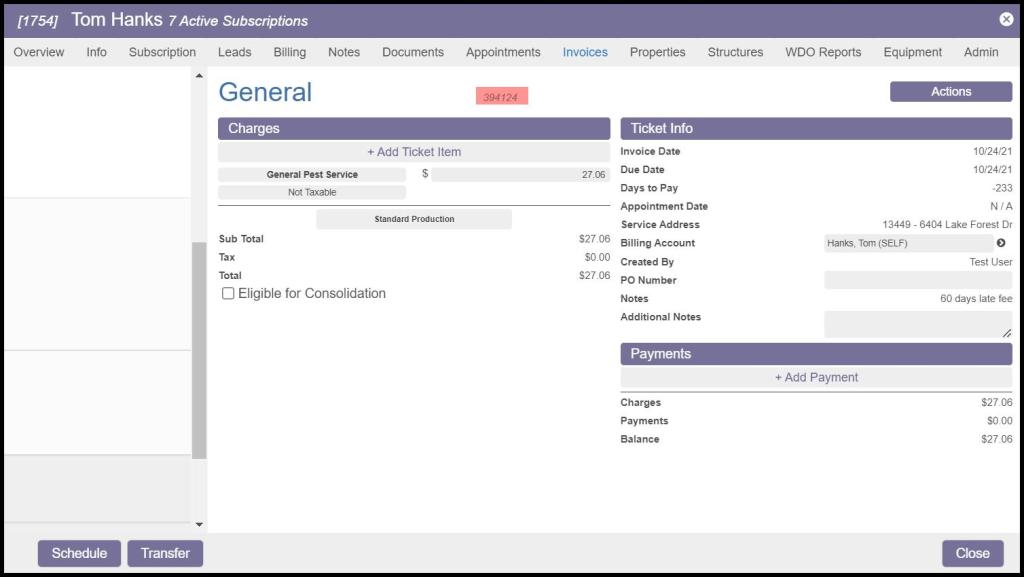
Selecting an invoice from the Search list opens the related Customer Card to the Invoice tab and automatically selects the indicated invoice.

NOTE:
If the user’s company has a large body of invoices, this may cause a brief delay in opening the document.
 Moxie Pest Control Office Guide