
Sales Tax
Summary
The Sales Tax Report uses the Cash Hybrid method of accounting. This means that revenue/tax is counted when cash is applied to an invoice.
This means:
- Pre-payments are not reported until an invoice is generated. So if a $400 payment is made in advance for quarterly services, the payment (collected/revenue) will show up in 4 chunks throughout the next year as the services are performed / invoices generated.
- Late Payments are reported when cash is received. So if a service is performed in January but the customer pays for the service in June, the payment (collected/revenue) will not show up until June when the payment is made.
The benefit of the hybrid method is that it more accurately accounts for actual tax liabilities because with pre-payments, you don’t know if the cash is being applied to a taxable service until the invoice is generated. With late payments, you don’t actually report the sales tax until you receive the money.
To see other methods (True Cash Basis or Accrual Basis), please use the “Old Sales Tax” Report until we migrate the other two methods into this report.
Important Points:
- This report excludes coupon payments completely. It includes all: Cash, Check, Credit Card, and ACH payments.
- Export this report by selecting Export to CSV.
Accessing the Sales Tax Report
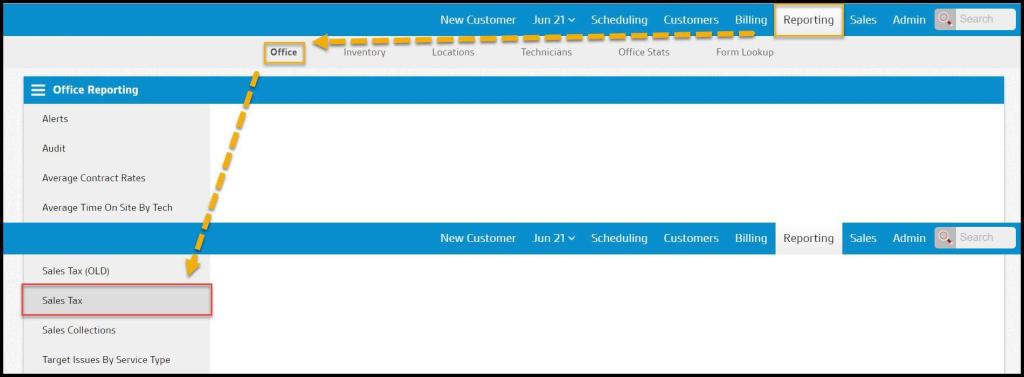
To access the Sales Tax Report, go to:
Reporting > Office Reporting > Sales Tax Report.
Filtering the Sales Tax Report
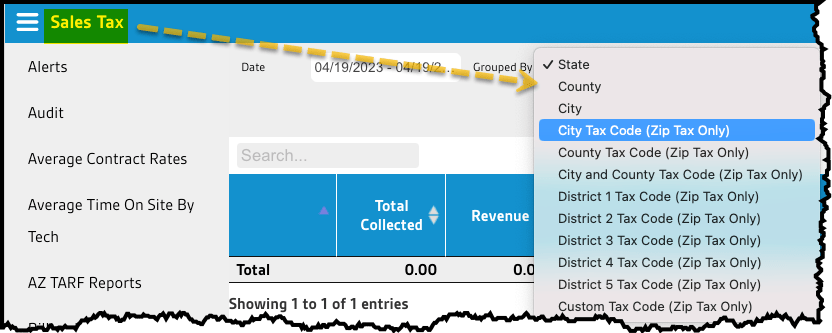
To filter the Sales Tax Report, toggle these filters.
- Date: Limit results between specific dates in the report.
- Grouped By: Group results by certain attributes in the report. It will determine the first column in the second table.
- State
- County
- City
- City Tax Code (Zip Tax Only)
- County Tax Code(Zip Tax Only)
- City and County Tax Code(Zip Tax Only)
- District 1 Tax Code(Zip Tax Only)
- District 2 Tax Code(Zip Tax Only)
- District 3 Tax Code(Zip Tax Only)
- District 4 Tax Code(Zip Tax Only)
- District 5 Tax Code(Zip Tax Only)
- Custom Tax Code(Zip Tax Only)
- Offices: Limit results to certain offices in the report.
- Property Type: Limit results to certain property types in the report.
Select Refresh to run the report.

Viewing the Sales Tax Report’s Data columns
The Sales Tax Report has several data columns that provide information about Sales Tax collected. These are based on the information put into the customer card.
- Total Collected: Shows the total amount collected.
- Revenue: Shows the total revenue collected.
- Non-Taxable Revenue: Shows the total revenue that is non-taxable that was collected.
- City: Shows the total tax collected for the city.
- County: Shows the total tax collected for the county.
- District 1-5: Shows the total tax collected for each applicable district.
- State: Shows the total tax collected for the state.
- Other: Shows the total tax collected for other reasons.
- Total Tax: Shows the total tax collected overall.
The second table has the same columns above but is grouped by the columns chosen in the Grouped By filter.

Exporting a Sales Tax Report
To export a Sales Tax Report as a CSV File, select Export to CSV.

 Moxie Pest Control Office Guide