
Sales Service Report
Summary
The Sales Service Report gives an overview of the sales teams’ activity and insights into how they could be improved. It helps the user see what happens to customers after a service.
Important Points:
- The initials next to the customer’s name are the service type.
Accessing the Service Report
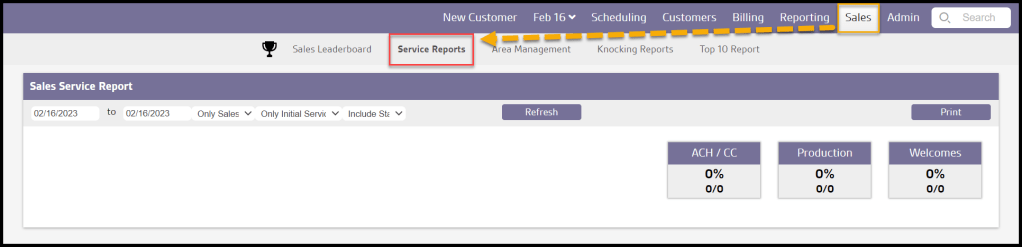
To access Service Reports, go to:
Sales > Service Reports.
Filtering the Service Reports
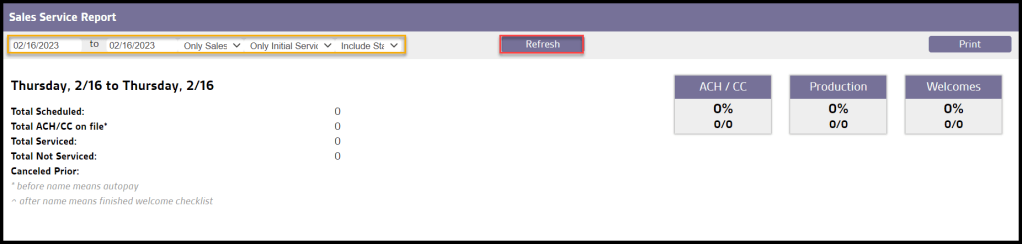
To filter the Service Reports, toggle these filters.
- Start and End Dates: Limit results between specific dates in the Service Reports.
- User Type: Choose if the report will include only certain user types.
- Services: Decide if the report will include only initial services, or all services.
- Stand Alone Services: Determine if stand-alone services are included or excluded.
Select Refresh to run the report with any changes made with the filters.
Viewing the Service Report (Summary)
- Total Scheduled: Shows the total number of customers scheduled during the time period.
- Total ACH/CC on file: Displays the number of customers scheduled and serviced with an ACH/card payment source stored and authorized AutoPay on their account. An asterisk in front of the customer’s name indicates they selected to be on AutoPay.
- Total Serviced: View the total number of customers that were serviced.
- Total Not Serviced: Displays the total number of customers that were not serviced.
- Canceled Prior: Shows the total number of customers that have canceled prior to the appointment.

Viewing the Service Report (Boxes)
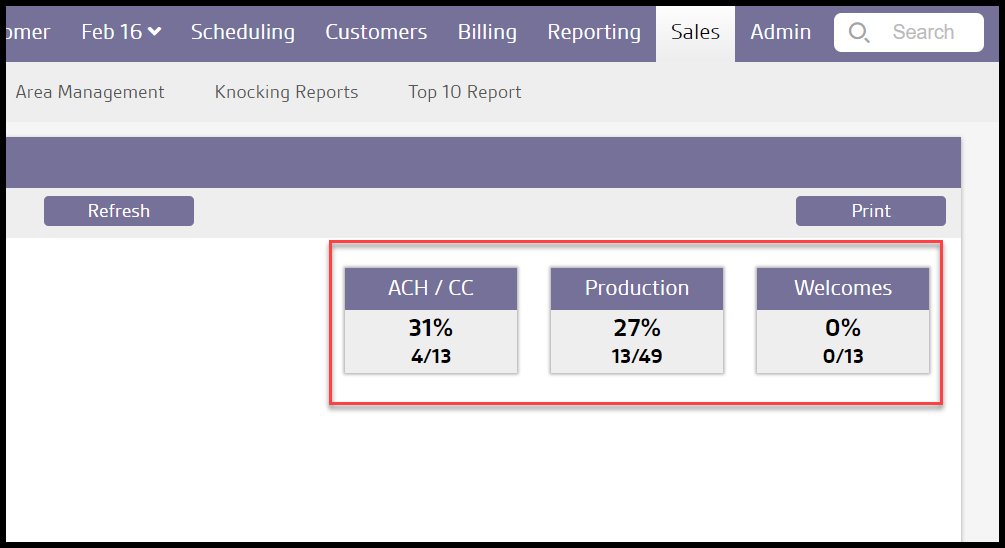
- ACH/CC: shows the percentage of customers using ACH or credit card payments.
- Production: Displays the percentage of customers in production.
- Welcomes: Shows the number of times the Sales Rep finished the welcome checklist, if applicable.
Viewing the Service Report (Team Summary)
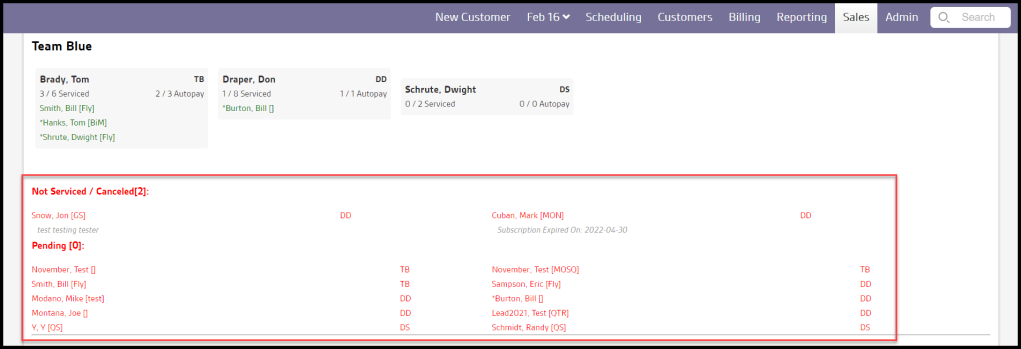
The team summary will have the team name and details for each Sales Rep’s activity over the time period. It will show which customers were serviced out of the total scheduled for the rep, how many were on Autopay, the Rep’s initials, and the initials for the service type.
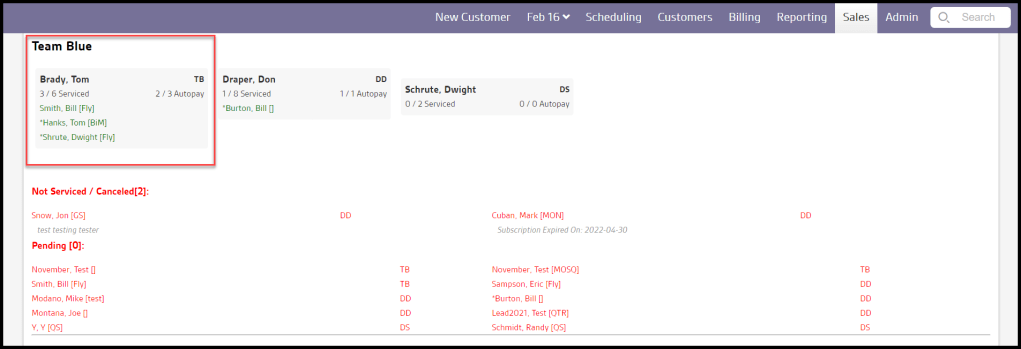
It will also show the customers who weren’t serviced and canceled, why they canceled or were frozen, plus any pending customers.
Printing a Service Report
To print the Service Report, select the Print button.

 Moxie Pest Control Office Guide