
Sales Report
Summary
The Customer Sales Report provides planners and managers numerous ways to analyze and evaluate sales performance within a given date range.
Important Points:
- Any new Service Subscription with an Initial Service is considered a sale.
- Fourteen Columns are displayed on the Sales Report by default, four of which are displayed in the Sales Report Totals at the bottom of the report UI.
- Up to 43 additional Columns to Display may be added to the report, eight of which are also included in the UI Sales Report Totals.
- Data may be exported to a CSV file and then imported to other financial tools for analysis.
Accessing the Sales Report
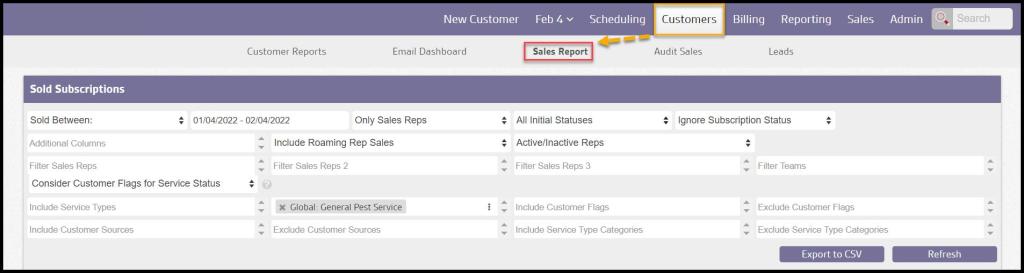
To access the Sales Report, go to
Customers > Sales Report
Filtering the Sales Report
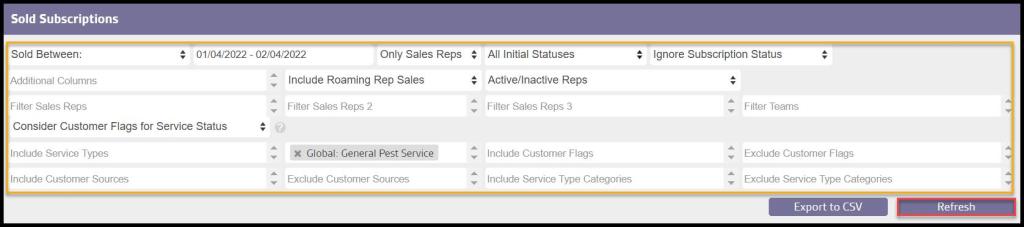
To filter the the Sales Report, use these filters:
- Dates: Three different date parameters for which the report can be run; each requires a Start and EndDate
- Sold Between: based on dates the Subscriptions were added
- Scheduled Between: based on the Initial Service dates
- Paid Between: based on the actual payment date of the Initial Service
- User Types: specifies which User Types to include in the report
- Only Sales Reps = default
- Only Office Staff
- Only Technicians
- All User Types
- Initial Service Statuses: Filters the report based on the status of the Initial Service
- All Initial Statuses = default
- Pending/Serviced Initial
- Serviced Initial
- Cancelled Initial
- Subscription Status: Filters the report based on the Subscriptionstatus
- Ignore Subscription Status = default
- Only Currently Inactive
- Only Currently Active
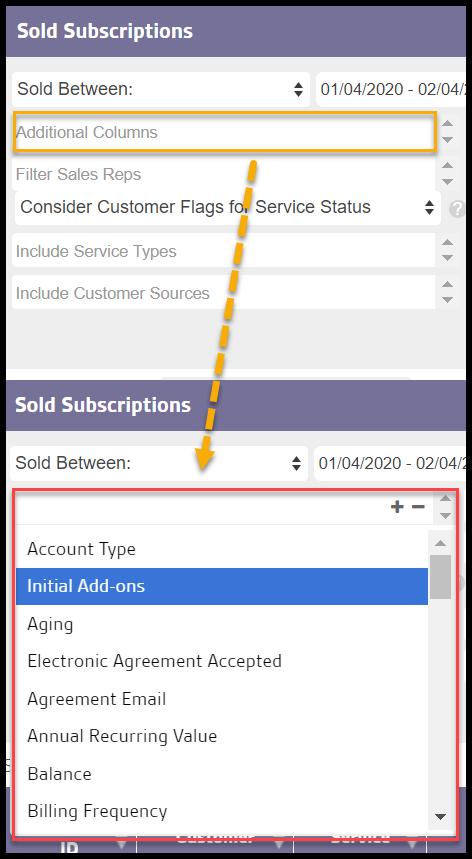
- Additional Columns: Include up to 43 Additional Columns of data for each sale in addition to the fourteen default Columns (for a complete list of choices, see Additional Columns to Display below)
- Filter Sales Rep: Limits results to only those sold by the selected Sales Rep(s); empty = sales from all Sales Reps will be included
- Filter Teams: Filters based on the selected Sales Teams, empty = sales from all Teams will be included
- Customer Flags: Allows
- Consider Customer Flags for Service Status = default
- Don’t Consider Customer Flags for Service Status
- Include Service Types: Limit results to sales for the selected Service Types; empty = all Service Types will be included
- Exclude Service Types: Excludes results for the selected Service Types; empty = no Service Types are excluded
- Include Customer Flags: Limit report results to only Customers with specific Flags; empty = include all Customers regardless of Flags
- Exclude Customer Flags: Excludes Customers with the selected Flags, empty = no Customers are excluded based on Flags
- Include Customer Sources: Limit to specific sales and marketing sources
- Exclude Customer Sources: Filter out specific sales and marketing sources
- Include Service Type Categories: Limit report to specific Service Types, empty = include all Service Types
- Exclude Service Type Categories: Excluded specific Service Types from the results, empty = do not exclude any Service Type
Viewing the Report Columns (Default)
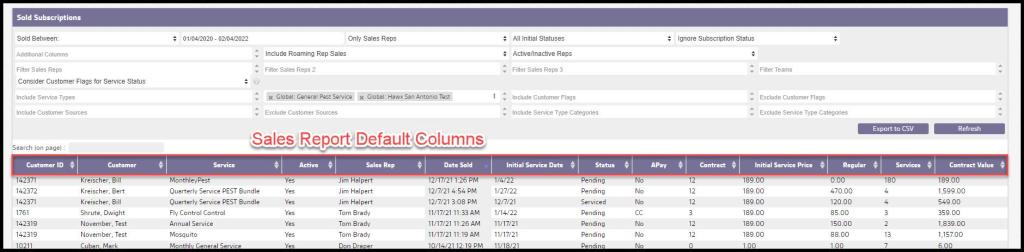
The following data columns are displayed by default for each sale included in the report:
- Customer ID: The Customer’s account’s unique identification number
- Customer: Customer‘s first and last name
- Service: A description of the service Subscription that was sold
- Active: Indicates whether the service Subscription sold is active or not
- Sales Rep: The Sales Rep credited with the sale
- Date Sold: The date the service Subscription was created
- Initial Service Date: The date on which the Initial Service for the Subscription was performed
- Status: The status of the Initial Service.
- Note: If a customer has either the Pending Cancel or Purple Dragon flag on the Info tab checked, then it will regard the subscription as ‘Pending’ even if the initial appointment has been serviced.
- APay: Indicates whether the Customer is on an Autopay plan or not
- No: Customer is not on Autopay
- CC: Customer is on Autopay with a credit card
- ACH: Customer is on Autopay with a bank/ACH account
- Contract: The length in months of the service Subscription contract
- Initial Service Price: The Initial Service charge
- Regular: The regular Recurring Service charge
- Services: The number of Services currently contracted
- Contract Value: The overall Contract Value = the Initial Service charge + (the Recurring Service charge x the number of Recurring Services scheduled for the year)
Viewing the Additional Columns to Display
The following additional Columns to Display are available, and as many as desired may be added to the report:
- Account Type: Shows whether the account is a residential or commercial.
- Initial Add-ons
- Aging
- Electronic Agreement Accepted
- Agreement Email
- Annual Recurring Value
- Balance
- Billing Frequency
- Cancel Date: Shows the date the customer canceled, if applicable.
- Cancel Notes: Shows any cancel notes for the account, if applicable.
- Cancel Reason: Shows the reason the customer canceled, if applicable.
- City: Shows the city stored in the customer’s account.
- Company Name
- ECA Email
- Flags
- Frequency
- Initial Follow-up
- Initial Discount
- Office Name
- Overdue Status
- Paid Year in Advance
- Phone
- Purple Dragon (APay failed Billing)
- Sales Rep Experience
- Sales Rep ID: Shows the unique identification number for the primary Sales Rep.
- Sales Rep 2: Shows the first and last name for the secondary Sales Rep.
- Sales Rep 2 ID: Shows the unique identification number for the secondary Sales Rep.
- Signed Agreement
- State: Shows the state stored in the customer’s account.
- Subscription ID: Shows the unique identification number for the subscription.
- Subscription Cancel Date: Shows the date that the subscription was canceled.
- Subscription Completed Services
- Subscription Charges
- Subscription Payments
- Subscription Balance
- Source: Shows the source for the service.
- Switch Over: Shows if the customer was flagged as a switchover.
- Route Region: Shows the route region.
- Scheduled By: Shows the first and last name of the user who scheduled the customer.
- Scheduled By ID: Shows the unique identification number for the user who scheduled the customer.
- Zip: Shows the zip code stored in the customer’s account.
- Subscription Flags: Shows any flags for the subscription.
Running the Sales Report
Once all desired filters and Columns to Display are selected, select the Refresh button to see the data displayed. Note that Sales Report Totals are anchored at the bottom of the screen. There are four totals by default:
- Total Services: The number of services represented by the report returns
- Total Initial Service Price: The combined dollar value of all Initial Services on the report
- Total Regular: The combined dollar value of all Regular Services on the report
- Total Contract Value: The combined dollar value of all Contracts included in the report
These are the totals from the entire report for each category, even though the visible results may be more limited by space.

Additional Sales Report Totals
Up to eight additional Columns to Display will also return totals in this space as they are added to the report results:
- Total Balance
- Total Completed Services
- Total Sub Charges
- Total Sub Payments
- Total Sub Balance
- Total Initial Discounts
- Total Initial Add-ons
- Total Annual Recurring Value
These Sales Report Totals are a convenient reference for casual reporting. If so desired, the entire report results may be exported to a CSV file by using the Export to CSV option. This data is then available for additional analysis in other financial software.

 Moxie Pest Control Office Guide