
Route Summary Report
Summary
The Route Summary Report is an excellent resource for seeing specific details regarding a technician’s route.
Important Points:
- The Route Summary Report can only display results for one route at a time.
- Select “Open Printable” to view a printable version of this report.
Accessing the Route Summary Report
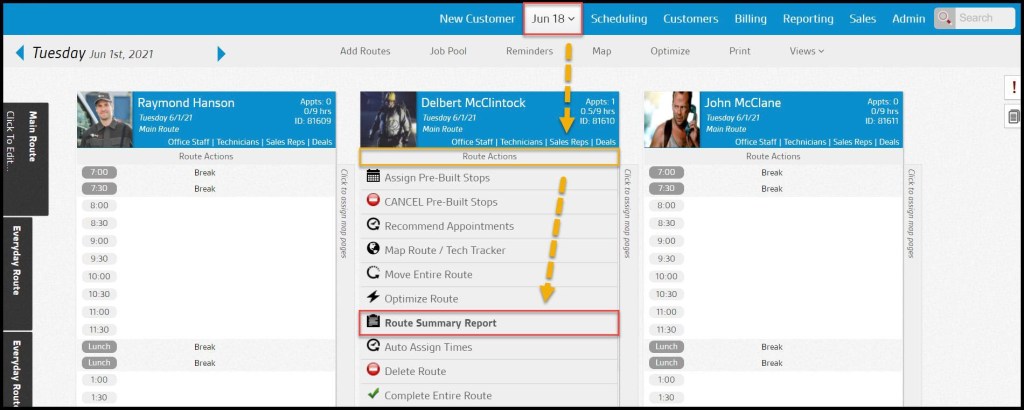
To access the Route Summary Report, go to:
Select the desired day > Route Actions > Route Summary Report.
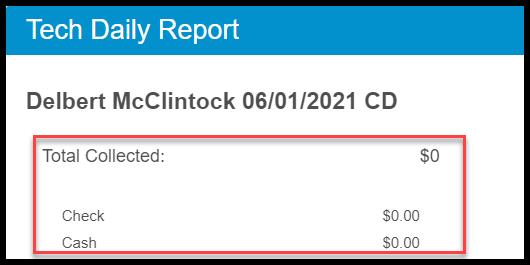
Total Collected
Total collected shows the total amount the technician collected from customers on the route, broken down by check and cash payments.
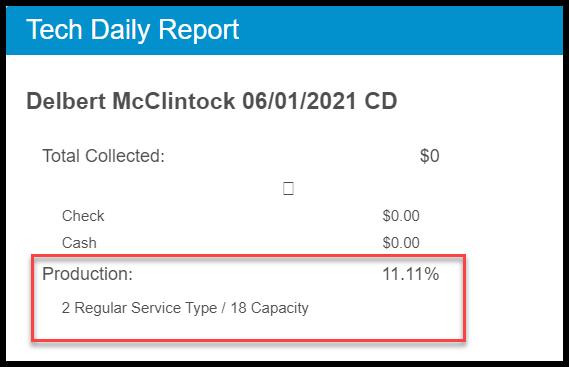
Production
The production is the percentage of customers on this route who are being charged for their appointments. This section helps the user to see how much time the technician spent doing reservices on that route.
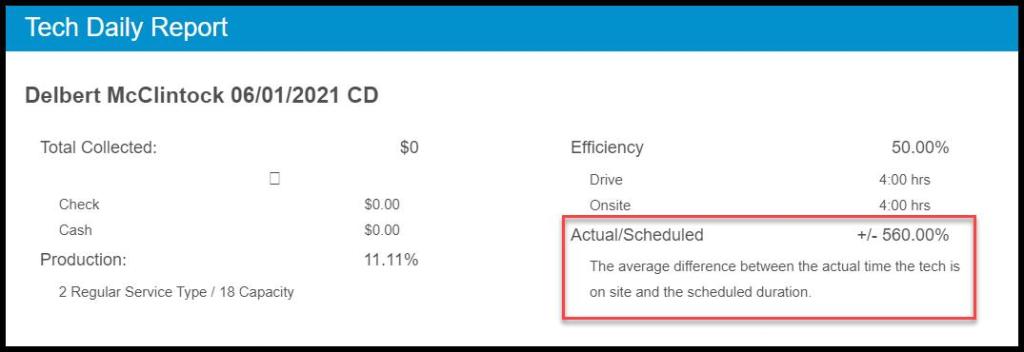
Efficiency
Efficiency is the percentage of time the technician spent on-site at appointments compared to the total time the technician was clocked in for. An efficient route will have more on-site time and less drive time.
- Drive: The total time the technician spent driving between appointments.
- Onsite: The total time the technician spent on-site at appointments.

Actual/Scheduled
Actual/Scheduled is the average difference between the technician’s recorded/actual time on-site and the scheduled duration for each appointment. The closer the actual times are to the scheduled times, the lower this number will be. Leaving the appointment too soon and staying too long will both increase the average.
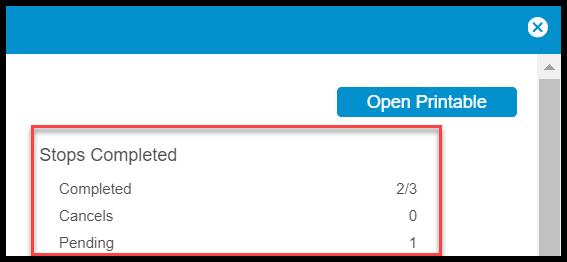
Stops Completed
This section breaks down the number of completed, canceled, and pending appointments left on the route. The number shown along with the completed appointments is the total number of appointments for that route.
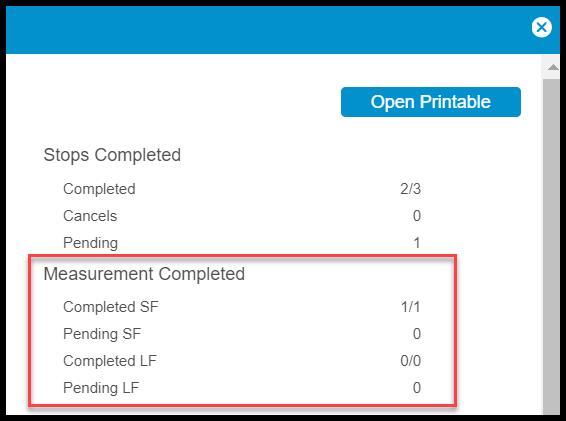
Measurement Completed
The measurement completed shows the completed square footage and the pending square footage, plus the completed linear footage and the pending linear footage of the appointment.
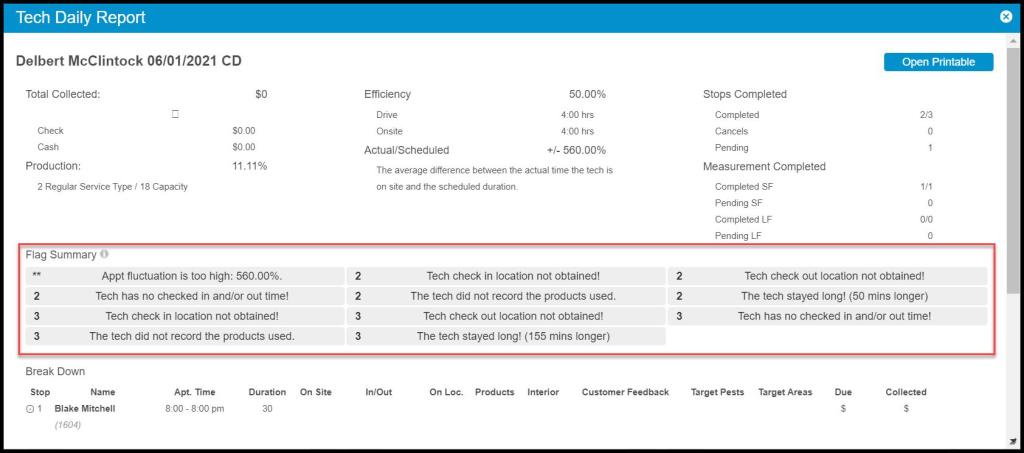
Flag Summary
The flag summary shows a list of alerts of important events that occurred on the route. In addition, each flag will indicate the stop number it is referring to.
- Appt fluctuation is too high: This flag appears when the actual/scheduled percentage is higher than 30%. High appointment fluctuation means a big difference between the time scheduled for the appointment and the time the technician spent at the appointment. The variation could mean the technician left too soon or stayed too long. View the other flags and the route breakdown for more specific details on the fluctuation.
- Tech has no checked in and/or out time!: This flag appears if the technician does not have a checked in or checked out time, or both.
- Tech check in/out location not obtained!: This flag appears if the technician’s location was not acquired.
- The tech did not record the products used: This flag appears if the technician did not record the products used during the appointment.
- Location does not exist!: This flag appears when there is no location information on file for the customer’s property being serviced.
- Tech did not check in at the customer location!: This flag appears if the technician checked in more than 1 mile away from the appointment location.
- The time the tech recorded is different from the time he checked in and/or out!: This flag appears if there is a difference between the time the technician recorded and the time they checked in is greater than two minutes.
- The tech did not record the chemicals used: This flag appears when the technician completed an appointment but did not record any chemicals.
- Interior was part of the requested service and it was not done!: This flag appears if the technician completed the service without doing the interior when “Interior Needed” was marked on the appointment card.
- The tech left early: This flag will appear when the technician completes the appointment in significantly less time than scheduled.
- The tech stayed long!: This flag will appear when the technician completes the appointment in significantly more time than scheduled.
- The tech received a poor rating for this service!: This flag appears if the customer leaves a rating of 1 or 2 stars for the technician.
In addition to these automatic flags, the office notes that the technician flagged will also be shown here.
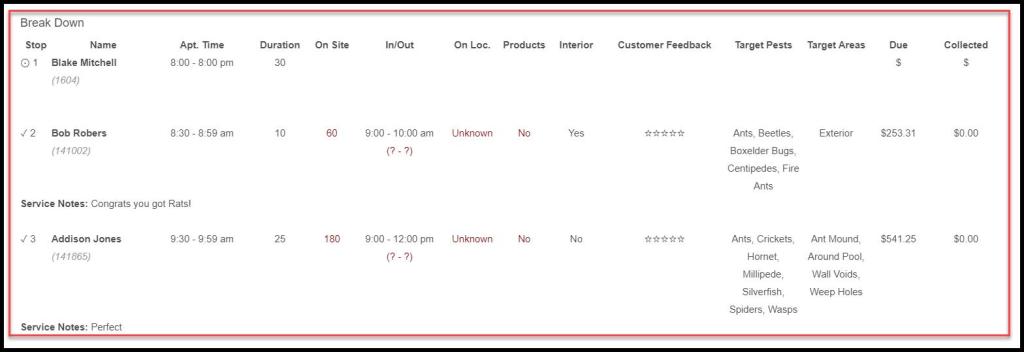
Break Down
This section shows the specific details for each appointment on the route.
- Stop: Displays the stop number on the route (Note: The appointments are ordered by the Time Out entered for the appointment, not the order they appear on the schedule page). This column also shows whether the stop has been completed through the checkmarks.
- Name: Shows the customer’s name on the appointment and unique identification number.
- Apt. Time: Displays scheduled time window (am, pm) for the appointment.
- Duration: Shows the planned duration of the appointment in minutes.
- On Site: View the time (in minutes) the technician was on site.
- In/Out: Shows time in and time out recorded by the technician. The report will show the check-in and check-out time in parentheses if they are different from the times entered.
- On Loc.: Shows whether the technician checked in while they were at the appointment location, short for On Location.
- Products: Shows whether the technician recorded the products used for the appointment.
- Interior: Shows whether the technician serviced the interior. It will also indicate that the interior was not serviced when it was supposed to be.
- Customer Feedback: The star rating and feedback comment that the customer left for the technician.
- Target Pests: Shows any Target Pests for the appointment.
- Target Areas: Shows any Target Areas for the appointment.
- Due: Displays the total service charge that is due for the appointment.
- Collected: The payment amount that the technician collected from the customer.
- Scheduler’s Notes: Shows any notes entered on the appointment card.
- Service Notes: The notes entered for the customer when marking the appointment as complete.
- Office Notes: The notes entered for the office when marking the appointment as complete.
 Moxie Pest Control Office Guide