
Retention Report
Summary
The Retention Report shows cancellations based on customer service subscriptions. This means that if a customer has two subscriptions and they cancel both of them, they will both show up in this report.
Important Points:
- This report will not show subscriptions that were changed to As Needed or one-time subscriptions– it will only show actual subscription cancellations.
- Data for years prior to using the application may not be accurate as the report relies on information that doesn’t exist in other software imports.
Accessing the Retention Report
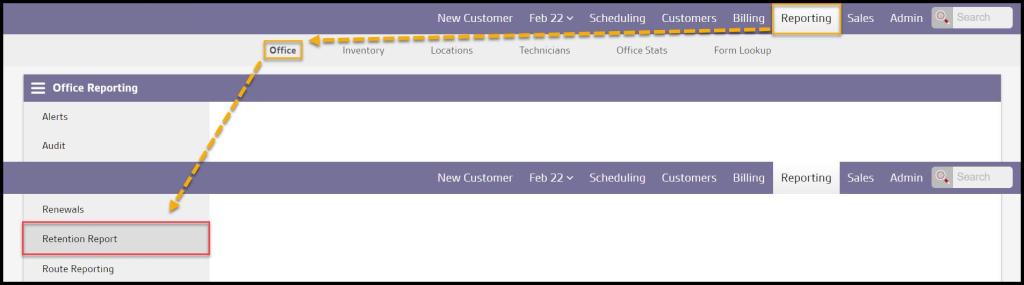
To access the Retention report, go to:
Reporting > Office Reporting > Retention Report.
Filtering the Retention Report
There are a few filters that the Retention Report can be filtered with.
- Start and End Date: Limit the report to subscription cancellations to certain dates.
- Group by: Group the report by a time period (Month, Year, Date)
- Sources: The source that prompted the customer to sign up for the subscription.
- Agreement Length: Select subscription cancellations based on a certain agreement length.
Select Refresh when finished with the filters to load any changes.

Viewing the Growth / Attrition Timeline
The Growth / Attrition Timeline displays the number of customer subscriptions added, canceled, and active for each time period the report is grouped by between the selected date range.
- Added: Displays total number of subscriptions added within the time period
- Canceled: Displays total number of subscriptions canceled within the time period.
- Active: Displays total number of active subscriptions within the time period.
- Cxl Rate: Takes Canceled over Active subscriptions to create canceled rate.
- Growth: Takes Canceled from Added subscriptions over active subscriptions from the previous month to create growth rate.

Viewing the Retention Calendar
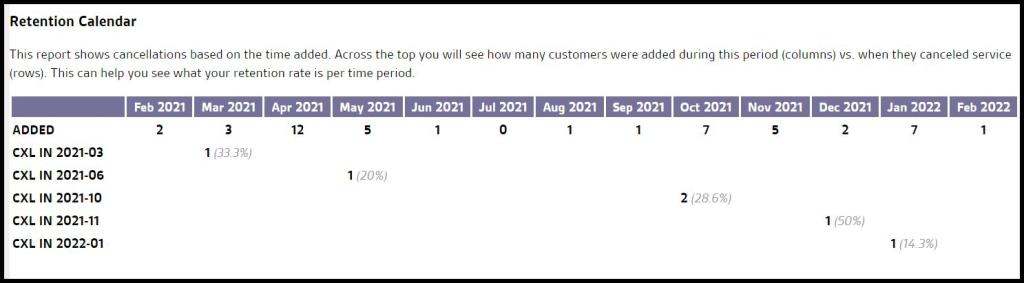
This calendar shows cancellations based on the time added. The top displays the number of subscriptions that were added during this period (columns) vs. the left side that displays when they canceled service (rows).
This report shows what the retention rate is per time period is.
Exporting the Retention Report
Export the report to a CSV file by selecting the Export to CSV button.
 Moxie Pest Control Office Guide