
Renewals Report
Summary
The Renewals Report provides data about renewals and their status and provides the ability for users to perform bulk and individual customer actions, such as sending renewal notices from a variety of communication options.
This report has a default set of columns, with additional columns available to view more data. This report can also be filtered to take appropriate actions on customers, such as sending additional reminders and freezing and unfreezing subscriptions.
Important Points:
- A subscription must include Renewal Date to show up on the report.
Accessing the Renewal Report
To access the Renewals report, Go to:
Reporting > Office Reporting > Renewals.
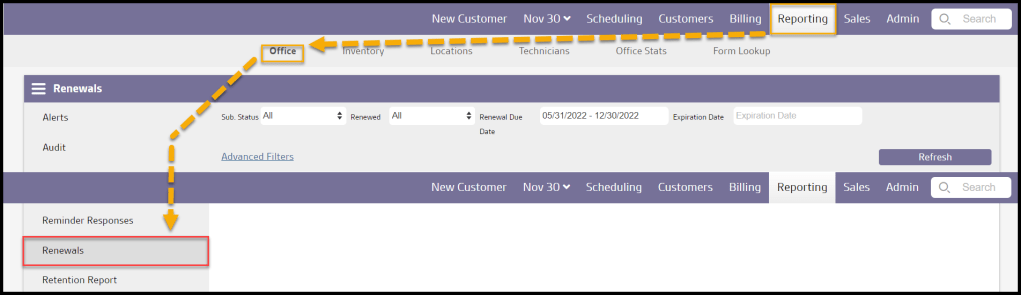
Filtering the Renewals Report (Basic)
By default, the report will return all customers with a Renewal Date in the past six months from the day the report was generated and one month into the future. This filter can be adjusted.
The customer’s subscription must include a Renewal Date to be in the Renewals Report.
- Sub. Status: Display all results regardless of subscription status, or if they are active or frozen.
- Renewed: Display customers that have renewed subscriptions, or not or all results.
- Renewal Due Date: Use the date picker to choose the period of renewal due dates to include in the report.
- Expiration Date: Use the date picker to choose the Expiration date.
Select Refresh when finished using the basic filters, or Advanced Filters to add more advanced filters.

Filtering the Renewals Report (Advanced)
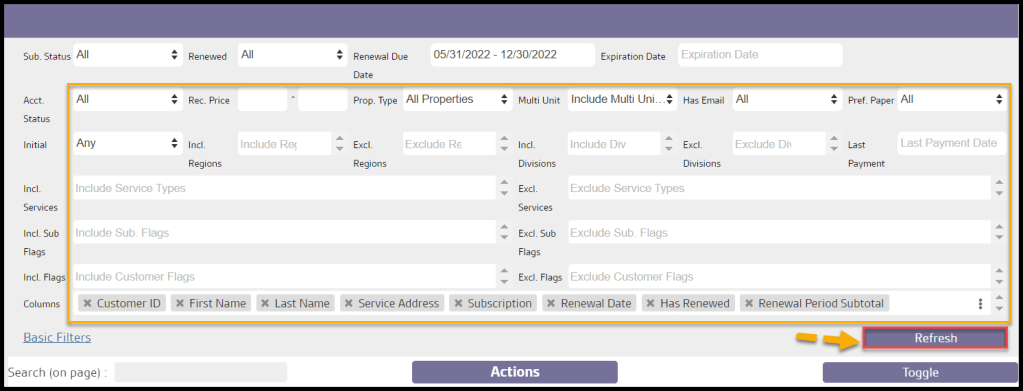
Select Advanced Filters to filter the Renewals Report further.
- Acct. Status: Display subscriptions with any, active, frozen, or pending cancel account statuses.
- Rec. Price: Filter subscriptions based on the given range of recurring prices.
- Property Type: Display customers based on whether they have all, residential, or commercial property types.
- Multi-Unit: Display customers based on whether they have the multi-unit type.
- Has Email: Display customers based on whether they have a primary email on file.
- Pref. Paper: Display customers flagged or not flagged as preferring paper in the customer card.
- Initial: Filter subscriptions by if the initial service was completed or not.
- Regions: Filter subscriptions by particular Regions. To create and edit Regions, go to Admin > Preferences > Customer Preferences > Route Regions.
- Divisions: Filter subscriptions by particular Divisions. To create and edit Divisions, go to Admin > Preferences > Customer Preferences > Divisions.
- Service Type: A multi-select option is available to include the desired Service Types in the filtered results. Only those Service Types the user is authorized to see (Global vs. Office level) will be included for selection.
- Subscription Flags: Filter subscriptions by specific Subscription Flags.
- Flags: Filter subscriptions by specific Customer Flags.
- Columns: Select additional columns of information to display
Select Refresh to filter the report.
Renewal Report Columns
Default Columns
- Subscription: Displays the name of the subscription.
- Has Renewed? (Yes / No): If the user has renewed the subscription or not.
- Renewal Period Subtotal: Will account for custom schedules of various frequencies.
- Renewal Frequency: Shows how often the service should be performed.
- Expiration Date: Displays the date the subscription expires.
- Balance (includes prepayments): X
- Service Frequency: X
Additional Columns
- Renewal Period End: X
- Recurring Total: X
- Renewal Period Total: X
- Next Billing Date: X
- Due Date: X
- Billing Frequency: X
- Service Frequency: X
- Agreement Length: X
- Last Renewal Notice Sent: X
- Initial Date: X
- Email Notices Sent (since the last Renewal Date): X
- Snail Mail Notices Sent (since the last Renewal Date): X
- Printed Notices (since the last Renewal Date): X
- SMS Notices Sent (since the last Renewal Date): X
- Voice Notices Sent (since the last Renewal Date): X
- Is Sentricon? (Yes/No): If the subscription is a Sentricon subscription.
- SAD Date – if not Sentricon, then N/A: X
Bulk Customer Actions
Action Indicators
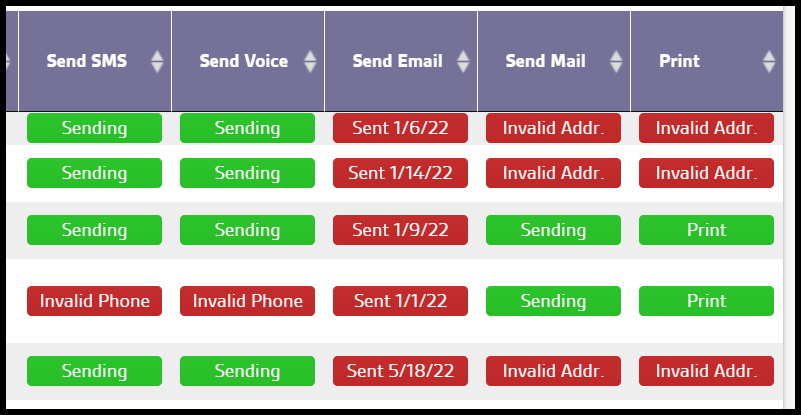
- Sending: If the action button is green and says “Sending,” it means the Renewal Notice was sent.
- Sent on a Specific Date: If the action button is red and says “Sent” for a specific date, it means the Renewal Notice has already been sent to the customer on that specific date.
For actions to send Renewal Notices, there must be a Renewal Notice template created in Admin > Preferences > Customer Preferences. For more information, please see the related Guides.
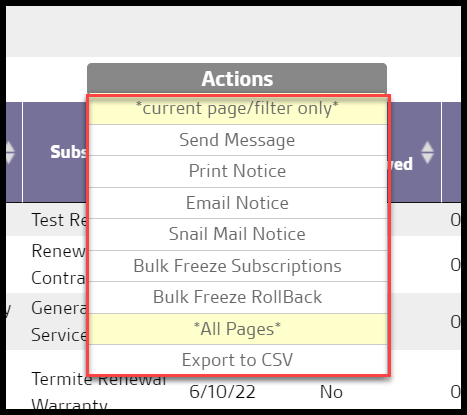
Bulk Actions
- Send Message: A pop-up window appears when selecting this action, allowing one to send a message in three different electronic ways.
- Ignore Contact Preferences: This will overrule the customer’s contact preferences from the Info tab of the Customer Card.
- Ignore Max per Minute: This will override the setting in Admin > Preferences > Customer Preferences > Customer Communication for Max per Minute.
- Methods:
- SMS: This will text the customers in the report as it has been filtered with a pre-defined Notice text and a link to the Customer Portal to pay the Renewal.
- Voice: This will send a reminder of the Renewal Notice to all customers in the report as it has been filtered either by a pre-recorded message or a typed-out message which will be read by a computerized voice.
- Email: This will send an email Renewal Notice to all customers in the report as it has been filtered whose ‘Send Email’ is set to ‘Sending’.
- Note: Send Message only sends the message outlined in the message box, it does not attach a .pdf of the Renewal Notice. Select Print Notice, Snail Mail Notice, or Email Notice for the Renewal Notice to be attached.
- Print Notice: This action will open a new tab with the report as filtered and provide a preview from which to print.
- Snail Mail Notice: This action will send the customers in the report as it has been filtered to the mail provider to print and USPS mail the Renewal Notice for an additional fee of $0.86 per page,.
- Bulk Freeze Subscriptions: This action will freeze all customer subscriptions in the report as it has been filtered.
- Bulk Freeze RollBack: This action will unfreeze (make active) all customer subscriptions in the report as it has been filtered.
- Export to CSV: This will create a file in CSV format that can be opened in a spreadsheet application or Excel.
Note:
Actions will only apply to the current page except for Export to CSV which will include all pages.
Toggle
Click on individual action buttons to toggle them on or off. By selecting the Toggle button to the upper right of the report, the option is available to toggle all communications on or off for every customer in the report.
Communication Action Details
SMS
- The customer must have a phone number listed in the Customer Card under Phone 1.
- The communication preference in the Info tab of the Customer Card to receive text messages must be enabled.
Voice
- To upload a pre-recorded message, navigate to Admin > Preferences > Customer Preferences > Voice Messages. For more information, see our guide titled Voice Messages.
- The communication preference in the Info tab of the Customer Card to receive voice messages must be enabled.
- Before emailing notices, a message will appear prompting to confirm the customers that will receive the emails. Once confirmed, a page will provide a list of customers to whom notices were sent.
- The communication preference in the Info tab of the Customer Card to receive emails must be enabled.
- Each notice will be printed separately.
- The Mark Letters as Sent button will change the action button in the Renewals Report to red, with the date the notices were sent.
Snail Mail
- If notices include perforation, an additional $.20 per notice is applied. To enable or disable perforated notices, go to Admin > Preferences > Customer Communication.
- Before sending notices, a message will appear prompting to confirm sending mailed notices to customers, including the estimated price. Once confirmed, a page will provide a list of customers to whom notices were sent.
- If a customer on that list has a message that says “Mail NOT sent — Missing Address Info,” then it is because the customer does not have a billing address under the Billing tab of the customer card.
 Moxie Pest Control Office Guide