
Reminder Responses
Summary
When a customer is sent an SMS appointment reminder, they can respond to the message. The Reminder Responses Report shows how to see when customers reply to the SMS appointment reminder.
This report is beneficial to see customers that respond to the SMS appointment reminders with important information, such as if they need to cancel or reschedule the appointment.
Important Points:
- Customers can only send replies to SMS appointment reminders.
- Export the report by selecting Export to CSV.
Accessing Reminder Responses
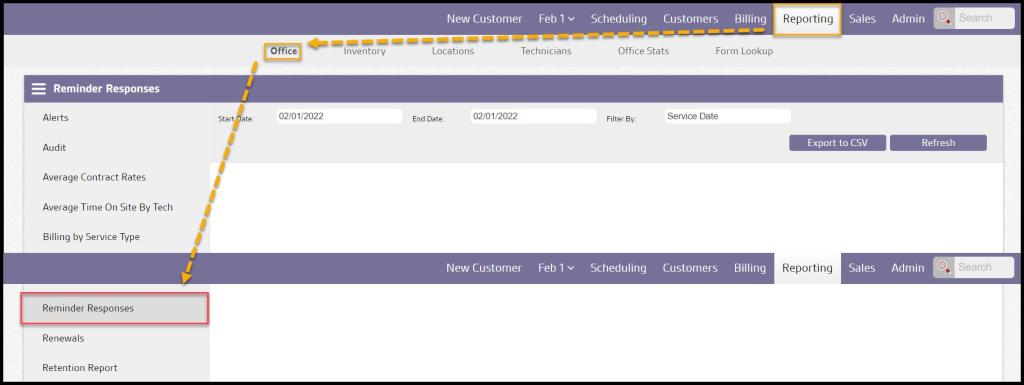
To access the Reminder Responses report, go to:
Reporting tab > Office Reporting > Reminder Responses.
Filtering the Reminder Responses Report
The Reminder Responses can be filtered by the following filters:
- Start and End Date: Filter the report by a specific date range.
- Filter By: Filter the results by a series of filters.
- Service Date: Filter the results by date that the service was completed on.
- Sent Date: Filter the results by date that the reminder was sent on.
- Response Time: Filter the results by the date the customer’s response was received.
Select Refresh when finished with the filters to load any changes.

Viewing the Reminder Responses Report’s Data Columns
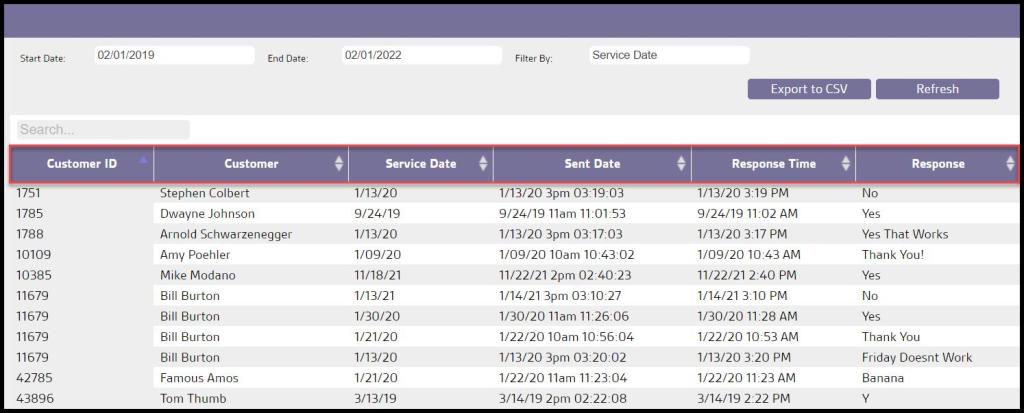
Once the report is generated, important information regarding the customer’s SMS reply will be displayed.
- Customer ID: The customer’s account ID number.
- Customer: The first and last name on the customer’s account.
- Service Date: The date the customer’s appointment is scheduled for.
- Sent Date: The date and time the SMS appointment reminder was sent to the customer.
- Response Time: The date and time the customer responded to the SMS appointment reminder.
- Response: The exact response the customer replied to the SMS appointment reminder with.
Exporting the Reminder Responses Report
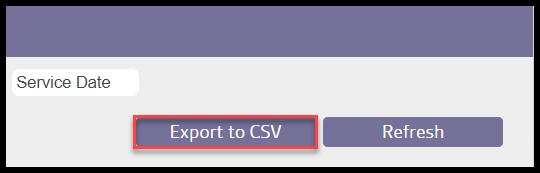
To export the Reminder Responses Report to a CSV file, select, Export to CSV.
 Moxie Pest Control Office Guide