
Refunding and Reversing Payments
Summary
Several options are available on the Customer Card > Invoices tab when a customer invoice has been paid but must be backed out due to a customer request.
Customers who use our Integrated Payments for processing card and ACH payments may Void payments when they are still in the accepted state before settlement, usually within the first 24 hours. This returns funds very quickly to the payment card/account. Once the payment is Settled, the action button changes back to Refund.
The Refund option is available to all customers, canceling the transaction in the Customer Card and initiating a return of funds with the processor. The return of funds may take several days in this case.
Choosing Reverse (formerly “Clear”) for a card/ACH payment cancels the Customer Card transaction but does not initiate the return of funds.
Important Points:
- Customers using our Integrated Payments may now Void card and ACH payments.
- The Void option is typically available for 24 hours after a payment is accepted. Once it changes to Settled and funds are moved, the Void option switches to Refund and requires additional time to return the funds.
- A Reverse option (formerly called Clear) is always available to remove the payment record from the Customer Card without attempting to move funds.
- Element/WorldPay users can only refund payments made within the last 45 days.
Access the Customer Invoice Tab
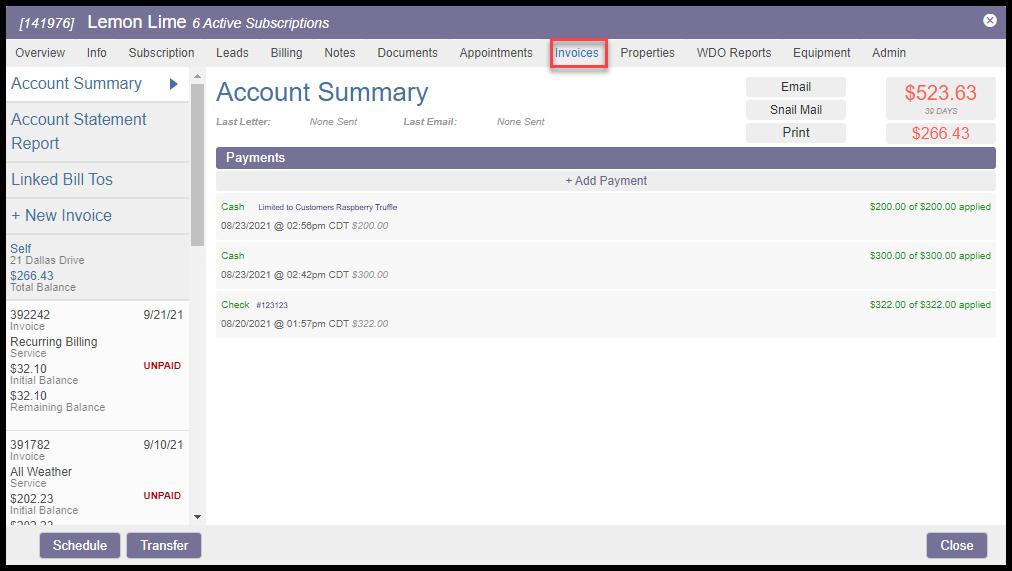
To access the desired payment for Void/Refund/Reverse, navigate to:
Customer Card > Invoices.
Select a Payment for Void, Refund, or Reversal
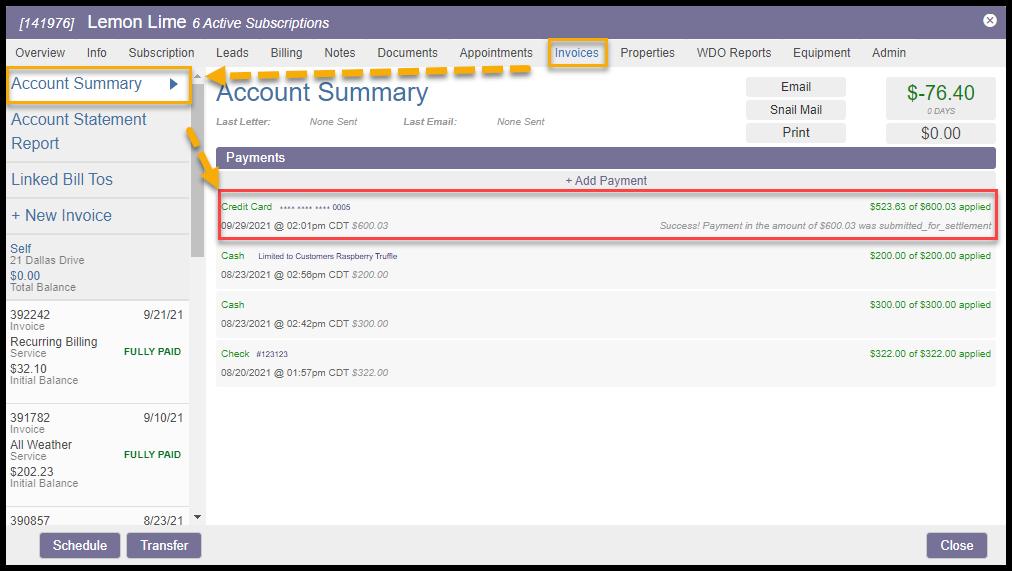
Select Account Summary, then choose the targeted payment from the Payments list.
Using the Void Option to Refund a Payment
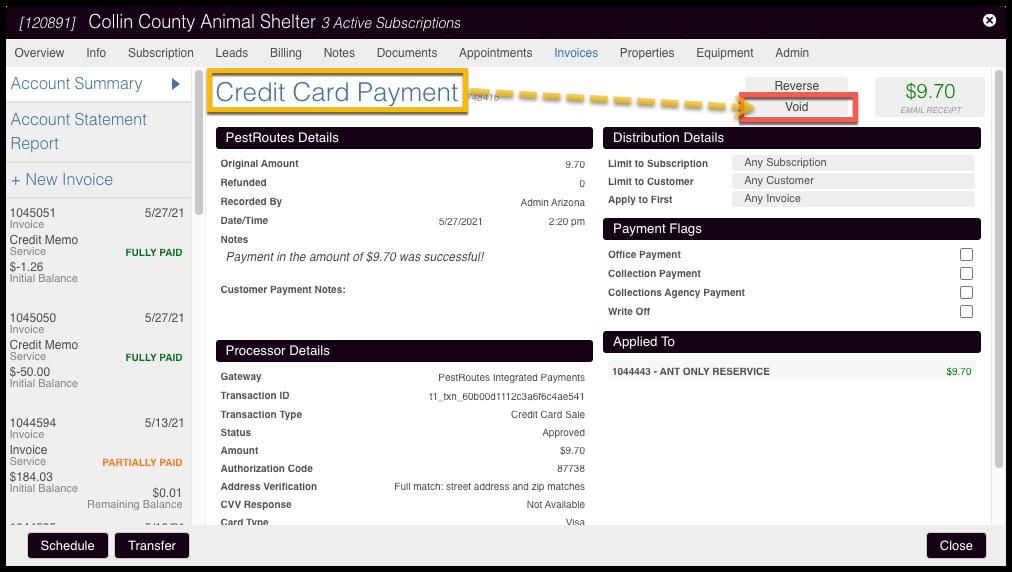
If our Integrated Payments is the payment processor, recent card and ACH payments will have the Void option. This appears during the first 24 hours after the payment is made.
Payments are first Approved through the system and remain in this state for approximately a day. After this, they change to a Settled state once the funds are digitally moved from the customer account to the merchant account. Only our Integrated Payments transactions in the Approved state before Settlement have the option to Void, and immediately return the entire payment amount to the card or bank account.
This also cancels the payment in the Customer Card and restores the balance to the previous amount.
Using the Refund Option to Refund a Payment
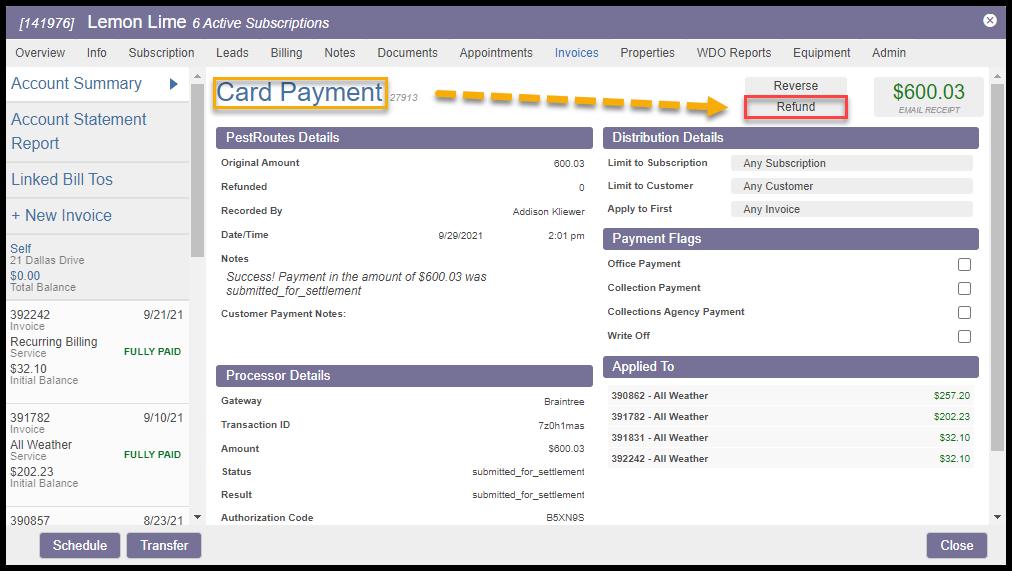
Once the payment has moved from Accepted status to Settled, the Void option is replaced by Refund. This option is available to all customers regardless of the payment processor used.
The Refund option also cancels the payment in the Customer Card and initiates the return of the funds. While the systematic cancelation will show up immediately for reporting purposes, the actual return of funds depends on bank processing and can take several days to move the funds back from the merchant account to the customer’s card or ACH account.
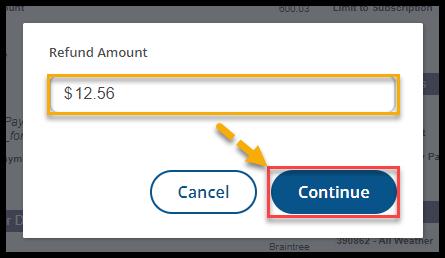
Refunds may be for the entire payment amount, or a partial amount may be designated.
NOTE:
Element/Worldpay limits customers to a 45-day window to successfully initiate refunds using the Refund button here. After this time, the attempt will return an error, and the refund will have to be addressed directly with the processor.
A pop-up window will allow the user to specify a refund amount. The full payment amount is the default.
Select OK to finish.
Reversing a Payment
If the transaction in the Customer Card needs to be canceled without initiating a return of funds, the Reverse option is available (formerly called Clear).
This may be used if funds fail to fully process due to an expired card or insufficient funds in the bank account. In this case, Reverse removes the payment record on the Customer Card.

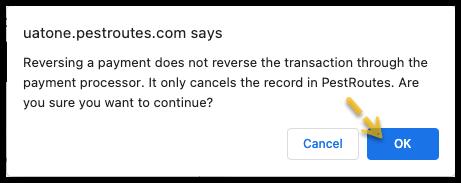
A reminder will appear, explaining that this choice only cancels the payment in the customer record, but does not initiate anything through the payment system.
Select OK to finish.
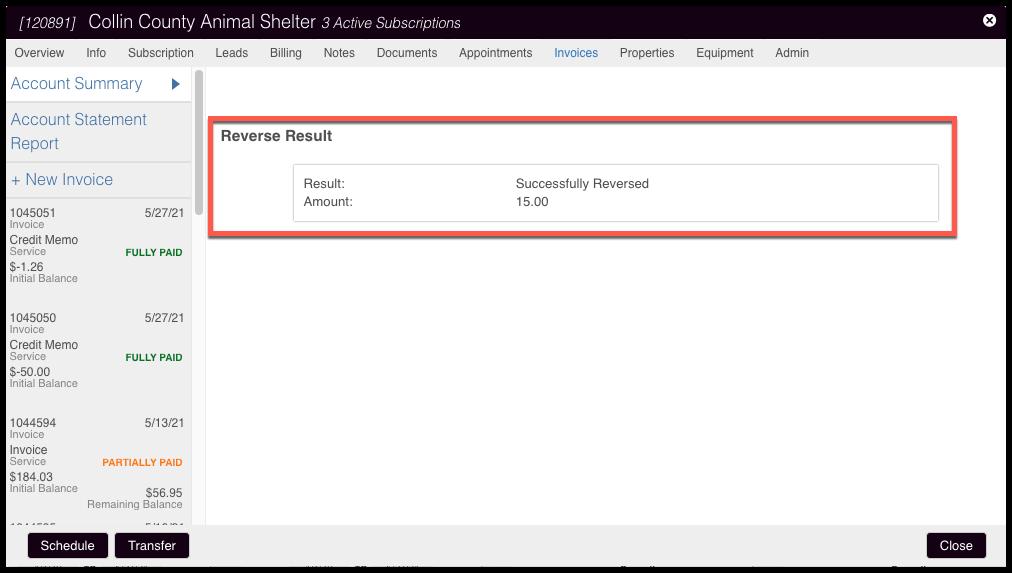
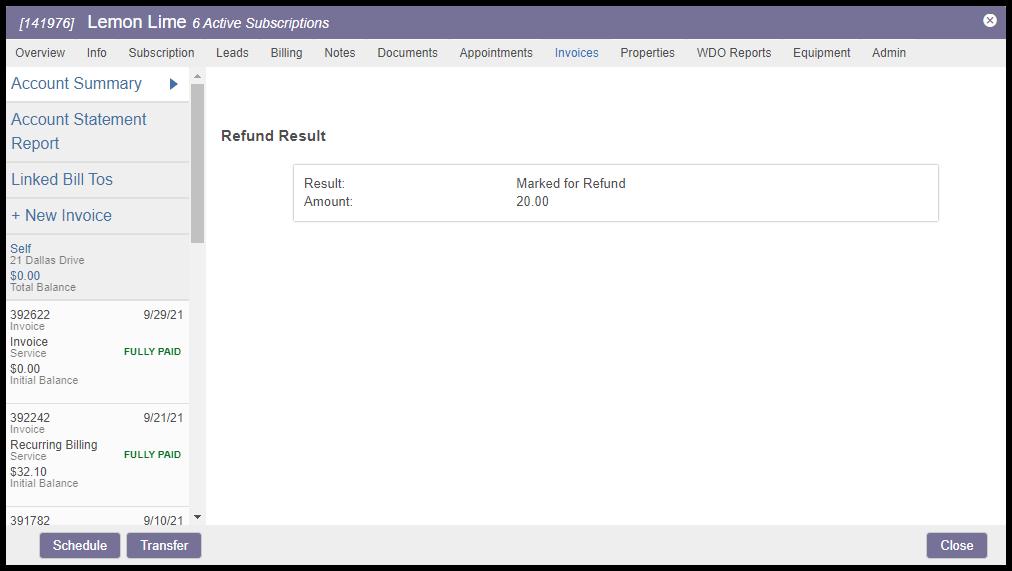
A success message will be returned with the amount that was Reversed.
Refunds and Voids for Cash, Check, or Coupon Payments
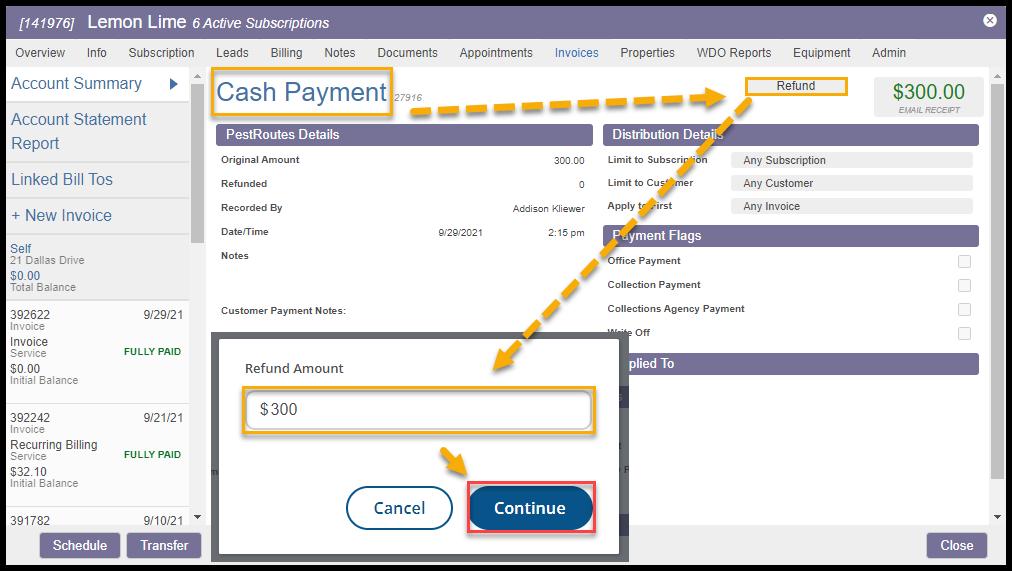
For payment types that do not involve an online payment process – cash, paper check, or coupon payments – Refund and Void are available to remove the payment from the Customer Card, much the same as a Reverse.
For a Cash Payment, selecting Refund will launch the same pop-up window as the Void/Refund options used by the card/ACH payments. Designate either a full or partial amount and click OK to finish.
Using the Void option on a Coupon Payment accomplishes the same purpose as a Refund for cash, and the amount may be entered. Click OK to finish.
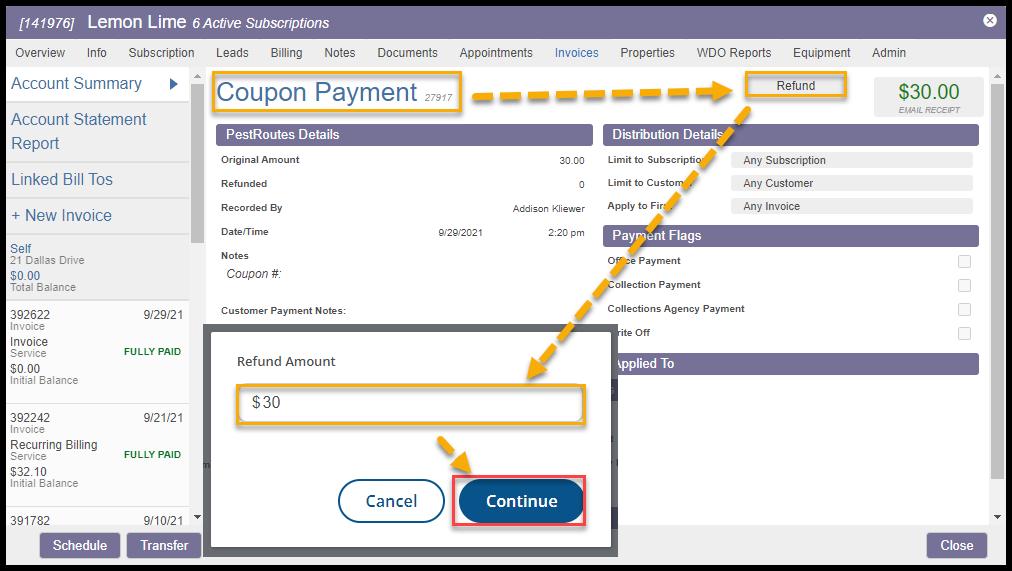
Finally, the Void for a Check Payment assumes the full amount of the check is being canceled. Select OK to confirm and remove the payment record.

In each of these cases, a confirmation message should result announcing the payment removal and the amount.
Refunding/Reversing Designated Payments
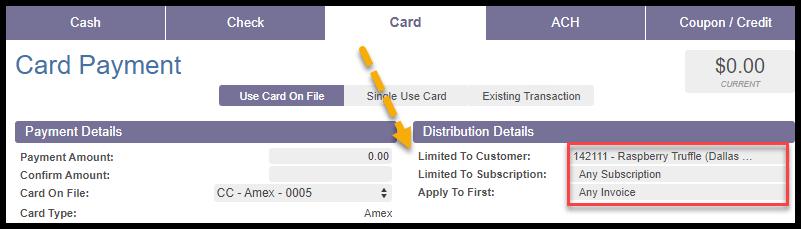
It is important to remember that if the original payment that is Refunded or Reversed was Limited to Customer, Limited to Subscription, or designated for a specific Invoice in the Distribution Details, removing the payment record will result in the restoration of the balance of that specific Customer/Subscription/Invoice.
Refunding Prepayments
Although the refunding process for Prepayments is no different than what’s included above, there are additional things to consider when doing so.
 Moxie Pest Control Office Guide