
Pushed Services
Summary
The Pushed Services Report is a detailed breakdown of the status of customer’s services within a specified date range.
NOTE: This report only includes customers with appointments that are:
- Attached to active subscriptions with a completed initial appointment
- From Active Customers
- That fall Due between the two different date ranges selected with the date selector
- Unique – Customers are only shown once in each result even if they have multiple appointments that may count.
Important Points:
- Click on a category within the report to view all of the customer’s in that category.
- Export this report by selecting Export to CSV.
Accessing the Pushed Services Report
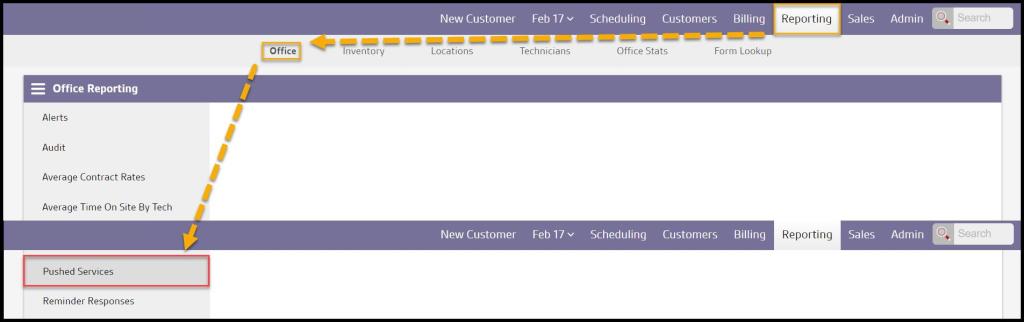
To access the Pushed Services report, go to:
Reporting > Office Reporting > Pushed Services.
Filtering the Pushed Services Report
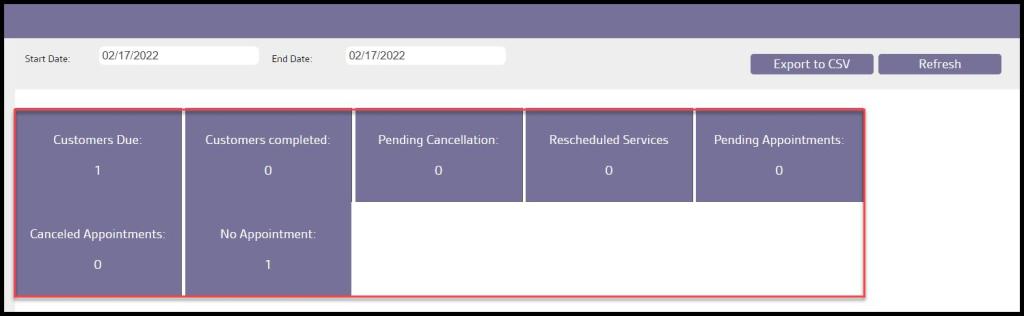
Enter in the desired Start and End Date. Select Refresh when finished with the filters to load any changes.

Data Provided by Pushed Services
There are several data points provided by this report:
- Customers Due: Shows customers that are due for an appointment within that specified date range. *This will not show Potential Customers (customers that have not had their initial service completed).
- Customers Completed: Shows customers that have a completed appointment within that date range.
- Pending Cancellation: Shows customers that are pending cancellation.
- Rescheduled Services: Shows customers that have appointments that were rescheduled within that date range.
- Pending Appointments: Shows customers that have appointments that are scheduled and still pending.
- Canceled Appointments: Shows customers that have canceled appointments within that date range.
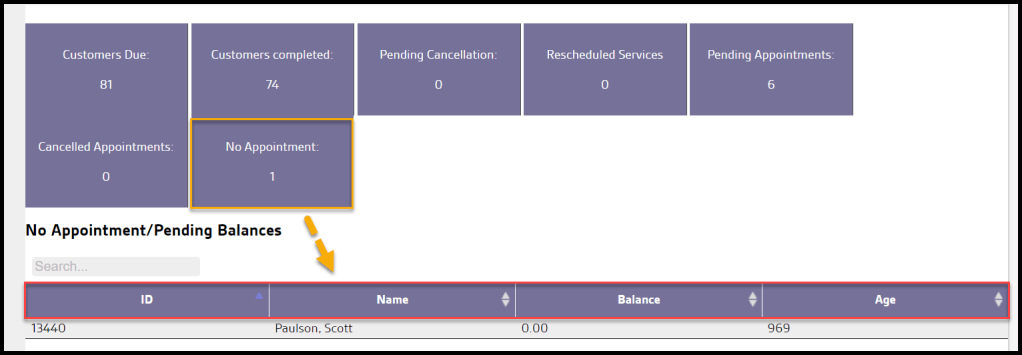
- No Appointment: Shows customers with past invoices not part of any other group in this report. The age column is the number of days between the last invoice and range end.
Select the card to open a report for that type of pushed service.
Viewing the Due Services’s Data Columns
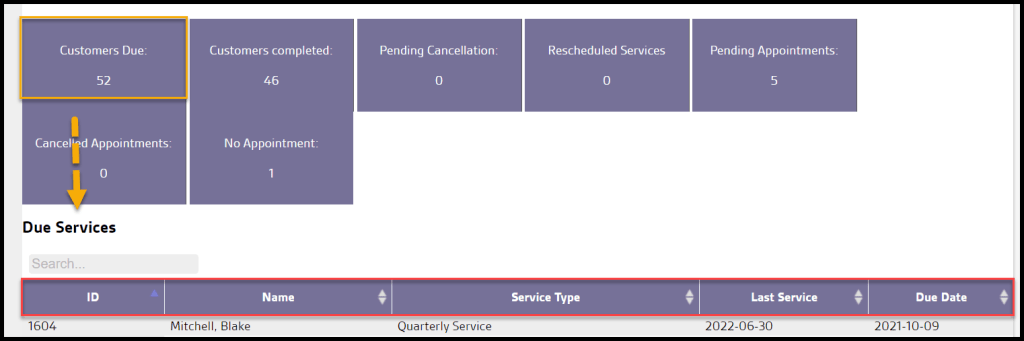
Select the Customers Due’s Card. It will show several Data columns:
- ID: Shows the customer’s identification number.
- Name: Shows the customer’s first and last name.
- Service Type: Shows the type of service.
- Last Service: Shows the date of the last service.
- Due Date: Shows the due date for the service.
Viewing the Completed Services Data Columns
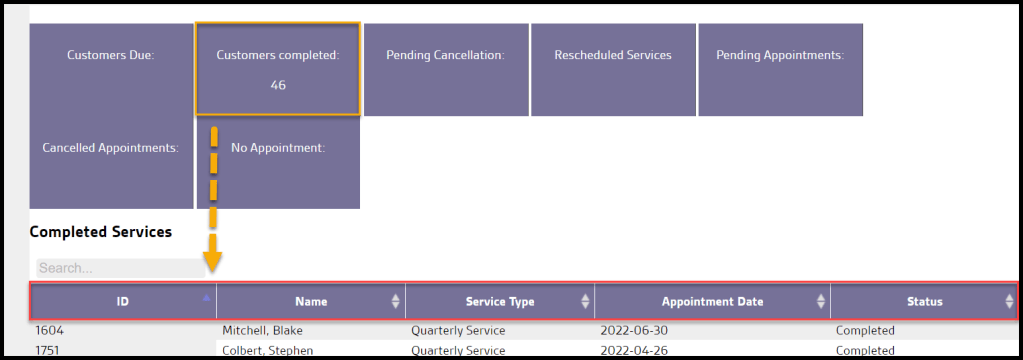
Select the Customers completed Card. It will show several Data columns:
- ID: Shows the customer’s identification number.
- Name: Shows the customer’s first and last name.
- Service Type: Shows the type of service.
- Appointment Date: Shows the date of the completed appointment.
- Status: Shows the status of the completed service.
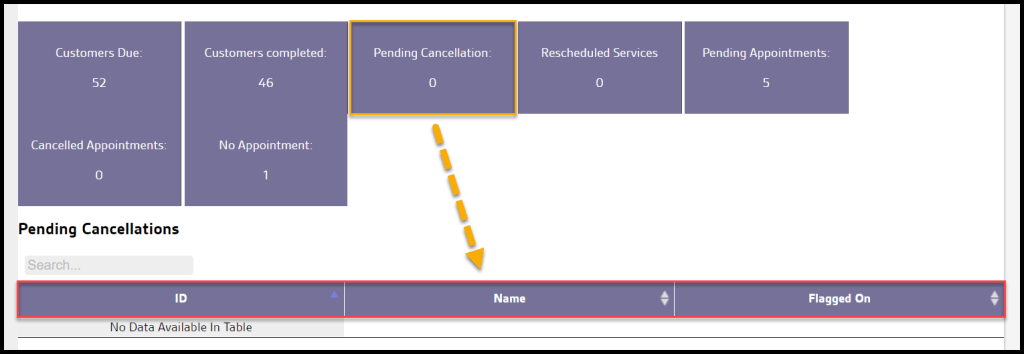
Pending Cancellations’ Data Columns
Select the Pending Cancellations’ Card. It will show several Data columns:
- ID: Shows the customer’s identification number.
- Name: Shows the customer’s first and last name.
- Flagged on: Shows the date the service was flagged as a Pending Cancellation.
Rescheduled Services’s Data Columns
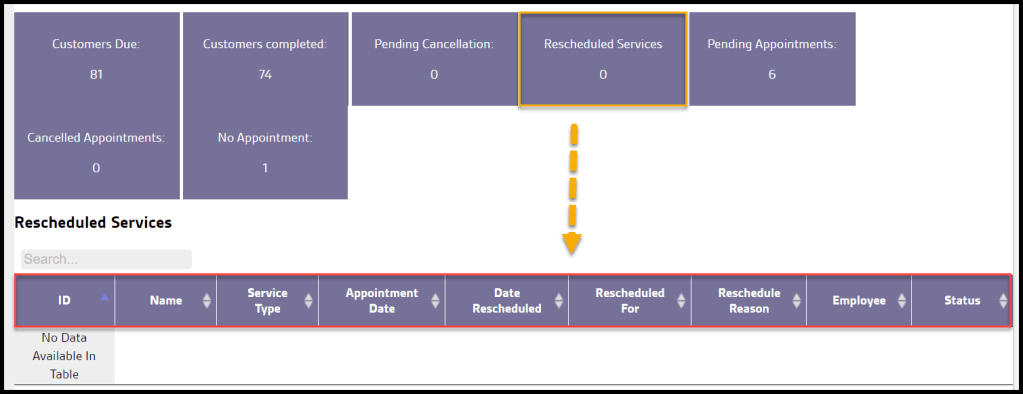
Select the Reschedule Services Card. It will show several Data columns:
- ID: Shows the customer’s identification number.
- Name: Shows the customer’s first and last name.
- Service Type: Shows the type of service.
- Appointment Date: Shows the date of the originally scheduled service.
- Date Rescheduled: Shows the date the service was rescheduled to.
- Rescheduled for
- Rescheduled Reason: Shows the Appointment Reschedule Reason.
- Employee: Shows the name of the employee who rescheduled the appointment.
- Status: Shows the status for the service.
Pending Appointment’s Data Columns
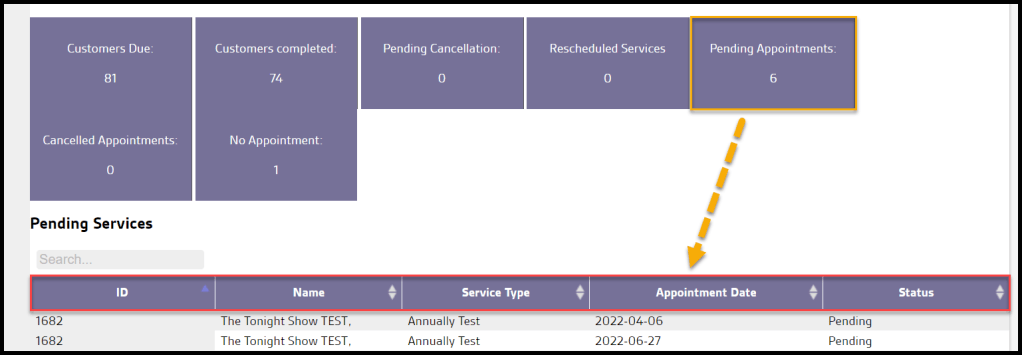
Select the Pending Appointment’s Card. It will show several Data columns:
- ID: Shows the customer’s identification number.
- Name: Shows the customer’s first and last name.
- Service Type: Shows the type of service.
- Last Service: Shows the date of the last service.
- Appointment Date: Shows the date for the pending appointment.
- Status: Shows the status for the Appointment.
Cancelled Appointment’s Data Columns
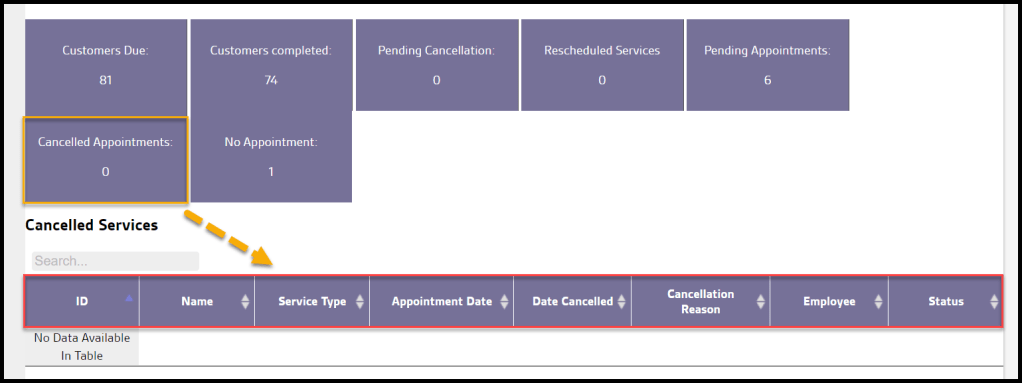
Select the Cancelled Appointment’s Card. It will show several Data columns:
- ID: Shows the customer’s identification number.
- Name: Shows the customer’s first and last name.
- Service Type: Shows the type of service.
- Appointment Date: Shows the date for the Appointment.
- Date Canceled: Shows the date the appointment was canceled.
- Cancellation Reason: Shows the Appointment Cancellation Reason.
- Employee: Shows the name of the employee who canceled the appointment.
- Status: Shows the status for the service.
No Appointment’s Data Columns
Select the Canceled Appointment’s Card. It will show several Data columns:
- ID: Shows the customer’s identification number.
- Name: Shows the customer’s first and last name.
- Balance: Shows the customer’s balance.
- Age: Shows the age of the customers with no appointments.
Exporting the Pushed Services Report
To export the Pushed Service report as a CSV file, select Export to CSV.

 Moxie Pest Control Office Guide