
Printing Route Sheets and Service Notifications
Summary
This guide shows how to quickly print technician route sheets and service notifications for customers.
NOTE:
None of these documents are customizable.
Important Points:
- There are multiple formats for route sheets and invoices to meet the varying needs of our companies.
- Sometimes pop-ups are blocked, so be sure to check if the pop-up does not display
Printing Route Sheets and Service Notifications
To print the Route sheets and Service Notifications, go to:
Scheduling > Calendar > Select the desired day > Print.

Using the Print Options
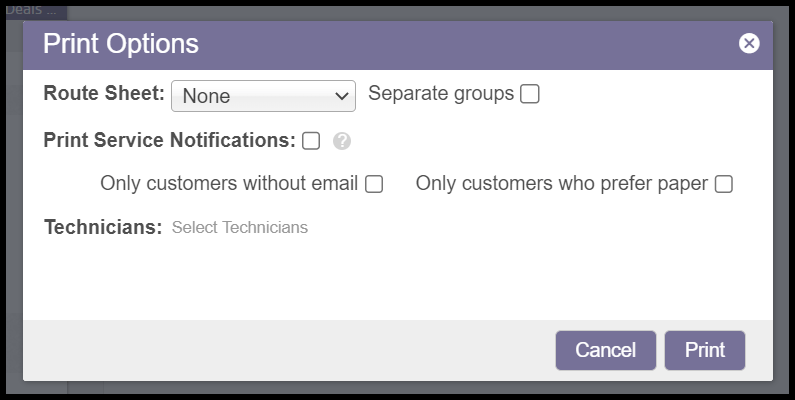
Once Print is selected, a new window will appear giving you several options for printing.
- Route Sheet: The route sheet is a printable list of the technician’s route for that specific day. There are several styles for printing this information. Please see below for examples of the compact, default, and expanded styles. Select None if the user does not wish to print a route sheet.
- Separate Groups: Separates the results into separate pages.
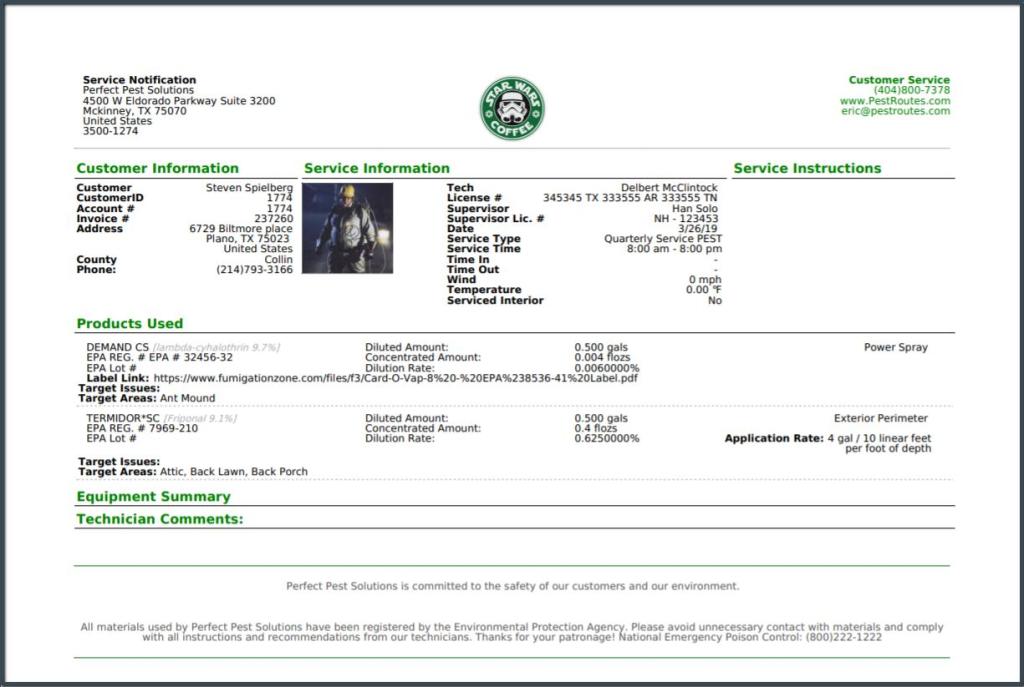
- Print Service Notifications: Select the box to check this option if the user would like to print the completed service notifications for each customer scheduled. If the user would like to only print the completed service notification for customers without an email, or only customers that prefer paper select the box next to the desired option. Please see below for an example of the completed service notification.
- Technicians: This field will allow the user to only print information for customers on a specific technician’s route.
NOTE:
None of these documents are customizable.
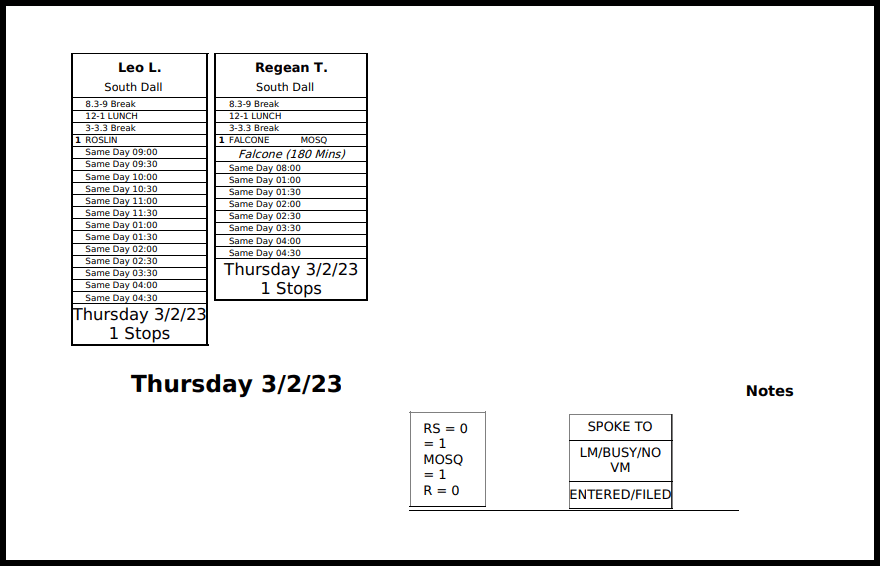
Compact Style Route Sheet
This is an example of a Compact style Route Sheet.
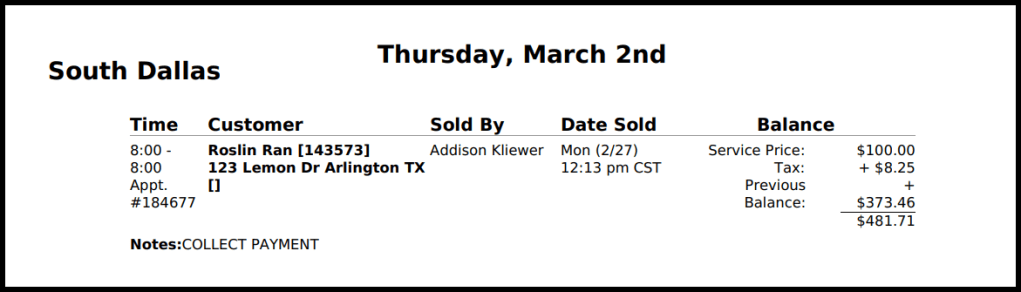
Default Style Route Sheet
This is an example of the Default style Route Sheet.
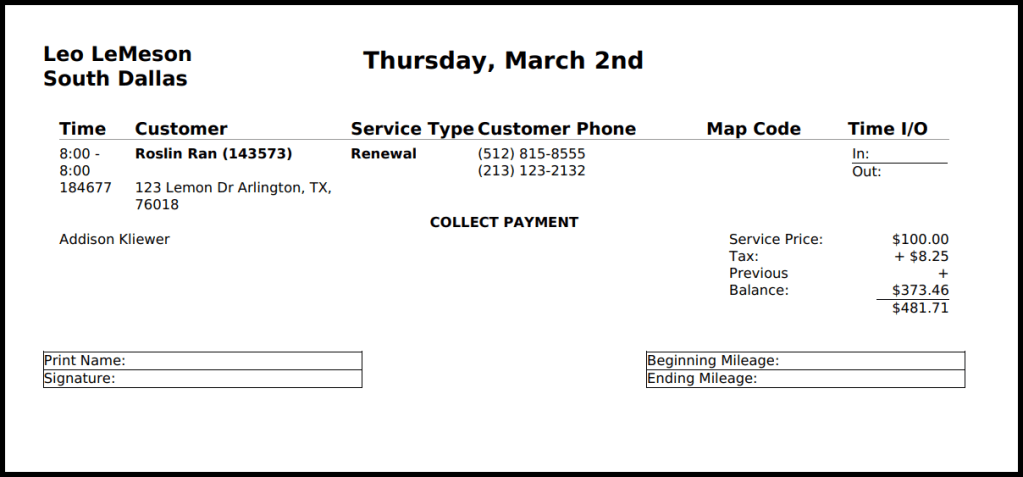
Expanded Style Route Sheet
This is an example of the Expanded style Route Sheet.
Service Notifications
This is an example of a completed Service Notification. Each Service Notification will print on a separate page.
Depending on the Service Follow-up Email preference, located at:
Admin > Preferences > Customer Preferences > Customer Communication > Service Follow-up Email.
Customers will receive this via email. However, for customers that prefer a paper copy (either because they don’t have an email address or are flagged as preferred paper), the user can easily print the notification out before the appointment.
 Moxie Pest Control Office Guide