
Prevent Users From Logging In From Outside the Office
Summary
Our software makes it easy to prevent users from having the ability to log into the software from outside the office. This is a great feature to improve the user’s data security.
Important Points:
- This function works by specifying the user’s office IP address and selecting which users cannot log in to the software outside of the office.
Specify the Office IP Address
The first thing the user will need to do is specify the user’s office IP address.
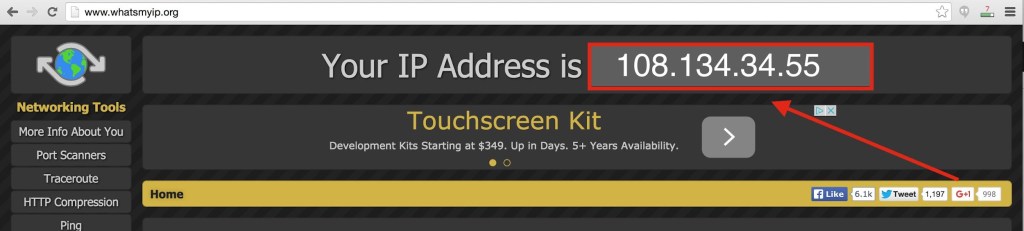
To do this, go to http://www.whatsmyip.org/ and copy the IP address listed at the top of the screen.
Insert the IP Address Into Office Preferences
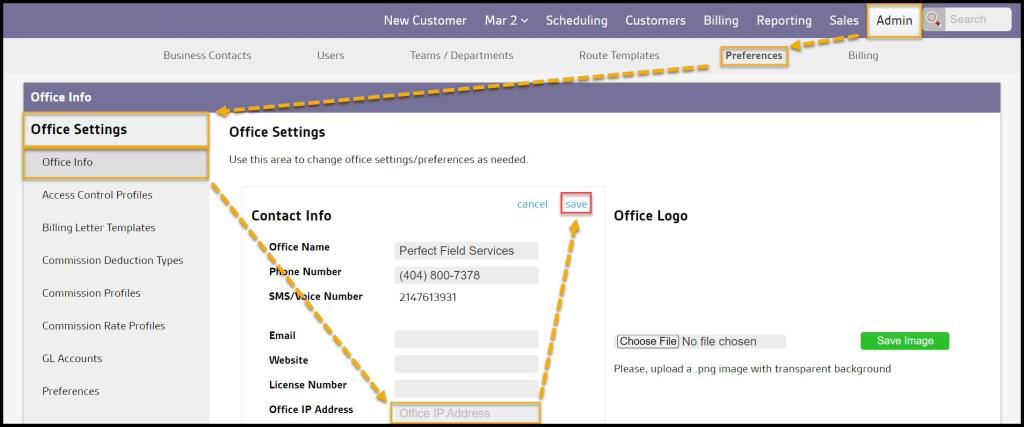
Next, go to
Admin > Preferences > Office Settings > Office Info > Contact Info > Edit Button.
Paste the IP address into the Office IP Address field, and select Save.
Limit Specific Users
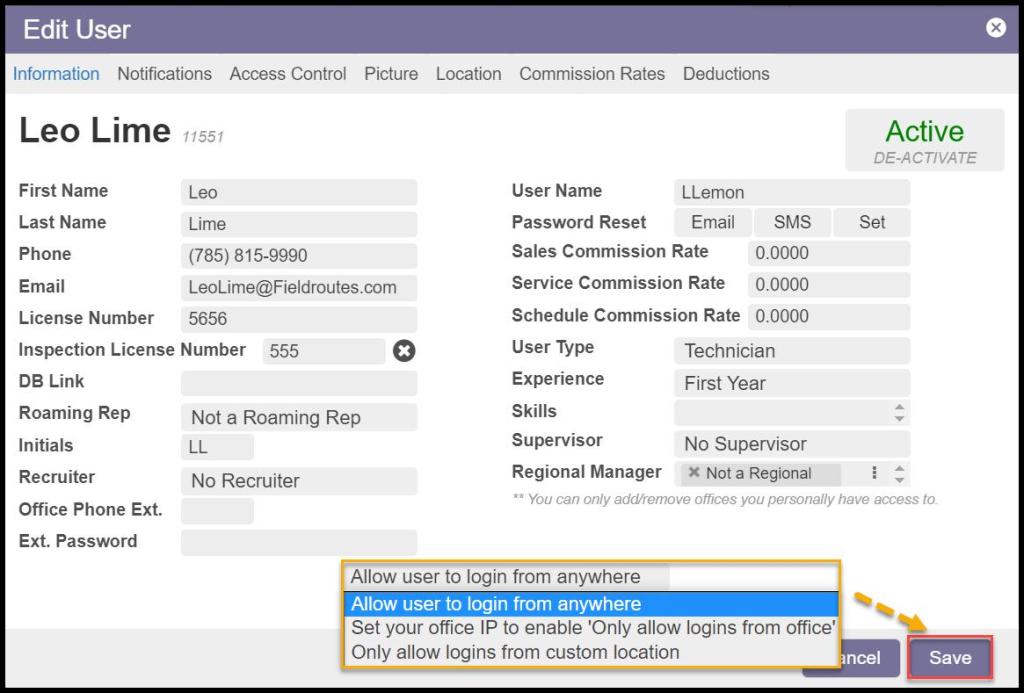
To limit access to a specific user, go to Admin > Users, and select the desired user to open the user card.
Under the Info tab, there is a field that will give the user a few options for limiting access to the software:
- Allow user to login from anywhere: This is the default preference. It will allow users to log in to the program from any location.
- Only allow logins from office: This option will allow users to only log in to the program from the office IP address.
- Only allow logins from custom location: Selecting this option will allow a user to log in from a different IP address than what is under the Office Info. When the user selects this option, a new field will appear, allowing the user to enter the custom IP address for this user. This option is great for remote employees.
 Moxie Pest Control Office Guide