
Preset Notes
Summary
Technicians can add Preset Notes with the mobile application to communicate a pre-created message to the customer being serviced or communicate an important note to the office.
Important Points:
- Preset Notes are highly beneficial because they will prevent technicians from constantly typing the same note over and over again into the mobile app.
Accessing the Preset Notes
To access Preset Notes, go to:
Admin > Preferences > Mobile > Preset Notes.

Filtering the Preset Notes
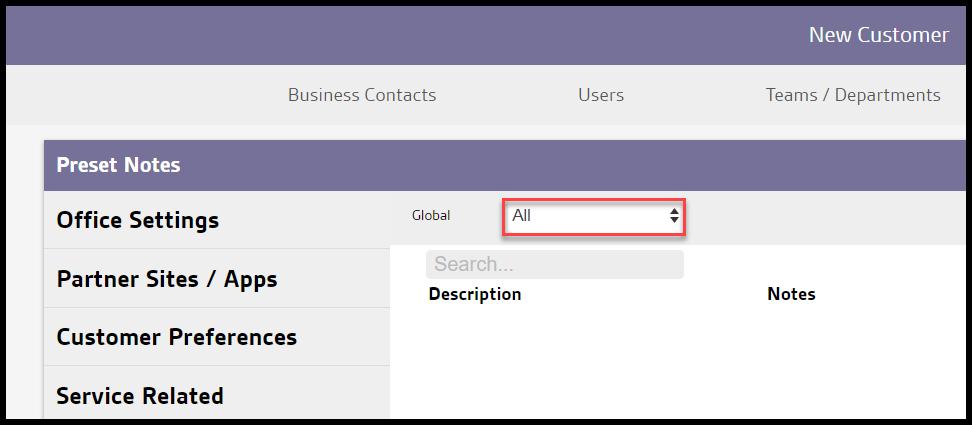
To filter the Preset Notes, toggle the Global filter.
- Global
- All: Display All Preset Notes
- Specific to Office: Display only Preset Notes that are flagged to be specific to the user’s office.
- Available to all offices: Display only Preset Notes that are flagged as available to all offices.
Adding or Editing a new Preset Note
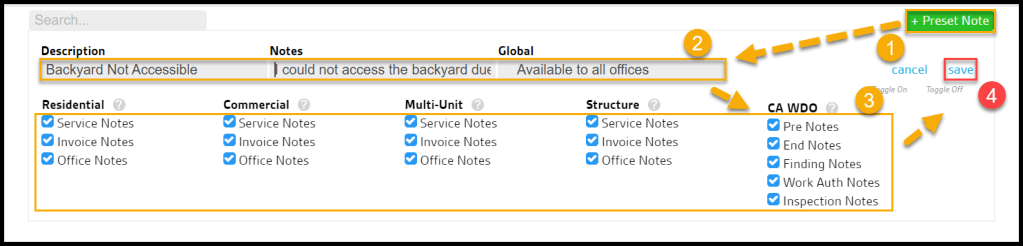
To add a new note, select the green + Preset Note button in the top left corner, which will cause a few fields to enter information about the current Preset Note.
- Description: This will be the name of the Preset Note. This is not what the technician will actually input for the note in the mobile app.
- Notes: This field serves to contain the actual content of what the note says.
- Global: For companies with multiple offices, if a Preset Note is Specific to this Office, then it will only be available to the office the note was created in. If the note is Available to all Offices, then every branch can see the new note.
- Sub-category: This controls the preset note’s ability to apply to Service Notes, Invoice Notes, and/or Office Notes. It can also differ based on the customer’s property type, i.e. residential, commercial, multi-unit, and structures.
Note:
The mobile app will display all Preset Notes and honors the sub-category selections, and only shows the appropriate Preset Notes.
Select Save when finished editing the Preset Note. To edit the saved Preset Note, select Edit next to the listed Preset Note.
How do technicians utilize the Preset Notes in the mobile apps?
To add notes for both customers and the office, open the mobile app and go to:
Customer’s Appointment > Complete > Notes.
When a customer’s appointment is open in the mobile app, comments for the technician and notes for the office can be added.
Under the Service Notes and Office Notes section, there is an option to Add Preset. Selecting this option gives the technician access to the Preset Notes configured here
Adding Preset Notes to the customer’s Invoice
Under the Invoice tab in the mobile app, the Service Invoice section will have the Add Preset option for Preset Notes meant to show up on the invoice.
 Moxie Pest Control Office Guide