
Prepayment Refunds
Summary
Refunding Prepayment Discount Services can require a few different steps depending on the customer’s intent. This step-by-step guide will identify what to do if a Refund is requested for Prepayments. The two actions taken in each scenario include Refunds and Credit Memos.
- A Refund is an act of repaying a customer’s funds in the same format that was collected.
- A Credit Memo will reduce the amount that the customer owes to the company. When the user applies a Credit Memo to an invoice in our software, it will create a negative invoice and reduce the revenue generated at that time.
Important Points:
- As of August 1st, 2023 Prepayments no longer generate an invoice automatically upon payment. Therefore refunds will return the payment to the payment source but not leave a negative balance or an unpaid invoice on a customer’s account.
- If a credit memo was created before August 1, consider it nothing more than a historical transaction.
How to Refund Prepayments
There are a few different scenarios where a customer would require a Refund for a Prepayment to be performed:
- The customer wants to change the payment method used for their Prepayment offer.
- The customer decided that they would like to select a different Prepayment offer.
- The customer no longer wants the Prepayment offer that they paid for.
The first scenario above requires the original form of payment to be refunded, followed by adding the new payment method. The second two, where the customer is changing their mind about the Service they selected, requires a Refund, followed by a Credit Memo be performed.
Process a Refund to Change the Form of Payment
Refunding for Prepayments is no different than processing a refund for any other form of payment in FieldRoutes.
Where to Add Payment
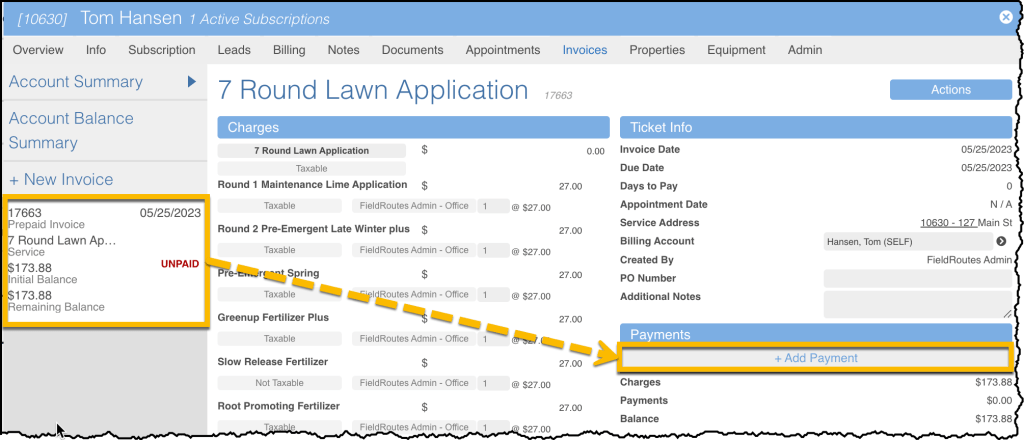
It is essential to “Add Payment” to the correct invoice when applying a different form of payment (after the payment has been refunded). This ensures that the new payment is applied to the correct invoice instead of another invoice on the customer’s account.
The best practice is to click directly on the invoice from the menu on the left, and clicking the Add Payment button.
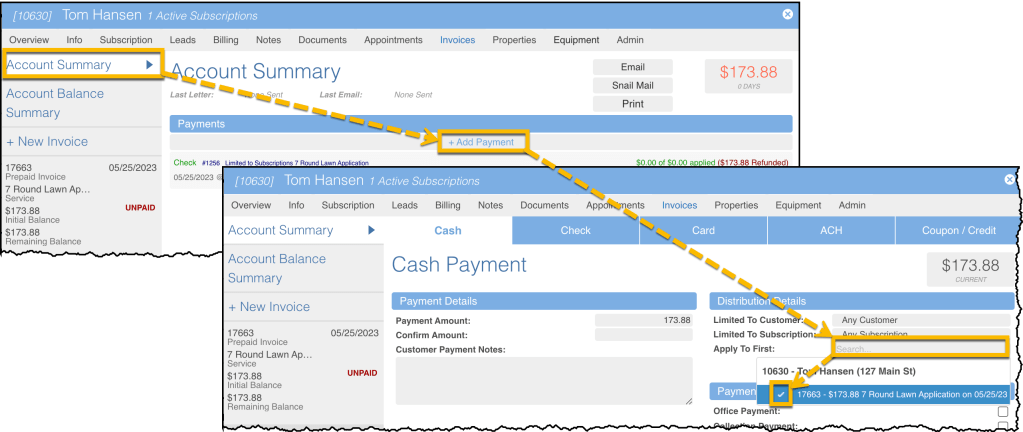
If, instead, the Add Payment button is selected from the Account Summary, the user must then choose the appropriate invoice from the Apply to First field to apply that payment to the correct invoice.
Process a Refund so That Another Offer Can Be Selected
In this example, the second scenario from above will be covered. The customer has decided they would like to take advantage of the Prepay Discount and Upsell instead of only the Prepay Discount they had previously accepted and paid for. This will require a refund followed by a credit memo be performed. The Credit Memo ensures that the prepaid invoice will no longer include an amount the customer is responsible for.
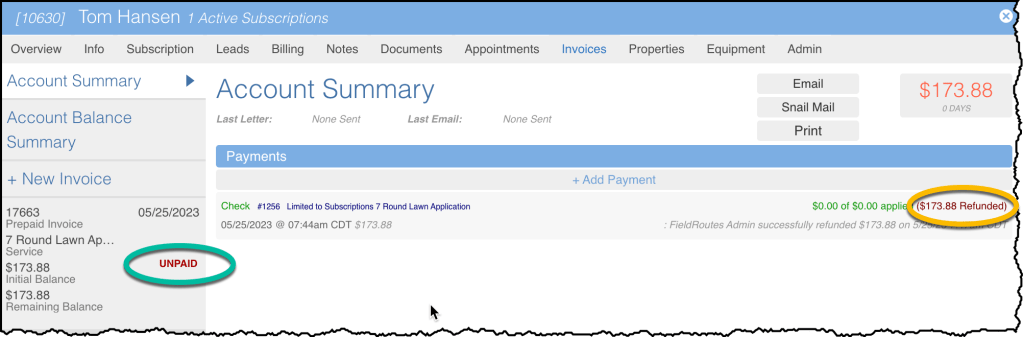
The steps below begin after the initial payment has been refunded. The Prepaid Invoice is now marked as Unpaid, and a Credit Memo needs to be created to negate that owed amount.
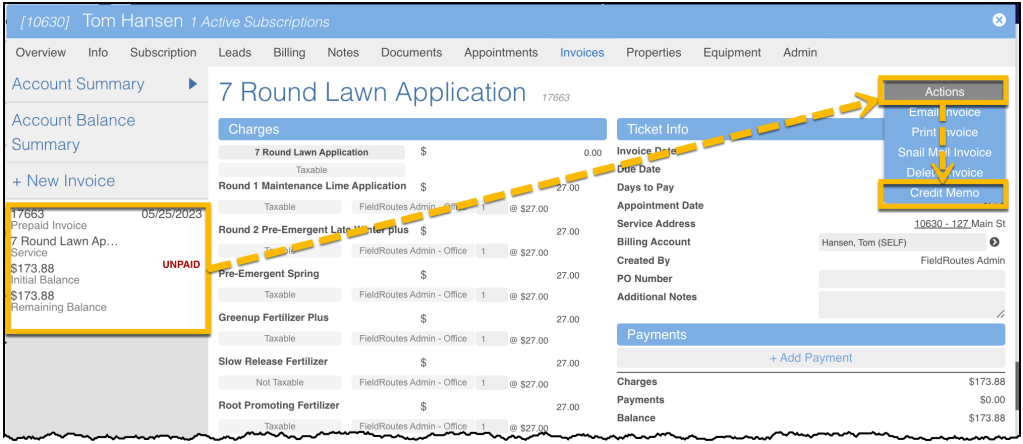
Select the Invoice from the left side Account Summary menu. Then click Actions > Credit Memo.
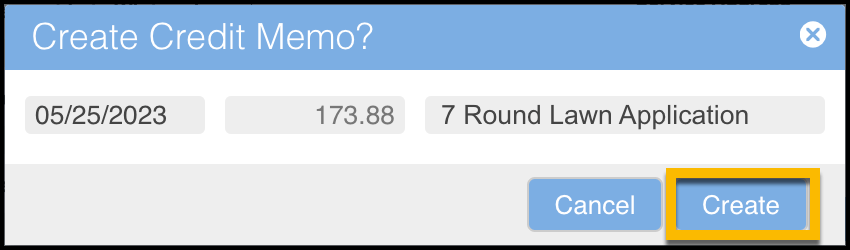
Click the Create button.
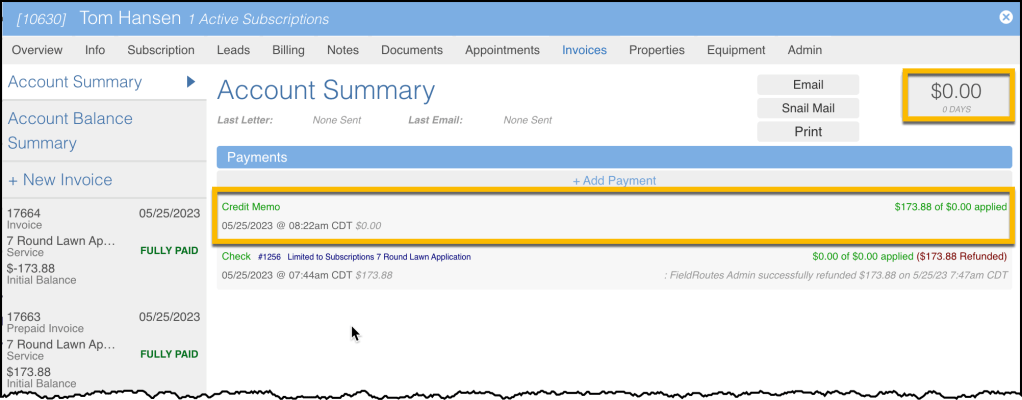
The Credit Memo has been created, leaving the customer with a zero balance owed now.
When viewing the Customer Card Overview tab, the user will now see that the Prepayment offer is once again available so that the customer can now accept the Prepayment Discount with Upsell.
Process a Refund with No Plans to Select Another Offer
The third and final scenario would be handled the same way as the one directly above, whereas a Refund is performed and then a Credit Memo; however, with the balance owed by the customer being zeroed out, the customer would then not accept a different Prepayment while having their account in the same standing it was before the Refund and Credit Memo.
 Moxie Pest Control Office Guide