
Prepayment Letter Templates
Summary
This guide identifies how to create a Prepayment Letter Template in Customer Preferences. Prepayment Letter Templates are used to customize the messages that go in offer letters sent to customers, including discounts for paying for services in advance. The Prepayments Tool allows users the ability to combine any letter template with an existing discount. The templates can be edited, deleted, and saved.
Since at least one prepay discount must exist to create an offer using the Prepayments Tool, reviewing the guide on creating a Prepayment Discount is recommended. Please see the Prepayments guide for instructions on creating a Prepay Discount or Upsell offer.
Prepayment Letter Template Setup
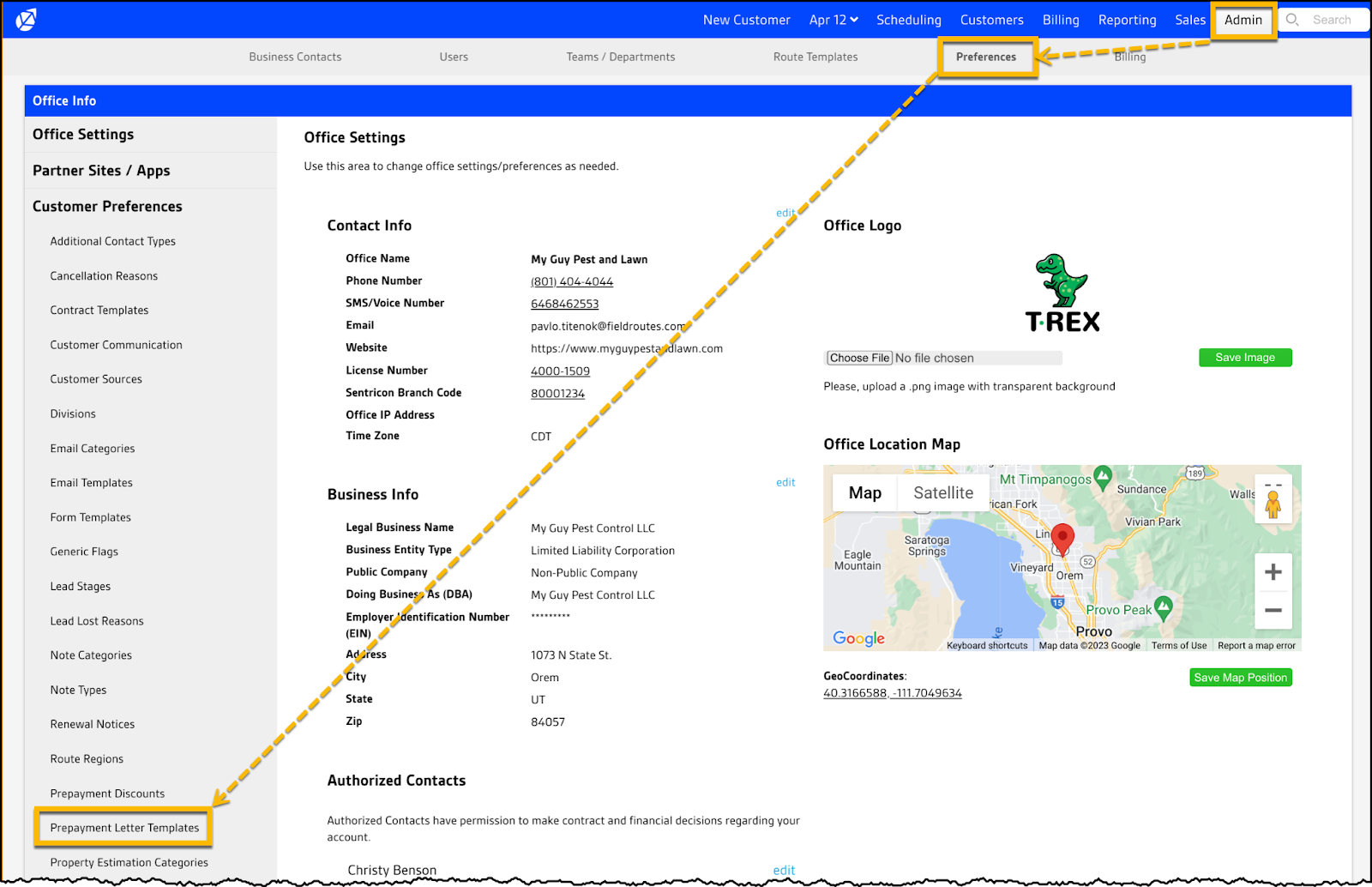
To create a Prepayment Letter Template, go to Admin > Customer Preferences > Prepayment Letter Templates.
To create a new Prepay Letter Template, click the green + Prepay Letter Template button on the right.

A draftable letter template area will appear with multiple fields available for customization. The descriptions for the fields are included below the following image.
1. Description: This field is required and can be anything. It would make the most sense to use something to help identify the type of discount being created so it can easily be differentiated from other discounts.
2. Global: This field allows a company to set who can use the template. The two options are “Specific to Office” and “Available to All Offices”.
3. Visibility: This indicator determines if the Discount Name will appear in the Prepayments tool.
4. Body: This is a free-form field to enter whatever information is preferred. It can include things such as a Welcome, Congratulations, or company-specific information. It will be accompanied by autogenerated savings and plan information once the template is configured in the Prepayments Tool. An example will be included near the end of this document.
5. Closing: Another free-form field, this area is typically used to thank the customer or include additional contact information in the event they have questions. It’s an area often used to reassure the customer that they made the right choice and are in good hands.
6. Preview, Cancel, and Save: Descriptions for each are included underneath the image below.

Preview: This shows a sample of what the letter template will look like with the text that was added to the template. It will also be accompanied by system-driven placeholders such as Customer Name, Address, Date, Account #, and Property Address. The box is where a dynamic table will display, outlining the details of the customer’s services.
Cancel: Closes out the window without saving changes.
Save: Saves the letter template to be usable in the Prepayments Module. Remember it will only be visible based on what was chosen at the time of creation, either “Specific to Office” or “Available to All Offices”.
Preview sample:

Contact Info:
It is recommended to include contact information in the letter, especially when a company doesn’t utilize the Customer Portal or use email to send offers. For example, if the customer portal is not turned on in the Ops Suite, the email example below would not include the green Click to Pay buttons.
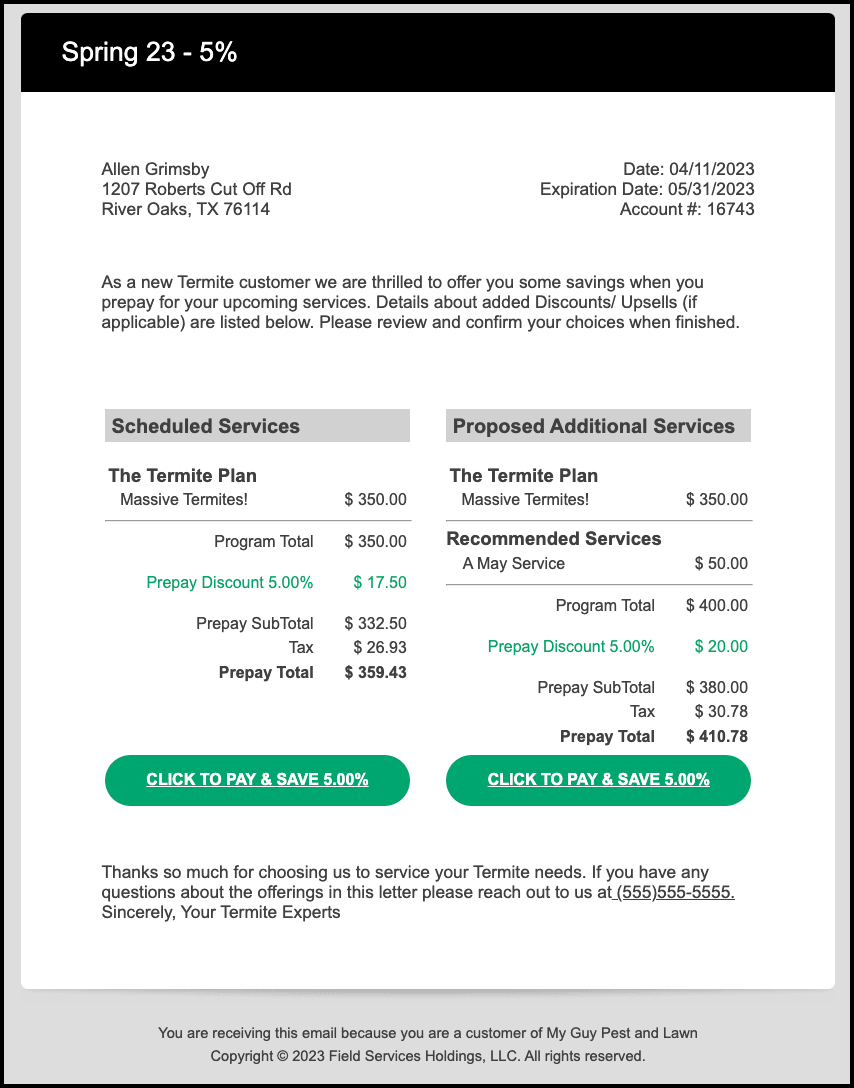
Below is an example of an offer email that was created with the Prepayments Tool, with the letter template information above and below the corresponding Prepayment Discount information chosen within the Prepayments Tool.
 Moxie Pest Control Office Guide