
Summary
The FieldRoutes Operations Suite is highly customizable through many different system preferences, and the Preferences settings control important default areas of the Operations Suite web app and the Mobile platforms.
Important Points:
- HTML Color Codes or Hex Color Codes designate system color settings.
- Only the individual who last set the Month Closing date may re-open the prior invoices to guard against tampering or damaging accounting records.
Access the Office Preferences
To access the general office Preferences, navigate to:
Admin > Preferences > Office Settings > Preferences.
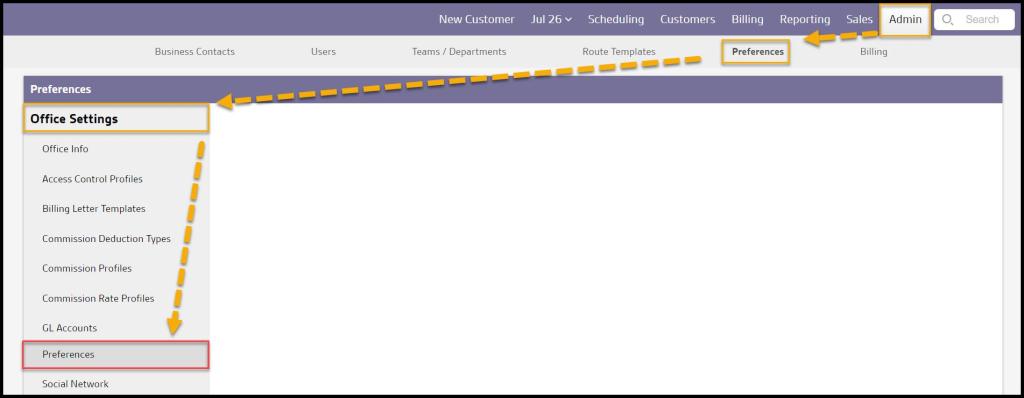
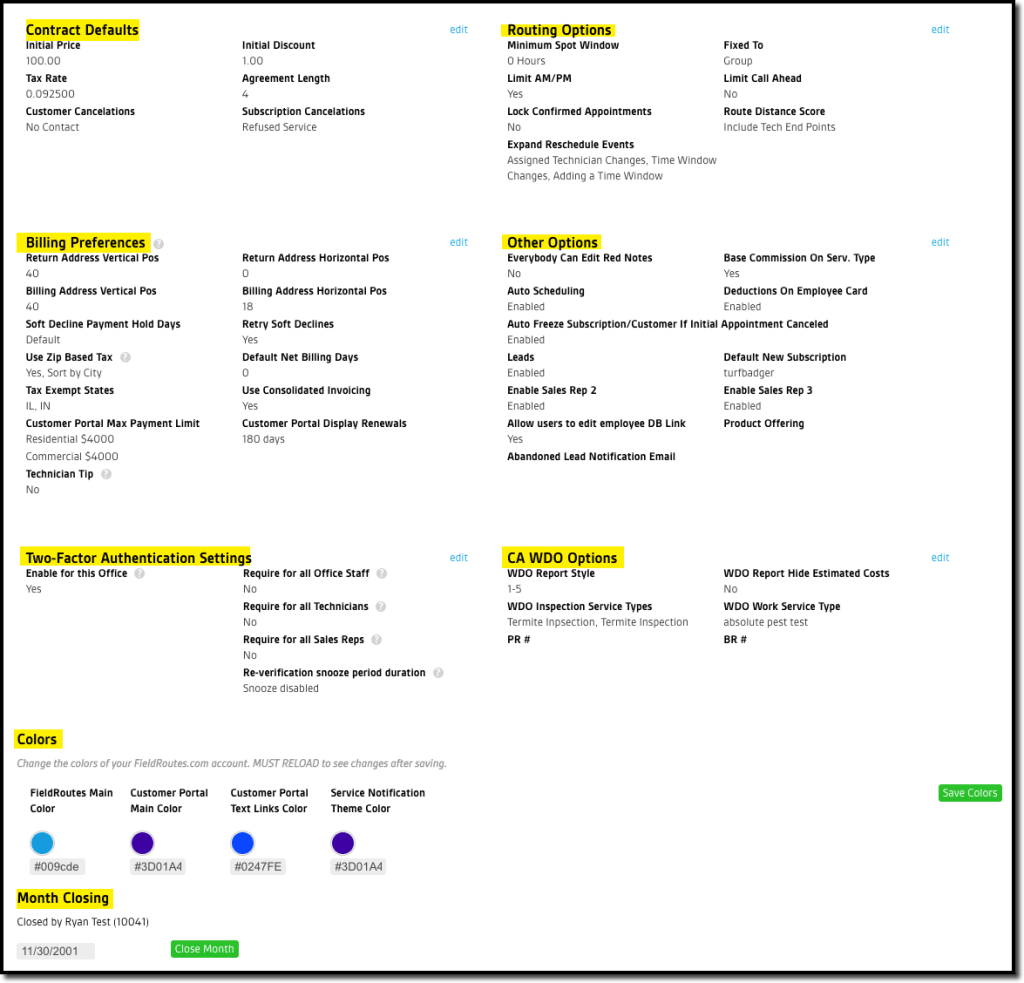
Nine sections of Preferences may be configured:
- Contract Defaults
- Routing Options
- Billing Preferences
- Other Options
- Two-Factor Authentication Settings
- CA WDO Options
- Colors
- Month Closing
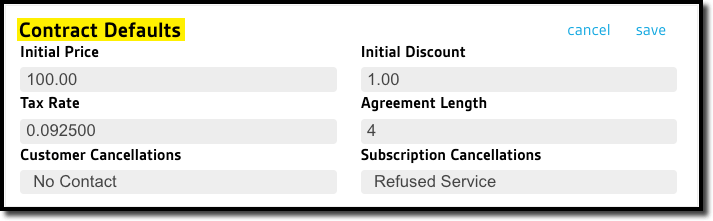
Contract Defaults
Set Contract default settings here.
- Initial Price: This is the default price for all your initial services.
- Initial Discount: This is the default discount for all your initial services.
- Tax Rate: If all of your customers have the same tax rate, you can enter the tax rate here. We also have a preference for zip-based tax, please see Billing Options below for more information.
- Agreement Length: Shows the default agreement length in months.
- Customer Cancellations: Provides a default reason for an Appointment Cancellation (such as Refused Service) that will auto-populate if a different selection is not specified.
- Subscription Cancellations: Provides a default reason for a Subscription Cancellation (such as Refused Renewal) that will auto-populate if a different selection is not specified.
Select Save when finished.
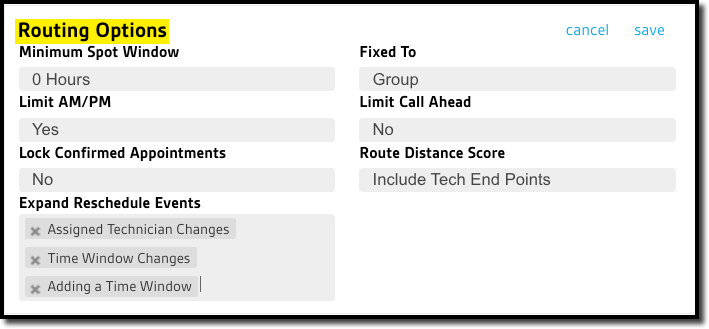
Routing Options
Set default routing settings here.
- Minimum Spot Window: Forces Fixed to Spot appointments to have at least this duration in hours (i.e. Set at 1, a timed Fixed to Spot appointment would be forced into a 1 hr window duration even if it was set to 30 min.)
- Fixed To: Used to change the default Flexibility when scheduling a customer on a route. Select Spot for Fixed to Spot or select Route for Flexible on Route.
- Limit AM/PM: This will treat any AM/PM appointment as a Timed Appointment. See the guide for Route Templates for how to limit Timed Appointments and to make this preference effective.
- Limit Call Ahead: This will treat any Call Ahead Appointment as a Timed Appointment. See the guide for Route Templates for how to limit Timed Appointments and to make this preference effective.
- Lock Confirmed Appointments: This prevents any confirmed appointment from being edited by someone other than the Appointment creator or an Administrator
- Route Distance Score: Choose whether to include or exclude a technician’s endpoint when calculating the Route Distance Score
- Expand Reschedule Events: Select one or more actions to count as a Reschedule Event fromthe following:
- Time Window Changes
- Assigned Technician Changes
- Day Changes
- Adding a Time Window
Select Save when finished.
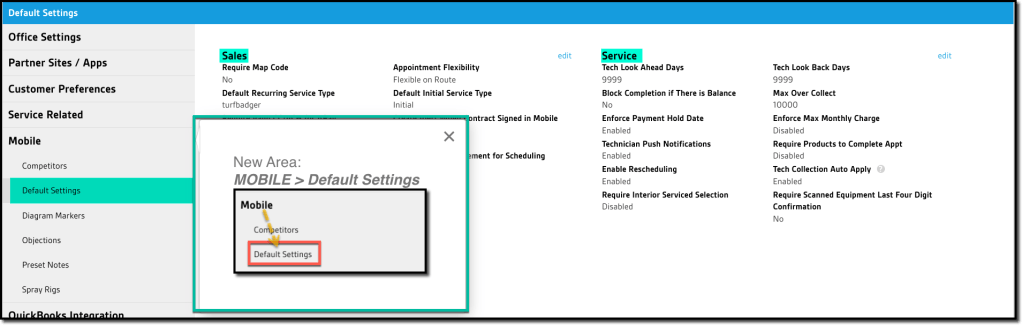
Mobile Sales and Mobile Technician (moved)
NOTE:
The settings for Mobile Sales and Mobile Technician formerly located in this area have now moved to their own dedicated preference called Default Settings:
Admin > Preferences > Mobile > Default Settings
Billing Preferences
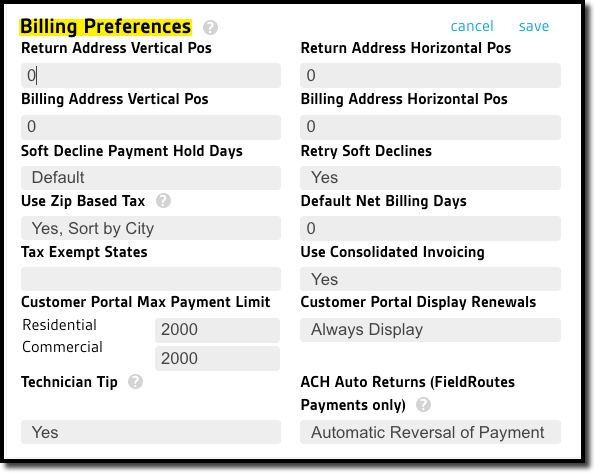
Set Billing settings here.
- Return Address Vertical Pos: Adjust the vertical position of the Return Address on the printed account statements
- Return Address Horizontal Pos: Adjust the horizontal position of the Return Address on the printed account statements
- Billing Address Vertical Pos: Adjust the vertical position of the Billing Address on the printed account statements
- Billing Address Horizontal Pos: Adjust the horizontal position of the Billing Address on the printed account statements
- Soft Decline Payment Hold Days: The number of days before retrying a soft-declined card. Default = 1.
- Retry Soft Declines: Allows attempt to re-charge a soft-declined card after payment hold date.
- Use Zip-Based Tax: If you service areas with varied tax rates, you can turn on zip-based tax. FieldRoutes will automatically set the tax rate based on the customer’s ZIP code. After you turn this preference on, it will take up to 24 hours for your customers’ tax rates to be updated.
- Default Net Billing Days: Sets the office default for the number of days an invoice remains unpaid before it is considered past due.
- Tax-Exempt States: Allows companies with Zip-Based Tax enabled that service multiple states to ensure that any state not charging sales tax can be excluded.
- Customer Portal Max Payment: Default transaction limit of $2000 for both Residential and Commercial customers may be independently adjusted down or up to $999999.
- Customer Portal Display Renewals: Choose which warranty renewals appear for payment in the Customer Portal. Choose which renewals appear based on their due-date time frames:
- All
- 30 days
- 60 days
- 90 days
- 180 days
- 360 days
- Technician Tip: Control the ability of end-customers (C1s) to leave a tip for their technician via the Customer Portal.
- No (default) – customers are not offered the option to leave a tip on the Portal
- Yes – For FieldRoutes Payments customers only, this turns on the Technician Tip feature in the Portal
- ACH Auto Returns (FieldRoutes Payments only): This setting turns on special automation that automatically reverses a paid invoice if the ACH payment ultimate fails to process successfully. See the ACH Return Automation guide for details.
- No System Response (default)
- Automatic Reversal of Payment
Select Save when finished.
Other Options
Set additional preferences here.
- Everybody Can Edit Red Notes: By default, red notes are only editable by users with admin access. To make it so all users can edit red notes, change the preference here.
- Base Commission on Serv. Type: If the user pays users commission based on service type completed or sold, ensure this preference is turned on here. By default, it will calculate commission based on the commission rate in the user card. Ensure you set your service type commission rates under Admin > Preferences > Service Related > Service Types.
- Auto Scheduling: Turns on permission for the system to auto-schedule appointments
- Deductions of Employee Card: Shows the Deductions tab on the Employee/User Card.
- Auto Freeze Subscriptions/Customer If Initial Appointment Canceled: Freezes a customer if their initial appointment is canceled.
- Leads: Enables the use of the Lead feature in the system.
- Default New Subscription: When scheduling an Initial Service appointment for a Customer with no Subscriptions, a Subscription may be created through the Appointment Card. This is the Subscription that will be created when creating a new Subscription from a scheduled appointment.
- Enable Sales Rep 2: Add a second Sales Rep to a Subscription.
- Enable Sales Rep 3: Add a third Sales Rep to a Subscription.
- Allow users to edit employee DB Link: Provides permission for general users to edit database link.
- Product Offering: Select the FieldRoutes products/areas
- PEST
- LAWN
- PAYMENTS
- CA WDO
- BETA
- Abandoned Lead Notification Email: By default, Abandoned Lead notification emails are sent to the company default email address listed in the Office Info preference. If preferred, the notifications may be sent to one or more alternate email addresses. List the alternate(s) here, and separate them by a semi-colon(;) if multiple addresses are added.
Select Save when finished to update the settings, or Cancel to leave them in their previous state.

Two-Factor Authentication Settings
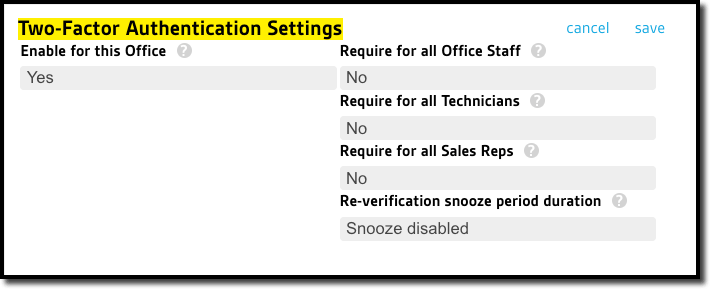
These settings control whether or not the Two-Factor Authentication login feature is used to augment system access security. See the user guide on Two-Factor Authentication for full details. NOTE: This feature is disabled by default.
CA WDO Options
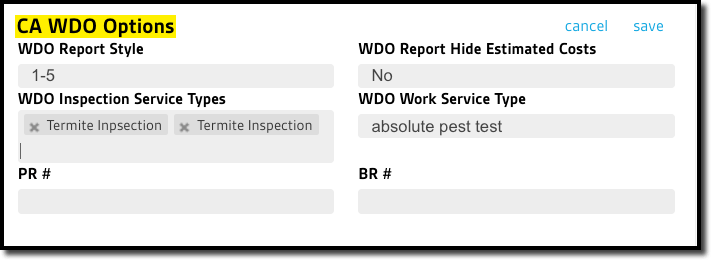
The following default settings can be configured for CA WDO services:
- WDO Report Style: Choose between the two allowed report protocols:
- 1-5: Styles the report based on five basic infestation types
- 1-11: Styles the report based on eleven different physical areas of the structure
- WDO Report Hide Estimated Costs: Default is No, but allows the Estimated Costs of remediation to be hidden on the report
- WDO Inspection Service Types: Establishes the default Service Types for CA WDO inspections
- WDO Work Service Type: Establishes the default Service Type for CA WDO remediation services
- PR#: The Primary License number for performing CA WDO services, pulled into the CA Structural Pest Control Board activity reports. May be left blank.
- BR#: The Branch License Number for performing CA WDO services, pulled into the CA Structural Pest Control Board activity reports. May be left blank.
Select Save when finished.
Colors
Users can change the display colors of the system interface for the office and the colors for different parts of the Customer Portal and Service Notifications. Set the HTML Color Codes for the following elements:
- FieldRoutes Main Color
- Customer Portal Main Color
- Customer Portal Text Links Color
- Service Notification Them Color
See the user guide on Colors/Themes for more information.
NOTE:
These settings use hexadecimal color codes, also known as Hex color codes. These codes are comprised of combinations of the integers 0, 1, 2, 3, 4, 5, 6, 7, 8, and 9; and the letters A, B, C, D, E, and F. So, a hex color code might be something like #FF0000 or #33DDFF.
Select Save Colors when finished.

Month Closing
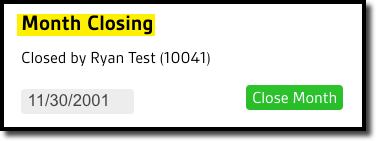
The Month Closing feature will lock invoices to prevent them from being changed/updated. This is useful to prevent any changes to past invoices for reporting purposes.
All invoices before the most recent Month Closing Date will be locked when the Close Month button is selected.
IMPORTANT:
Once a month has been closed, only the user who closed it will be able to open it again. Other users will be able to see who closed the month, in case they need to reopen it for any reason.
 Moxie Pest Control Office Guide