
PestRoutes Tech: Troubleshooting Driving Directions and Addresses
Summary
The mobile apps use Geolocation (Global Coordinates) instead of addresses for driving directions.
To prevent issues, the following is recommended:
- Have staff double-check home/commercial addresses with customers when adding them.
- Check the location pin (Customer Card > Info) to ensure the correct location before sending technicians out to that address for the first time.
- Don’t use Apple Maps on iOS
- Always have technicians double-check the Service Address on the Info tab of the appointment when using mobile apps to avoid servicing the wrong location.
Important Points:
- Use the steps below to troubleshoot common issues with servicing incorrect addresses or arriving at the wrong location when using Driving directions from PestRoutes Tech.
Check for Bad Geolocation but Good Address
The first thing to check on an address is if it has been entered correctly, but has incorrect geolocation.
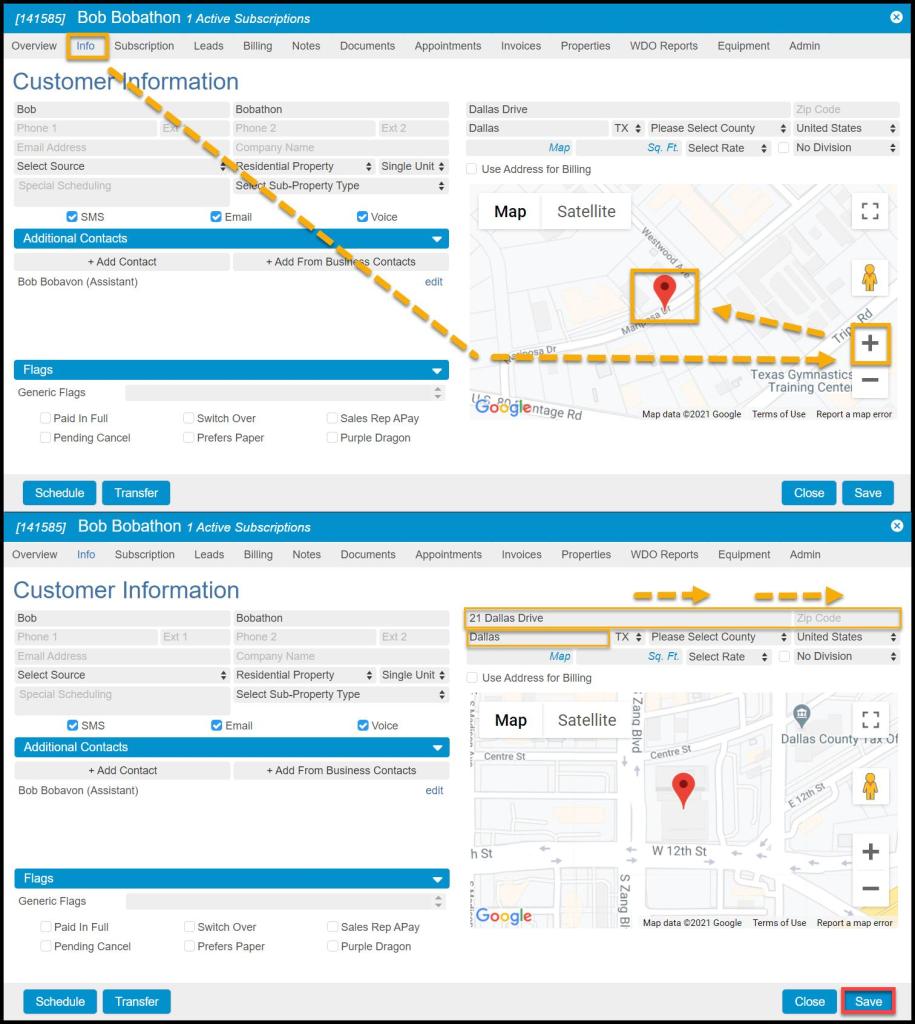
- Open the offending customer’s address details (Customer Card > Info Tab).
- Click the “+” Button on the Map Section until the customer’s red geolocation pin is visible on the street. If the red pin is located in the center of a street and not located over a silhouette of a home this is one indicator that the geolocation or address is incorrect.
- Now, click within the “Street Address” section (above the “city” and to the left of the “zip code” input fields). Press the “tab” button two times. The cursor should move to the “city” section.
- Check to see if the red pen moved to a different location.
- If the pin moved, save the card and close.
NOTE:
If this happens for several customers, please contact support about the possibility of fixing multiple customers.
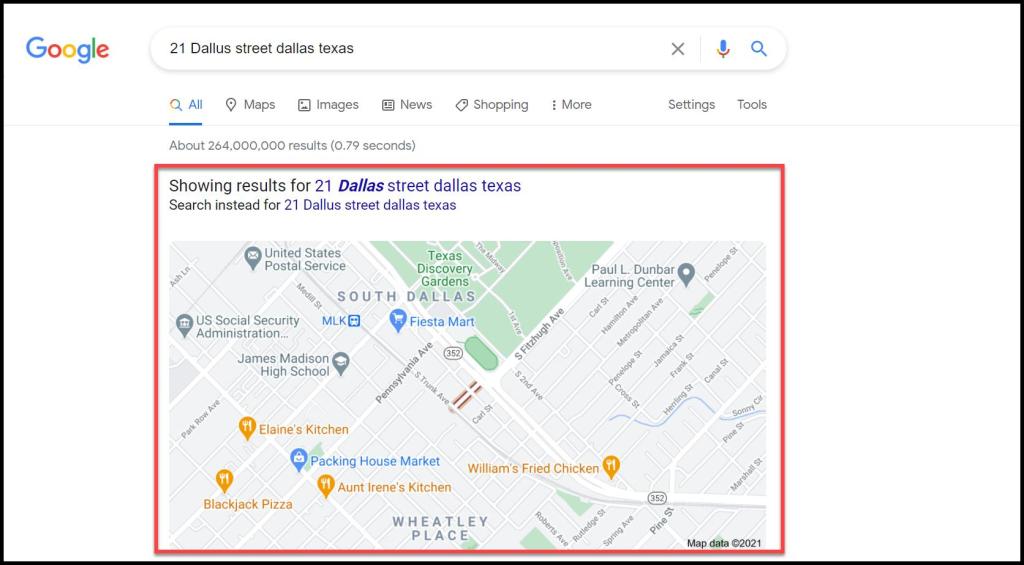
What if the address is correct?
Sometimes, the user may have the correct address, but Google will not show the correct location for the address.
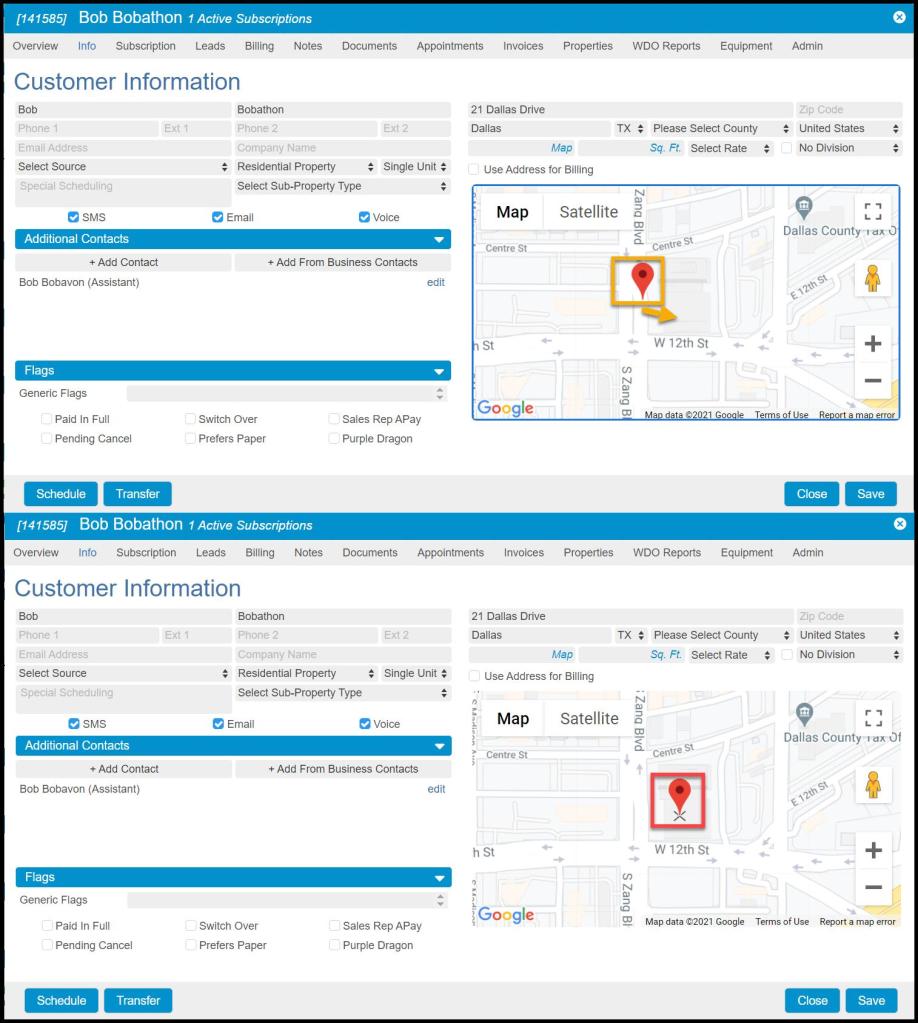
Manually Fixing the Location in the Web App
When this happens, the marker can be manually set within the web app by clicking and dragging the red pin to the correct location when under the Customer Card > Info tab.
Manually Fixing the Location in PestRoutes Tech
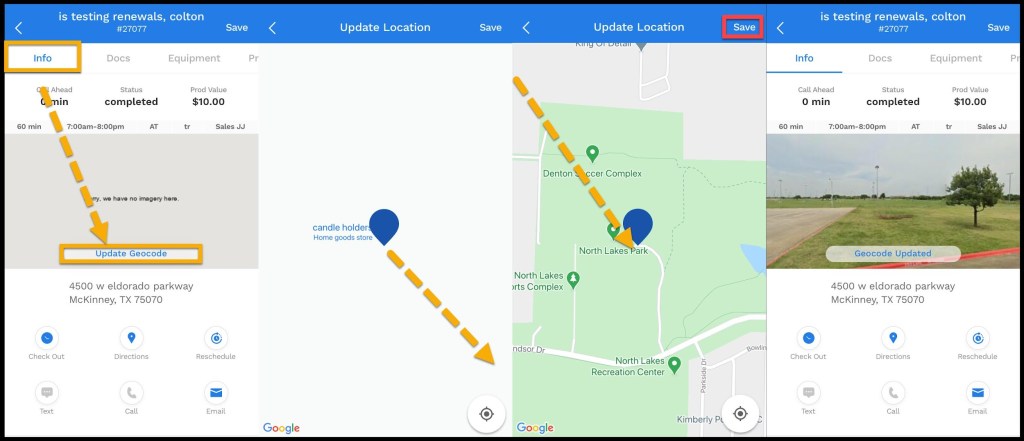
To manually fix the location in PestRoutes Tech, open the FieldRoutes App, and follow these steps:
- Go to the Appointment > Info Tab > tap the Update Geocode button.
- Drag the marker to the correct location of the property
- Press Save to save the correct geolocation.
Manually Fixing the Location in PestRoutes Tech
To manually fix the location in PestRoutes Tech, open the FieldRoutes App, and follow these steps:
- Go to the Appointment > Info Tab > tap the Update Geocode button.
- Drag the marker to the correct location of the property
- Press Save to save the correct geolocation.
Why does this happen?
This can be a limitation of Google Maps, which is considered one of the best mapping applications available. This affects very few addresses overall. We have noticed that this happens in two notable cases:
- Utah Cites, which have Grid System Streets.
- New developments/subdivisions that Google has not yet added to Google Maps (when the outlines of the homes on a new development site are not visible)
 Moxie Pest Control Office Guide