
PestRoutes Tech: Structures
Summary
Due to the regulations set at the federal and state levels, pest control companies are responsible for a greater level of detail in reporting to commercial accounts. The PestRoutes Tech app provides enhanced commercial-specific functionality to record better and take action.
Important Points:
- For a user to access Structures, the proper Access Control must be on, and the customer card must be set as Structure.
- To create Structure templates, Go to Admin > Preferences > Customer Preferences > Structure Templates. Once a Structure Template is created it can be selected in the customer card when adding a main structure.
- The mobile app user that will service commercial accounts must be authorized in Admin > Users. Select the user to authorize and go to the Access Control tab. Select the Use Structures/Trend Reporting.
- There is a monthly fee per user associated with commercial structure features. If the user has enabled the Structures Access Control and the user completes at least one structures-related appointment, then the monthly per-user fee will begin.
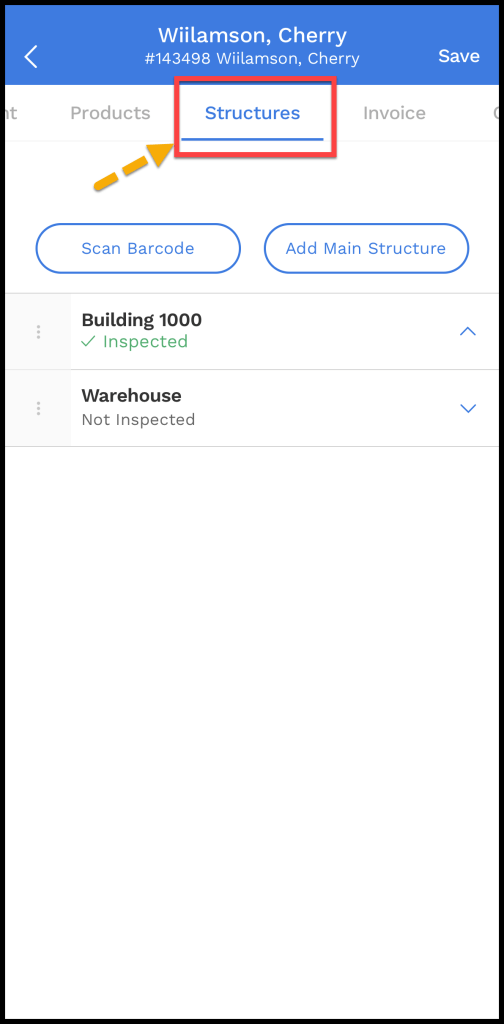
Accessing the Structures Tab in PestRoutes Tech
The Structures tab includes the Conditions Report, Activity Report, and Activity Alerts, as well as the history of each Structure for this particular property.
Adding a New Main Structure vs. Adding a Substructure
The difference between a New Main Structure vs. Adding a substructure is XYZ.
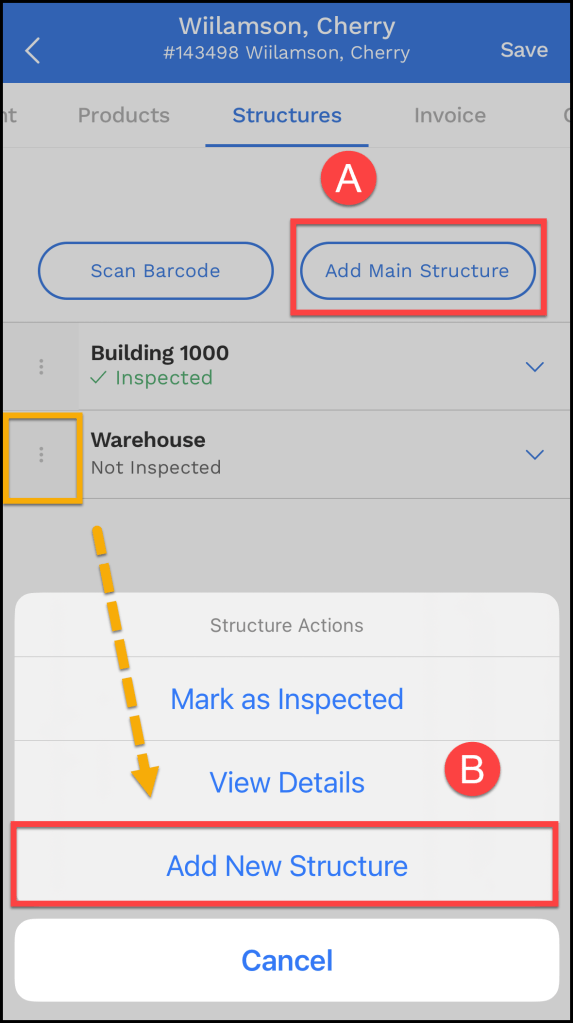
- Adding a Main Structure: Press Add Main Structure.
- Adding a Substructure: Select the structure actions (⋮) and select add new Structure. Sub-structures can be added by office users as well as mobile users anytime. The depth of the substructures will only go to a max of 3: the base plus 3 sub-structures.
Adding a Main Structure
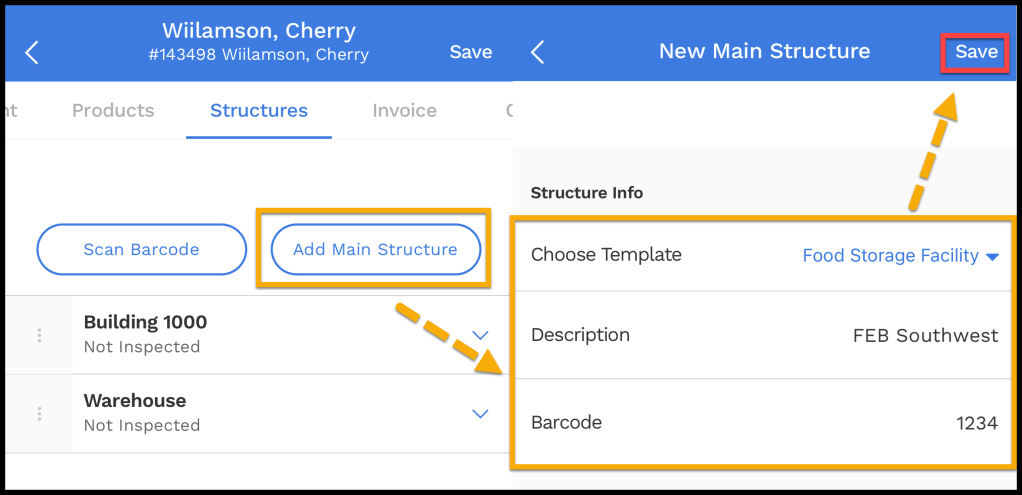
The first step in creating structures for the property is to create a Main Structure. Name the Structure or use a template. This will be the base structure which substructures can branch from.
Each structure keeps a history of its conditions, activity, products, equipment, and alerts.
- Choose Template: Pick a Structures Template from the available options.
- Description: Pick the name for the structure.
- Barcode: A barcode can be added to simplify the selection of the sub-structure when on-site.
Each structure and sub-structure can be edited. Structure and its substructures can also be deleted; however, this function will not be available once the property has had at least one service.
Example: Building (base) > Interior > Warehouse > Closet
Select Save when finished.
Structures on the Mobile App
Once the structure is created for the property and the property is scheduled for service, the technician assigned to the route for the service will be able to view the appointment, including the structure details.
Within the mobile app, there will be an additional Structures tab within the appointment between the Scans and Products tab.
NOTE:
The mobile user must have Access Control enabled for Use Structures/Trend Reporting.
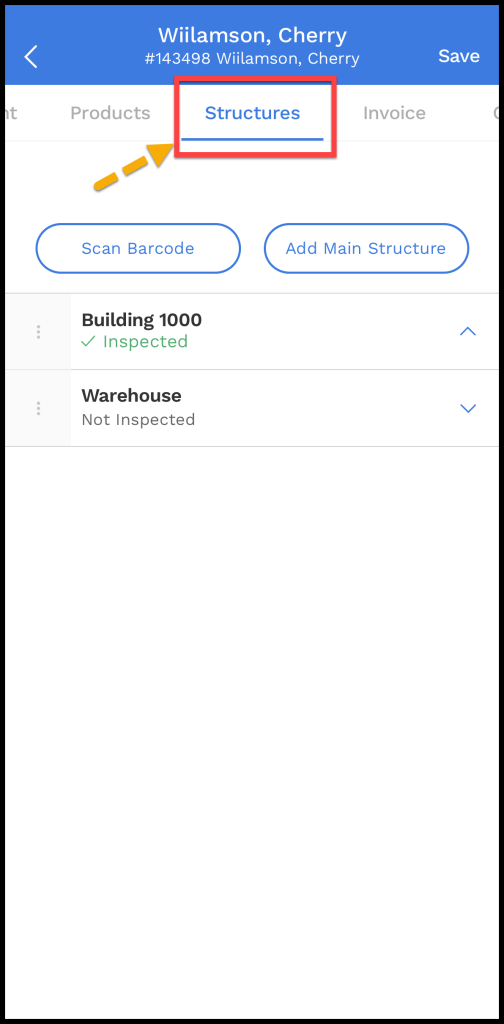
This tab will show all the sub-structures for this account. This area can expand and collapse to show or hide sub-structures. Tabs for Details, Conditions, Activity, Equipment, and Products are available.
Viewing Structure Details
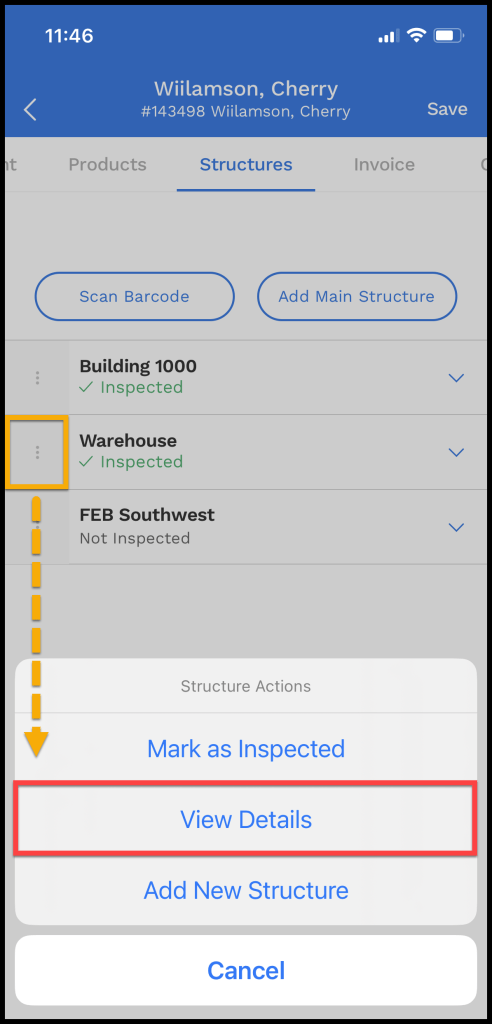
To view the structure details, tap the ellipsis (⋮) next to the structure and press View Details.
Using the Details Tab
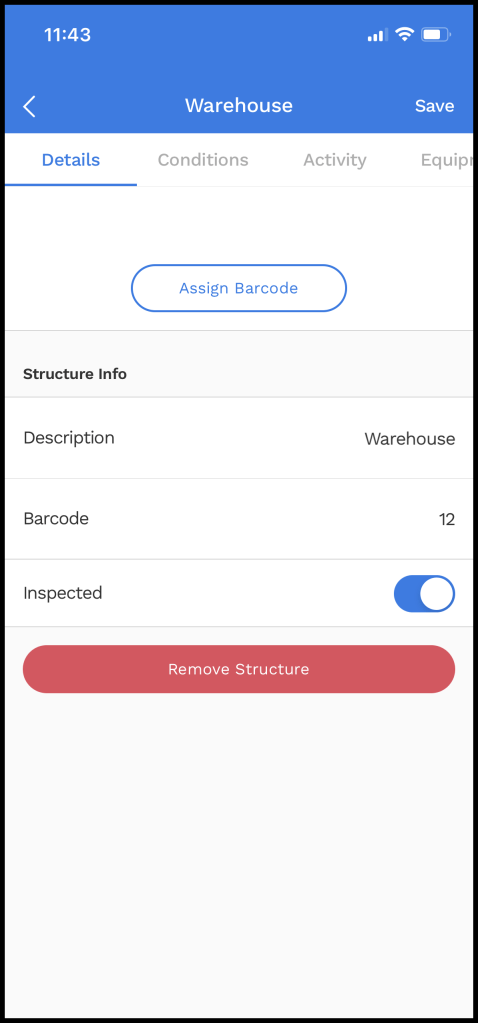
The technician can update the name of the sub-structure, include a Barcode if available, and toggle if the sub-structure has been inspected.
- Assign Barcode: Assign a barcode to the structure.
- Structure Info: Make changes to the structure.
- Description: Change the name of the structure if needed.
- Barcode: Add a barcode, if available.
- Inspected: Toggle if the structure has been inspected.
- Remove Structure: Remove the structure.
Select Save or move on to the next tab.
Using the Conditions Tab
The technician can report conditions for the sub-structure. Conditions are pest-conducive issues that must be recorded and remediated or resolved. All unresolved conditions are listed within Conditions. These will continue to be listed until resolved. Unresolved conditions will also be visible in the Info tab in the appointment under the Conditions section. Users can add new conditions at any time, including their condition type, severity, the responsible party (the company or their customers), a quick description, details, recommendations, and if it’s been resolved. The technician also has the option to use a template to auto-populate condition information.
- Select Template: Select the conditions template.
- Condition Info: Add information about the condition.
- Condition Type: Choose the type of condition.
- Severity: Mark whether the condition is high, medium, or low.
- Responsible Party: Mark whether the company or customer is responsible for the condition.
- Resolved: Mark if the condition was resolved. This will remove the condition from the list.
- Description: Add key information about the condition.
- Details: Add any additional notes about the condition here.
- Recommendation: Add the recommendations for the condition.
- Corrective Action: Add the actions needed to correct the condition.
Select Save when finished to save the condition.

Using the Activity Tab
The technician can report pest activity in the Activity area. The technician designates the particular pest, and the activity type (sighting, evidence, and capture). The quantity is entered if the technician records a sighting or a capture. If evidence is found, enter the evidence type and a detailed description. An activity report is needed for each pest if there are multiple pests.
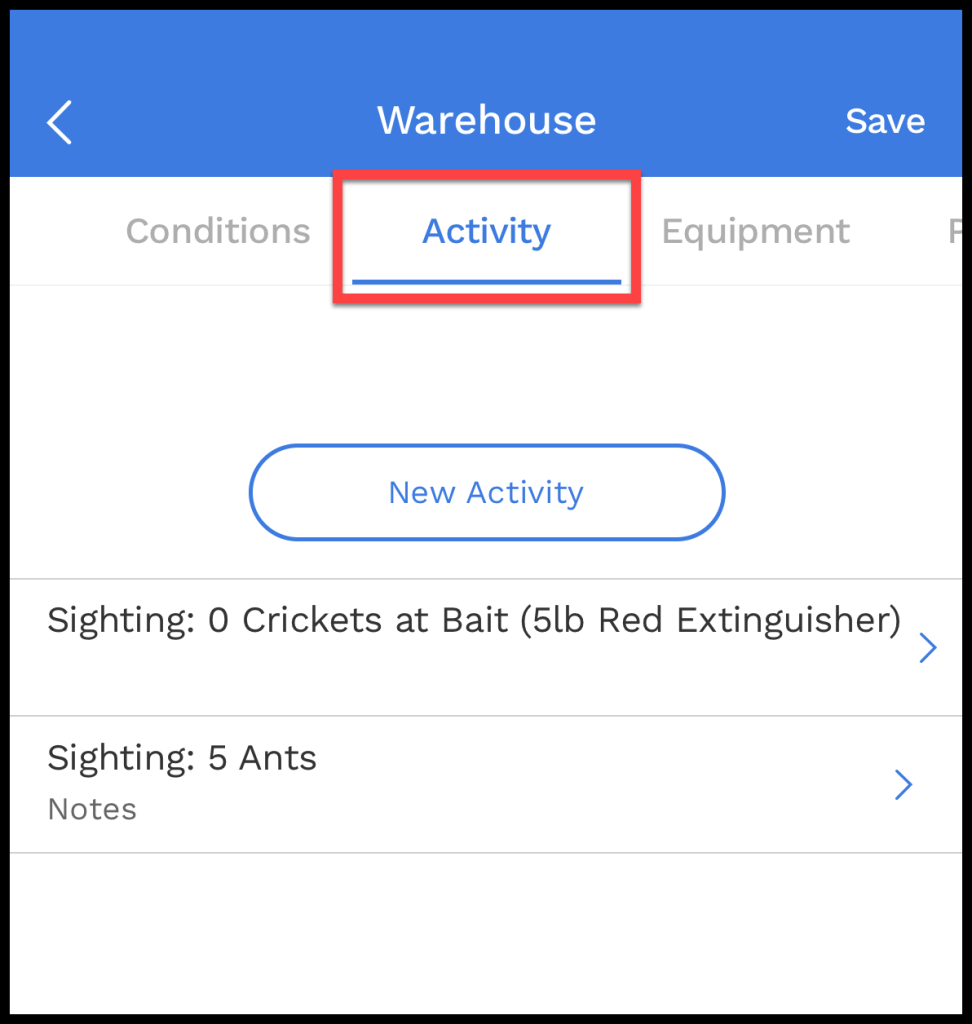
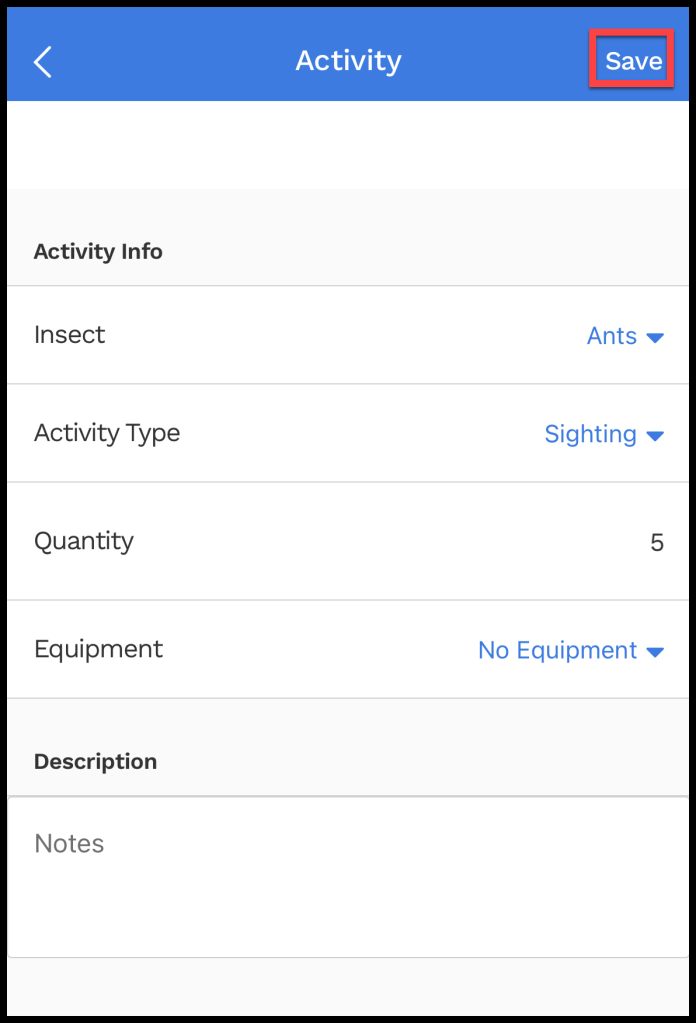
Opening the activity tab will reveal the following:
- Insect: Choose the target issue that was sighted in the structure.
- Activity Type: Choose the type of activity that was sighted in the structure.
- Quantity: Choose the number of insects in the structure.
- Equipment: Choose equipment associated with the activity.
- Description: Add any notes about the activity.
Select Save when finished to save the activity.
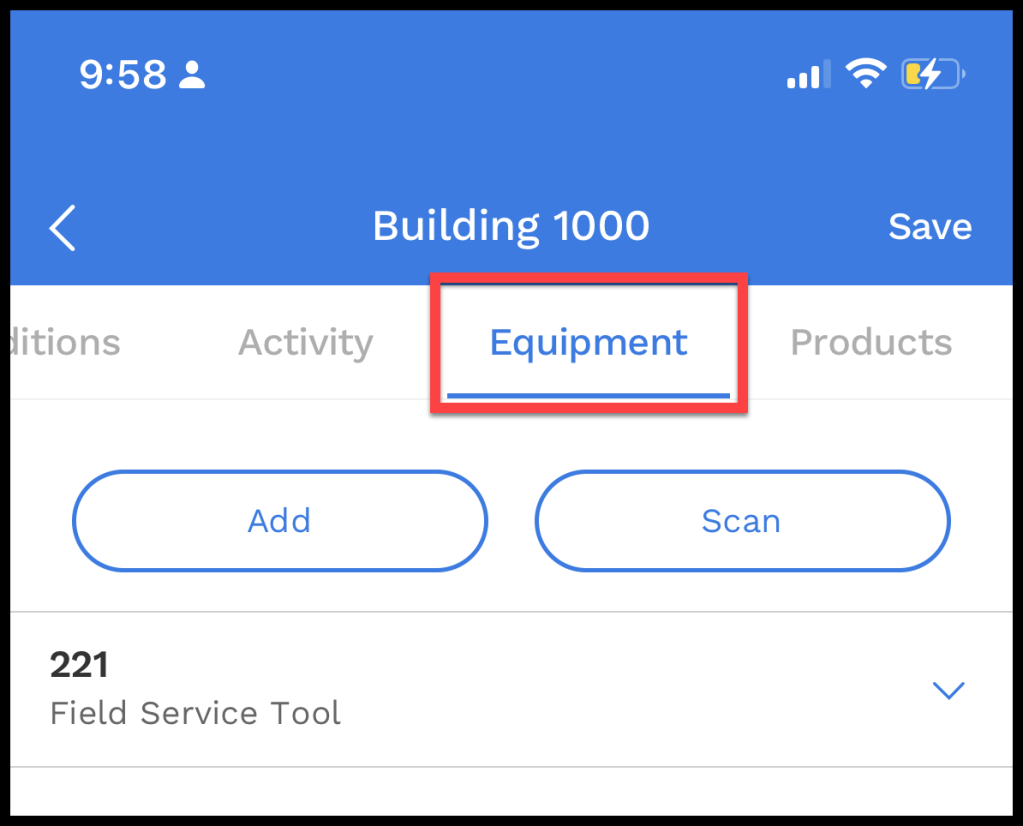
Using the Equipment Tab
Equipment functions like the Scan tap in the mobile app except for the Activity tab. Activity report for the equipment will make the same activity show on the sub-structures’ Activity tab. The technician can also enter an Exception type: Skipped, Removed or Replaced.
Using the Products Tab
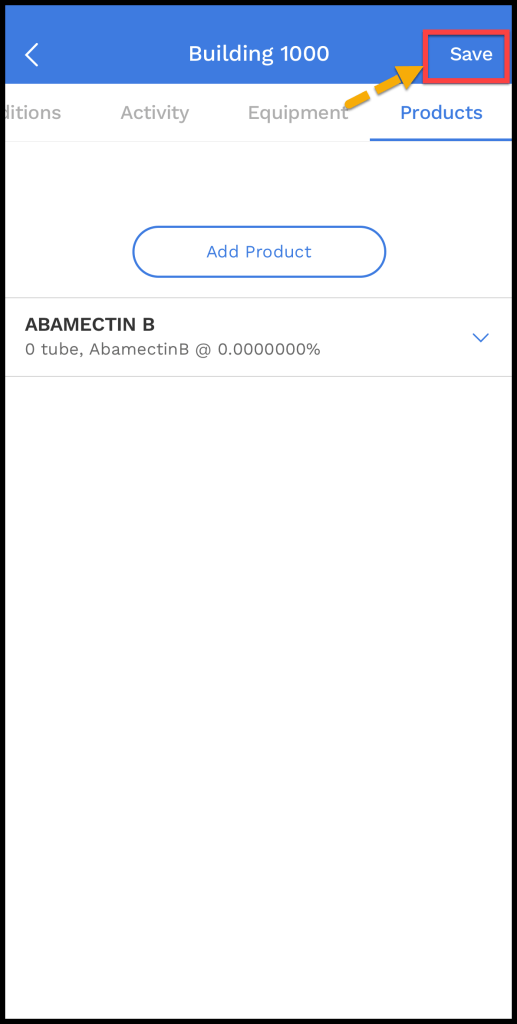
Technicians add any product used to service the sub-structure. The Products tab functions the same as when not using Structures.
Select Save when finished.
Marking a structure as Inspected
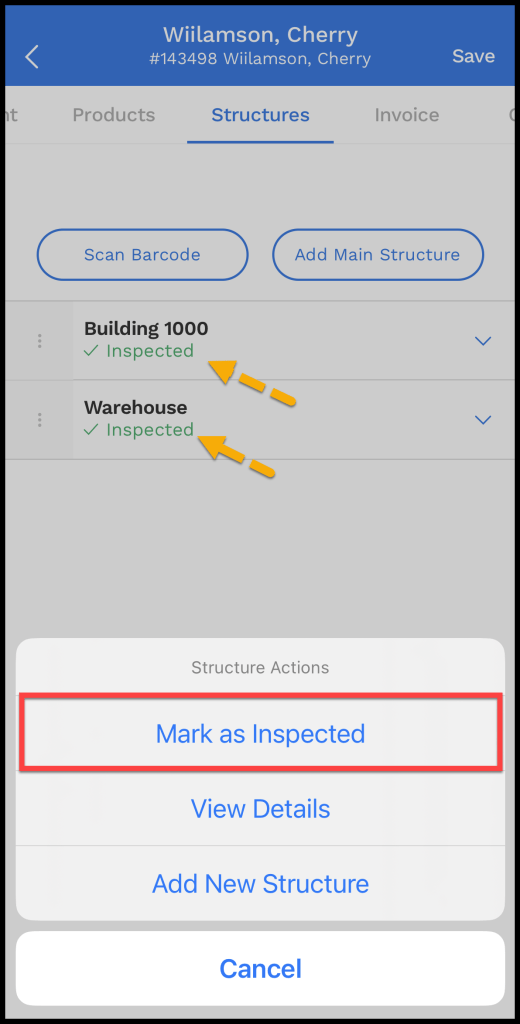
To complete an inspection, ensure the structure is marked as inspected.
 Moxie Pest Control Office Guide