
PestRoutes Sales: Schedule Tab
Summary
Use the schedule tab in PestRoutes Sales to schedule customers.
Important Points:
- Customers can be scheduled right after the agreement is signed, or directly from the Schedule tab.
- The schedule tab can be a quicker method to schedule customers quickly without spending time gathering information for a new customer during the sale, for instance, a same-day sale.
Accessing the Schedule tab in PestRoutes Sales
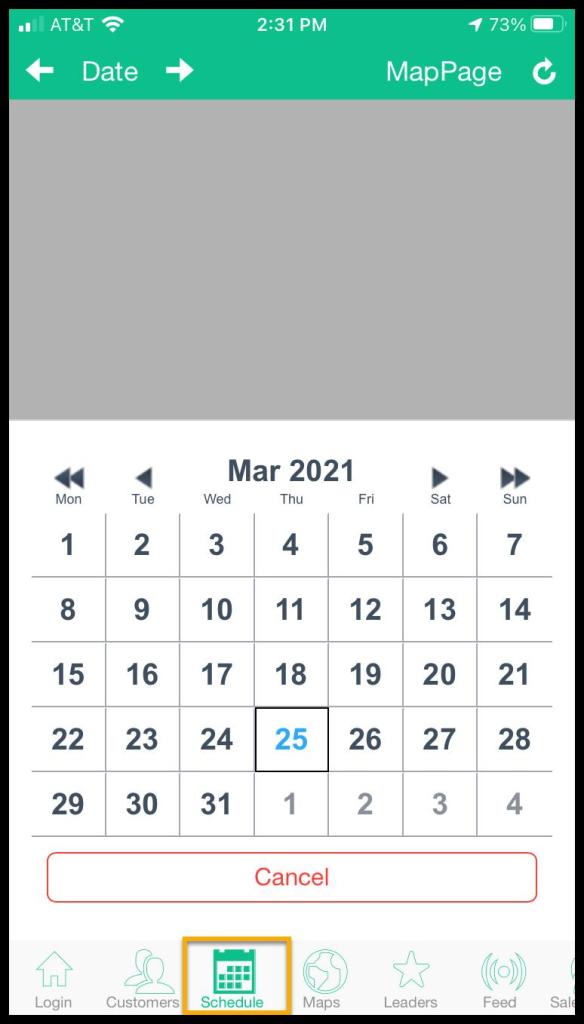
To access the Schedule tab in PestRoutes Sales, go to:
Open the PestRoutes Sales App > Schedule.
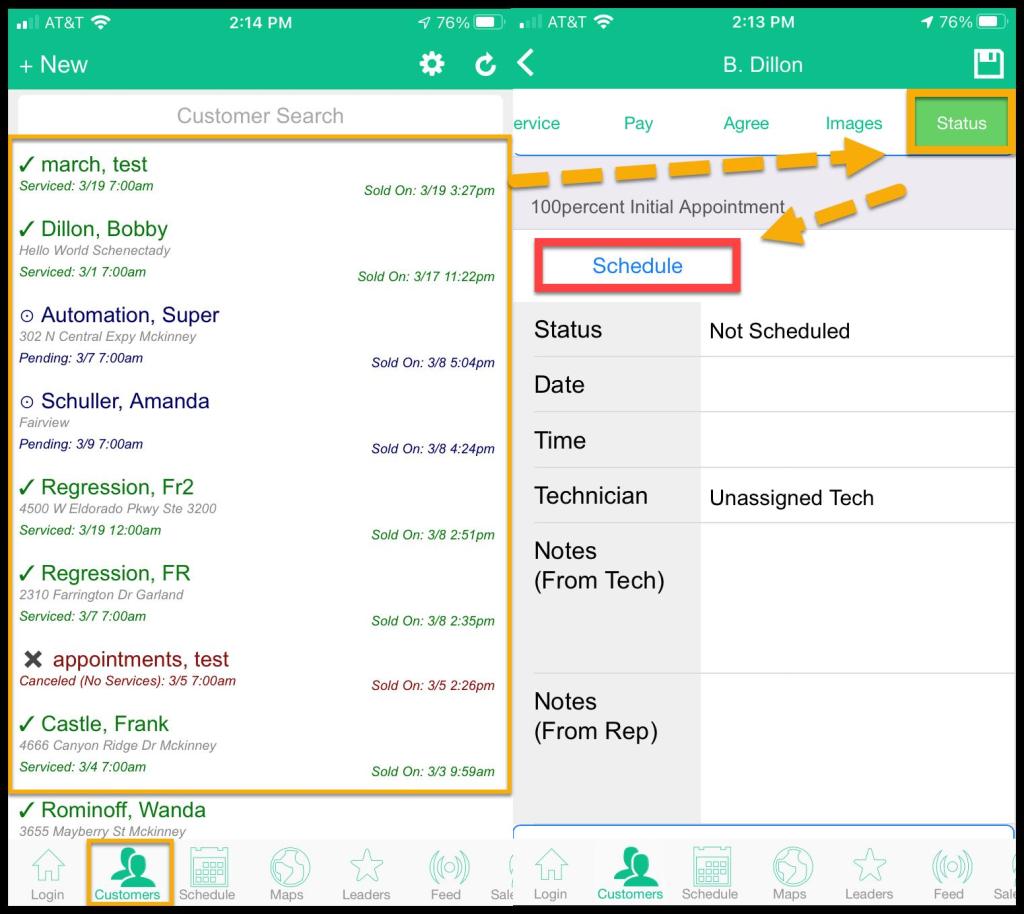
Or to schedule an appointment for an initial service, go to:
Open the PestRoutes Sales App > Customers > Open the desired Customer > Schedule > Status > Schedule.
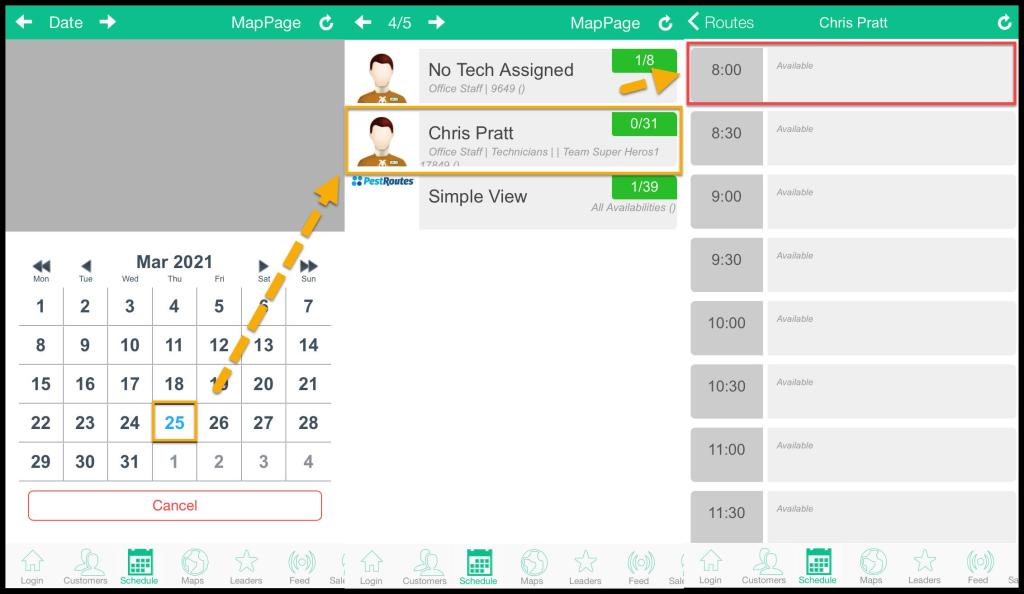
Accessing the Appointment time Slot
Tap the date from the calendar > tap the desired technician available > tap the hour to schedule a time for an appointment for that day.
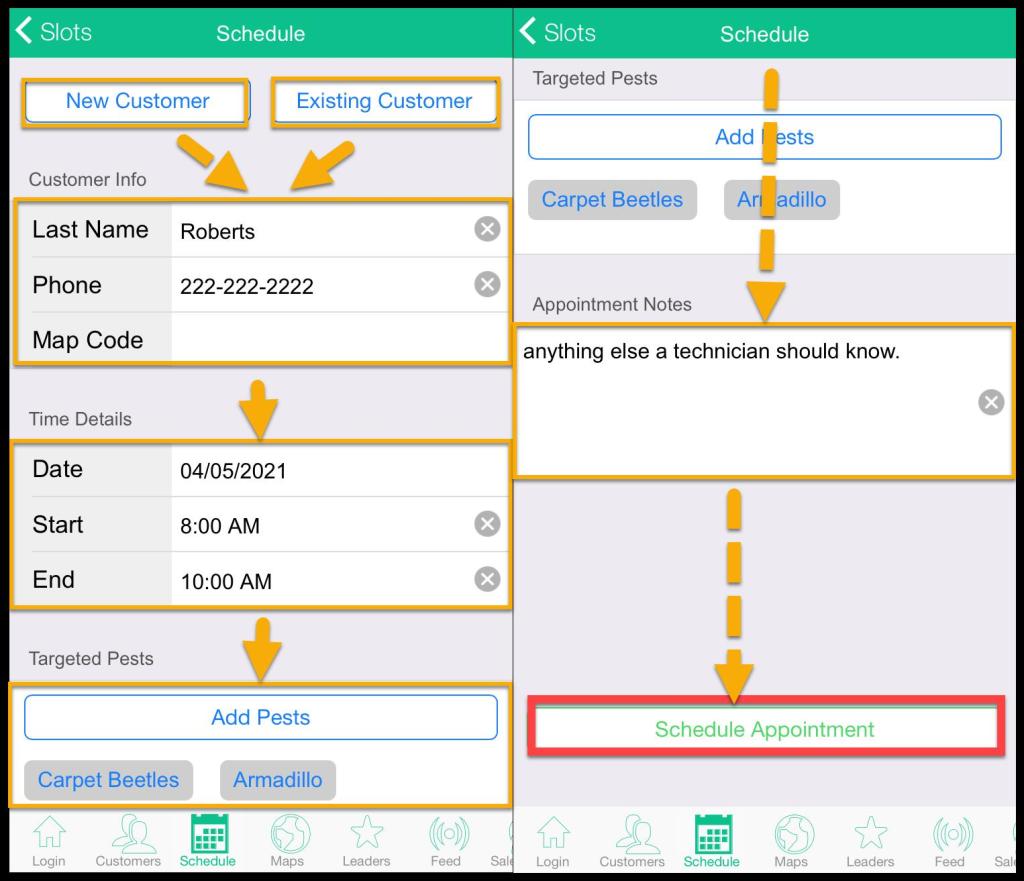
Schedule a Customer in PestRoutes Sales
Choose to add an existing customer or a new customer to the appointment.
Customer Info
- Last Name: Add or show the customer’s last name.
- Phone: Add or show the customer’s phone number for the appointment.
- Map Code: Add or show the map code for the appointment, if the company uses map codes.
Time Details
- Date: Add the date for the appointment.
- Start: Add the start time for the appointment.
- End: Add the end time for the appointment.
- Add Pests: Add pests that will be targeted during the appointment. More pests can be added under the Admin Tab.
- Appointment Notes: Add any additional notes about the appointment.
Press Schedule Appointment when finished. The customer should now be scheduled on the route.
 Moxie Pest Control Office Guide