
PestRoutes Sales: Sales Aids, Feed, and Leaders Tab
Summary
Us the PestRoutes Sales’s Sales Aides, Feed, and Leaders tabs to help support sales representatives.
- Use the Sales Aides tab to give sales reps access to docs and images for sales.
- Use the Feed tab to quickly communicate with reps without making phone calls.
- Use the Leaders tab to recognize and track the progress of your sales team.
Using the Sales Aides Tab
Using Sales Aids can help with signing up more customers. You can upload media files and documents Sales Reps can use while out on the field.

IMPORTANT:
Please be aware of media file sizes, since the field rep must download these files to their mobile devices. Recommended limits are:
- Images <= 200 KB
- PDFs <= 2 MB
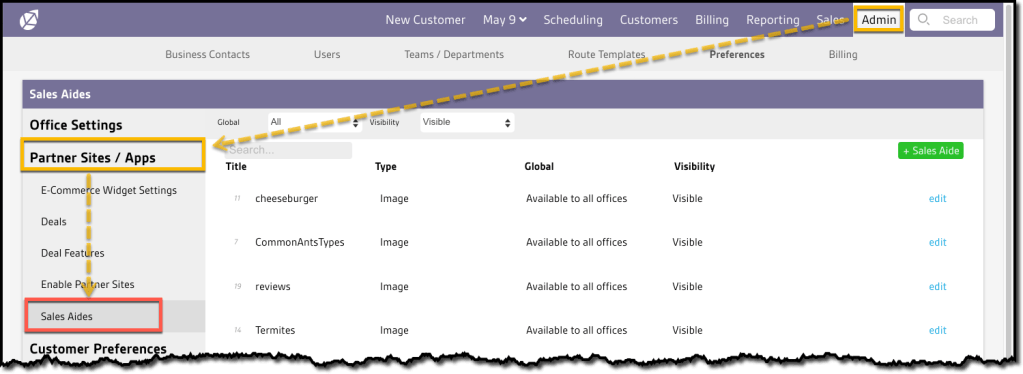
To view new content, first, log out and then log back into the app. Upload new media files using the Sales Aids preference in the Operations Suite (web) found under:
Admin > Preferences > Partner Sites / Apps > Sales Aides
Using the Feed Tab
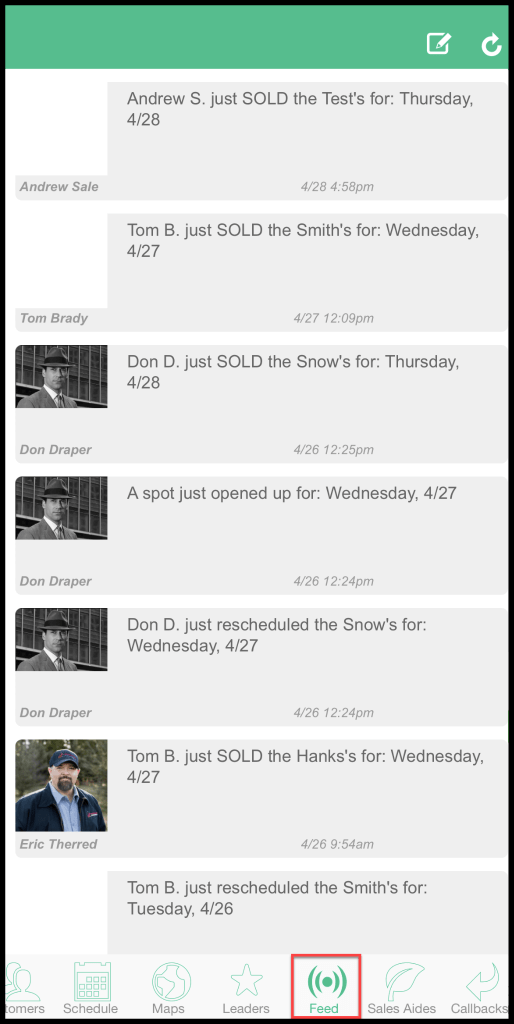
The Feed shows sales the sales representatives made on that day and appointment spots that have opened up.
Posting a New Message in the Feed
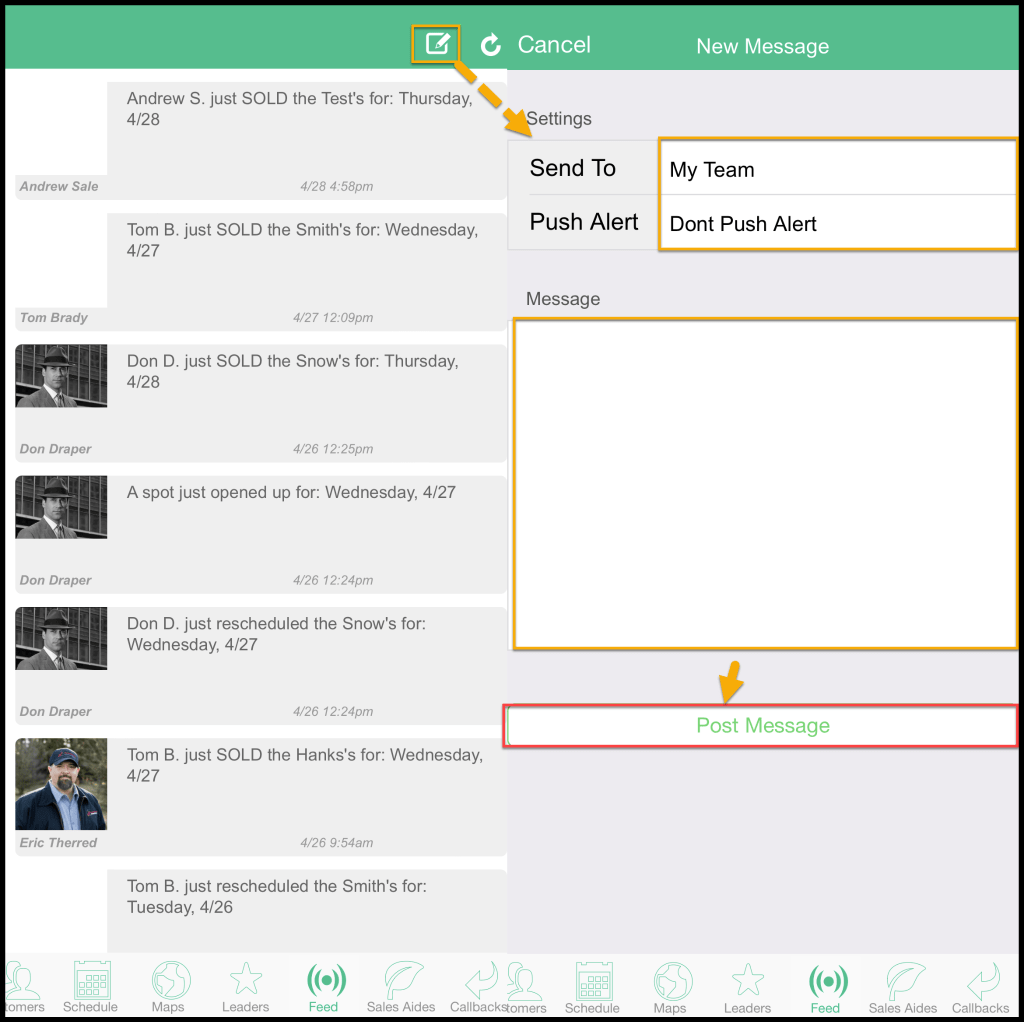
Sales representatives can also post a message in the Feed by selecting the “New Message” icon in the upper right-hand corner of the screen.
When creating a new message, there is an option to “Push Alert” or “Don’t Push Alert”. A push alert will generate a push notification on all team members’ devices. If you don’t push the alert, it will only display in the feed.
Using the Leaders Tab
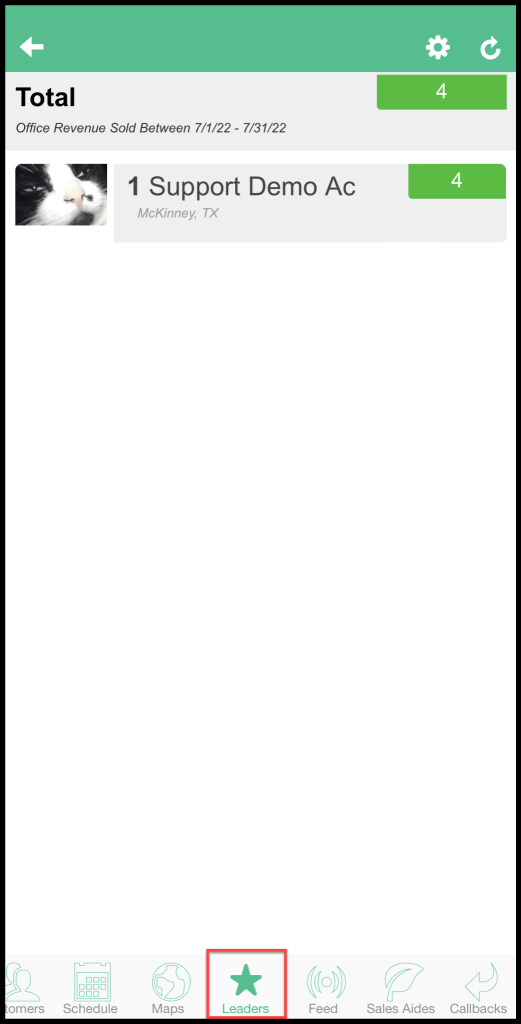
The Leaders tab is a sales leaderboard for the company.
It displays sales information for all Offices and Teams within the company. Select a specific Office to view the Teams, and then select a Team to see the individual Team Members.
NOTE:
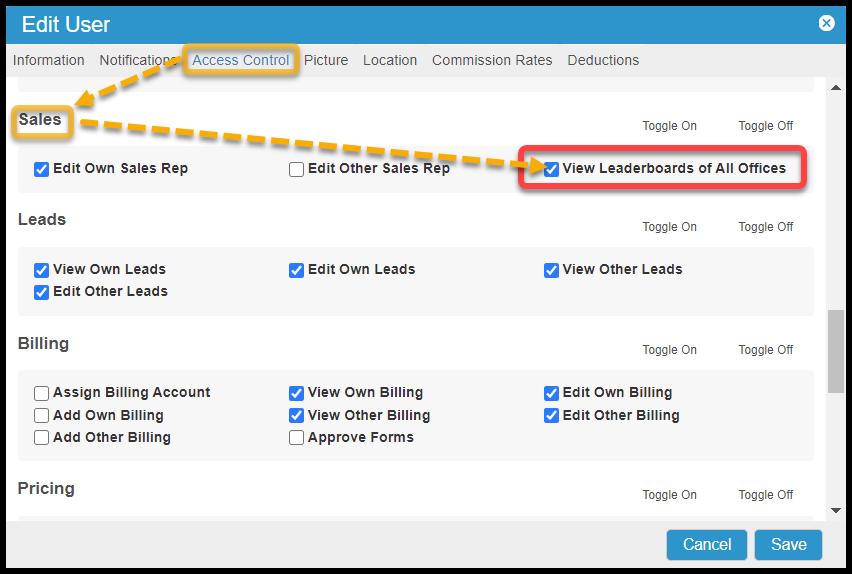
By default, all Offices associated with a company are visible, but deselecting the Access Control:
User > Access Controls > Sales > View Leaderboards of All Offices
that user’s Leaderboard view will be limited to only those Teams within their own Office.
Filtering the Leaders Tab
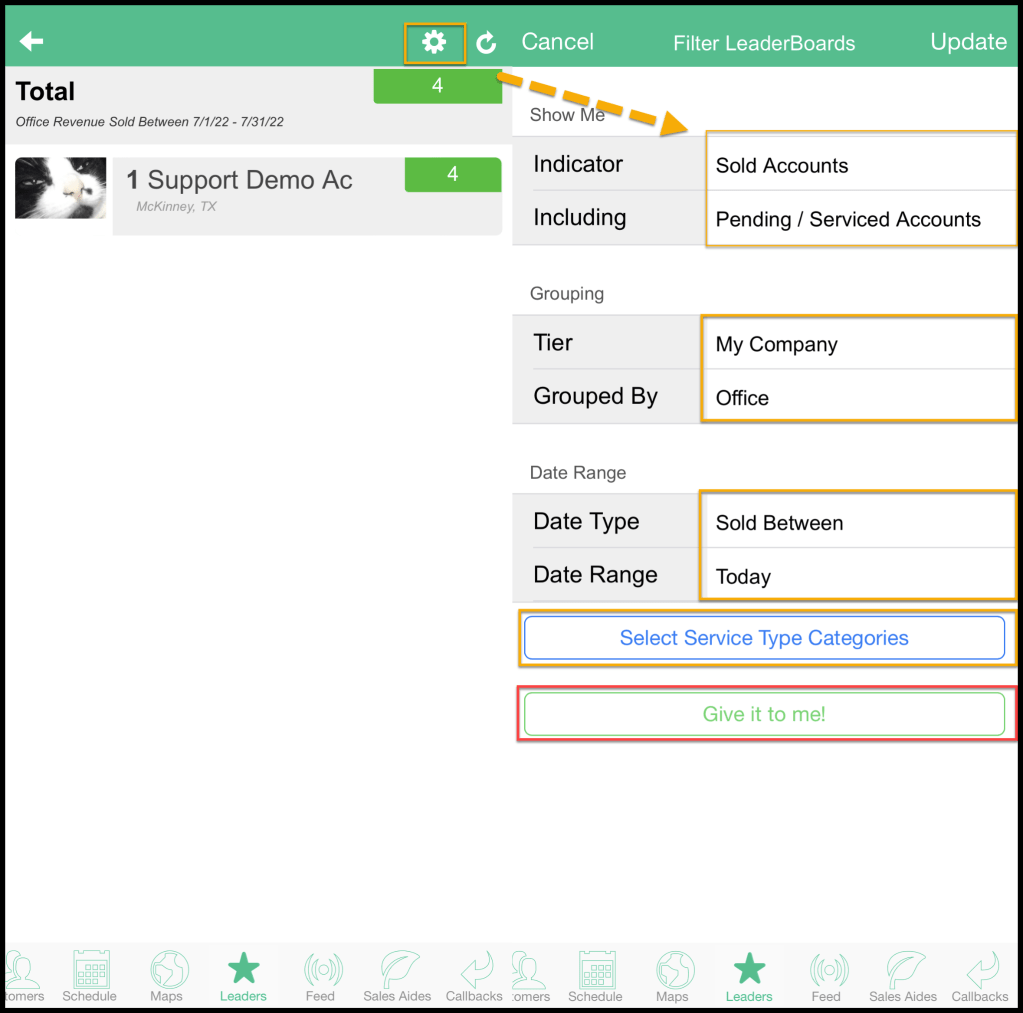
There are a few different ways to filter the Leaders tab as well. Select the gear icon in the upper right-hand corner of the screen, and select the desired options under “show me”, “grouping”, and “date range”.
Viewing the Baseball Card
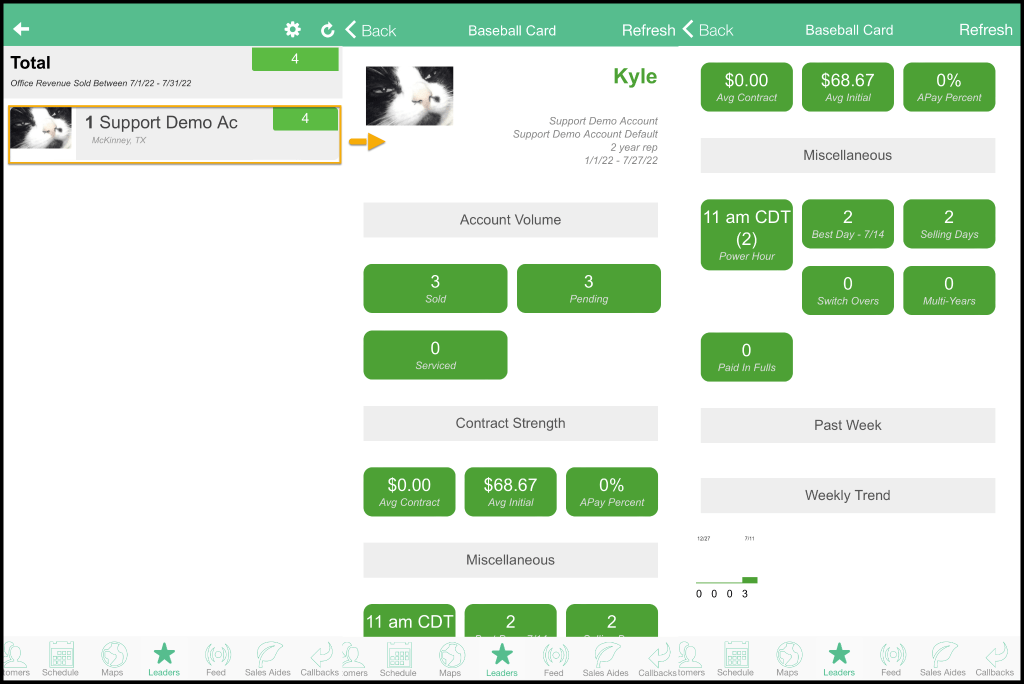
Select a sales representative to see their Baseball Card. The Baseball Card will show statistics for the representative.
 Moxie Pest Control Office Guide