
PestRoutes Sales: Feed Tab
Summary
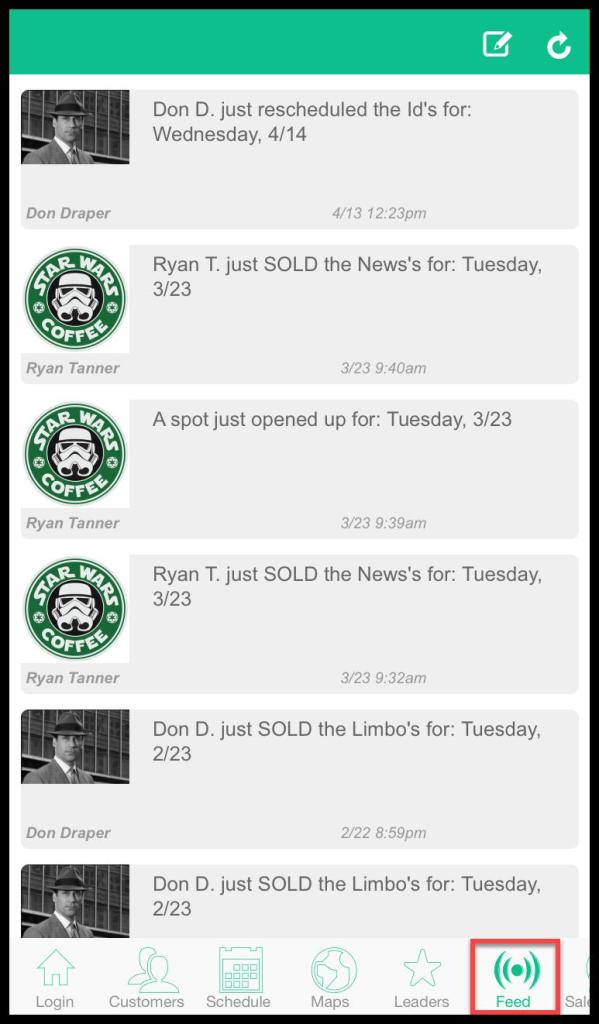
The Feed shows sales the sales representatives made on that day and appointment spots that have opened up.
Important Points:
- A push alert will generate a push notification on all of the team members’ devices. If the alert isn’t pushed, it will only display in the mobile app feed. Carefully choosing push alerts helps avoid having constant notifications occurring during an important sale.
Accessing the Feed Tab
To access the Feed tab in PestRoutes Sales:
Open the PestRoutes Sales App > Feed.
Posting a New Message in Feed
Sales representatives can also post a message in the Feed by pressing the New Message icon in the upper right-hand corner of the screen.
Settings
- Send To: Send the alert to the groups of the user’s team, office, or company (Admin Only).
- Push Alert: there is an option to Push Alert or Don’t Push Alert. A push alert will generate a push notification on all of the team members’ devices. If the alert isn’t pushed, it will only display in the mobile app feed. Carefully choosing push alerts helps avoid having constant notifications occurring during an important sale.
- Message: Write a new message to display on either all of the team members’ devices or only in the mobile app feed. Examples include competition requests to other teams or team lunch requests.
Press Post Message when finished.

Refreshing the Feed
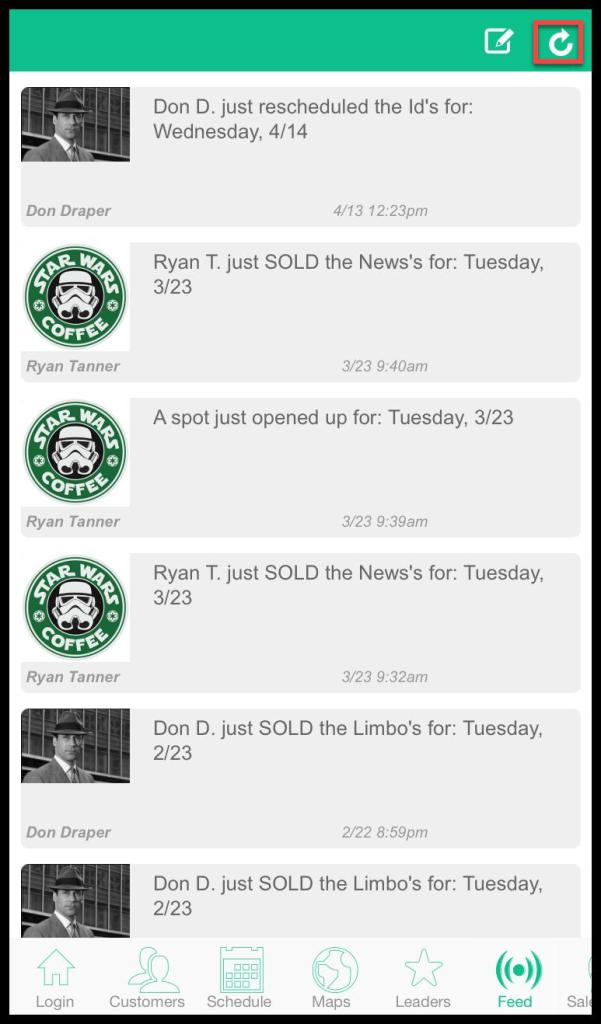
Press the top right-most icon to refresh the Feed.
 Moxie Pest Control Office Guide