
Payment History Report
Summary
The Payment History report displays a summary of all payments processed during a specific date range, filtered by various other factors, and sub-totaled by payment method. It also provides a record of each individual transaction, either by payment method or as an aggregate of all types.
Both successful payments and unsuccessful attempts will be returned.
Important Points:
- If reversed payments should not be included in the report, make sure to select Exclude Reversed Payments in the filters.
- When using FieldRoutes Payments, the Disbursement date will show the date that CC/ACH transactions were deposited into the target account. See the Disbursements Report for detailed information on this topic.
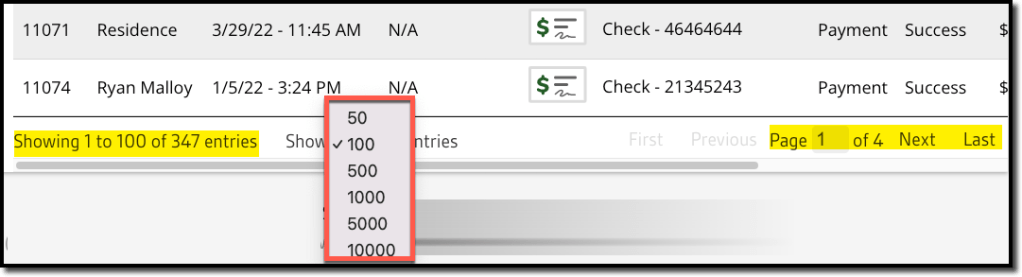
- This report is paginated to make displaying large quantities of results more manageable since many thousands of details could be returned.
Accessing the Payment History Report
To access the Payment History report, go to:
Billing > Payment History

Filtering by Payment Method
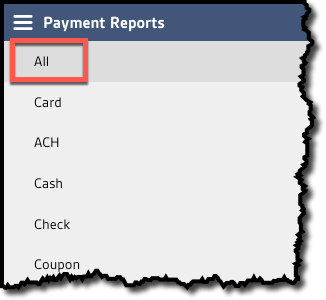
The report defaults to the All payment methods view, but the results can be filtered by any specific payment type in the list, e.g. Check.
Using the Additional Payment History Filters
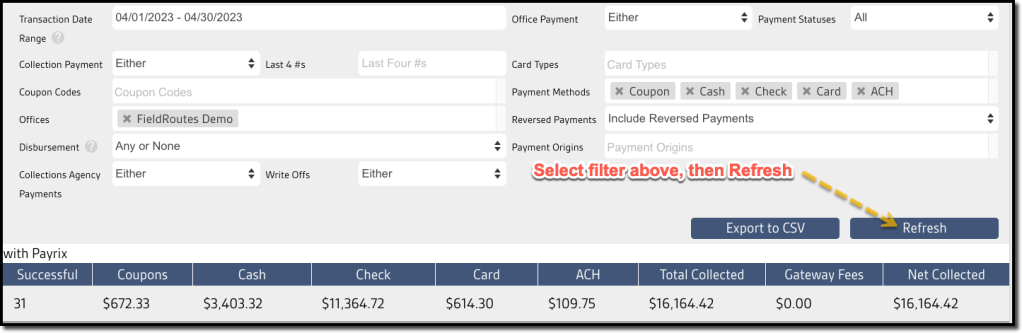
Once the desired payment method is selected, a report can be further filtered with the following parameters:
- Transaction Date Range: Select a period or custom date range to review using the date the transaction was first created in FieldRoutes Payments.
- Office Payment: Include or exclude payments flagged as Office Payments
- Payment Statuses:
- All (default)
- Successful
- Unsuccessful
- Collection Payment: Filter by payments flagged as collection payments.
- Either (default)
- Yes
- No
- Last 4 #’s: Filter by the last four numbers of a specific credit card
- Card Types: Limit to specific card processors
- N/A
- Amex
- Discover
- Mastercard
- Other
- Visa
- Coupon Codes: Limit the report by specific coupon codes.
- Payment Method: View a customized group of payment methods – choose from:
- Coupons
- Cash
- Check
- Card
- ACH
- Offices: Specify branches when multiple branches are possible
- Reversed Payments: Include or exclude reversed payments
- Disbursements: FieldRoutes Payment customers can select all transactions from a particular disbursement. See the Disbursements Report for more information.
- Payment Origins: Select which source of payments to include
- Manual
- Customer Portal
- Batch Process
- Trigger
- Collections
- API
- Import
- Collections Agency Payments:
- Either (default)
- Yes
- No
- Write Offs: Include or exclude Write Offs.
- Either (default)
- Yes
- No
Once the desired filters are selected, select Refresh.
Viewing the Payment History Report’s Summary Totals
Below the filters, the report will include totals for the payments run during the selected date range. The following values are displayed:
- Successful: Shows the number of successful transactions.
- Coupons: Displays the total of the payments made through Coupons.
- Cash: Shows the total of the payments made in Cash.
- Check: Displays the total of the payments made by Check.
- Card Displays the total of the payments made using payment cards.
- ACH: Shows the total of the payments made by drafting bank accounts.
- Total Collected: Displays the overall total by all methods combined.
- Gateway Fees: Charges incurred using an online payment processor.
- Net Collected: The Total minus the Gateway Fees.

Viewing the Payment History Report’s Data Columns
The data columns returned on the lower Payment Details table are:
- Customer ID: The customer’s unique identification number, found on the customer card.
- Customer: The customer’s first and last name
- Transaction Date: The date and time the payment was made, or in the case of an online payment, initiated.
- Disbursement: The date of online transaction disbursement or the status of an uncleared payment (FieldRoutes Payments).
- N/A: Payment is not an online transaction.
- Pending: The online transaction has not yet been disbursed to the target bank account.
- Disbursement: Date the online transaction cleared and deposited to the target bank account.
- Payment Method: The payment method, Card, ACH, Cash, Check, or Coupon with the authorization code for payment card payments
- Type: Displays the Payment Type.
- Status: Displays whether the payment was Successful, Failed, or Approved (FieldRoutes Payments).
- Payment Amount: The value of the payment.
- Fees: Transaction fee(s) associated with card and ACH payments
- Net: The Payment Amount minus the Fees.
- Recorded By: The user who processed the payment (Note: Customer Portal appears when payment was made directly by the customer in the online portal).

Viewing multiple pages of the Payment Detail Report
Since a year’s worth of payment details could return many thousands of lines, the report is paginated, and the display can be customized for specific numbers of lines per page using the settings at the bottom.
Exporting the Payment History Report
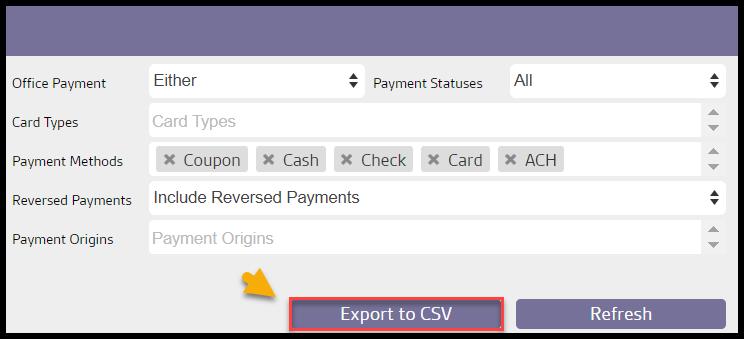
To export the Payment History Report as a CSV File, select Export to CSV.
 Moxie Pest Control Office Guide