
Office Stats Report
Summary
The Office Stats Report enables the user to view different statistics for office staff, thus allowing the user to see how well they perform their jobs compared to average.
This report allows the user to see areas of improvement and excellence for specific employees.
Important Points:
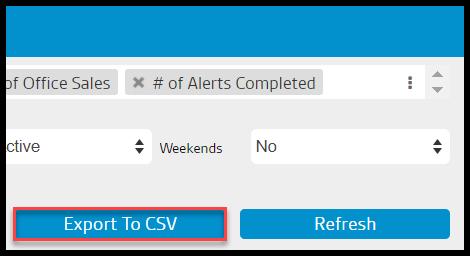
- To export an Office Stats Report as a CSV File, select Export to CSV.
Accessing the Office Stats Report
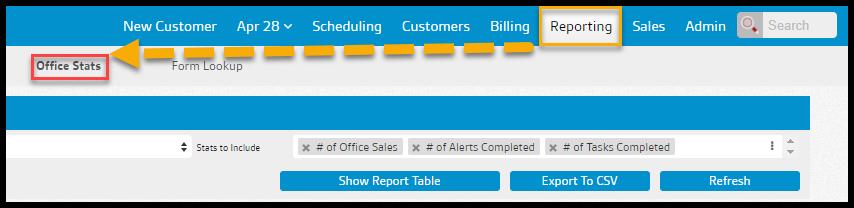
To access Office Stats Report, go to:
Reporting > Office Stats.
Filtering the Office Stats Report (Basic)
To filter the Office Stats Report, toggle these filters.
- Dates: Limit results between certain dates in the Office Stats Report.
- Key Indicator: This is the statistic displayed for each office on the Office LeaderBoard and for each employee on the roster. Employees will be in descending order of the key indicator.
- Stats to Include: This is the data to choose to show the total for each stat and daily averages for the office and each employee. By default, it includes all Key Indicators.

Filtering the Office Stats Report (Advanced)
- Offices: Limit results from certain offices to be included in the Office Stats Report. Users will only be able to select offices that they have access to.
- Employees: Limit results from certain employees to be included in the Office Stats Report.
- Employee Status: Choose to see All Employees, including Inactive or Only Active employees.
- Weekends: Look at data from weekends.
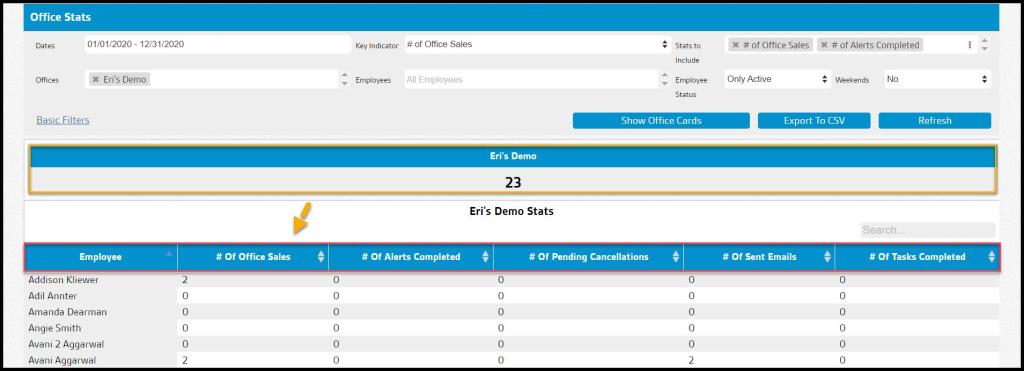
Select Refresh to run the report. Choose Show Report Table or Office Card to display the results as office cards or in a table format.

Using Office Leaderboard
Highlighted is the Office Leader Board. This leaderboard displays each office with the selected key indicator. To see more information about a specific office and the employees within that office, choose the office from the Office Leader Board.

Technician Roster
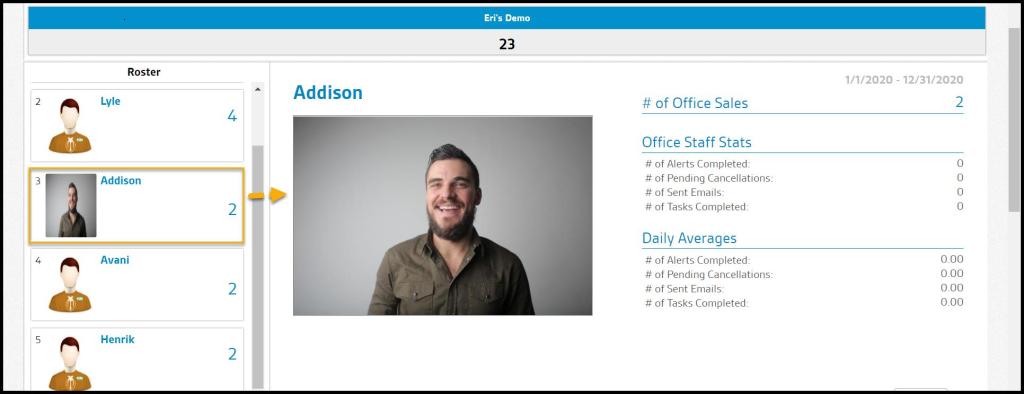
Once the desired office is selected in the Office Leader Board, the user will see a Roster to the left of the report. This roster displays a box for the chosen office and each employee in that office with their respective key indicator value.
Employees are displayed in descending order based on the key indicator, and clicking either the office or the employee box will display its Baseball Card.
- Employee: View the employee name
- # of Alerts Completed: See the number of Alerts that the employee completed.
- # of Account Care Tasks: View the number of tasks in the Account Care category associated with the employee.
- # of AptiveTests: View the number of Aptive tests that are associated with the employee.
- # of Billing Notes: View the number of Notes with the Billing Type created by the employee.
- # of Call Ignored: View the number of calls ignored associated with the employee.
- # of Call-Schedules: View the number of calls scheduled associated with the employee.
- # of Cancel Pendings: View the number of cancels pending associated with the employee.
- # of Cancel Requests: See the number of cancel requests related to the employee.
- # of Cancellation Notes: View the number of Cancellation Notes associated with the employee.
- # of Canceled Appointments: View the number of canceled appointments related to the employee.
- # of Contract Emails: View the number of contract emails associated with the employee.
- # of Contract SMSs: View the number of contract SMS associated with the employee.
- # of Document Emails: View the number of document emails related to the employee.
- # of Email Appointment Reminders: View the number of Email Appointment Reminders associated with the employee.
- # of Emails: View the number of emails related to the employee.
- # of Form Emails: View the number of form emails associated with the employee.
- # of HTTP Hooks: View the number of HTTP Hooks related to the employee.
- # of Lead Notes: View the number of lead notes associated with the employee.
- # of Letters: View the number of letters related to the employee.
- # of No Show Appointments: View the number of Appointments where the customer was marked as a No Show associated with the employee.
- # of Notes: View the number of notes associated with the employee.
- # of Office Sales: View the number of sales completed by the employee for a particular office.
- # of Ones: View the number of Ones associated with the employee.
- # of Orange Notes: View the number of orange notes associated with the employee.
- # of Password Recovery Emails: View the number of password recovery emails associated with the employee.
- # of Pending Cancellations: View the number of pending subscription cancellations related to the employee.
- # of Pending Cancels: View the number of pending cancels related to the employee.
- # of Phone Calls: View the number of phone calls related to the employee.
- # of Purchase Orders: View the number of purchase orders related to the employee.
- # of QA Notes: View the number of Quality Assurance notes associated with the employee.
- # of Quick Returns: View the number of quick returns related to the employee.
- # of Re-instated Subscriptions: View the number of subscriptions that were reinstated associated with the employee.
- # of Reactivations: View the number of reactivations associated with the employee.
- # of Receipt Emails: View the number of receipt emails associated with the employee.
- # of Red Notes: View the number of notes with the red category associated with the employee.
- # of Referrals: View the number of referrals associated with the employee.
- # of Reminder Replies: View the number of reminder replies related to the employee.
- # of Remove Payment Profiles: View the number of payment profiles removed associated with the employee.
- # of Renewal Emails: View the number of Renewal Emails associated with the employee.
- # of Renewal Prints: View the number of Renewal Prints related to the employee.
- # of Renewal SMSs: View the number of Renewal SMS associated with the employee.
- # of Renewal Snail Mails: View the number of Renewal Snail Mails associated with the employee.
- # of Renewal Voice Messages: View the number of Renewal Voice Messages related to the employee.
- # of Return Immediately: View the number of Return Immediately associated with the employee.
- # of SMS Appointment Reminders: View the number of Appointment Reminders sent via SMS associated with the employee.
- # of SMS Replies: View the number of SMS message replies associated with the employee.
- # of SMS Sent: View the number of SMS messages sent associated with the employee.
- # of Salesman Notes: View the number of sales rep Notes associated with the employee.
- # of Save from CXLs: View the number of saving from cancels completed by the employee.
- # of Scheduling Notes: Shows the number of scheduling notes associated with the employee.
- # of Sent Emails: Shows the number of sent emails associated with the employee.
- # of Service Feedbacks: Shows the number of services feedback associated with the employee.
- # of Service Instructions: Shows the number of service instructions associated with the employee.
- # of Service Notifications: Shows the number of Service Notifications associated with the employee.
- # of Service Notifications Reports: Shows the number of Service Notifications Reports associated with the employee.
- # of Snail Mails: Shows the number of Snail Mails related to the employee.
- # of Statement Emails: Shows the number of Statement Emails associated with the employee.
- # of Statement Letters: Shows the number of Statement Letters associated with the employee.
- # of Subscription Cancels: Shows the number of Subscription Cancels associated with the employee.
- # of Subscription Notes: Shows the number of Subscription Notes associated with the employee.
- # of Tasks: Shows the number of tasks associated with the employee.
- # of Tasks Completed: Shows the number of tasks that the employee completed.
- # of Technician Notes: Shows the number of Technician Notes associated with the employee.
- # of Testitouts: Shows the number of Testitouts associated with the employee.
- # of Tests: Shows the number of tests associated with the employee.
- # of Unit Notes: Shows the number of unit notes associated with the employee.
- # of Voice Appointment Reminders: Shows the number of Voice Appointment Reminders associated with the employee.
- # of Voice Mails: Shows the number of voicemails associated with the employee.
- # of Voice Messages: Shows the number of voice messages associated with the employee.
- # of Welcome Call Notes: Shows the number of Welcome Call Notes associated with the employee.
- # of Yellow Notes: Shows the number of notes with the category of yellow notes associated with the employee.
- # of letters: Shows the number of letters associated with the employee.
Office Card
Select an employee in the roster to view the Office Card. This option displays the selected Key Indicator and its value. The statistics selected in the Stats To Include filter will also display for that employee and the daily average of all employees within that office.
Staff Performance Chart
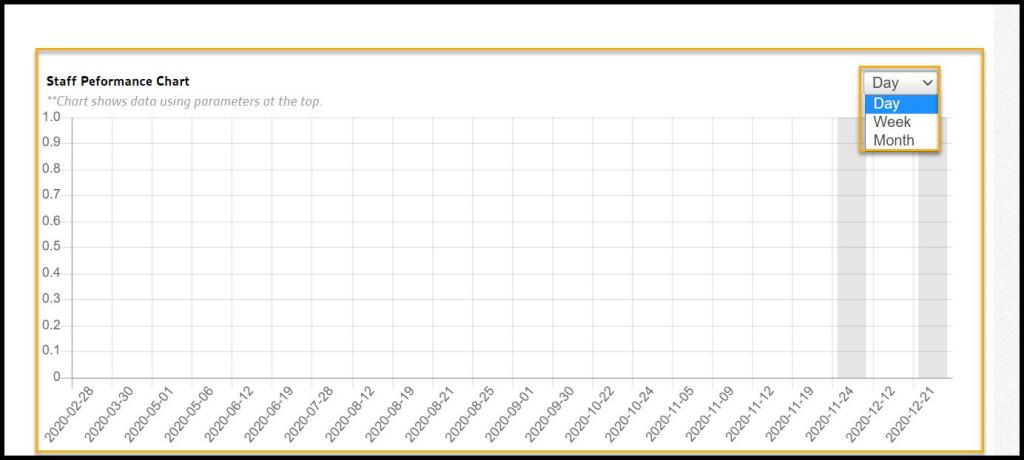
The Staff Performance Chart is a graphical representation of the selected Key Indicator. It defaults to Week View- Use the drop-down to change to a Month or Day view.
Exporting an Office Stats Report
To export an Office Stats Report as a CSV File, select Export to CSV.
 Moxie Pest Control Office Guide