
Objections
Summary
The Objections preference is used to identify and track why customers are declining services. This preference allows users to organize customers while knocking. Please see the Closing Through Objections guide for more information on how to close through a sale. Objections can be created in the Preferences section.
Important Points:
- Please see the Closing Through Objections guide for more information on how to close through a sale.
- Use the Objections to organize customers who decline or object to sales.
Accessing the Objections in Preferences
To access Objections, go to:
Admin > Preferences > Mobile > Objections.
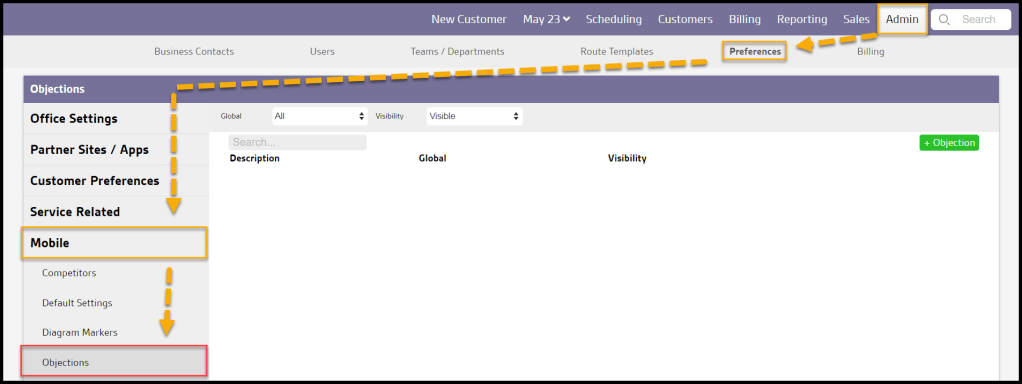
Filtering the Objections
To filter the Objections, toggle these filters.
- Visibility
- All: Show all Objections.
- Visible: Show only visible Objections.
- Hidden: Show only hidden Objections.
- Global
- All: Display all objections.
- Specific to Office: Display only Objections flagged to be specific to the user’s office.
- Available to all offices: Display only objections flagged as open to all offices.
The Objections will refresh after different filters are selected.

Adding an Objection
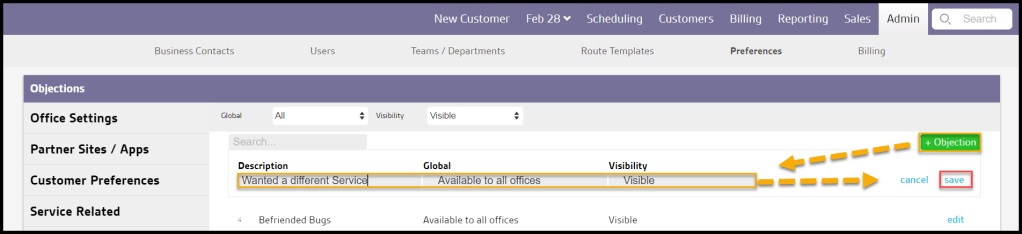
To add a new Objection, select + Objection or select Edit to change an existing objection.
- Description: Name the reason why the customer objected.
- Global: Determine if the Objection will be shown to specific or all offices.
- Visibility: Hide or show Objections. The user cannot delete Objections, only hidden from being selected.
Select Save when finished editing the Objection.
Where is an Objection used?
Objections are used in the mobile apps to show the user why a customer objected to a door knock.
 Moxie Pest Control Office Guide