
Notifications, Tasks, and Alerts for Chargebacks and ACH Returns
Summary
To quickly troubleshoot any problem transactions and promote reliable payment processing, special Trigger Rules, Task alerts, and UI notifications are available exclusively to FieldRoutes Payments users indicating when a card payment is disputed by a customer, or an ACH bank payment is unsuccessful.
Trigger Rules email notifications to selected employees, Task alerts, and customer alert emails are automatically generated, problematic bank accounts are flagged in Billing, and a notification appears in the Customer Portal allowing employees and customers to address disputed payments or update bank account info in the Customer Card or Portal.
Section Topics
- Access the Trigger Rules Preference
- Chargeback Trigger Rules
- The Chargeback Notification Email
- Chargeback Task Alerts
- ACH Return Trigger Rules
- The ACH Return Notification Email
- ACH Return Task Alerts and Account Flags
- Customer Email and Portal Notification
Important Points:
- Chargeback and ACH Return trigger rules are only available to FieldRoutes Payments/PestRoutes Payments customers.
- Since chargebacks have a limited response time, it is important to dispute the chargeback with the bank as soon as possible in cases where the charges are legitimate.
- If the customer switches to another payment provider after creating these rules, the Chargeback and ACH Return rules will remain but will only produce notifications when FieldRoutes Payments is the processor.
- While user email notifications must be set up through Trigger Rules, the Tasks, Customer Billing, customer email notifications, and Portal alerts are all automated for FieldRoutes Payments users.
Access the Trigger Rules Preference
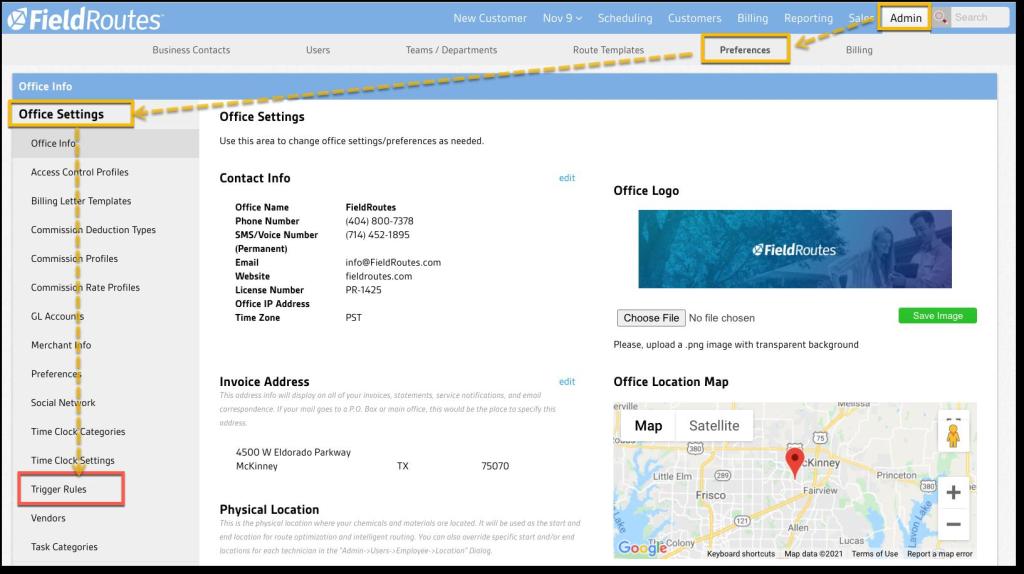
To set up a Chargeback or ACH Return rule, navigate to the Trigger Rules preference:
Admin > Preferences > Office Settings > Trigger Rules
Chargeback Trigger Rules
To create automated email notifications for your employees when a customer disputes a card payment, select the +Trigger button to create a new rule.
From the Trigger Type drop-down menu, select Chargeback, and add the following information:
- Description: Provide a name for this rule (e.g., Chargeback Notifications)
- Global: Choose whether this rule is:
- Specific to This Office
- Available to All Offices
- Start Date: Set a Start Date
- End Date: Optional; for when a rule is intended for temporary or limited activation
- Active: Set to Active (default). This may be set to Inactive if the rule needs to be disabled but not completely deleted.

Since there are no filters to apply, the filter area will be blank for this type of Trigger Rule.
NOTE:
You may notice a reminder that this Trigger Rule type is only available to those using PestRoutes Payments/FieldRoute Payments.
Select the +Action button to set up the desired notification targets. There are two options, and either one or both may be added:
- Send Email: Enter one or more email addresses to which the notifications are to be sent (separate multiple addresses by a semi-colon).
- Send Employee Email: A drop-down lists all employees with an email address, and either one or multiple employees may be selected.
Once the desired email targets have been added under the Action section, select Save, and the rule will become Active.

The Chargeback Notification Email
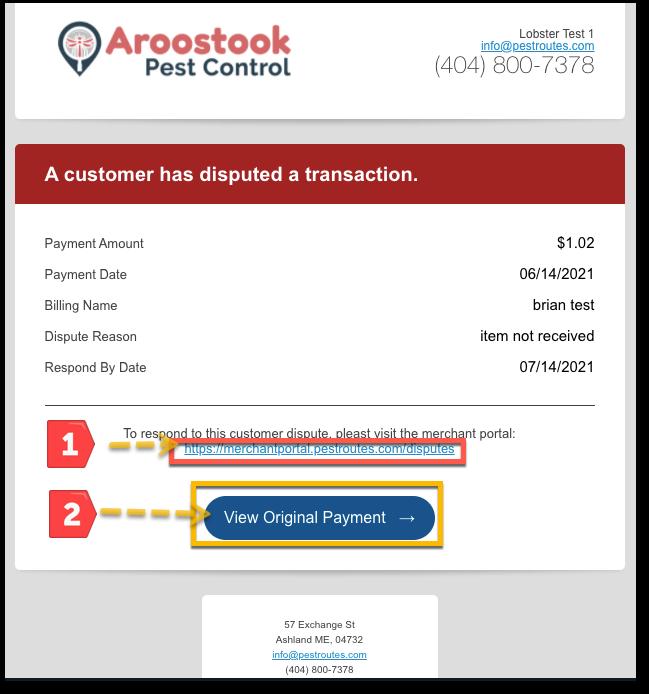
The target employee(s) will receive an email in the following format, providing:
- Payment Amount: Shows the amount of the disputed payment
- Payment Date: Displays the date of the disputed transaction.
- Billing Name: View the name of the responsible payer per the Billing tab for the customer.
- Dispute Reason: Displays the reason the payer gave for reversing the payment, e.g., Item not received.
- Respond By Date: Shows the date by which a response must be made to the bank to justify the legitimacy of the charge.
The email will also contain two links for troubleshooting and responding to the disputed charge:
- Merchant Portal: Opens the Payrix portal area where disputed payments can be addressed and supporting documentation can be uploaded
- Original Payment link: Review the disputed payment within the system.
Chargeback Task Alerts
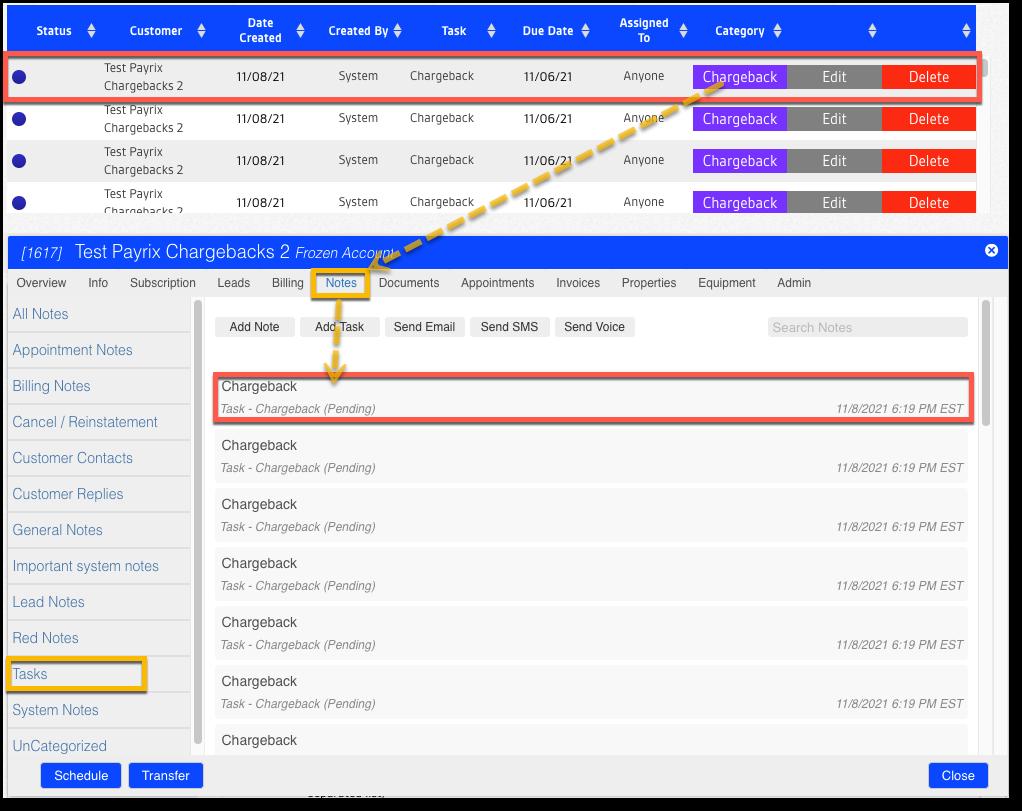
For those using FieldRoutes Payments, a Task alert will be created with a Chargeback category in the Task List whenever a chargeback notification is received. A corresponding Task is also added to the related customer’s Notes tab on their Customer Card.
These can be used for tracking and recording responses and results during the dispute process.
ACH Return Trigger Rules
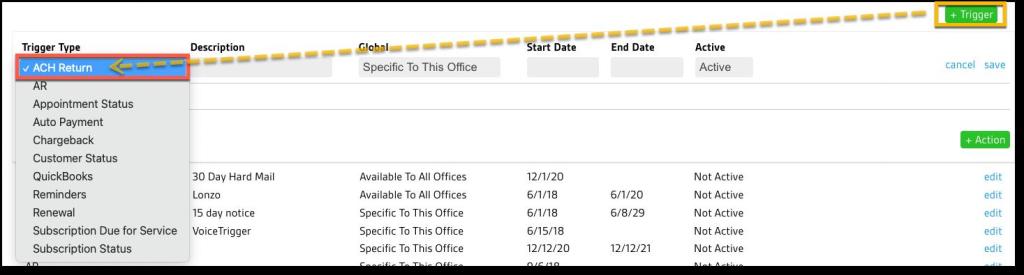
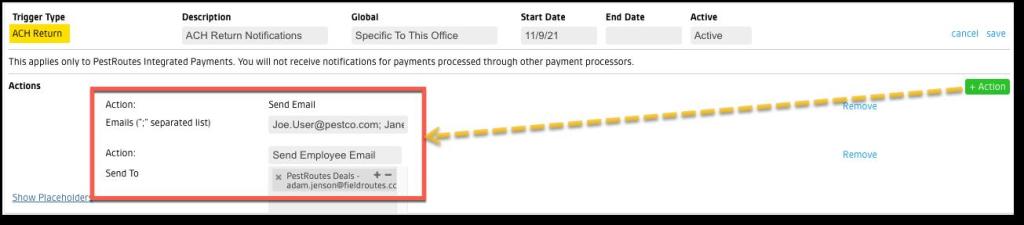
To create automated email notifications for your employees when an ACH transaction fails, select the +Trigger button to create a new rule.
From the Trigger Type drop-down menu, select ACH Return, and add the following information:
- Description: Provide a name for this rule (e.g. ACH Return Notifications)
- Global: Choose whether this rule is:
- Specific to This Office
- Available to All Offices
- Start Date: Set a Start Date
- End Date: Optional; for when a rule is intended for temporary or limited activation
- Active: Set to Active (default). This may be set to Inactive if the rule needs to be disabled but not completely deleted.
Since there are no filters to apply, the filter area will be blank for this type of Trigger Rule.
NOTE:
You may notice a reminder that this Trigger Rule type is only available to those using PestRoutes Payments/FieldRoute Payments.
Select the +Action button to set up the desired notification targets. There are two options, and either one or both may be added:
- Send Email: Enter one or more email addresses to which the notifications will be sent (separate multiple addresses by a semi-colon).
- Send Employee Email: A drop-down lists all employees with an email address, and either one or multiple employees may be selected.
Once the desired email targets have been added under the Action section, select Save, and the rule will become Active.
The ACH Return Notification Email
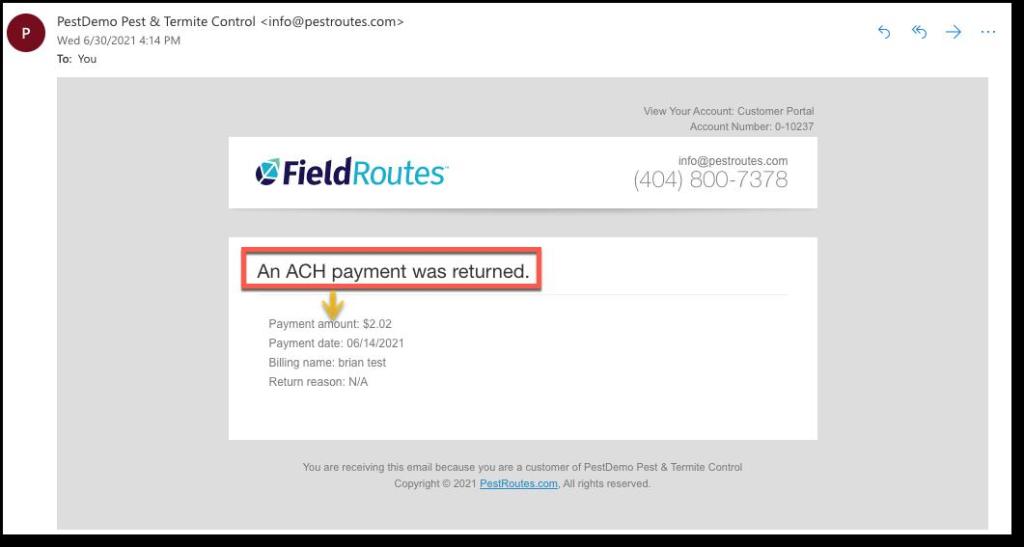
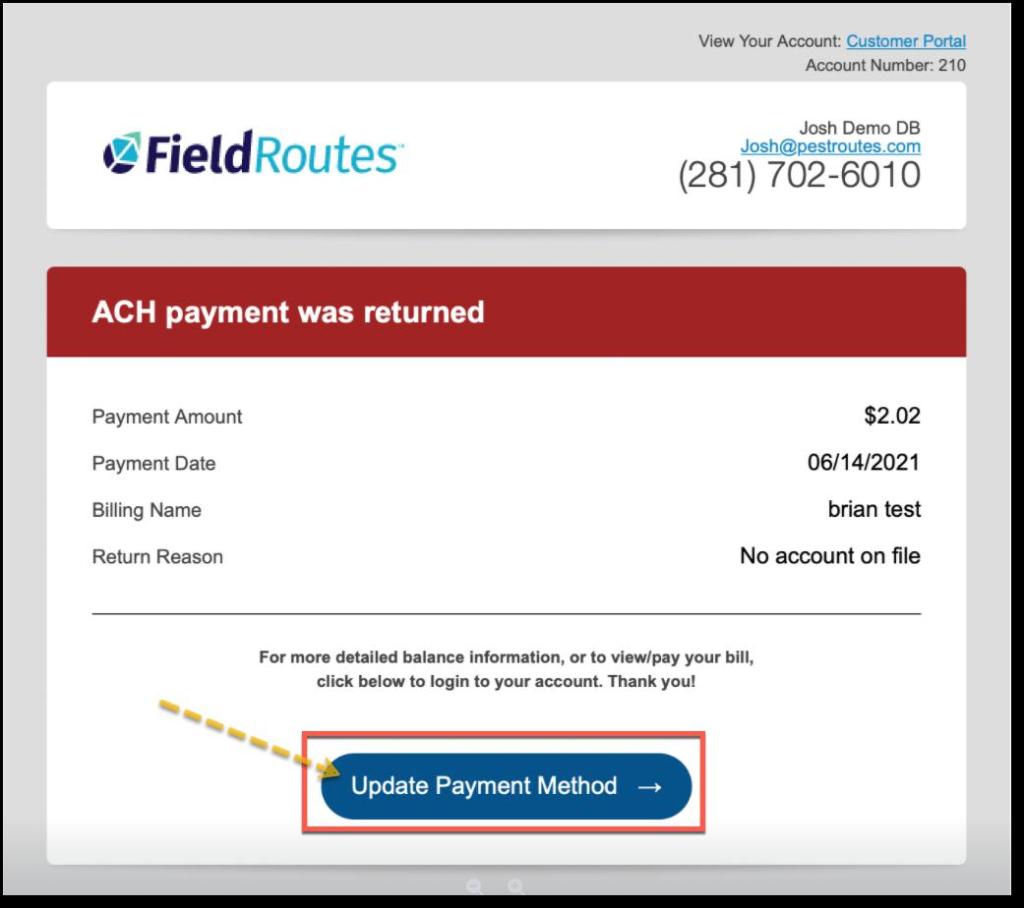
Once the Trigger Rule is set up, whenever FieldRoutes Payments reports an ACH return, the rule will automatically send the listed employees and email addresses a notification email that An ACH payment was returned, listing:
- Payment Amount
- Payment Date
- Billing Name
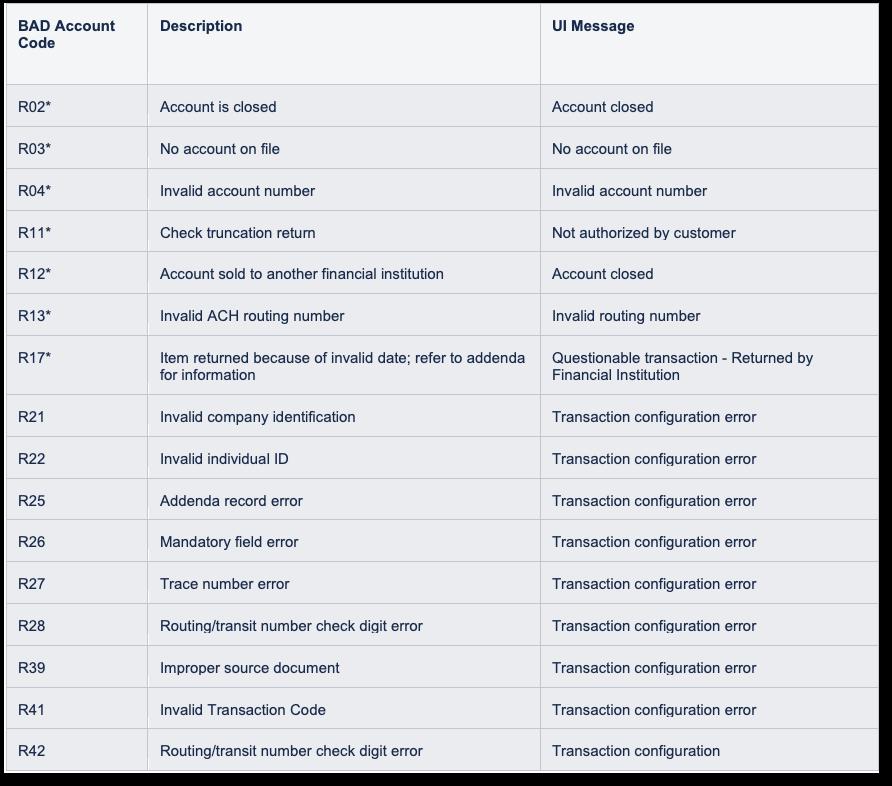
- Return Reason (see possible reasons below)
ACH Return Task Alerts and Account Flags
When a failed ACH payment has been reported by FieldRoutes Payments, two actions will automatically occur in the web app:
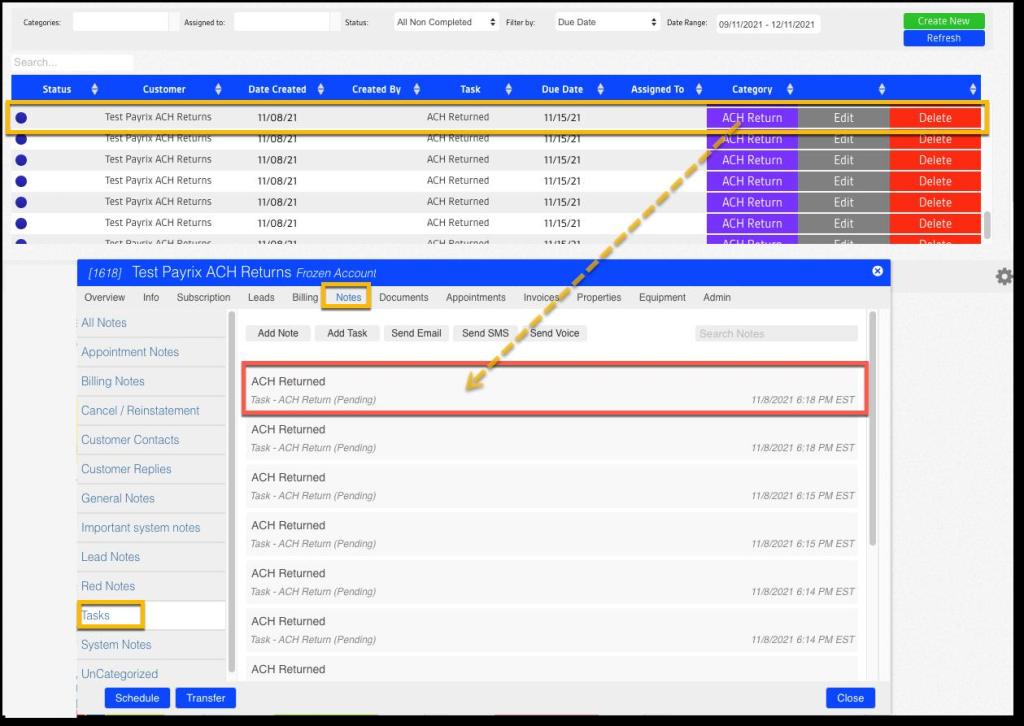
- A Task is created in the Task List
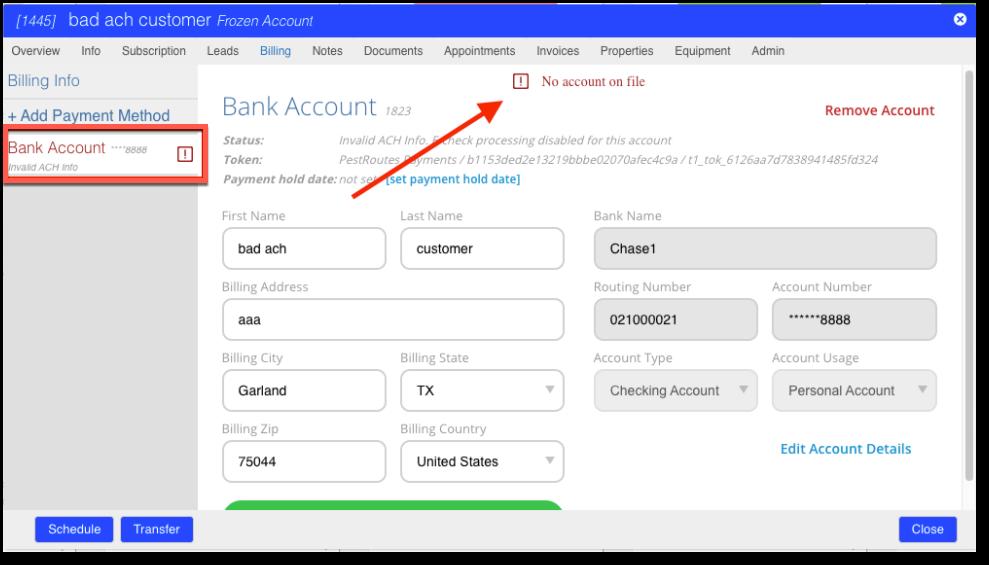
- The bank account is flagged in the Customer Card > Billing tab
First, a failed ACH payment will generate a new Task in the Task List with the category of ACH Return, which is also listed on the Customer Card > Notes tab under Tasks. This lets the office worker know this customer payment requires extra steps to get payments back on track and provides a place to record relevant information.
Second, the related bank account in the Customer Card > Billing tab will be highlighted in red and a message at the top of the page will indicate what issue has caused the ACH return (see message list below).
The following reasons may be displayed for the ACH Return:
Customer Email and Portal Notifications
FieldRoutes Payments also reports any ACH payment return to the affected customer. An email is automatically sent to the Billing Email and the addresses of any related Billing Contacts listed in the Billing tab of the responsible payer. If multiple parties are listed, each will receive a copy of the email.
The email provides
- Payment Amount
- Payment Date
- Billing Name
- Return Reason
A link will take the customer to their Portal, where the bank account information can be reviewed and updated.
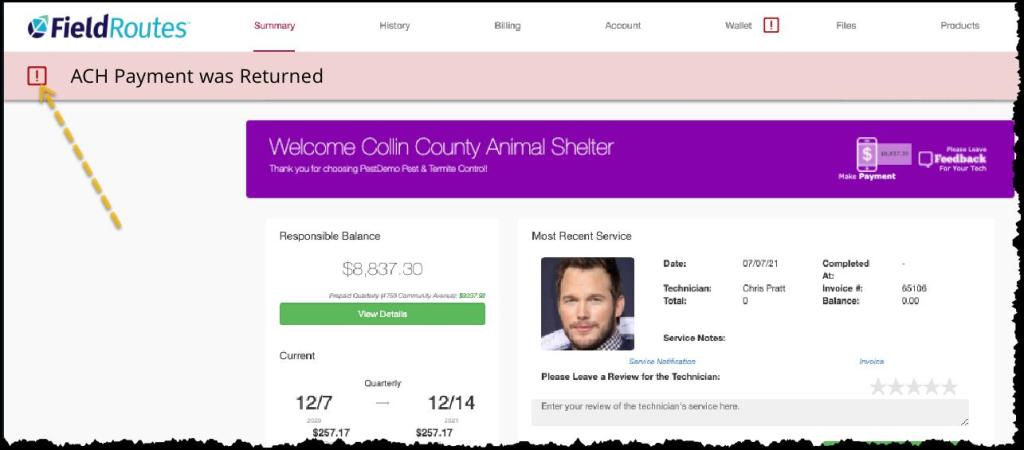
Upon Portal login, the customer will also see a banner at the top of their landing page and an alert icon on the Wallet tab indicating that an ACH payment was returned and requires attention.
Clicking on the icon in the notification banner will take them to the Wallet tab, where they can remove or update the affected account.
 Moxie Pest Control Office Guide