
Notes Report
Summary
The Notes Report allows a user to find all the notes that have been created on a customer card. Once customer notes are complete, this report can be used to find those customers and specific criteria in the customer’s notes.
Important Points:
- Red notes are included in this report.
- Note types are fully configurable through Admin > Preferences > Customer Preferences > Note Types. See the guide on note types for more information.
Accessing the Notes Report
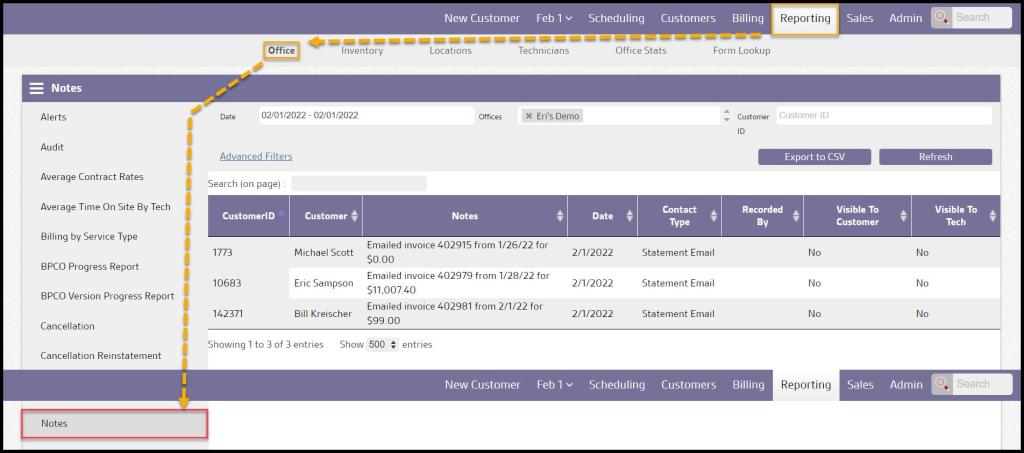
To access the Notes report, go to the
Reporting > Office Reporting > Notes.
Using the Basic Notes Report Filters
The basic filters at the top make it easy to quickly filter the report by date range, customer, and office.
- Date: Pull notes within a certain date range.
- Offices: Search for notes based on an Office.
- Customer ID: Search for notes based on a customer’s unique identification number.
Select Refresh when finished with the filters to load any changes or Advanced Filters to filter the report further.

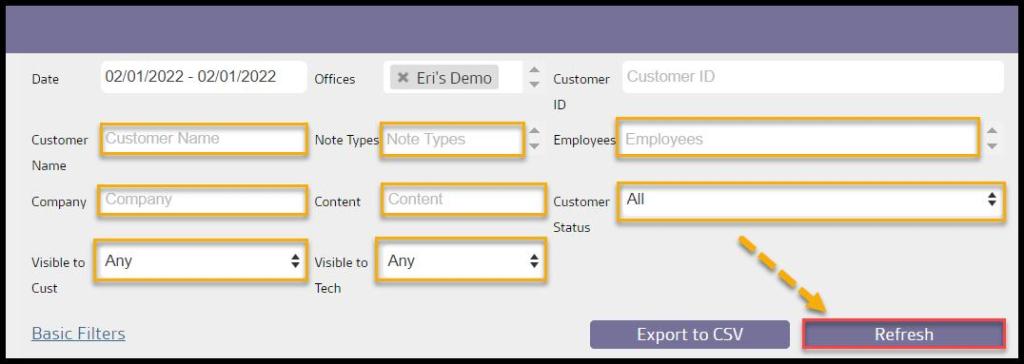
Using the advanced Notes Report Filters
The advanced filters at the top make it easy to filter the report further by content type, customer status, visibility, and more.
- Customer Name: Search for notes based on a customer’s name.
- Note Type: Filter the report by a specific type of note.
- Select Employees: Filter notes created by a specific user.
- Company: Search for a specific company’s name.
- Content: Search for specific keywords in the content of the note.
- Customer Status: Search for notes based on the customer’s status.
- All: Search for notes regardless of customer status.
- Frozen: Search for notes for frozen customers.
- Active: Search for notes for customers that are still active.
- Visibility to Tech: Search for notes based on the visibility to the technician.
- Visibility to Cust: Search for notes based on the visibility to the customer.
Select Refresh to see new results.
Searching the Notes Report
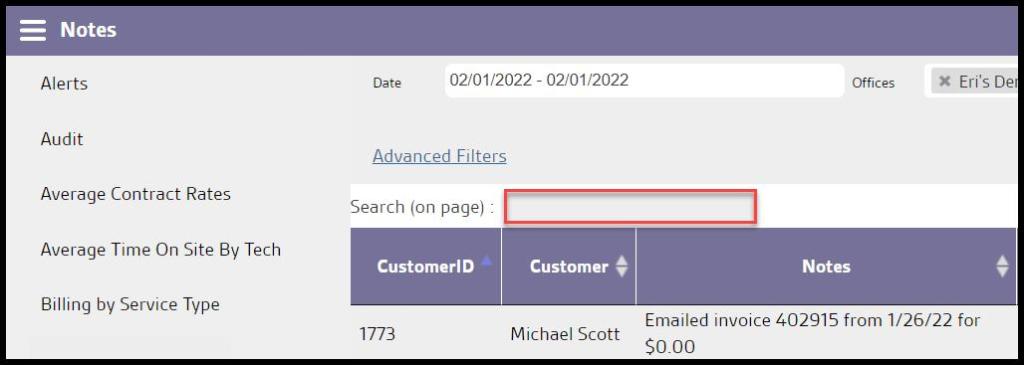
The Notes report can be searched for specific notes by using the search bar.
Viewing the Notes Report Data Columns
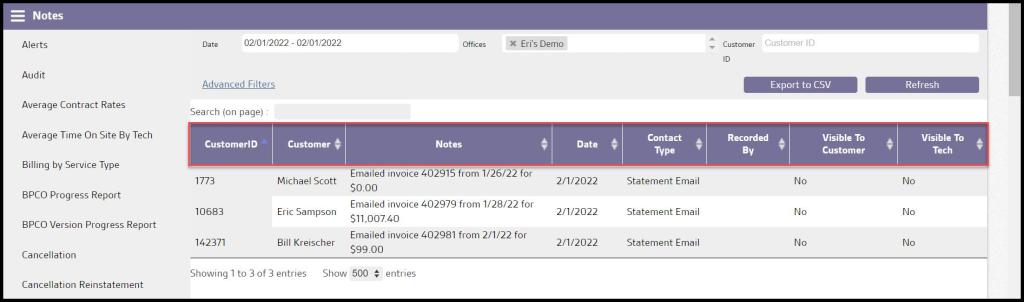
The following columns are displayed for each note included in the report.
- Customer ID: Displays the customer’s unique identification number.
- Customer: Displays the customer’s name.
- Notes: Displays the actual note placed on the account.
- Date: Displays the date the note was placed on the account.
- Contact Type: Displays the type of contact for the note.
- Recorded By: Displays the user that created the note.
- Visibility to Tech: Shows if the note is visible to the technician.
- Visibility to Cust: Shows if the note is visible to the customer.
Exporting the Notes Report
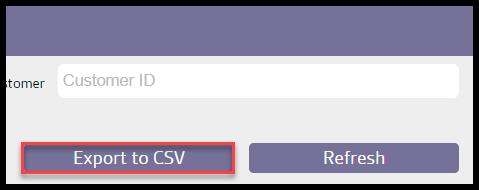
The report can be exported as a CSV file. Select the Export to CSV button under the filters.
 Moxie Pest Control Office Guide